Backups and restoring
Your audiobooks are files in your own folders, and AudioSilo never changes them. Everything else lives in the server's database: who has an account, how far everyone got in every book, bookmarks, notes, your metadata edits, shares, invites and devices. The book list in it can be rebuilt by scanning your folders again; the rest can't. A backup is a copy of that database.
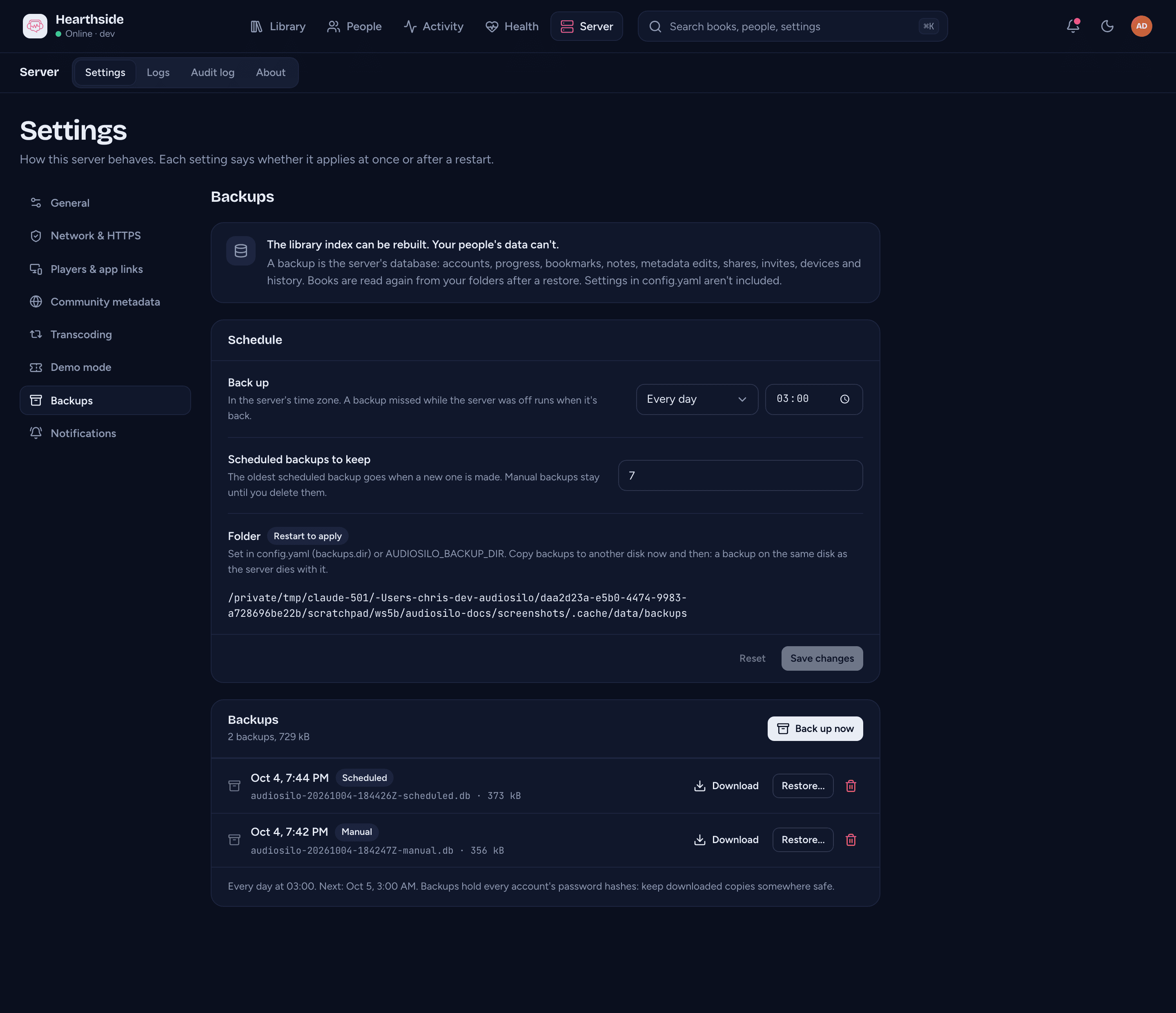
Backups live in Server > Settings > Backups in the admin console.
What is in a backup
A backup is one file holding the whole database at the moment it was made:
- accounts (with their password hashes, never the passwords themselves), signed-in devices and API keys, and invites;
- listening progress, bookmarks, notes, history and favourites;
- shares and who can see what;
- your metadata edits, custom covers and folder detection choices;
- the audit log, your notification destinations, and the event list behind the bell.
It does not hold:
- your audiobooks (back up your book folders on their own);
- the server's settings file,
config.yaml(the server name, address, HTTPS and the other settings), or its HTTPS certificates. Keep a copy of the data folder'sconfig.yamlwith your backups.
The schedule
The Schedule card:
- Back up - Off, Every day or Every week, then (for a weekly backup) the day and the time. The time is the server's own time zone. Out of the box the server backs up every day at 03:00. If the server was off when a backup was due, it makes one as soon as it is back (one, however many it missed).
- Scheduled backups to keep - how many scheduled backups stay in the folder, 7 out of the box (anything from 1 to 365). Once there are more, the oldest scheduled backup is deleted each time a new one is made (except one that is waiting to be restored). Backups you make with Back up now are never deleted for you: they stay until you delete them.
- Folder - where backups are kept: a
backupsfolder inside the server's data folder unless you choose another one. It can't be changed here, only inconfig.yaml(backups.dir) or with theAUDIOSILO_BACKUP_DIRenvironment variable, and a new folder is used from the next restart.
Press Save changes to apply a new schedule. It takes effect at once, no restart needed. The line under the list says when the next backup runs.
:::tip Keep a copy somewhere else
A backup on the same disk as the server is lost with it. Point the folder at
another disk (a NAS share, a second drive) in config.yaml, or download a
backup now and then and keep it somewhere else. Either way, keep it private: a
backup holds every account's password hashes.
:::
The list
The Backups card lists every backup, newest first, with when it was made, its kind, its file name and size:
- Scheduled - made by the schedule.
- Manual - made with Back up now (or a backup file you copied into the folder yourself).
- Before a restore - the copy of the database that a restore replaced.
Back up now makes a backup straight away; the button says "Backing up..." until it's done, and a message says how it went. For each backup:
- Download saves the file to your computer. Downloads are recorded in the audit log.
- Restore... puts the server back to that backup (see below).
- The bin deletes it from the server's folder ("Delete this backup?"). Copies you downloaded aren't affected.
If a backup fails, a notice says so with the reason: the disk is full, the server can't write to its backups folder (check the folder's permissions), or something else (the cause is in Server > Logs). The same shows as Failed on Health > System, and you can have it sent to you.
Restoring a backup
A restore replaces the server's whole database with the backup, so everything done since that backup was made is lost. It never happens while the server is running: you choose the backup now, and the server swaps it in the next time it starts.
-
Press Restore... on the backup you want.
-
Read what will happen, type
restorein the box, and press Restore at the next start.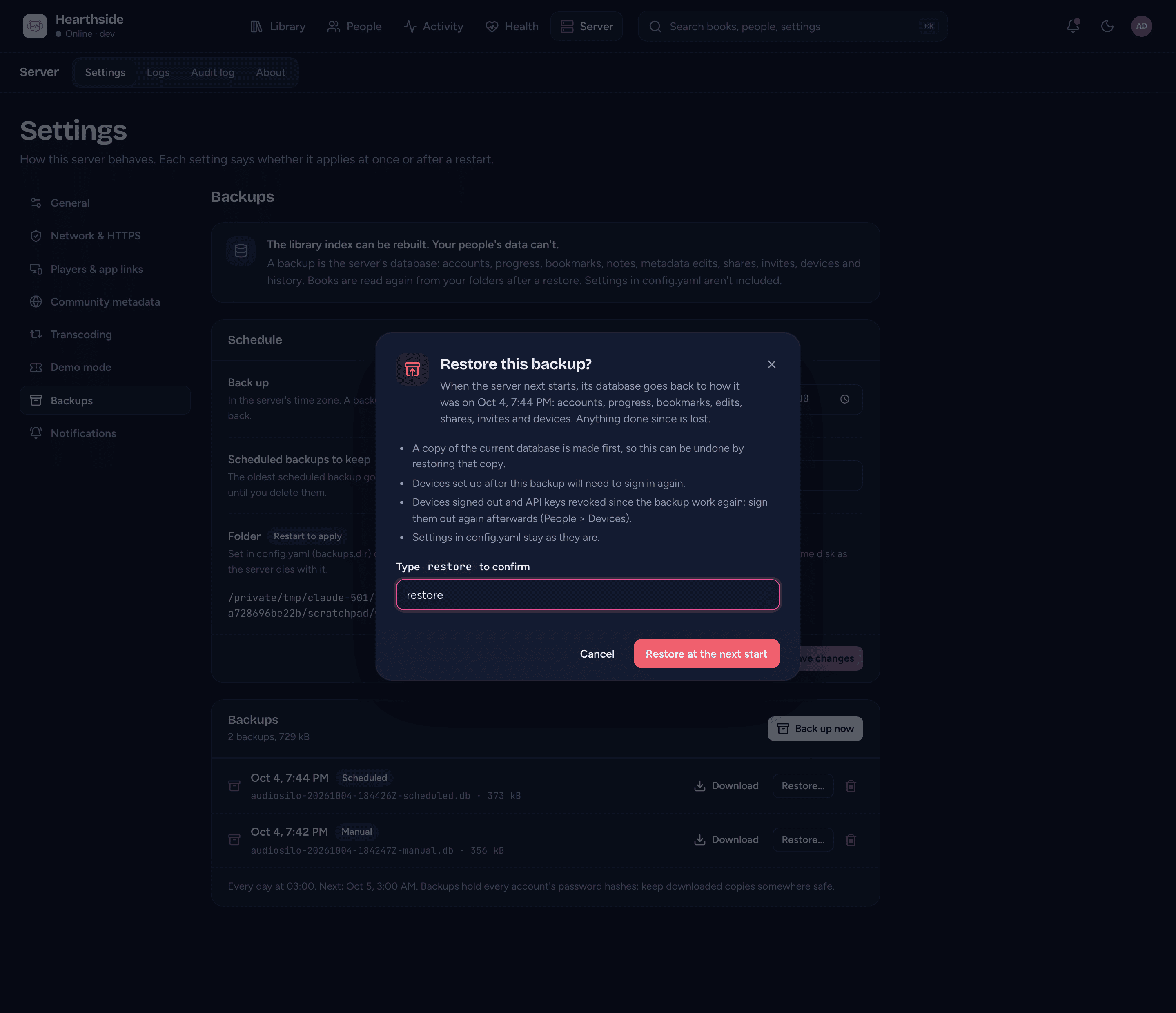
Before accepting it, the server takes a quick look at the file: one that isn't an AudioSilo backup is refused, and so is a backup made by a newer version of AudioSilo (update this server first). A backup from an older version is fine: it is brought up to date when the server starts. The full check for damage happens when the server starts (see below).
-
A notice, "A restore is waiting for a restart", now sits at the top of the page, with Cancel restore if you change your mind. Nothing has changed yet.
-
Restart the server the way you started it (
docker compose restart, restarting the service, or quitting and starting the program again).
When the server starts, it checks the backup again, keeps a copy of the current database first (it appears in the list as Before a restore), then puts the backup in its place. Afterwards the Backups page says "Restored from backup (time)" and names the copy it kept. To undo the restore, restore that copy the same way.
If the backup can't be used when the server starts (it was deleted in the meantime, it turned out to be damaged, or the note of which backup to restore couldn't be read), the server starts with its database as it was, and the page says "The restore from backup wasn't applied" and why. It doesn't try again at the next start.
What to expect after a restore:
- Accounts, passwords, progress, bookmarks, edits, shares, invites and devices are as they were when the backup was made.
- Phones and browsers set up after the backup must sign in again. Devices you signed out, and API keys revoked, after it was made work again, so sign them out again on People > Devices afterwards. The restore dialog says this too.
- Settings in
config.yamlstay as they are, and the server's identity does too, so the apps still recognise it. - Your books are read again from your folders when the server starts, so books added since the backup come back on their own.
- The restore is recorded in the audit log.
Restoring a copy you kept elsewhere
The server only restores backups that are in its backups folder. To restore a
file you downloaded, copy it back into the folder, keeping its name (it starts
with audiosilo- and ends with .db). It appears in the list, and Restore...
works as above.
This is also how you move to a new disk or machine: install AudioSilo, sign
in to the new server's console once, copy your backup into its backups folder,
restore it and restart. Copy your old config.yaml into the new data folder
too if you want the same settings.
Where to next
- Notifications - hear about a failed backup.
- Server settings, updates and logs - the other settings, and the audit log.
- Health > System - the backups at a glance.