Books and metadata
The Library destination of the admin console is where you see every book on your server and tidy up what players show about it: titles, authors, narrators, series, covers and chapter names.
:::info Your files are never changed Every edit you make here is stored in AudioSilo's own database as an override, and it is locked: a rescan reads the file again but keeps your edit. Nothing is ever written to your audio files or book folders, and you can revert any edit to what the file says. :::
Browsing books
Library > Books shows every book across all your libraries as a cover grid. Books without cover art get a generated cover, so the grid never has holes.
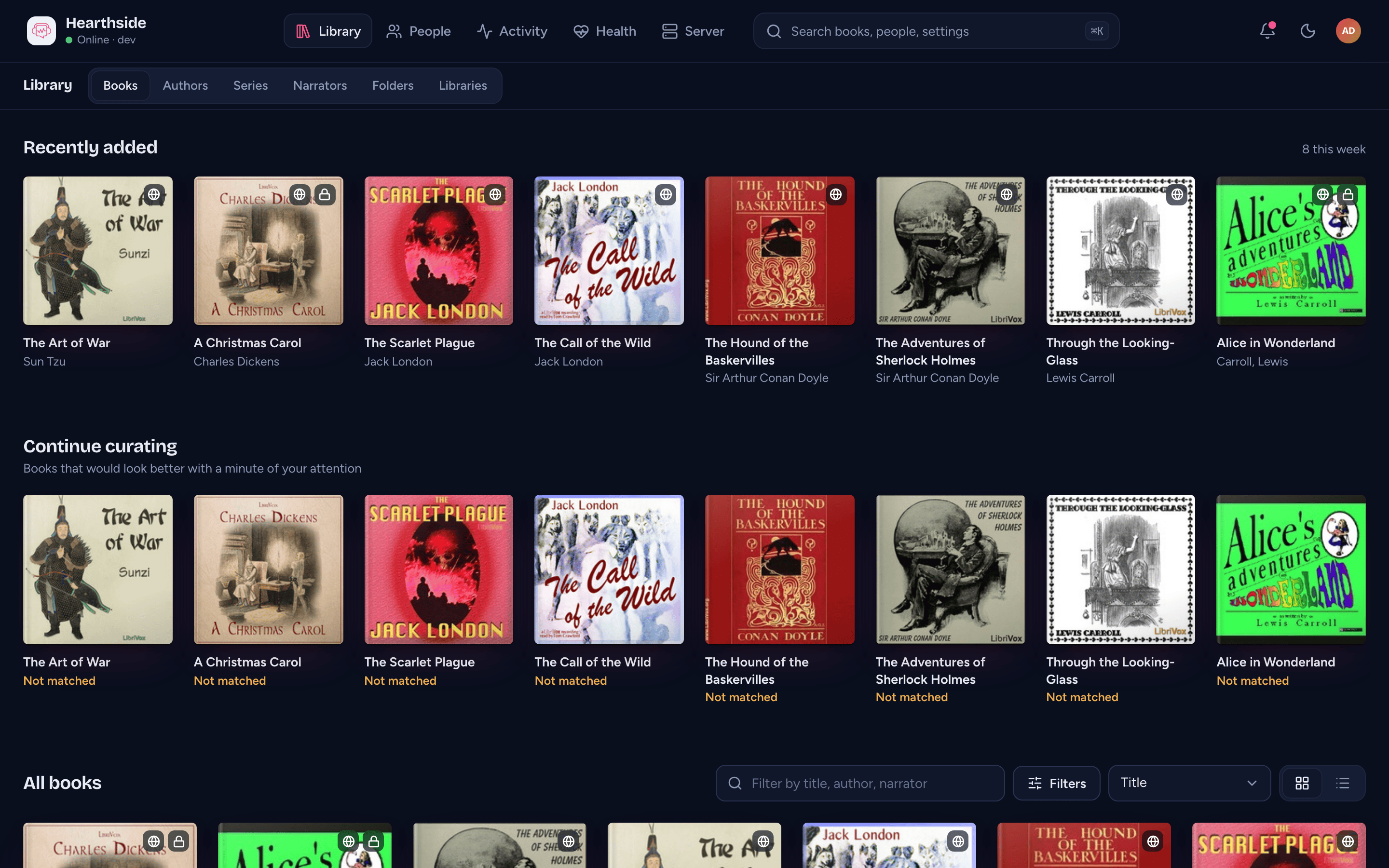
When you aren't searching or filtering, two shelves sit above the full list:
- Recently added - the newest books, with how many arrived this week.
- Continue curating - "Books that would look better with a minute of your attention": books with no cover and, when community metadata is on, books not matched to it. Each tile names what's missing.
Above the list:
- Library - with more than one library, show All or just one. Each choice shows its book count, and a library whose folder can't be read says "offline".
- Filter books - type to narrow by title, author, narrator or series.
- Sort - Title, Author, then series, Series, Narrator, Recently added, Longest first or Largest first.
- View - Cover grid or Table. The table has columns for title, author, narrator, series, length, format, browser playback, community metadata and when the book was added.
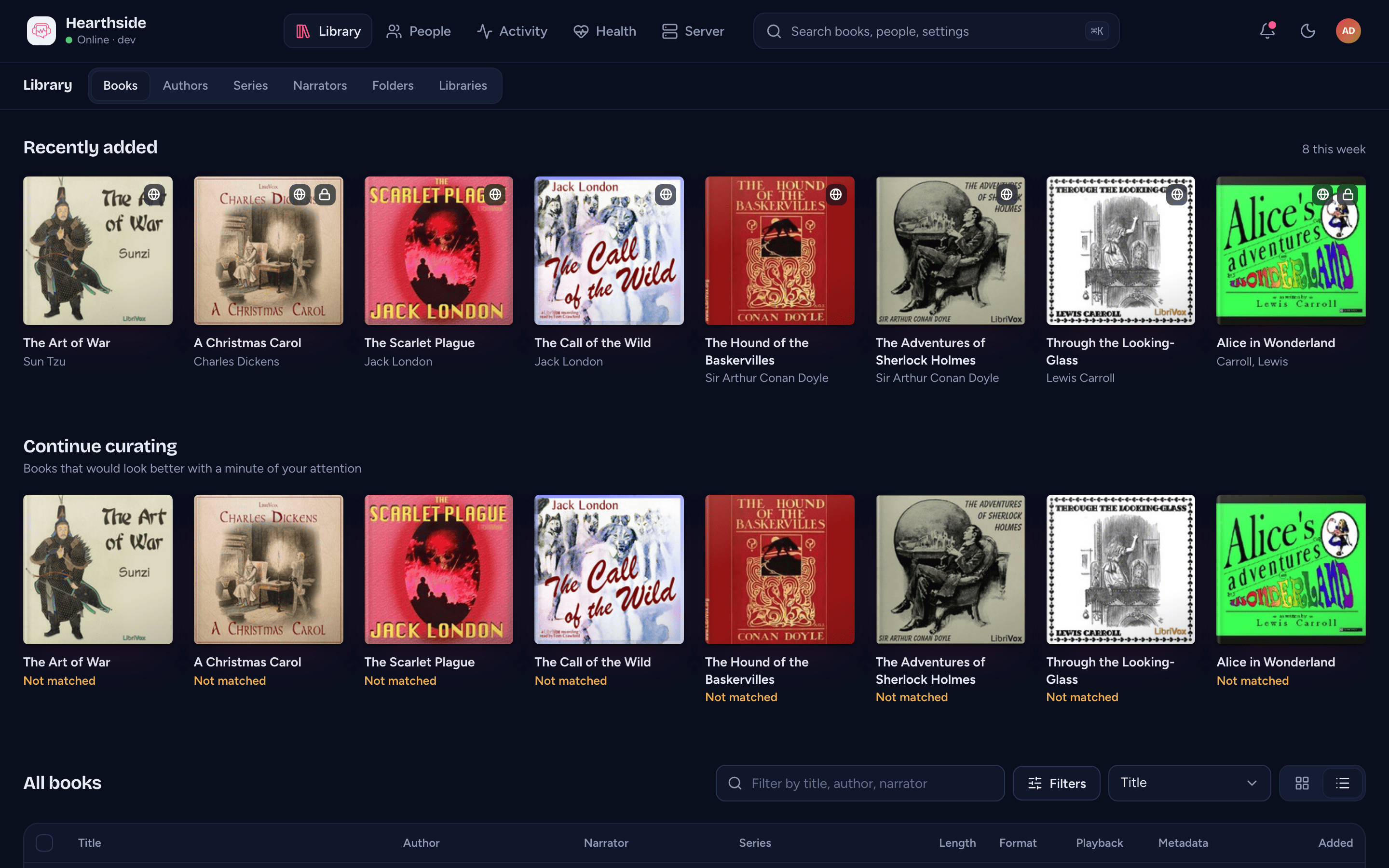
Every view has its own address, so you can bookmark a filtered list or send it to another admin.
Filters
Filters opens a panel of choices. Next to each one is how many books it would show with your other filters applied, so you never pick a filter that leads nowhere:
- Library, Format (M4B, MP3, ...) and Codec
- Playback - Plays directly or Needs transcoding (for browsers)
- Cover - Has cover or Missing cover
- Community metadata - Matched or Not matched (only when community metadata is on)
- Chapters - Has chapters or No chapters
- Edited - books with or without your edits
- Length - Under 5h, 5 to 15h, 15 to 30h or Over 30h
- Added - Last 7 days, Last 30 days or Last year
Active filters show as chips above the list (for example "Author: Lewis Carroll"). Click a chip's cross to remove it, or Clear all.
Changing many books at once
Hover a cover and tick its checkbox to select it (in the table, tick the row, or the header box to select every loaded book). A bar appears at the bottom of the screen with the number selected and two actions:
- Edit fields - set Author, Narrator or Series on every selected book. Only the fields you fill in change; where the books disagree, the field says how many different values there are, and leaving it blank keeps each book's own. One bulk edit covers up to 1,000 books and is saved all or nothing.
- Add to share - add the selected books to a share. Each book is added as one of the share's folders, and everyone with the share sees it right away.
Clear selection (or Escape) deselects everything.
A book's page
Click any book to open its page.
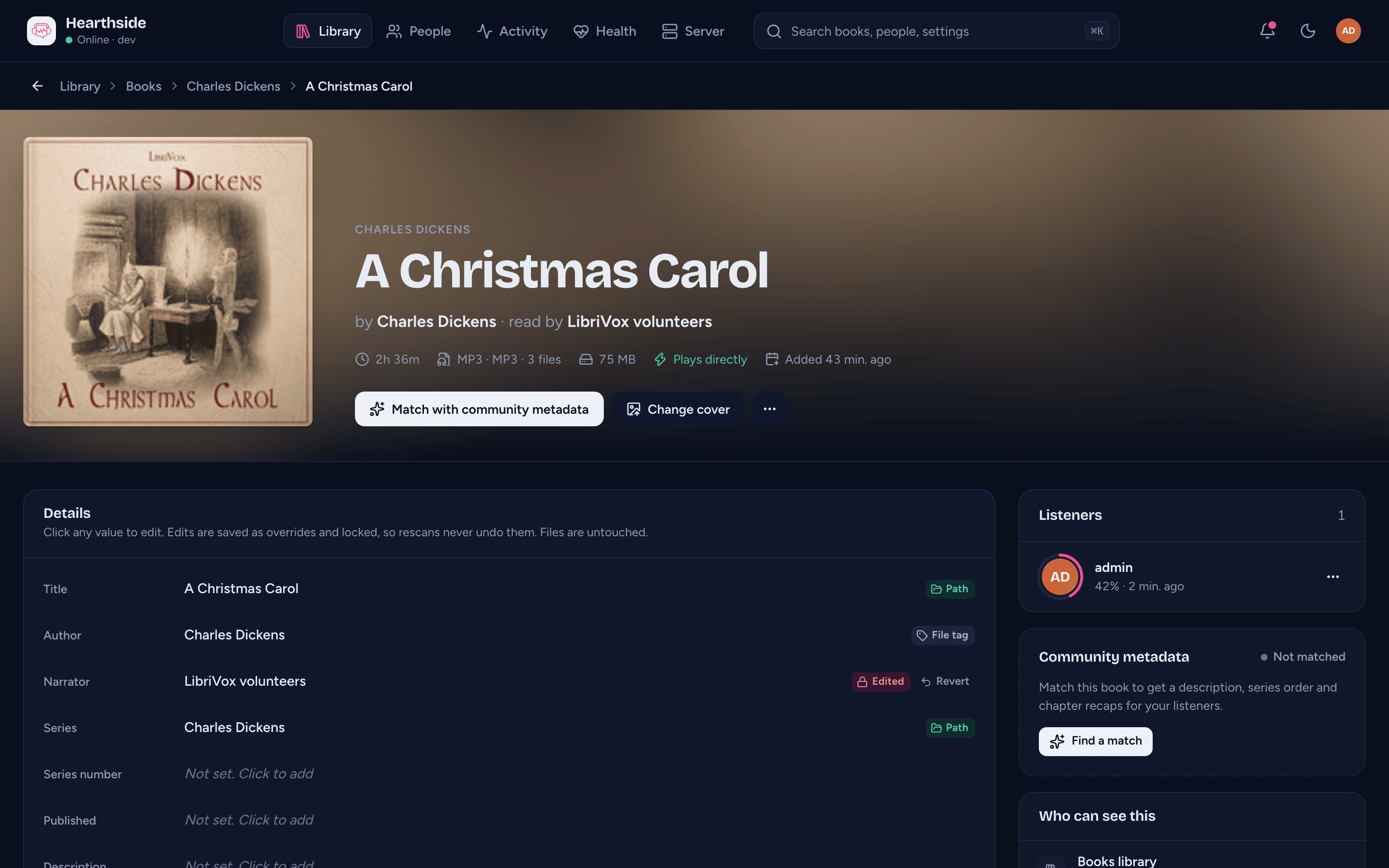
The top of the page shows the cover, title, series, author and narrator, how many files the book has, whether browsers can play it directly ("Plays directly", "Transcodes to MP3 for browsers" or "Browsers can't play this format") and when it was added. The buttons there are:
- Match with community metadata (it reads Compare with community once the book has an ASIN or ISBN) - see Matching with community metadata.
- Change cover - see Covers.
- The ⋯ menu (More book actions) - Copy path, Add to a share... and Read the files again, which re-reads this book's files straight away (tags, chapters, cover) without rescanning the whole library - handy after you fix a file's tags, or for a file Library health says couldn't be read.
Editing details
The Details card lists Title, Author, Narrator, Series, Series number, Published, Description, ASIN and ISBN. Click any value to edit it in place. Enter keeps the change (in Description, where Enter starts a new line, use Ctrl+Enter or ⌘+Enter), Escape cancels.
Each value has a marker saying where it came from:
- File tag - read from the audio file's tags.
- Path - worked out from the folder and file names.
- Edited - your edit, locked against rescans.
- Community - accepted from community metadata.
A few rules keep values sensible, and the field tells you when one is broken:
a book needs a title, a series number is a number like 1 or 2.5,
Published is a year (2010, 2010-08 or 2010-08-31), an ASIN is 10
letters or digits, and an ISBN is an ISBN-10 or ISBN-13 (hyphens are fine).
Title, author, narrator, series, series number, ASIN and ISBN are what the players, search and the book list export show. Published and Description are shown in the console only.
Saving your changes
Edits don't save one by one. Each changed field is marked Unsaved, and a bar at the bottom of the screen counts them ("2 unsaved changes"), with Discard and Review and save. Review and save shows every change as "Was:" and "Becomes:" before you confirm. If you try to leave the page with unsaved changes, the console asks first.
Saved edits are locked, so rescans keep them, and the audio files stay exactly as they are.
Reverting an edit
A value held by an edit (yours, or one accepted from community metadata) has a Revert button next to its marker. Hover it to see what the file says. Reverting puts the field back to what the last scan found, straight away, and from then on rescans follow the file again. The confirmation has an Undo button in case you clicked the wrong one.
Chapters
The Chapters card shows the book's chapters as a timeline, each chapter sized by its length and coloured by the file it's in, then the chapter list (Show all for long books). It also tells you when a book has no chapters, or only one long chapter, since listeners then can't skip around.
Click a chapter's title to rename it. Enter (or clicking away) saves the new name at once as an override; Escape cancels. A renamed chapter has a revert button that puts the file's title back.
Files
Files lists the book's audio files with their codec, bitrate, size, length and whether browsers play them directly or need them transcoded.
Covers
Change cover > Upload an image... sets a custom cover: a JPEG, PNG or WebP image up to 5 MB. Custom covers are stored in AudioSilo's database, never in the book folder, and players show them in place of the book's own art. Remove the custom cover goes back to the book's own art.
Listeners and who can see the book
- Listeners - everyone who has started the book, with their progress or "Finished", most recent first. Each has a menu (...) to mark the book finished or not finished for them, edit their start and finish dates, or see their listening sessions on it (see Editing someone's progress).
- Who can see this - each share that includes the book, and through which folder, or "Whole-library access". If no share includes it, only admins can listen to it. Add to a share adds the book to a share from here.
Files on disk
Files on disk shows the book's full path on the server. The path is the book's identity: listening progress, bookmarks and shares are keyed to it.
It also shows how the book's folder is detected, with a Change detection button that opens the folder in Library > Folders.
Rename folder on disk is there but switched off. AudioSilo never changes your files; renaming folders on disk may come later as an opt-in setting. Until then, fix names with the edits above.
Matching with community metadata
When community metadata is on, you can match a book to its entry in the free community catalogue at meta.audiosilo.app. Matching gives listeners a description, series order and chapter recaps, and fills in fields you're missing.
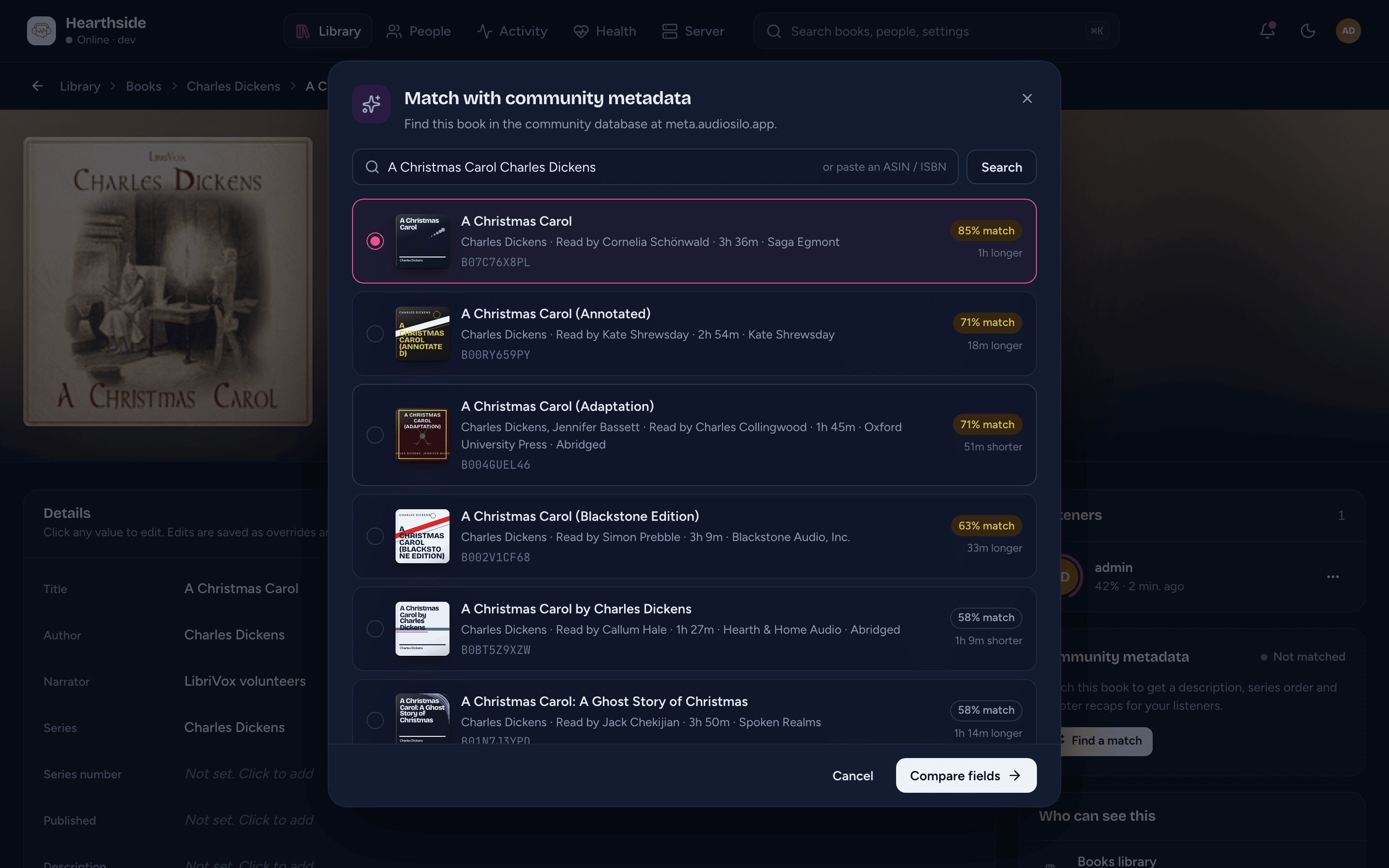
- Click Match with community metadata on the book's page (or Find a match in its Community metadata card). The dialog searches the catalogue for the book's title and author straight away.
- To search for something else, type in Search the community database, or paste an ASIN or ISBN, and click Search.
- Possible matches lists what was found, each with how closely it matches ("92% match"), its narrators and whether its length matches your files. Pick one and click Compare fields.
- If the book was recorded more than once, pick the right Edition.
- The comparison shows each field On your server and from the Community. Tick the ones to Take. Fields you've edited yourself are unticked, so they're never overwritten unless you tick them.
- Click Accept (it says how many fields, for example "Accept 4 fields").
Accepted values are marked Community and are locked like your own edits; you can revert them the same way. If you have unsaved edits on the page, save or discard them before matching.
If the catalogue can't be reached, the dialog says "meta.audiosilo.app isn't answering" - try again in a minute.
Authors and narrators
Library > Authors lists every author with how many books they have and how long those books run, most books first. Library > Narrators does the same for narrators, most hours first. Use the library filter and Filter authors (or Filter narrators) to narrow the list. Click a name to open Books filtered to that person.
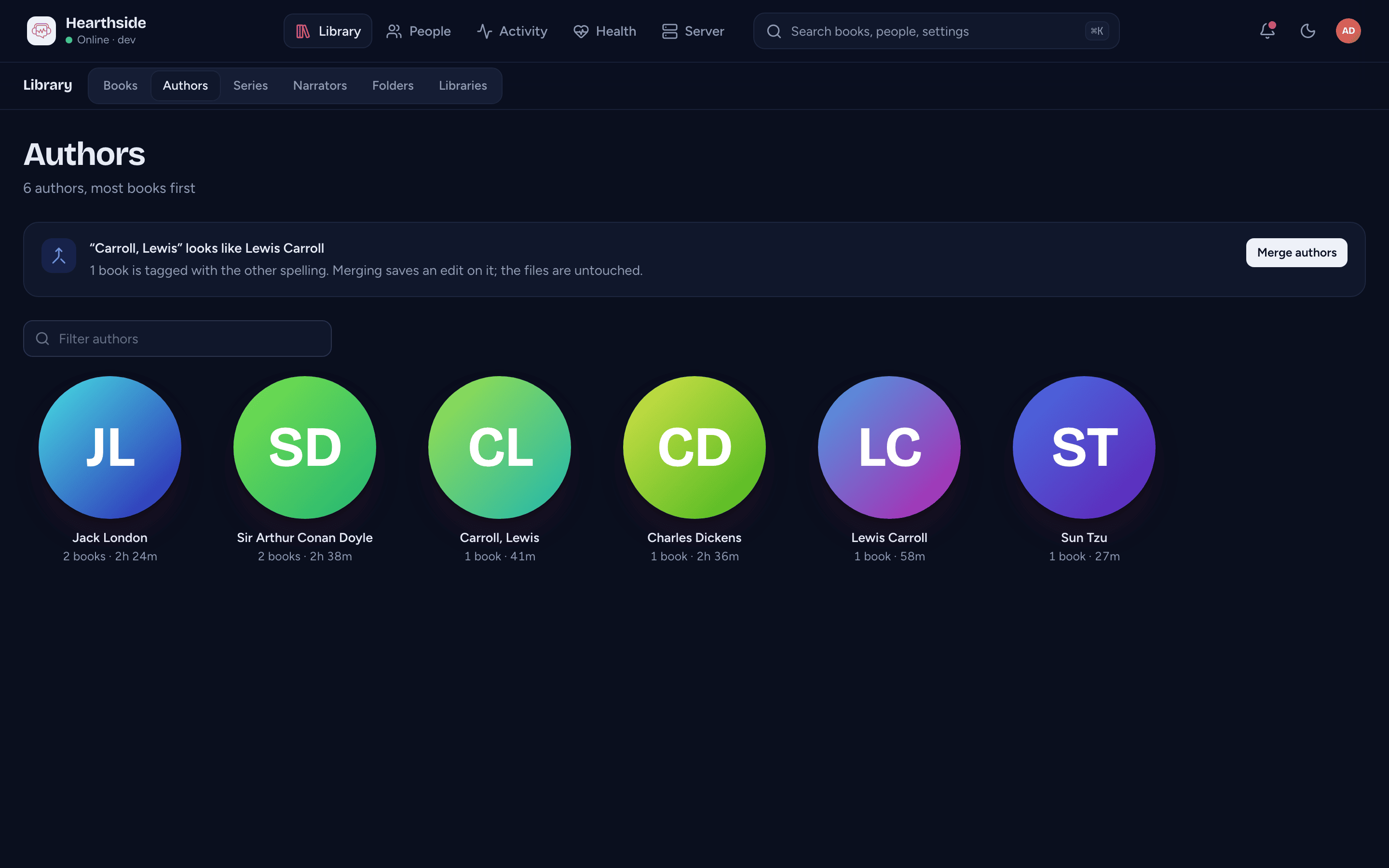
Merging two spellings
Tags often spell the same person two ways. When names look alike, a suggestion appears above the list, for example "“Sanderson, Brandon” looks like Brandon Sanderson". Merge authors (or Merge narrators) sets the suggested spelling on every book that carries the other one, as an edit on each book; the files are untouched. The confirmation has an Undo button, and you can also revert the field on any single book's page.
AudioSilo never merges names on its own.
Series
Library > Series has a card for each series, with its books shown as spines in series order. Click a spine to open that book.
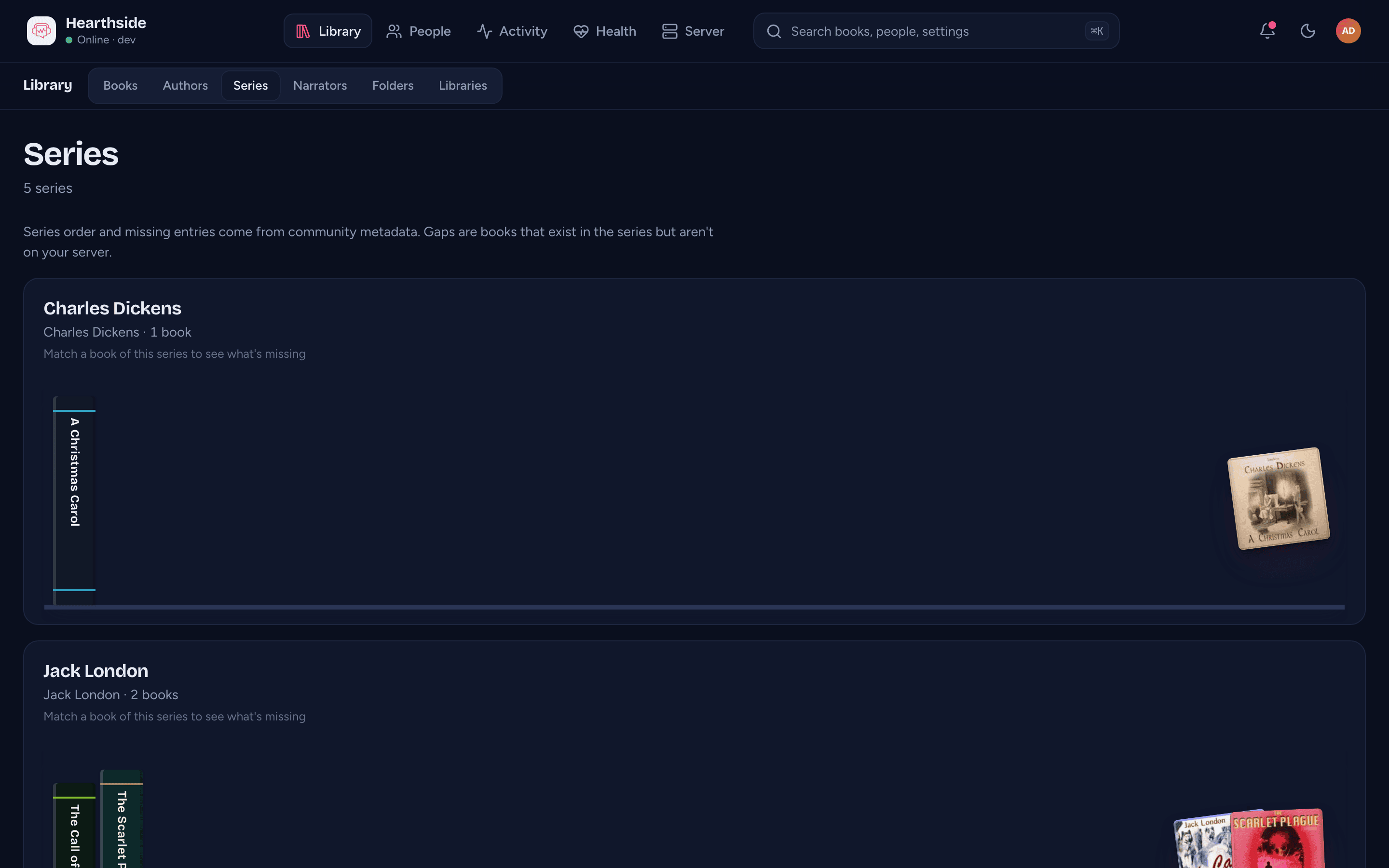
With community metadata on, a series where one of your books is matched also shows the books you don't have, as dashed gaps, and says so: "You have 1, 2, 4 of 5; missing 3, 5". A series none of whose books is matched yet says "Match a book of this series to see what's missing". With community metadata off, the page offers to turn it on.
Folders
Library > Folders shows each library's folders as a tree, and lets you correct a folder AudioSilo reads the wrong way (for example a folder of separate stories read as one book). See The Folders page.
Finding a book quickly
The command palette (Ctrl K, or ⌘K on a Mac) searches books, people, authors, series, narrators and shares from anywhere in the console.