The Bridge
The Bridge is an optional companion you can run beside your AudioSilo server. The server only ever reads your books. The Bridge is the part that may write to your library folders and run heavy work, so the server can stay read-only and safe to put on the internet.
You don't need one. Without a Bridge everything in AudioSilo works as before.
:::info What it does today The Bridge is new. This first version only proves the connection: you pair it, it tells the server which of your libraries it can find and write to, and you can ask it to Verify a library. It changes nothing in your books. Later versions add the jobs it is for, such as generated recaps and character sheets, podcasts, and more. :::
To set one up, see Running a Bridge. This page covers the console side: Server > Settings > Bridge in the admin console. Only admins can see it.
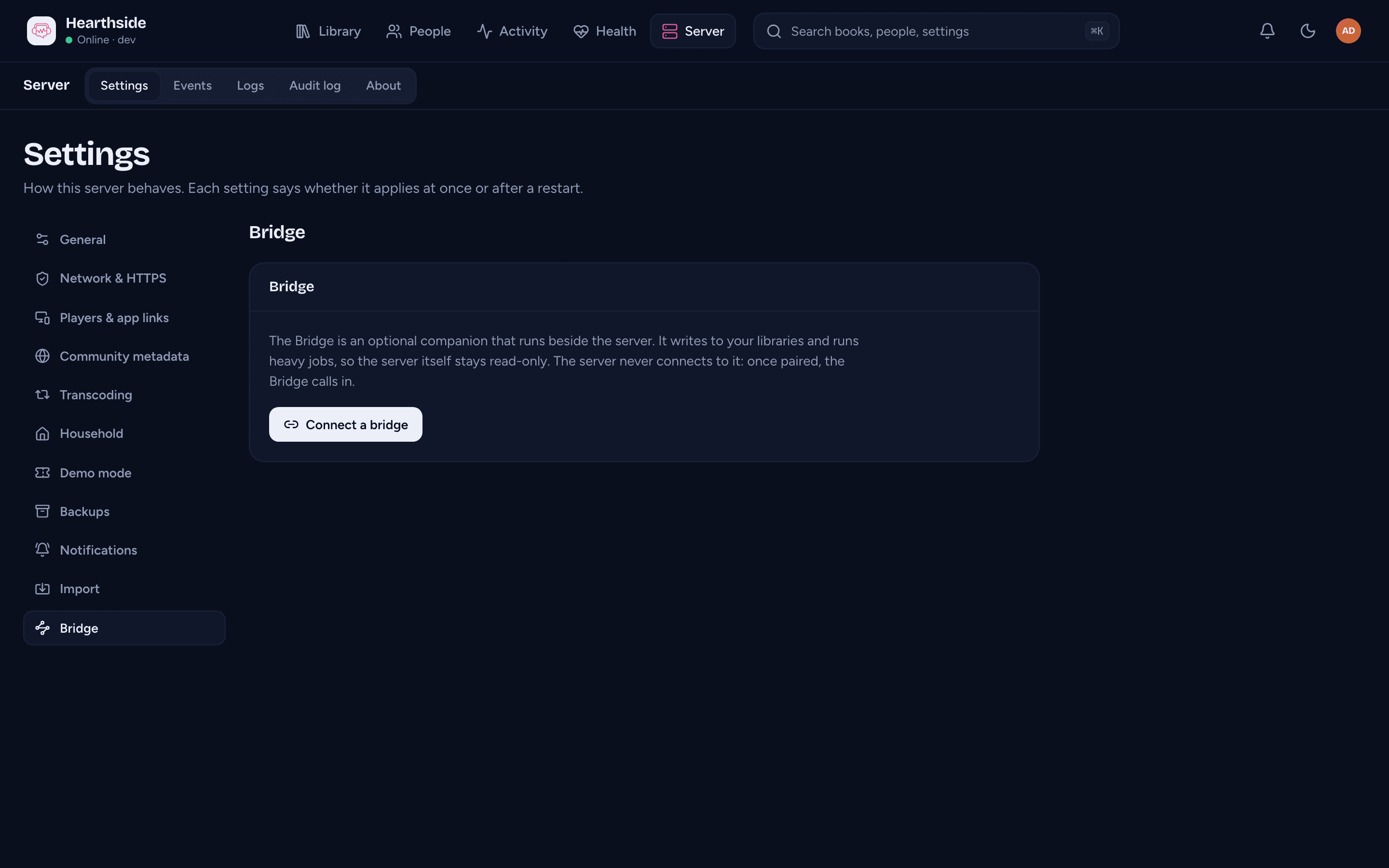
Connecting a Bridge
- Start the Bridge (see Running a Bridge) and open its own page.
- In the console, open Server > Settings > Bridge and press Connect a bridge. A pairing code appears, with the server's address.
- On the Bridge's page, paste the server address and the code, then pair.
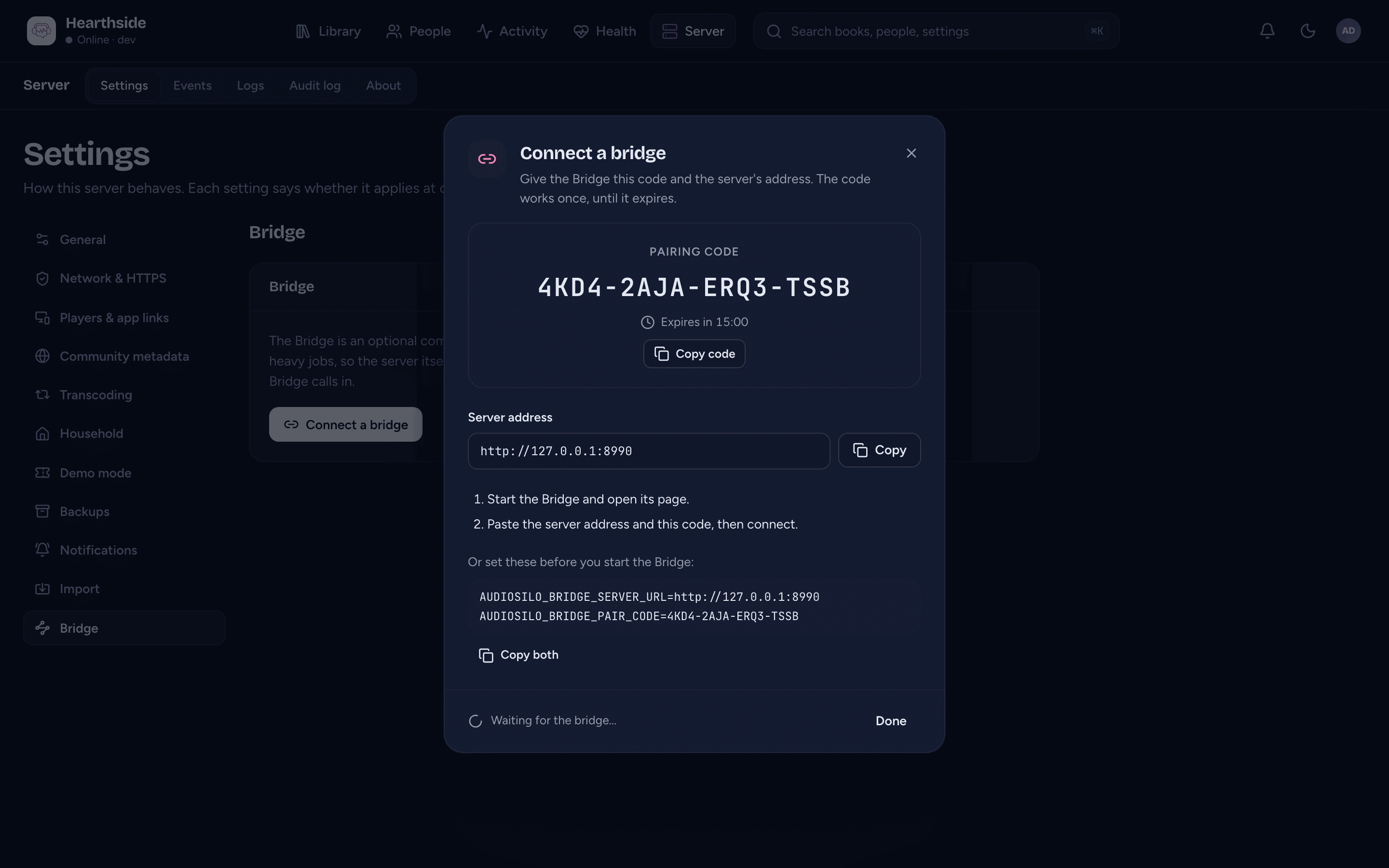
Instead of pasting, you can give the Bridge the two settings the dialog shows
before you start it (Copy both copies them):
AUDIOSILO_BRIDGE_SERVER_URL and AUDIOSILO_BRIDGE_PAIR_CODE.
Good to know:
- The code is shown once and works once, for 15 minutes. If you close the dialog or the code runs out, press Make a new code. While a code is waiting, the page says so.
- The server address in the dialog is the server's address on your home
network when it knows one (an
http://address if the server uses its own self-signed certificate, which the Bridge can't check), else the address you opened the console on. If the Bridge runs in a container next to the server, it may need a different address to reach it, such ashttp://audiosilo:8080: use whatever works from the Bridge. - The dialog closes on its own with Bridge connected once the Bridge uses the code. Its details show as soon as it sends its first report, a few seconds later.
- One Bridge per server. Pair a new bridge makes a code for a replacement: the current Bridge keeps working until the new one uses the code, and then stops.
Online, offline and its details
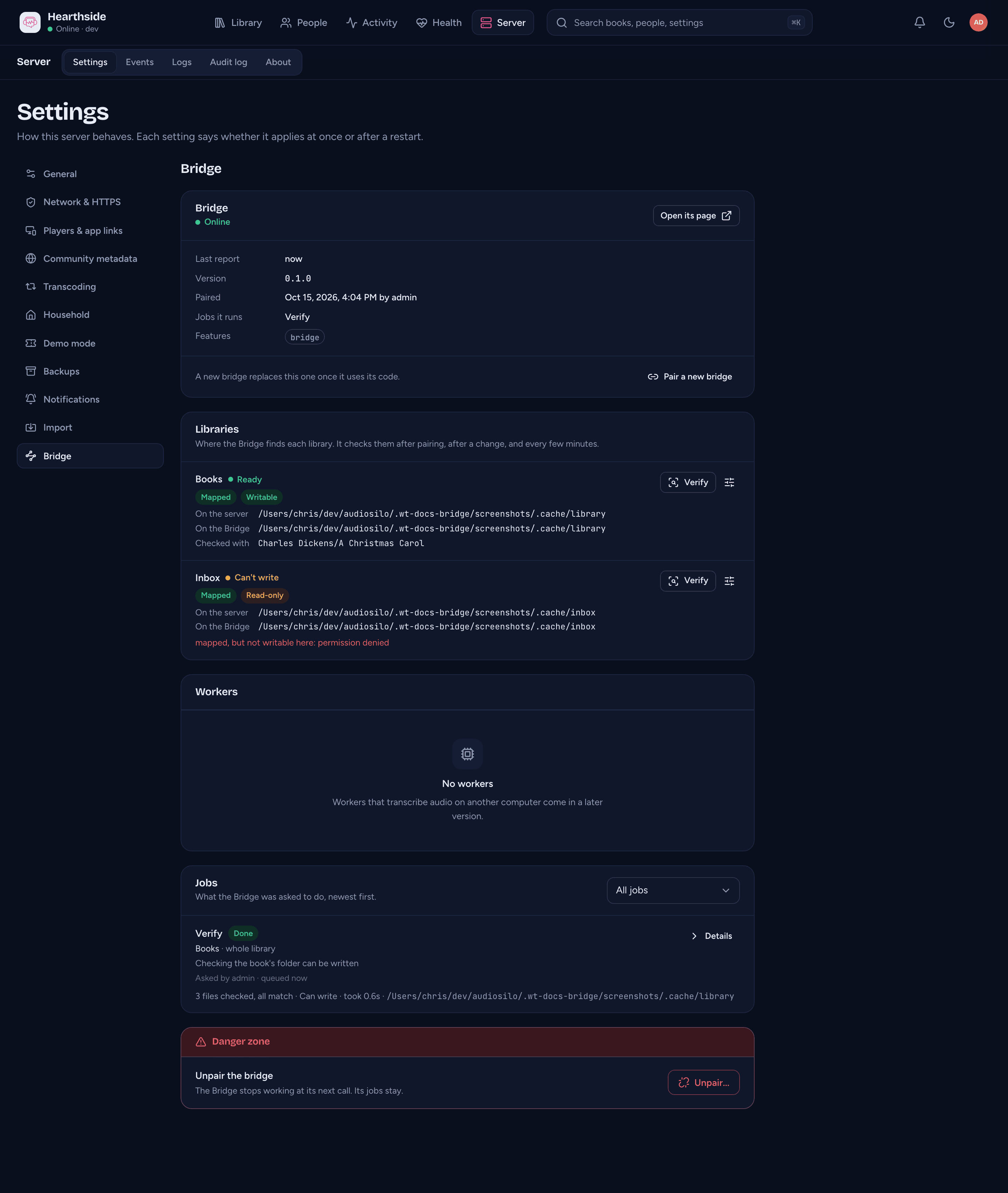
Once paired, the Bridge reports to the server every 30 seconds. The top card says how it is:
- Online - it reported in the last two minutes.
- Offline - it hasn't reported for over two minutes. Check that it is running and can reach the server. Anything you ask it to do waits until it is back.
- Waiting for its first report - it has paired but hasn't reported yet.
Below that: when it last reported, its version, when it was paired and by whom, the jobs it can run and its features. Open its page opens the Bridge's own page, when the Bridge has been told the address your network reaches it at.
The Bridge never needs the server to connect to it: it always calls the server.
If the server stops accepting the Bridge, the Bridge stops calling in and says why on its own page. That happens when you unpair it, when you connect another Bridge, or when the admin who connected it is no longer an admin (or their account is disabled); the page then shows no Bridge connected. The Bridge keeps trying every 5 minutes, so if that admin is made an admin again it comes back by itself. After an unpair or a new Bridge, connect it again with a new code.
Libraries
The Libraries card lists every library on the server with what the Bridge found:
| Status | Means |
|---|---|
| Ready | the Bridge found the library and can write there |
| Can't write | the Bridge found the library, but it can only read it |
| Not found | the Bridge couldn't find this library |
| Not reported yet | the Bridge hasn't checked it yet |
Each library shows its folder On the server, the folder On the Bridge, and the book it Checked with. The Bridge doesn't take a folder's word for it: it finds a book the server knows and checks that its files are there with exactly the same sizes, and only then tries writing a small test file (which it removes).
When a library isn't Ready, the line under it says why. The usual reasons:
- The folder isn't mounted in the Bridge's container, or is mounted at another path. Mount the same folders at the same paths for both, or tell the Bridge where each library is on its own page.
- It's a different copy. A file is missing or a different size: the folder the Bridge sees isn't the one the server reads.
- The library has no books yet. With nothing to compare, the Bridge never calls a library found. It checks again once the server has indexed a book there.
- It can only read the folder (Can't write): the folder is mounted
read-only for the Bridge, or the Bridge runs as a user who can't write there.
Mount it read-write and set the Bridge's
PUID/PGIDto the owner of your library folders.
The Bridge checks its libraries after pairing, when your libraries change, and every 10 minutes after that by default (not on every report, so it doesn't keep sleeping disks awake). On its own page, Check now checks them all at once, and changing a library's folder there checks that library again.
Verify
Verify on a library asks the Bridge to check it again, as a job you can follow: it finds a book from that library through its folder, compares every file's size with the server's, and tries writing a test file in that book's folder. Nothing is changed. It's the quickest way to see that a Bridge is set up properly.
The button next to Verify opens its options:
- Book (optional) - a book's path in the library, such as
Author/Series/Book, to check that book. Left empty, the Bridge checks the library's first book by title (skipping one whose files have gone missing). - More options > Hold (seconds) - makes the Bridge wait that long before it finishes (up to 600), so you can try cancelling the job or stopping the Bridge part way.
Press Queue verify. If the Bridge is offline, the job waits for it. Pressing Verify again while one is still waiting or running doesn't add another. If the last one is still stopping after you cancelled it, the console says so: queue it again once it has stopped.
Jobs
The Jobs card lists what the Bridge was asked to do, newest first. Show jobs filters it by state:
| State | Means |
|---|---|
| Queued | waiting for the Bridge |
| Claimed | the Bridge has picked it up |
| Running | the Bridge is working on it |
| Needs attention | the Bridge stopped and needs you to look at it |
| Done | finished |
| Failed | it didn't work: the reason is shown under it |
| Cancelled | you cancelled it |
Each job shows the library (and book), its progress, who asked and when. A finished Verify sums up what it found (how many files matched, whether it can write, how long it took); Details shows everything it reported.
Cancel stops a job. A job that is waiting is cancelled at once; one the Bridge is working on shows Cancelling until the Bridge stops it, within a few seconds.
If the Bridge stops in the middle of a job (it crashes, or its computer restarts), the job isn't lost: after about two minutes the server puts it back in the queue, and the Bridge picks it up again when it is back. A job that keeps failing this way is marked Failed after the third try.
The job list stays when you unpair a Bridge, so you can still cancel jobs that are waiting.
Workers
The Workers card will list the computers that help the Bridge transcribe audio. That comes in a later version, so it says No workers for now.
Unpairing
At the foot of the page, Unpair... disconnects the Bridge from this server:
- The Bridge stops working at its next call. A job it was running is queued again after about two minutes.
- Its jobs stay. Queued ones wait for the next Bridge you connect.
- To use it again, connect it with a new code.
Unpairing here is what counts: unpairing from the Bridge's own page only makes the Bridge forget the server, so unpair it here too.
Where to next
- Running a Bridge - setting one up beside your server.
- Server settings, updates and logs - the other settings topics and the audit log, which records pairing, unpairing and each job you queue or cancel.