Admin console tour
Every AudioSilo server ships with a built-in admin console. It is a plain web page served by the server itself - nothing extra to install - and it is where you manage libraries, users, invites and shares.
Opening the console
The console lives at /admin on your server. If your server runs at
https://audiobooks.example.com, open:
https://audiobooks.example.com/admin
The connect page (the server's plain address, /) also reveals an Admin
section link once you've successfully redeemed an auth code there; if you
just want the console, go straight to /admin.
Signing in
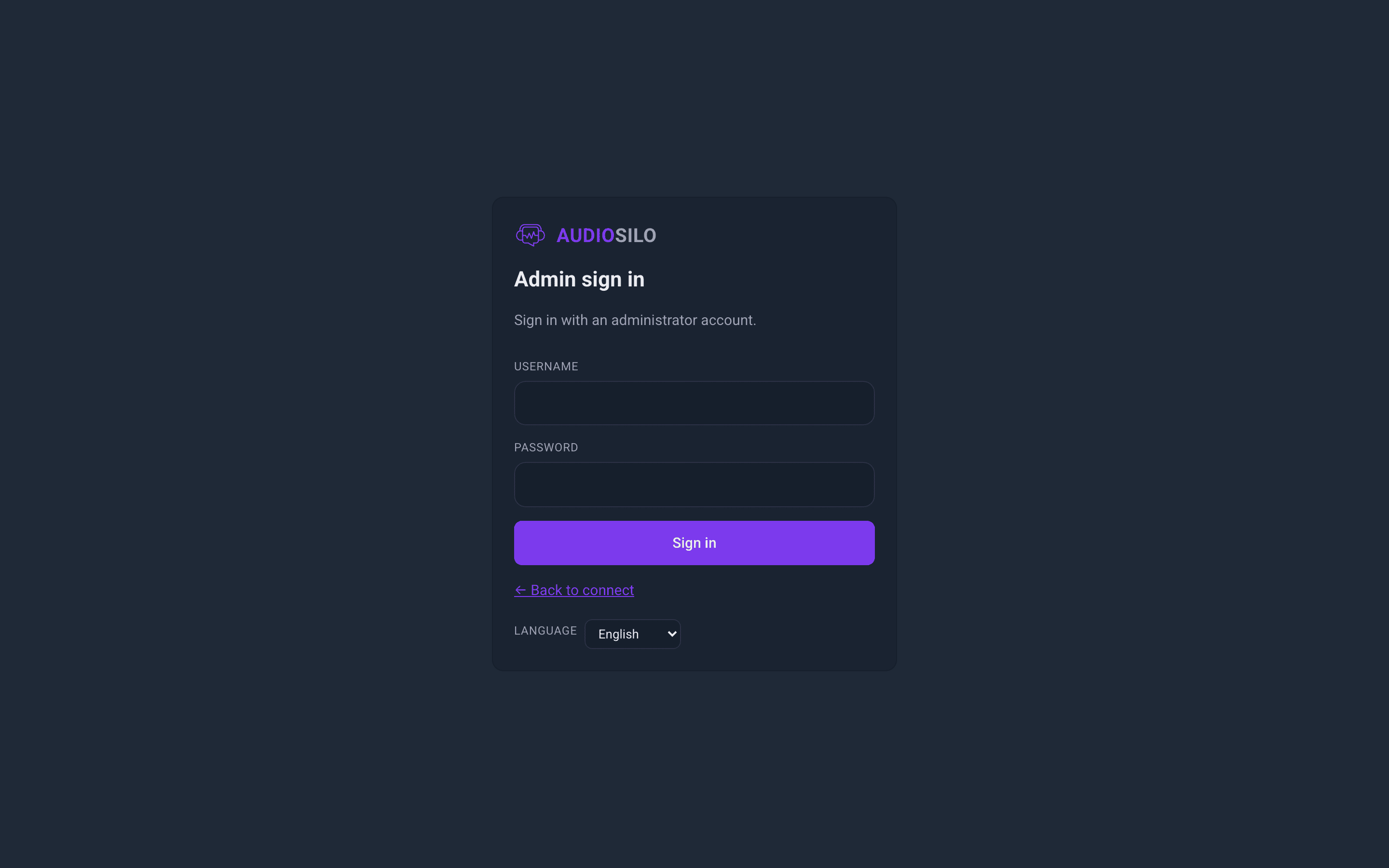
Sign in with an administrator account - the username and password created when you first set up the server (see First run if you haven't done that yet, or don't have the credentials to hand).
A few things worth knowing:
- Only admin accounts can use the console. Signing in with a regular listener account shows "This account is not an administrator."
- Admin accounts always have a password. Regular listeners often don't - they join with invite codes instead - which is why the console sign-in is username + password only.
- The Language selector at the bottom of the sign-in card (and in the sidebar once signed in) switches the console's language.
- If your session expires, the console returns you to the sign-in screen; just sign in again.
The console is installable as an app. If you open it over HTTPS (or on
localhost), your browser offers to install it - handy for keeping server
admin one tap away on a phone or in the dock.
The layout
Once signed in, the console is a single page with a sidebar on the left and the selected section on the right. The sidebar has four sections:
| Section | What it's for |
|---|---|
| Overview | Totals and a snapshot of what people are listening to. |
| Libraries | The folders scanned for audiobooks: add, reorder, rescan, correct folder detection, delete. See Libraries. |
| Users | Accounts: create users, manage roles and passwords, mint invite codes, grant access, disable or delete. See Users and invites. |
| Shares | Named sets of folders you grant to users to control who sees what. See Sharing. |
The bottom of the sidebar shows who you are signed in as, a Sign out button, the language selector, and the server's version number.
Overview
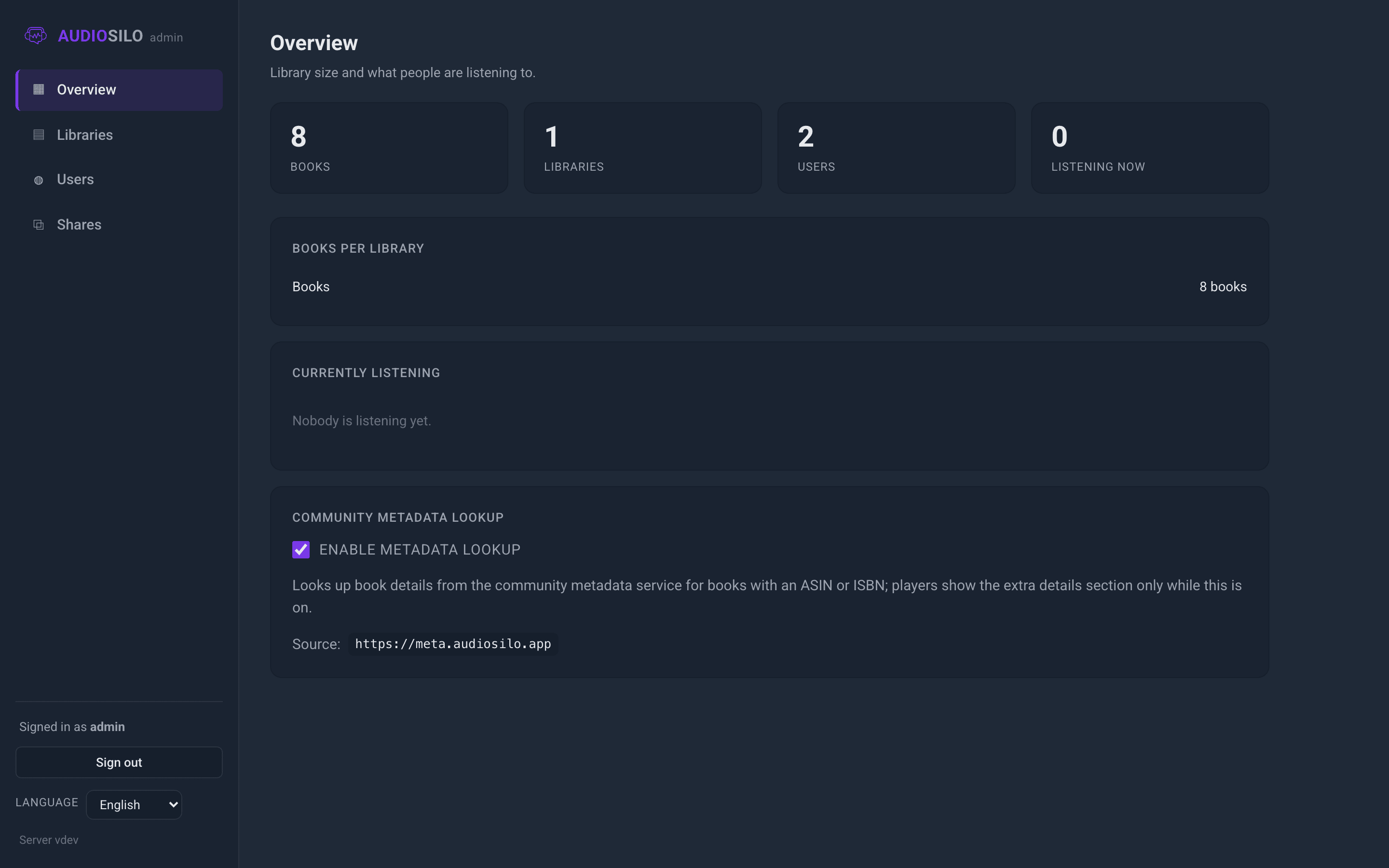
Overview is the console's home screen ("Library size and what people are listening to"). It has four parts:
Stat cards
Four totals across the whole server:
- Books - every audiobook indexed, across all libraries.
- Libraries - how many library folders are configured.
- Users - how many accounts exist (admins and listeners).
- Listening now - how many books are currently in progress (started but not finished) across all users. It counts the currently-listening feed below, which lists only the most recent in-progress items, so on a very busy instance it can undercount.
Books per library
A simple per-library breakdown: each library's name with its book count. Useful for spotting a library whose scan hasn't picked up what you expected - if the count looks wrong, head to Libraries and check the folder detection.
Currently listening
A cross-user feed of listening activity. Each row shows:
- the username of the listener,
- the book title and author they're on,
- when they last listened (as a relative time like "2h ago"),
- a progress bar with a percentage - or "done" once the book is finished.
The feed shows saved listening progress as of when you opened the Overview - reopen the section to refresh (players report progress periodically while playing).
Community metadata lookup
A single switch that turns the community metadata lookup on or off for the whole server. When it is on, books that can be matched (they carry an ASIN or ISBN) gain an extra "About this book" block in the player - a description, production details, the series they belong to, and (where the community has written them) character cards and story-so-far recaps - drawn from the free, community-run catalogue at meta.audiosilo.app. See About this book for what listeners see.
- Flipping the switch takes effect immediately for everyone connected, and the choice is remembered across restarts.
- Turning it off is a one-tap privacy switch: your server stops contacting the metadata service at all, and the extra section disappears from every player.
- The card also shows the Source - the metadata service address your server uses. If no service is configured, the switch is greyed out and a note explains that a service address must be set in the server configuration first (see the metadata setting in the configuration reference).
The console holds no special powers of its own - every action it performs is checked by the server against your admin account. That's also why nothing breaks if a non-admin somehow opens the page: the server refuses every privileged request.
Where to next
- Libraries - point the server at your audiobook folders.
- Users and invites - create accounts and get people connected.
- Sharing - control which folders each person can see.