Library health and jobs
The Health destination in the admin console has three pages:
- Issues ("Library health") lists the books that could be better - files that couldn't be read, missing covers, likely duplicates and so on - with a fix for each where the console has one.
- Jobs shows the scan running now, the scans waiting their turn, the schedules, and a history of every scan with its log.
- System shows everything the server depends on - ffmpeg, the community metadata service, the HTTPS certificate, the database, each library's disk - with a plain status for each.
Nothing on these pages changes your audio files. Fixes are saved in AudioSilo (a cover you upload, a match you accept, a folder detection choice), and an issue you ignore is only hidden.
Library health
Open Health in the top bar (it opens on Issues), or click Triage on the overview's Needs attention card, which lists the kinds of issue that have something in them. Clicking one of those opens its list directly.
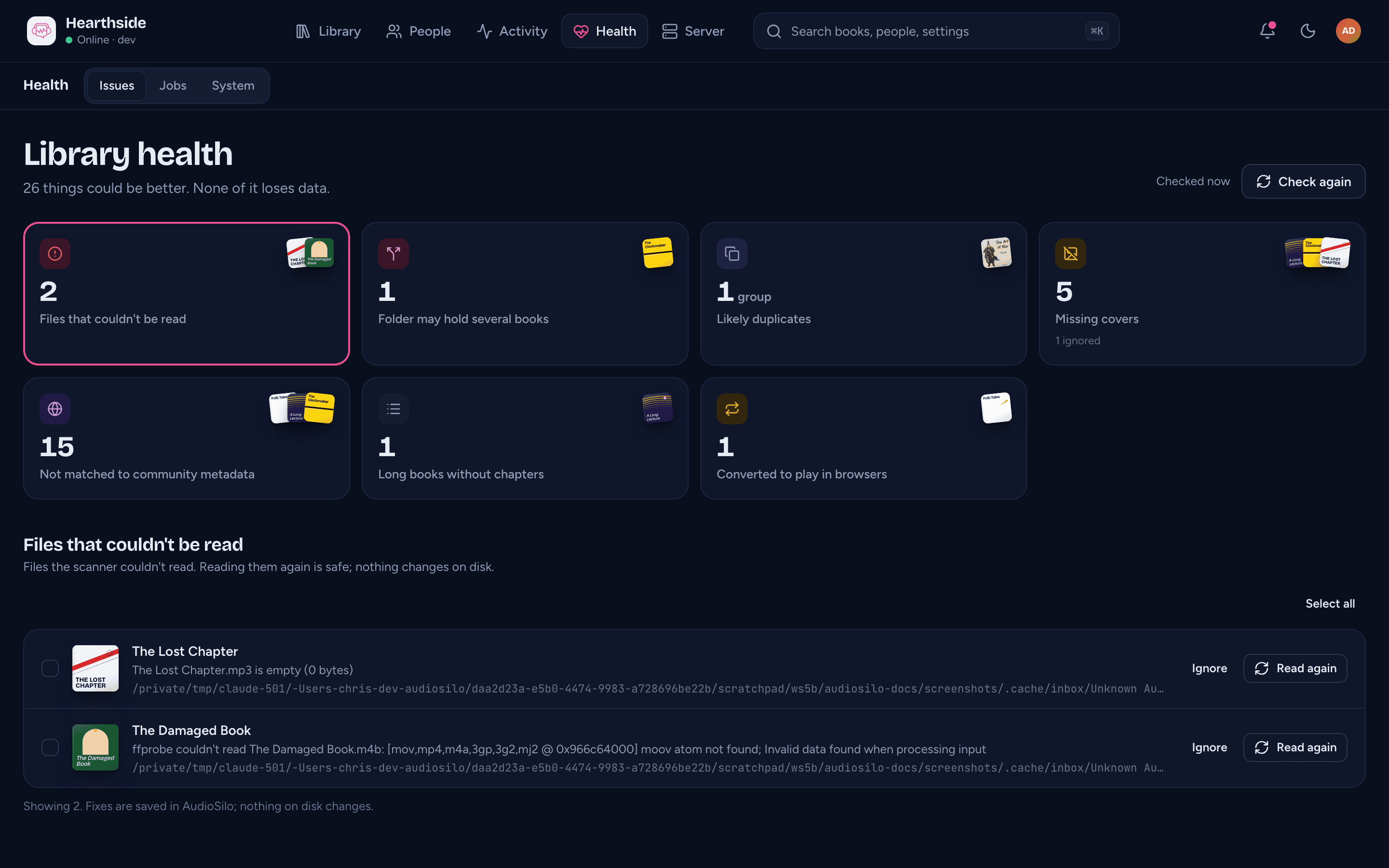
The line under the title says how many things could be better ("12 things could be better. None of it loses data.") or "Nothing needs attention right now." Beside it, "Checked ..." says when a scan last finished, and Check again rescans every library (one at a time - the issues update as each one finishes).
Under it is one card per kind of issue, with how many books are in it, a few of their covers, and how many you have ignored. Click a card to open its list below.
The kinds of issue
| Card | What it means | The fix it offers |
|---|---|---|
| Files that couldn't be read | A scan couldn't read one of the book's files: it couldn't be opened (for example a permissions problem), it is empty (0 bytes), or ffprobe couldn't read it (a damaged or incomplete file). The row names the file and the reason. Every scan checks the file again, so once you fix the permissions or the share is back, the book leaves the list by itself. | Read again reads the book's files again straight away. A toast says "title reads fine now", or "title still can't be read" with the reason. |
| Folder may hold several books | AudioSilo reads a folder with audio in it as one book. These folders look like they hold several: at least two parts, every part an hour or longer, with different titles. | Choose detection opens Library > Folders on that folder: Separate books splits it, and Always one book tells AudioSilo it really is one book, which also clears it from this list. |
| Likely duplicates | Copies of one book in the same library. See Duplicates. | A side-by-side comparison. |
| Missing covers | No cover image in the book's folder and none inside its files. | Upload a cover opens the book's page, where Change cover adds one (see Covers). |
| Not matched to community metadata | The book has no ASIN or ISBN, so community metadata can't find it. Only shown while community metadata is on. | Review match opens the book's page with the match dialog open (see Matching). |
| Long books without chapters | Books over two hours long with no chapter marks (or a single chapter). Listeners can play them but can't jump between chapters. | None in the console: add chapters to the file with your tagging tool, or ignore it. |
| Converted to play in browsers | The audio format doesn't play in web browsers, so the server converts it while someone listens in the web player. The apps play it as it is. | None needed: it works. Re-encode the file if you'd rather the server didn't convert it, or ignore it. |
Working through a list
Each row shows the book's cover, title, why it is listed and where it is on disk. Click the title or cover to open the book's page.
- Ignore hides the book from this list. A toast confirms it with an Undo button. An ignored book stays hidden through rescans, and even if you move its folder, until you show it again. Ignoring a book in one list doesn't hide it from the others.
- Show ignored (N) switches to the books you've ignored ("Ignored: kind"), each with Show again. Back to the open ones returns.
- Tick the box on several rows (or Select all) to act on them together from the bar at the bottom: Ignore (or Show again in the ignored view), and Read again in Files that couldn't be read (it reads two books at a time, so a long selection takes a moment).
- Long lists load 50 books at a time; Show more loads the next.
When a list is empty it says All clear - the category you were working on stays open rather than jumping to the next one. Books you ignored stay ignored until you show them again.
Duplicates
Likely duplicates shows each group of copies side by side, with the copy worth keeping first (marked Worth keeping, the others Another copy). "Worth keeping" means the better format (M4B/AAC over MP3), then a single file over several, then the higher bitrate, then the copy more people listen to.
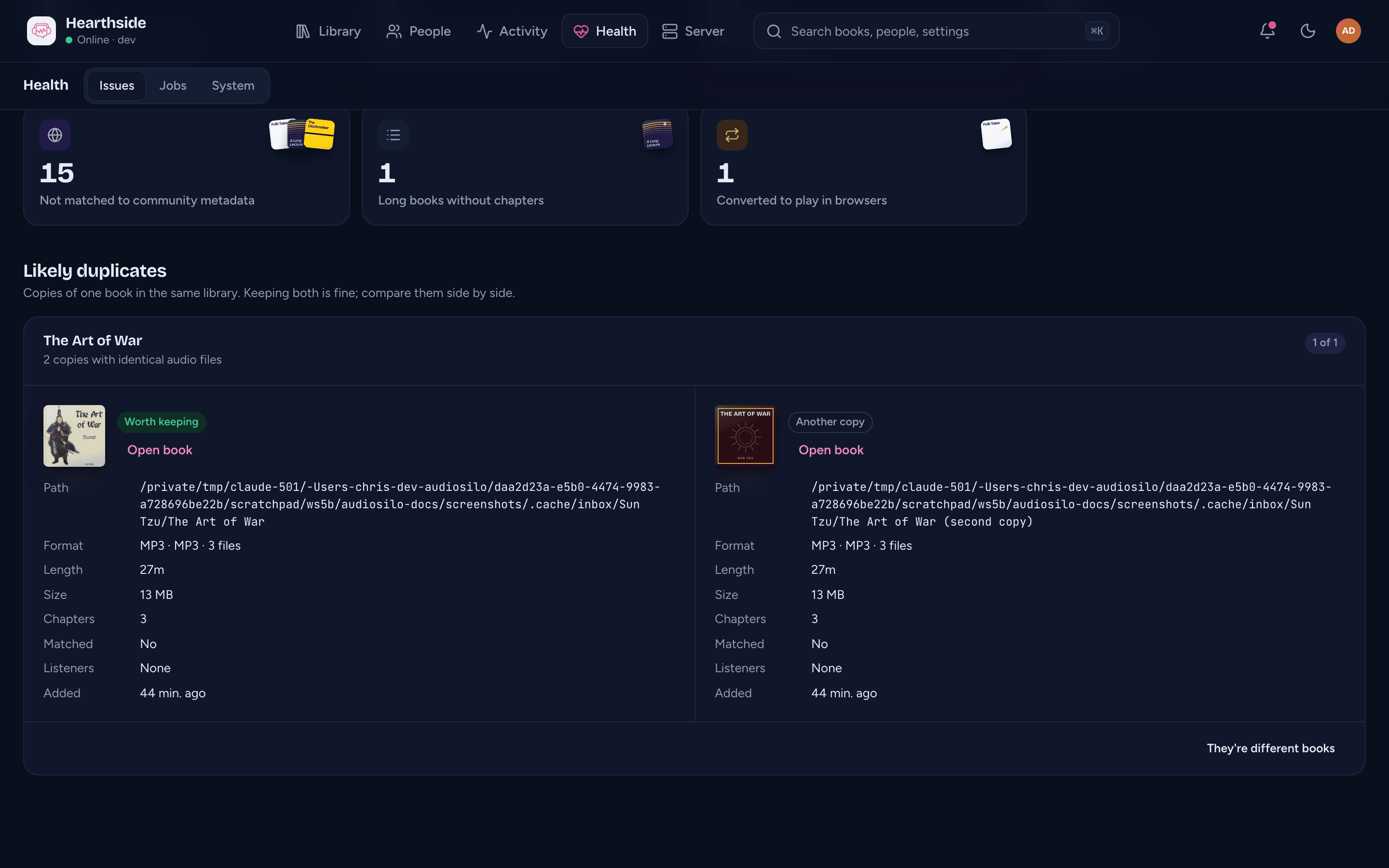
The line under the title says why they look like copies: identical audio files, or the same title, author and length in different files. Each column shows the copy's Path, Format, Length, Size, Chapters, whether it is Matched, how many Listeners have progress on it, and when it was Added. Open book opens a copy's page.
- Only copies in the same library are compared. The same book in two libraries is deliberate (a kids' library, say), and players already show it once.
- Keeping both copies is fine. If they really are different books (two narrations, an abridged edition), click They're different books and the group stops being suggested - until another copy turns up. The ignored view has Suggest as duplicates again.
- AudioSilo never deletes a copy for you. To remove one, delete its files from the library folder and rescan; listening progress on the deleted copy's path is kept (see Jobs).
When a library is offline
If a library's folder can't be read (typically a network share that unmounted), a notice at the top of the page says "name is offline. Nothing was deleted." AudioSilo can't read the folder, so it kept the library's books, and the notice says how many listeners' progress is safe. View library opens Library > Libraries; once the folder is back, Retry scans it. See When a library folder goes missing.
Jobs
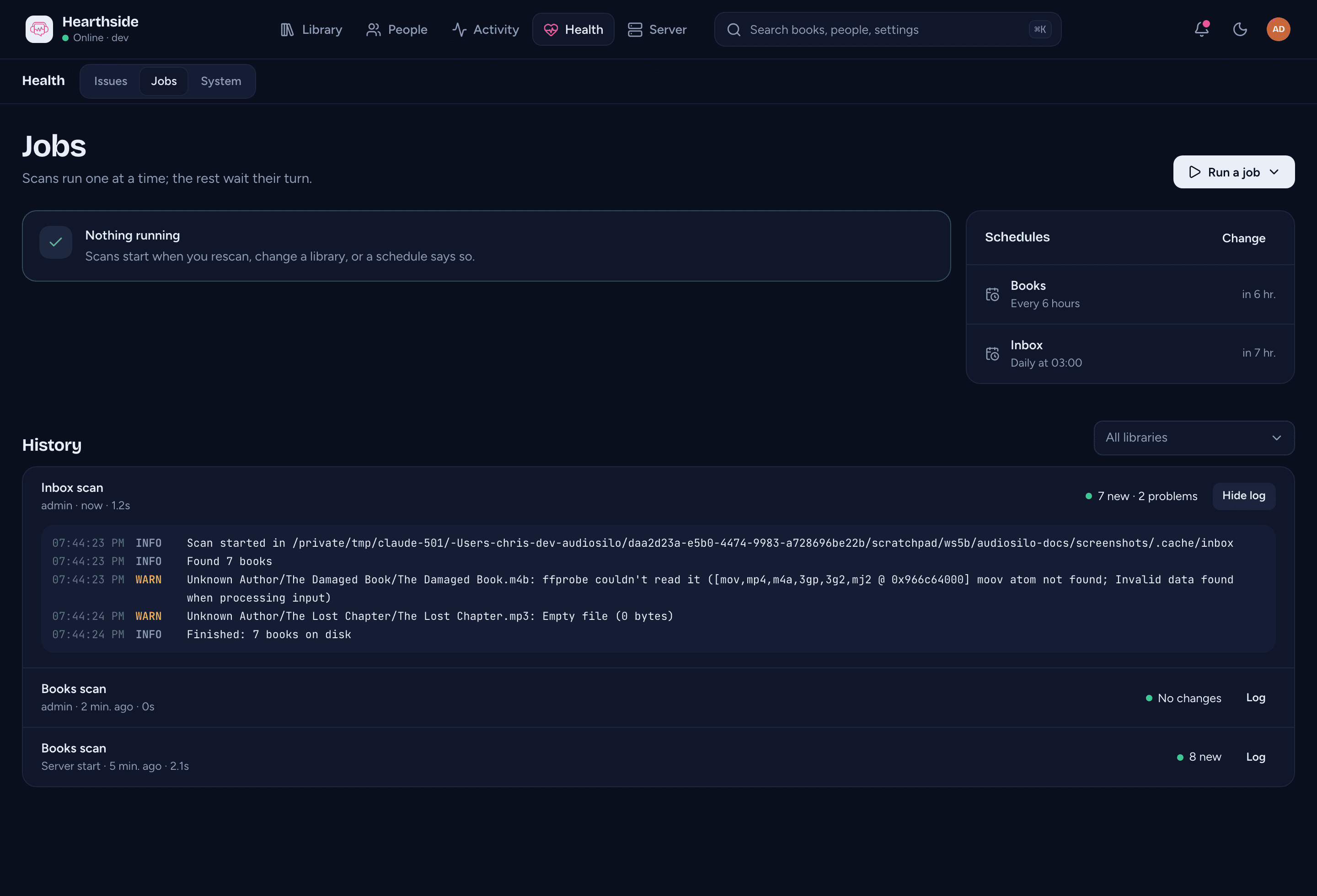
Health > Jobs is where scans are. "Scans run one at a time; the rest wait their turn." - a scan of one library waits while another library is scanned, so they never compete for the disk.
Running now and waiting
- Running now shows "Scanning name", why it started and when, a progress bar, and counters: Books checked, New, Changed, Moved and Removed. When nothing runs it says Nothing running.
- Stop ends the running scan. A scan you stop removes nothing from the library: "Nothing was removed. The next scan picks up where it left off." (If it was already removing missing books, that finishes first, and the history shows what it removed.)
- Waiting (N) lists the scans queued behind it, in order. Cancel drops one before it starts.
- Run a job starts a scan: Rescan one library, or Rescan every library.
A scan has up to an hour; the scan when the server starts has no limit, since it may be indexing a whole library. Deleting a library cancels its scans. A library whose folder doesn't answer (a network share whose server is gone) stops at once as "Folder unreachable" instead of holding up the scans behind it.
A library whose scan is waiting shows a Waiting badge on its card in Library > Libraries, and its Rescan button reads Queued.
Schedules
The Schedules card lists every library that is scanned automatically, with its schedule ("Every 6 hours", "Daily at 03:00") and when the next scan is due. Change opens Library > Libraries; schedules are set when you edit a library.
History
History lists every scan, newest first: the library, who or what started it (an admin's name, Scheduled, Server start or Settings changed), when, how long it took, and what it found - for example "3 new · 1 changed · 1 removed", "No changes", or how it ended (a book you renamed or moved counts once, as moved):
| Result | Meaning |
|---|---|
| "Part of the folder couldn't be read, so nothing was removed" | Some folders were unreadable (often permissions), so the scan didn't remove anything it couldn't see. |
| "Folder unreachable. Nothing was removed" | The library's folder was missing or empty (an unmounted share). |
| "Failed. Nothing was removed" | Something went wrong; the log says what. |
| "Stopped. Nothing was removed" | An admin stopped it. |
| "The server stopped during the scan" | The server shut down or restarted mid-scan. The next scan catches up. |
Use Show scans of to see one library's scans. Log opens a scan's log: when it started, how many books it found, every book that moved ("progress followed"), every file it couldn't read and why, every book removed from the index, and how it finished. Older scans loads more. AudioSilo keeps the last 100 scans of each library.
What a removed book leaves behind
When a scan finds a book's files are gone, it removes the book from the library and writes "Removed from the index: path" in the scan's log. That log line is all the console keeps about it - there are no "missing" books cluttering the library. Nothing personal is lost, though: everyone's progress, bookmarks and notes, and your edits and cover, are remembered by the book's path, so if the files come back to the same place, the next scan brings the book back with all of it. A book you moved is followed to its new place instead ("Moved path to new path; progress followed").
System
Health > System lists everything the server depends on, one row each, with a status on the right: Healthy, Needs attention, Missing, Off, Waiting, Update available or Failed. The page refreshes itself every 30 seconds.
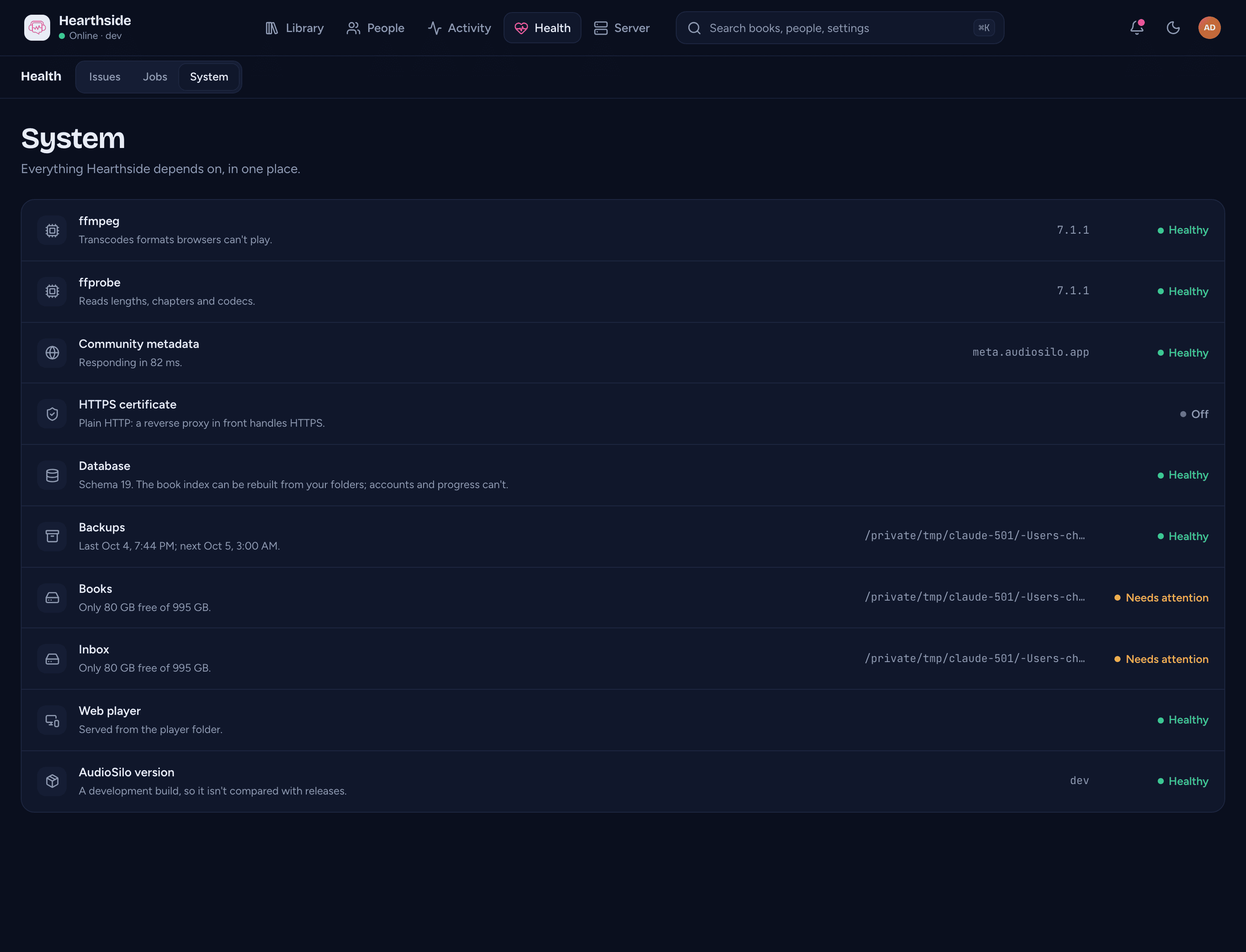
| Row | What it tells you |
|---|---|
| ffmpeg | Found (with its version), so formats browsers can't play are converted while someone listens; "Downloaded into the data folder" when the server fetched its own copy. Missing: those formats won't play in the web player. |
| ffprobe | Found, so lengths, chapters and codecs are read from the files. Missing: lengths and chapters come only from tags. |
| Community metadata | Healthy with how fast the service answered, Needs attention when it isn't responding, or Off (switched off, or no service address set). The server only asks the service while the lookup is on, at most once a minute. |
| HTTPS certificate | Healthy with the days left and who issued it, Needs attention when it expires within two weeks, has expired or its file can't be read, Waiting while Let's Encrypt hasn't issued it yet, or Off with plain HTTP (a reverse proxy in front handles HTTPS). |
| Database | Its schema number. The book index can be rebuilt from your folders; accounts and progress can't, which is why the server makes backups of it. |
| Backups | The backups folder, when the last backup was made and when the next one runs. Failed (with the reason) when the last backup failed; Off when no backups are scheduled, marked as a problem if there isn't a single backup either. See Backups and restoring. |
| Each library | The library's folder, and the space free on its disk. Needs attention when less than a tenth of the disk is free, or when the folder isn't reachable. |
| Web player | Whether people can listen in a browser at /web: "Built into this server.", "Served from the player folder." or, marked Off, "Not available. The apps still work." |
| AudioSilo version | The version you run: Healthy when it's the newest (or, for a build of your own, "A development build, so it isn't compared with releases."), Update available when a newer release exists, Needs attention when the last check failed, or Off when the update check is turned off. See About and updates. |
Two notices can appear above the list:
- "A library folder isn't reachable" (or how many aren't). Nothing was deleted: the server keeps every book, and people's progress, until the folder is back. Mount it again, then rescan (see When a library is offline).
- "The community metadata service isn't responding": players still show what they already had, and new matches wait until it's back. Metadata settings opens its settings. Nothing to do unless it lasts a day.
To change any of this, see Server settings: the HTTPS mode and certificate names are under Network & HTTPS, the tools under Transcoding, the backup schedule under Backups.
Where to next
- Server settings, updates and logs - the settings behind the System page, updates and the server's log.
- Libraries - schedules, skipped files and folder detection.
- Books and metadata - covers, matching and a book's page.