Libraries
A library is a folder on the server that AudioSilo scans for audiobooks. You can have several - for example one for fiction, one for kids - and control per user which ones (or which parts of them) are visible via shares.
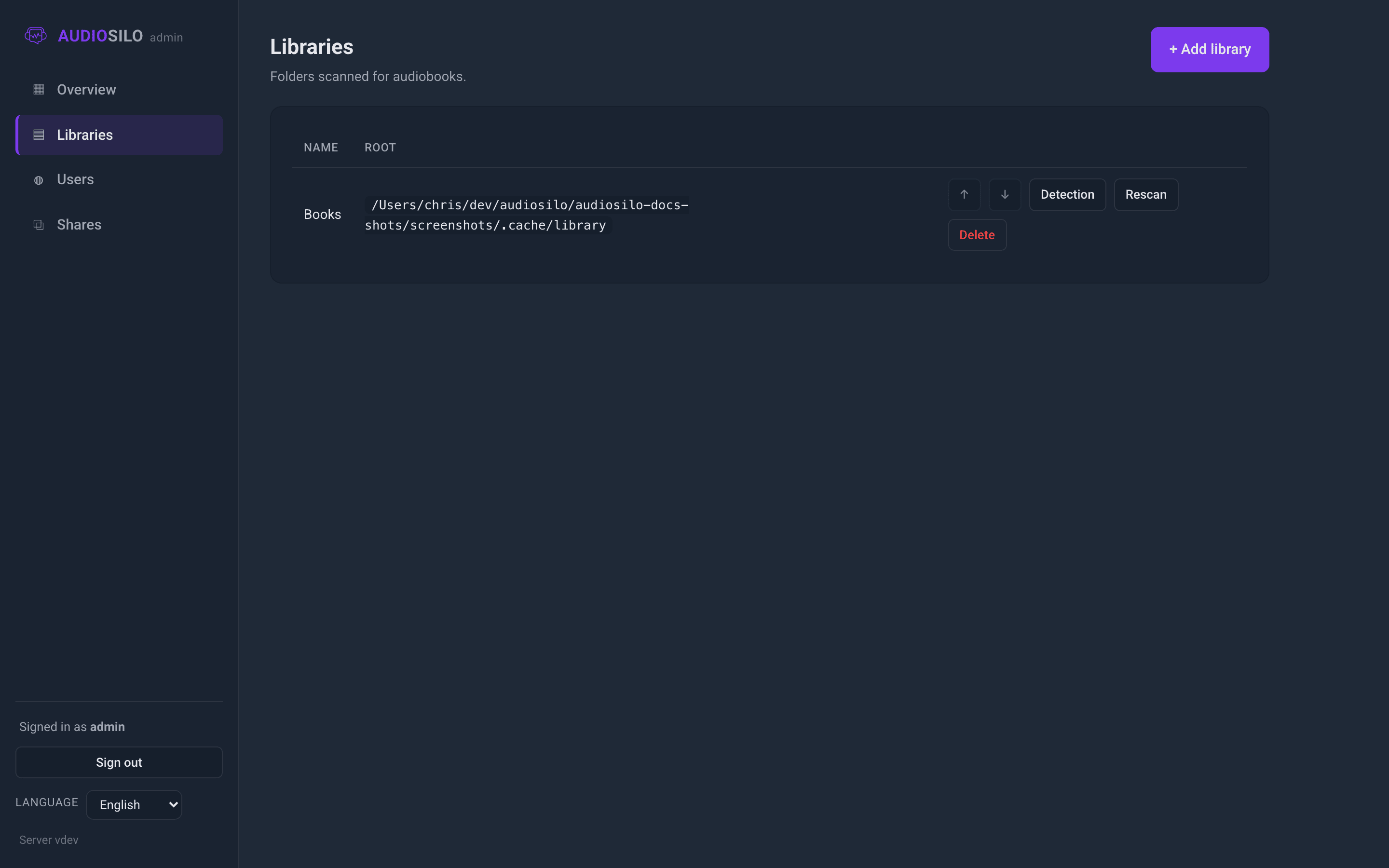
The Libraries section of the admin console lists your libraries with their name and root folder, plus per-library actions.
Adding a library
Click + Add library. The dialog asks for just two things:
- Name - a display name, e.g.
Fiction. - Root path - the folder on the server's filesystem, e.g.
/srv/audiobooks.
There is no layout or structure to choose. As the dialog says: "Book vs. folder structure is detected automatically - no layout to choose. Use 'Detection' on a library to correct any folder it gets wrong."
After you add it, a scan starts in the background ("Library added - scanning in the background"). Listeners don't have to wait: the file-browsing view works immediately, and books are indexed as the scan progresses (or on demand when someone opens one).
:::warning Library roots must be local paths The root must be a folder the server itself can read directly. If your audiobooks live on a NAS or network share (SMB/NFS), mount the share on the server machine first and point the library at the mount point - you can't enter a network URL. If the server runs in Docker, mount the folder into the container and use the in-container path (see Quickstart with Docker). :::
Rescanning
Click Rescan on a library to re-index it - after you've added, removed, renamed or re-tagged files. The button shows live progress ("Scanning 12/340…") and a "Rescan complete" toast when done.
Scans also run automatically:
- for every library when the server starts,
- when a library is added,
- when you change a folder detection override (below).
A rescan never touches your files - it only rebuilds AudioSilo's index of them. Listening progress and bookmarks are keyed to file paths, so they survive rescans, and even survive moving or renaming a book's folder (the scanner recognises moved files and carries progress across).
Library order
The ↑ / ↓ buttons reorder libraries. Order matters in one subtle way: when the same book exists in more than one library, de-duplication in search and "recently added" picks the best-quality copy first - it prefers the better format (M4B/AAC over MP3 over anything else), then a single-file copy over a multipart one, then the higher bitrate. Library order only breaks ties between otherwise-equal copies, so put your primary library first.
Folder detection
AudioSilo works out what is a book on its own, using one simple rule:
- A folder that directly contains audio files is one book, and all those
files are its parts - whether that's a single
.m4bor fifty numbered.mp3chapters. - The only exception is the top level of the library: loose audio files sitting directly in the root are each treated as an individual, single-file book.
That matches how most people organise audiobooks (one folder per book, usually
inside author or series folders). But one layout genuinely can't be guessed: a
folder that holds many unrelated single-file books - say a Short Stories
folder containing thirty standalone .mp3 files. By the rule above, that
folder would be indexed as one giant thirty-part "book".
That's what the Detection browser is for. Click Detection on a library to browse its folders and correct any the detector gets wrong:
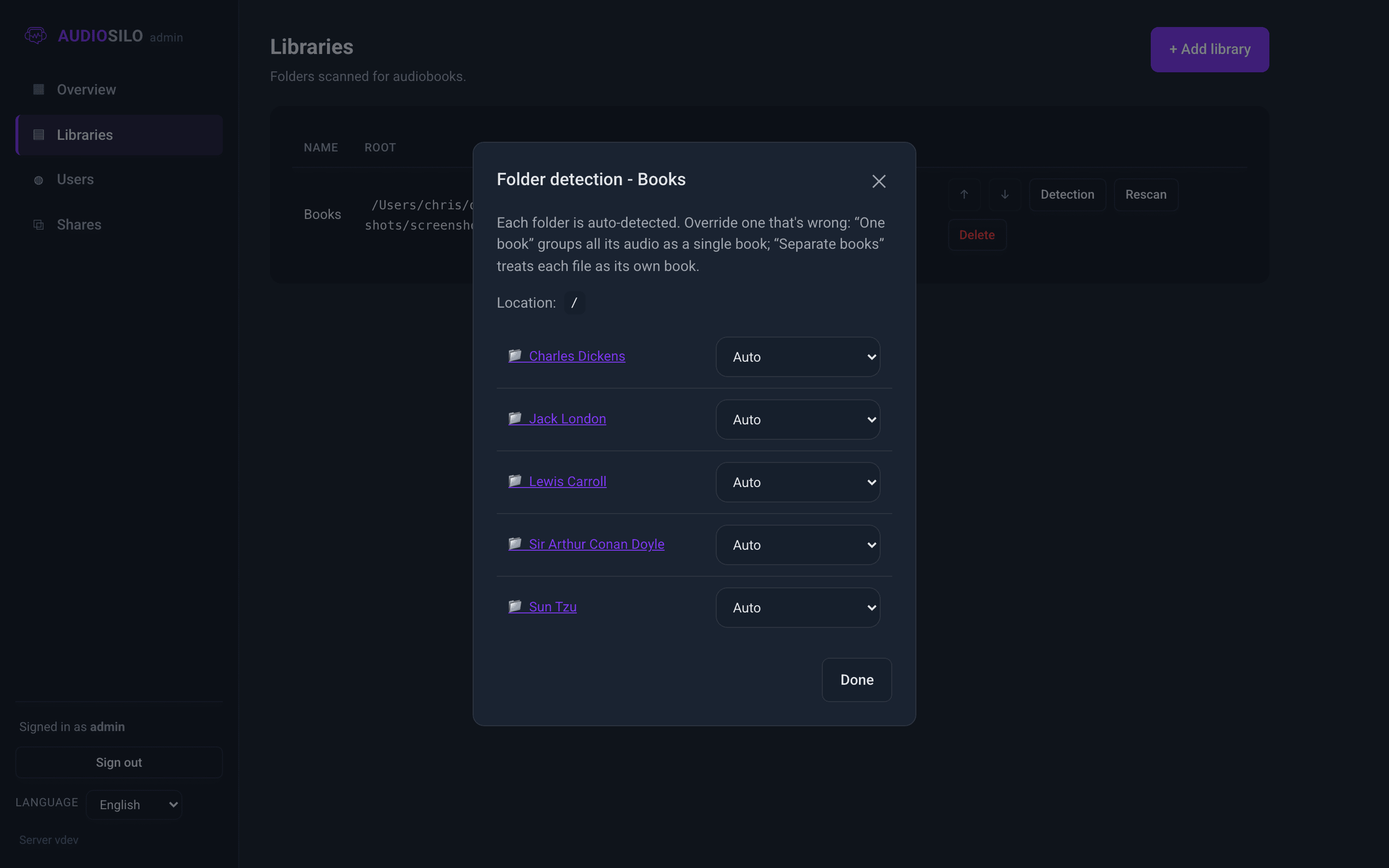
Each folder has a dropdown with three choices:
- Auto - the default; let AudioSilo decide.
- One book - force the folder to be a single book (all its audio files are its parts).
- Separate books - treat each audio file in the folder as its own book. This is the fix for the "folder of standalone single-file books" case.
Folders the detector already recognises as books are labelled "· book" in the list. Changing a dropdown saves the override and rescans the library immediately ("Detection updated - rescanning").
Overrides are durable settings, not scan results - they survive rescans and even a full index rebuild. Set one once and forget it.
Exporting a library
Click Export on a library to download its book list as a .json file
(named after the library and today's date, e.g.
audiosilo-fiction-2026-09-21.json).
The file is meant for AudioSilo Meta, the community metadata site: open its Watching page at meta.audiosilo.app and import the file to mark which entries of a series you already own, so the site can show you what you are missing and what is coming next.
It is a plain list of books - title, authors, narrators, series and position, ASIN/ISBN, runtime and chapter count. Nothing about your server goes into it: no file paths, no folder names, no file sizes or formats, and not the library's root folder. It is safe to hand to the site or keep as a record of what a library holds.
Export is an admin action and covers the whole library, not just the parts you have shared with a particular user.
Renaming or moving a library
The console doesn't currently have an edit control for a library's name or root folder. If you need to move a library's content, prefer moving the files within the existing root (progress follows moved files automatically). If you must re-point a library at a new location, be aware that deleting and re-adding it loses listeners' progress in it - see the warning below.
Deleting a library
Click Delete on a library. The confirmation says it plainly: "Files on disk are kept; only the index is removed." Your audio files are never touched - the library simply disappears from AudioSilo.
:::warning Progress in the library is removed too Deleting a library also removes what AudioSilo knows about it for your users: their listening progress, bookmarks and notes for books in that library. Don't delete and re-add a library as a way to "refresh" it - use Rescan for that. :::
When a library folder goes missing
If a library's root folder becomes unreachable - the classic case is a network share that unmounted after a reboot - AudioSilo protects the index rather than "helpfully" syncing with an empty folder:
- A scan that finds the root missing or unreadable aborts without removing anything.
- A scan that finds the root suddenly empty while books are still indexed also aborts - that pattern almost always means a dropped mount, not a genuinely emptied folder.
The user-visible effect: the library's books stay listed in the apps and the book counts don't drop; playback of those books fails until the folder is back. Your users' progress and bookmarks are safe throughout. Once you've remounted the share (or fixed permissions), click Rescan and everything picks up where it left off.