Add free books from LibriVox
An admin can search LibriVox's free public-domain audiobooks and add one to a books library. Your Bridge downloads the recording, puts it in the library and has the server index it. The book arrives matched to its LibriVox recording, so its community details show with no matching by hand.
You need:
- an admin account;
- community metadata turned on, in Server > Settings > Community metadata;
- a paired Bridge, updated together with your server;
- the library shown as Ready in Server > Settings > Bridge.
The search reads the community metadata database, so your server never asks LibriVox itself. The Bridge reads the recording's list of sections from the community metadata database too, and downloads the audio from archive.org, where LibriVox keeps its recordings.
The Bridge checks a books library against a book the server has indexed. A library with no books yet can't be Ready, so add one book to it first (see Libraries).
Add a book in the console
To add a book, open Library > LibriVox in the admin console.
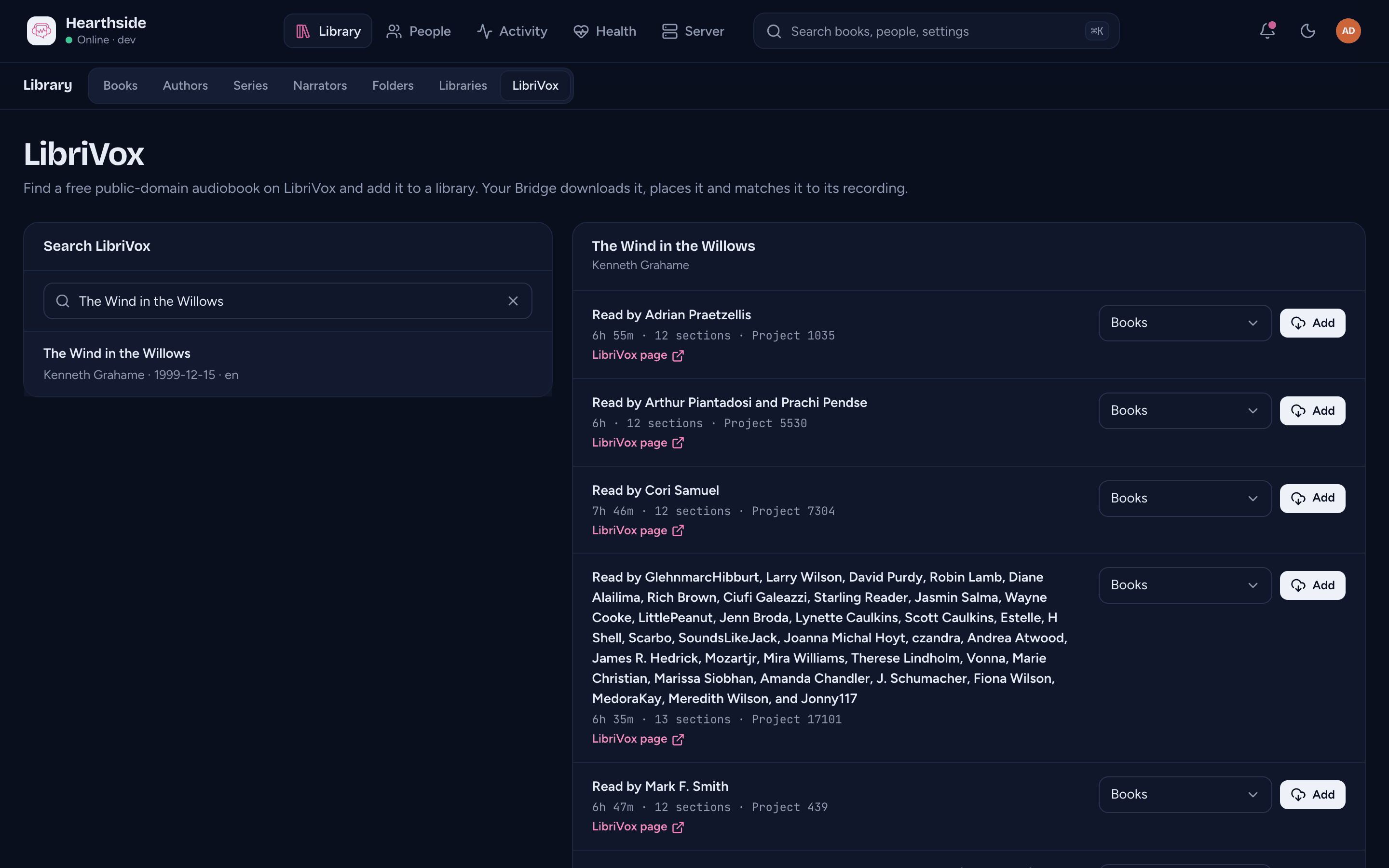
- Type a title or an author in Search LibriVox.
- Select a result. Its list of recordings shows who reads each one, its length, how many sections it has and its LibriVox project number.
- Pick the library, when you have more than one books library.
- Press Add, or Add to your library when there is only one.
The recording's row shows the Bridge's progress, and the library it is going into when you have more than one. When it is done, the row says In library with a link to the book.
LibriVox page on a row opens the recording on librivox.org.
When the Bridge is offline, the page says so. A book you add then waits, and the Bridge starts it when it is back.
Add a book in the player
To add a book from the app or the web player, open the Library tab on a books library.
- Press the ... button beside the sort and layout controls. It shows only while the Bridge is online.
- Choose Find on LibriVox.
- Type a title or an author, press Search and select a result.
- Press Add to the library on the recording you want.
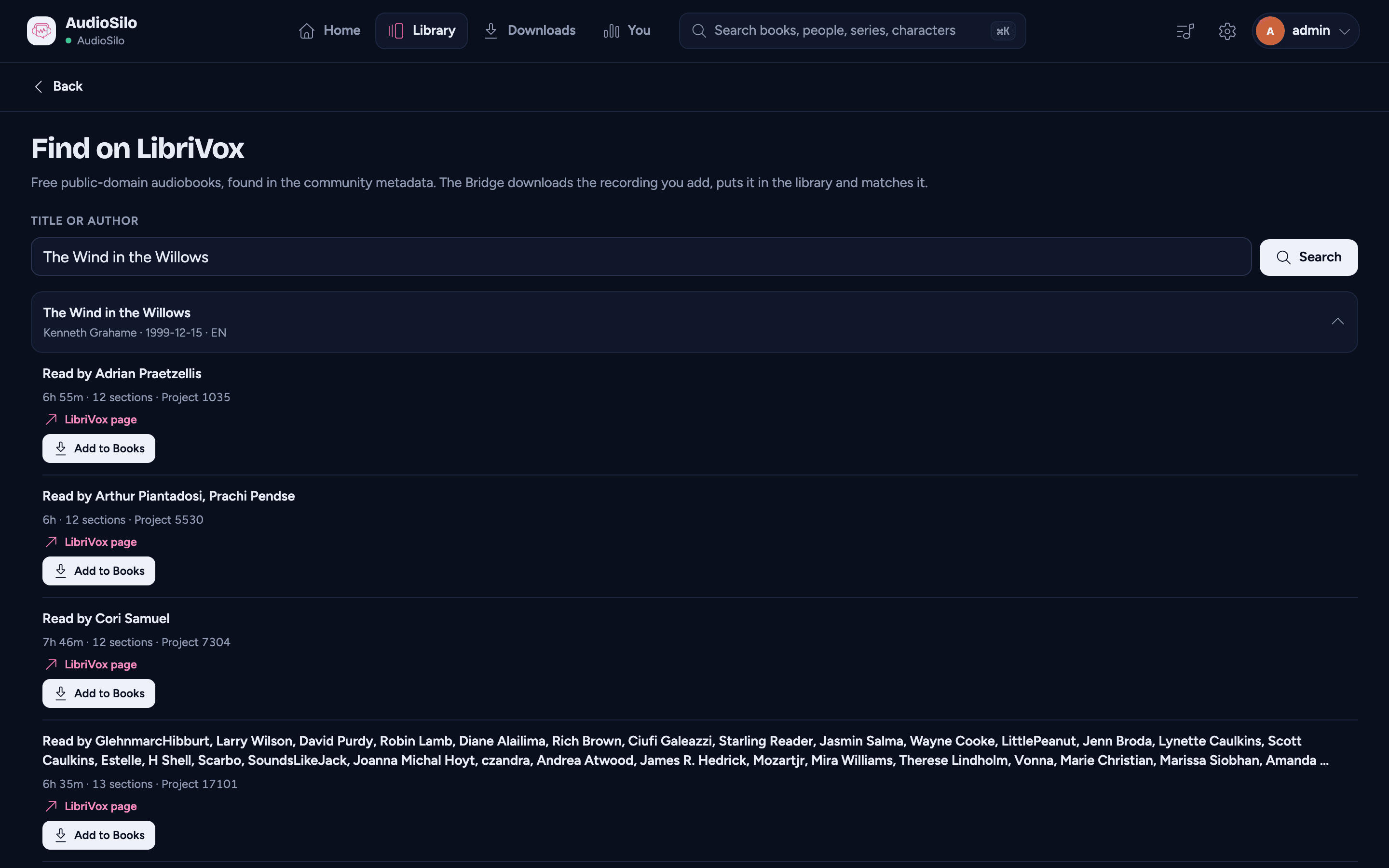
The book goes to the library you opened the page from. With more than one books library, you can pick another under Add to.
The row shows the progress, with Cancel under it while it runs. Once the book is in, the row says In your library, and Open opens its page.
You can leave the page while the book downloads. While the app stays open, the Library shows the book as soon as it is in.
If the Bridge goes offline while the page is open, the page stays and says so. You can keep searching, and Add and Cancel wait until the Bridge is back.
What lands in your library
The Bridge makes one folder for the book, by author and title. For example:
Charles Dickens/
  A Christmas Carol/
    01 - Marley's Ghost.mp3
    02 - The First of the Three Spirits.mp3
    ...
    cover.jpg
    .audiosilo/librivox.json
- Each section is one file and one chapter, numbered in reading order.
- When the author already has a folder in the library, the book goes in it.
- A book with more than three authors goes under Various.
- A book with several LibriVox recordings is named by the recording's own title, such as "(version 2)", so two recordings never share a folder.
- If a folder of that name already exists, the Bridge uses Title (LibriVox number) instead. It never writes into an existing book.
.audiosilo/librivox.jsonrecords which LibriVox recording the folder holds.
While it downloads, the Bridge keeps the files in a hidden folder beside the book, which the server ignores. The book appears all at once when every section is in.
The Bridge adds one book at a time. Audible backups and the podcast episodes the server fetches on its own take turns with it; an episode a listener is waiting for does not wait.
Cancel or restart
Cancel on the player's row stops the download. In the console, use Cancel in the Jobs list on Server > Settings > Bridge. A cancelled book leaves nothing behind in the library.
If the Bridge stops part way, it picks up where it left off. Sections it already downloaded are kept, and a section cut off part way usually resumes. That holds when archive.org stops answering too, so adding the book again later carries on.
A download left unfinished and unused for 7 days is cleared from the Bridge's hidden folder.
When adding fails
The row says why. Press the add button (Add to your library) again to try once more.
| Reason | What to do |
|---|---|
| The Bridge can't write to this library. | Check the library is Ready in Server > Settings > Bridge. A book that Needs attention for this carries on by itself once the library is ready. |
| A book is already at that place in the library. | Something is already in the folders the book would go in. Move or rename that folder. |
| The library's disk is full. | Free some space in the library. |
| LibriVox no longer lists this project. | The recording left the community database. Search again. |
| archive.org couldn't be reached. | Try again later. |
| Community metadata was turned off. | Turn it on in Server > Settings > Community metadata. If it is on, the Bridge has no metadata service set: check its AUDIOSILO_BRIDGE_METADATA_BASE_URL. |
| That recording is already in a library. | Nothing to do. The recording's row links to it. |
Good to know
- The server tells you when a book is added or fails, in the bell and your
notifications. The message says how the book is matched:
- matched to its LibriVox recording, the usual case;
- kept the match it had, when the book was in the library already with another match;
- couldn't be matched, sent as a warning. Add the recording again from Library > LibriVox to match it.
- A link to Find on LibriVox for a library this server doesn't have shows This link doesn't point to anything here.
- Clear community matches removes the match of books added from LibriVox too. To get it back, press Add on the recording again. When the book is still in the folder the Bridge put it in, the Bridge finds it there and downloads nothing, and the server matches it again.