Notifications and the bell
The server keeps a list of things an admin may want to know about: new books, a scan that failed, a library whose folder went missing, someone signing in, an invite being used, a new version, a backup that failed. You see them in two places:
- The bell at the top of the admin console, always.
- Wherever you choose to send them: a webhook (Home Assistant, n8n and the like), an ntfy topic on your phone, or a Discord channel. Set these up in Server > Settings > Notifications.
The bell
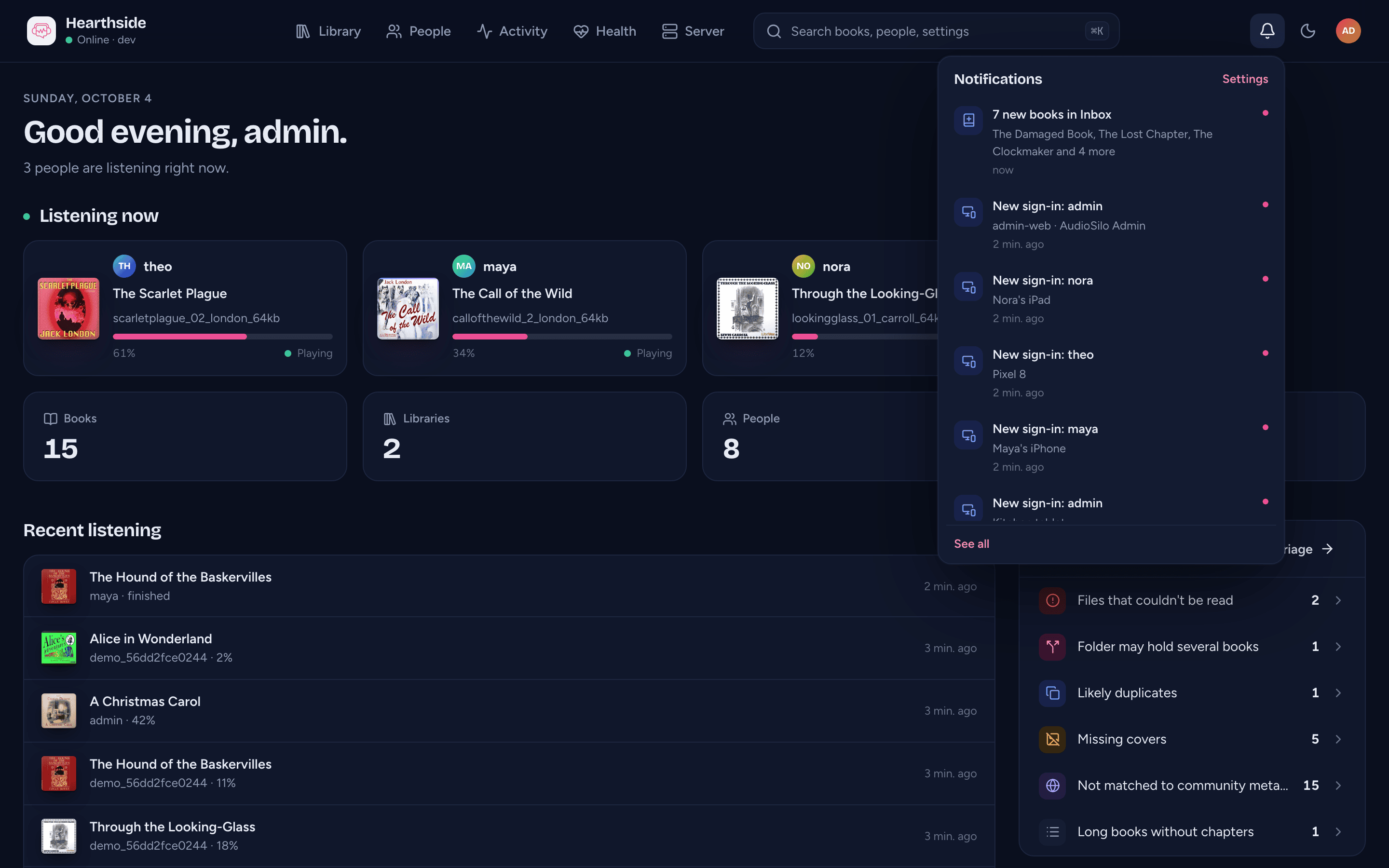
Click the bell in the top bar to see the newest eight events, newest first, each with when it happened. Click one to go where you can deal with it: new books open the library, a failed scan opens Health > Jobs, a sign-in opens People > Devices, an update opens Server > About, a failed backup opens Backups. Settings at the top opens the Notifications settings, and See all at the bottom opens the full list.
A dot on the bell means there are events you haven't seen yet; they are marked New in the list. Opening the bell marks them as seen. This is remembered by the browser, so another browser (or another admin) has its own dot. The bell checks for new events once a minute, and the server keeps events for 90 days.
Every event: Server > Events
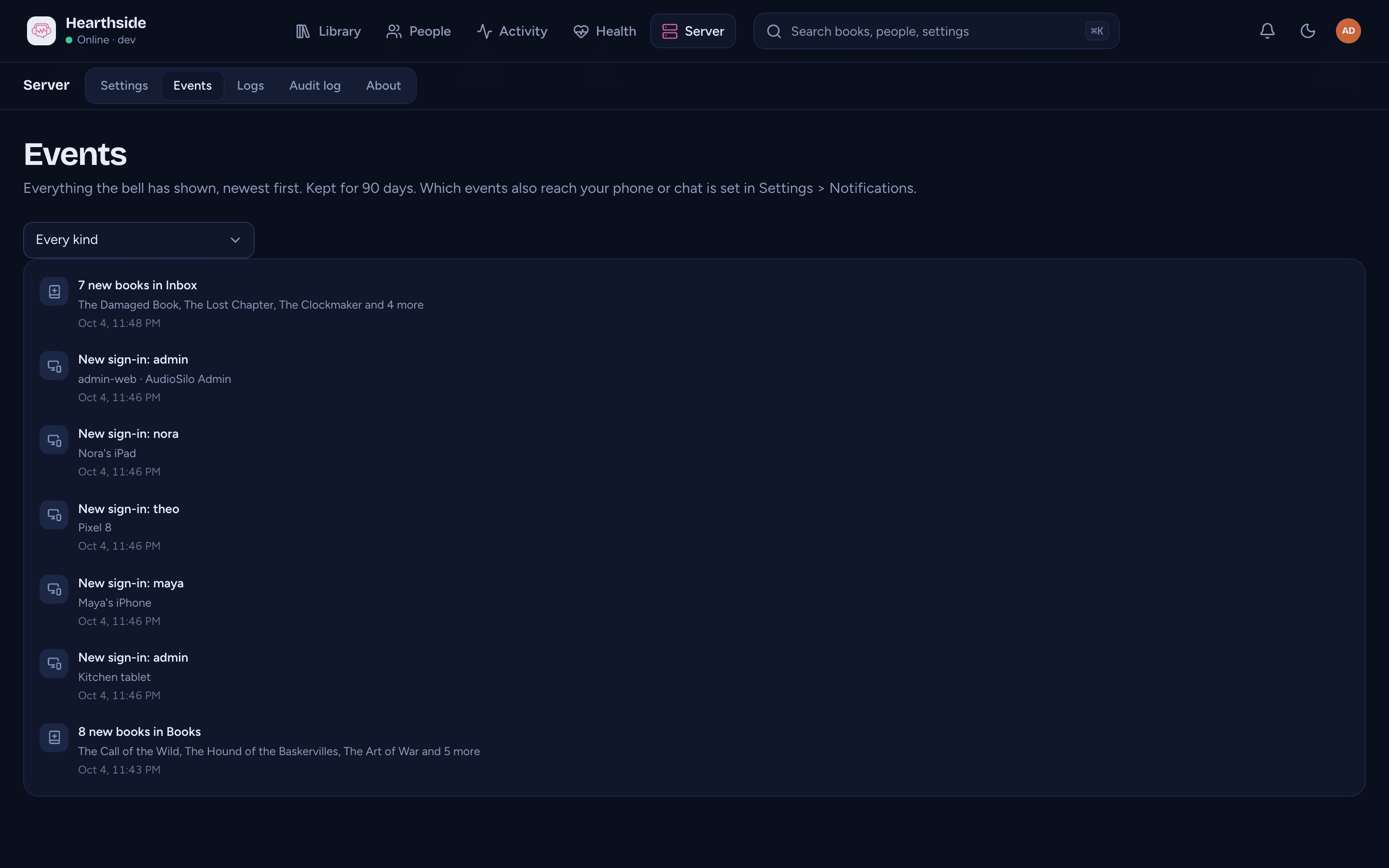
Server > Events (or See all in the bell) lists every event the server has kept, newest first, with its date and time. Pick a kind of event at the top to see only those (every sign-in, say, or every failed backup), and Show older at the bottom to go further back. Each one opens the same place the bell would.
Adding a destination
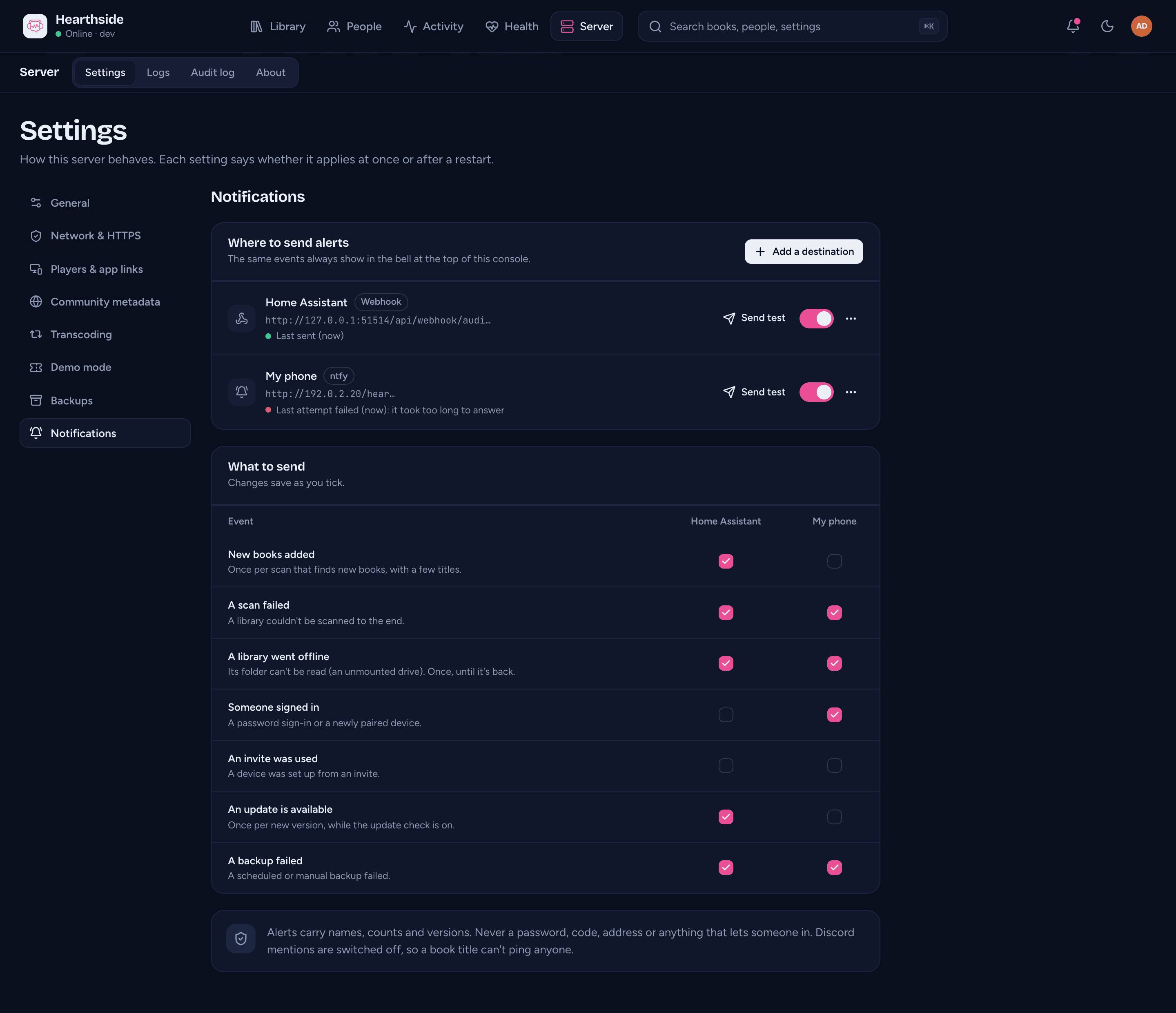
Press Add a destination and choose its kind:
- Webhook - AudioSilo sends a JSON message (a
POST) to an address you give. A local address likehttp://192.168.1.5:8123/...is fine. Add a Signing secret if the receiver should check that messages really come from your server: each request then carries anX-AudioSilo-Signatureheader. What the message looks like, and how to check the signature, is in the developer docs. - ntfy - push notifications on your phone. Enter the topic's address, like
https://ntfy.sh/your-topic, and subscribe to the same topic in the ntfy app. Anyone who knows a topic's name can read it, so pick one nobody can guess. If your ntfy server needs a sign-in, put its Access token in. - Discord - a message in a channel. In Discord, open the channel's settings, then Integrations, Webhooks, and Copy webhook URL, and paste that. The address is the secret here, so there is no other.
Give it a Name (shown in the list and in the table below) and tick what to Send. A new destination starts with the problems ticked (a failed scan, an offline library, an update, a failed backup); add the rest if you want them. Press Add destination, then Send test to check it works.
The address and the secret are kept on the server and never shown in full again: the list shows only the start of the address (for a short ntfy topic, not even that). To change one, use Edit in the destination's ... menu and type the new value; leaving the field empty keeps what is saved, and Remove the saved secret removes it. A saved secret stays with the server it was given for: if you change the address to another server, the dialog asks you to enter the secret again (or remove it), and the server won't save the new address until you do. A new address on the same server keeps the secret. A server can have up to 20 destinations.
The destination list
Each destination shows its name, kind, the start of its address, and how the last message went:
- Nothing sent yet.
- Last sent (when) - it arrived.
- Last attempt failed (when), with why: "it took too long to answer" (no answer within 10 seconds), "the server couldn't connect" (wrong address, or the receiver is down), "it answered HTTP number" (the receiver refused it, for example 404 for a wrong address or 401 for a wrong token), or "something went wrong".
Send test sends a test message right away ("Test from your server's name") and says whether it arrived. The switch turns a destination off and on without deleting it. Delete in the ... menu removes it.
A message that doesn't get through because the receiver is busy, down or slow is tried twice more (after 10 seconds, then after a minute). The server never follows a redirect: if the address answers "moved", fix the address.
What to send
The What to send table has a row per event and a column per destination. Tick a box to send that event there; it saves as you tick.
| Event | When it happens |
|---|---|
| New books added | A scan found new books: one message per scan, with a few of the titles. |
| A scan failed | A library couldn't be scanned to the end. The bell shows the error the scan stopped with; the message sent out only names the library and points to the scan's log in Health > Jobs, because that error can name a folder on the server. |
| A library went offline | A library's folder can't be read (an unmounted drive or network share), so the scan stopped and nothing was removed. Sent once, not at every scan, until the folder is back. |
| Someone signed in | A sign-in from somewhere new: a phone or browser set up from an invite or a QR code, or a password sign-in from a browser that person hasn't signed in from before, with the person's name, the device's name and the app. Signing in to this console again from the same browser isn't announced again; a sign-in from any other browser is, yours included. If you sign a browser out from People > Devices, its next sign-in is announced again, and after a new password or a disabled account every browser of that person is. Demo guests don't count. |
| An invite was used | A device was set up from someone's invite. |
| An update is available | A new AudioSilo version is out. Once per version, and only while Check for new versions is on (General). |
| A backup failed | A scheduled or manual backup failed, with the reason. |
All of them show in the bell whether or not you send them anywhere.
What a message carries
Messages carry what the console would show: names (of people, devices and
libraries), book titles, counts, a version number, the server's name, and a
link into this console when the server has a
public address (an update links to its release notes
instead). They never carry a password, an invite
code, a token, anyone's IP address, the destination's own address, or a
folder on the server (a failed scan's error stays in the bell). On
Discord, mentions are switched off, so a book title or device name with
@everyone in it can't ping anyone. Messages are written in English,
whatever language the console is in.
Where to next
- Backups and restoring - the backups a failed-backup message is about.
- Server settings, updates and logs - the public address and the update check, and the audit log.
- Library health and jobs - where scan problems are dealt with.