Server settings, updates and logs
The Server destination in the admin console is where you look after the server itself:
- Settings - the server's settings, one topic at a time.
- Logs - what the server has been doing since it started.
- Audit log - what admins changed, and when.
- About - which version you run, whether a newer one exists, and how to update.
The health of what the server depends on - ffmpeg, the certificate, disk space, backups - is on Health > System.
Settings
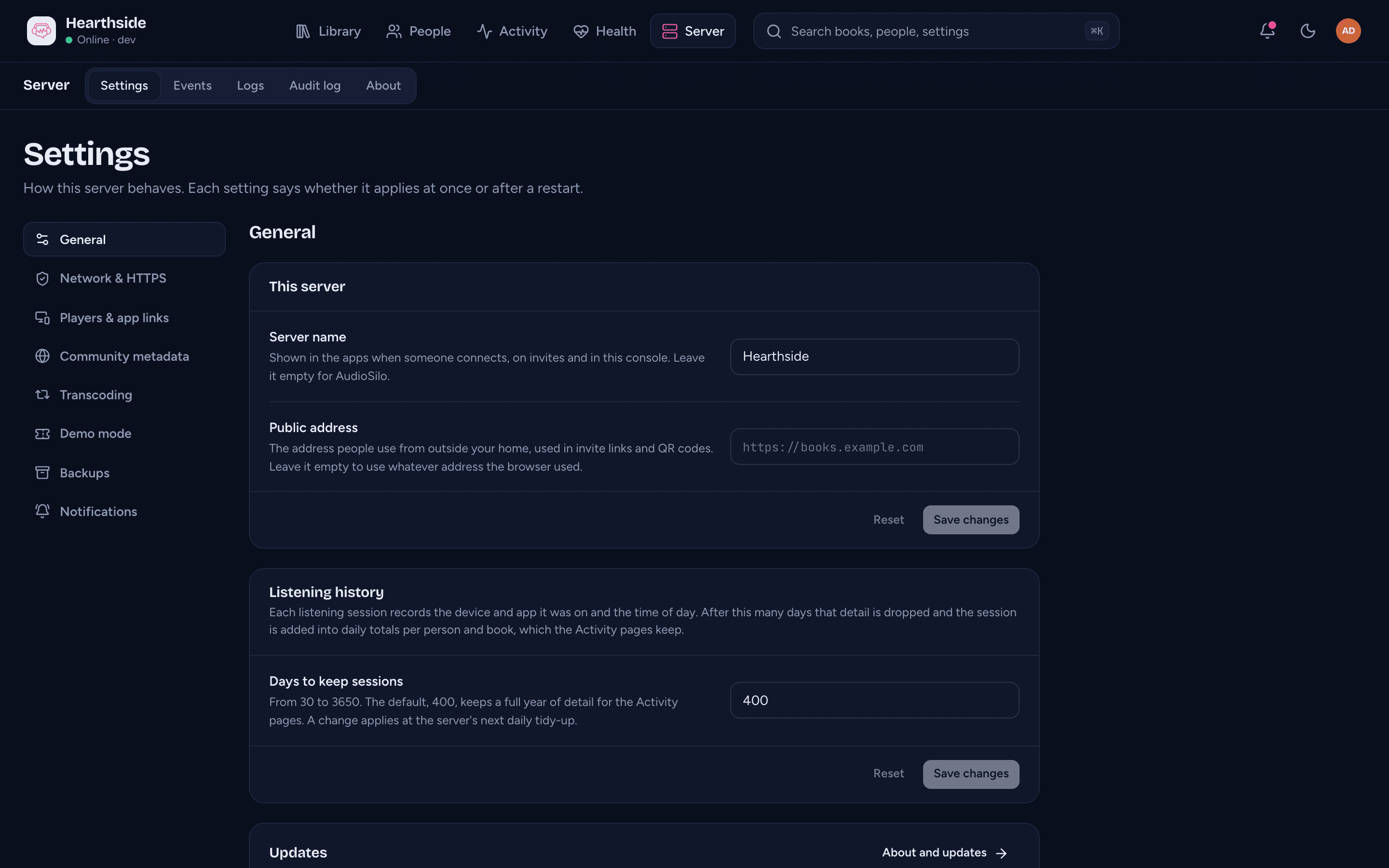
Server > Settings lists its topics down the left (across the top on a
phone): General, Network & HTTPS, Players & app links,
Community metadata, Transcoding, Demo mode, Backups and
Notifications. Each setting lives in exactly one of them. Backups and
Notifications have pages of their own:
Backups and restoring and
Notifications and the bell. The settings are the same ones the server keeps in
config.yaml in its data folder: a change you save here is written there, so
it lasts across restarts.
Most topics are made of cards. Change what you like in a card, then press
Save changes at its foot (Reset puts the card back as it was). Only
the values you changed are sent. If the server refuses one - an address
without https://, a time like "2 days" - the reason shows under that field
and nothing in the card is saved, so fix it and save again. The two switches
(Check for new versions and Look up community metadata) save the
moment you flip them.
When a change takes effect
Most settings apply the moment you save: the next request already uses them, and a toast says "Applied now. No restart needed."
A few are only read when the server starts, and carry a Restart to apply badge: the listen address, the HTTPS mode and certificate names, the web player folder, the community metadata service address, turning demo mode on or off, how long idle demo guests are kept, and the backups folder. When you save one of them:
- On Network & HTTPS, the console asks first ("Save and apply at the next restart?"), because a wrong value there can stop the server from starting.
- The toast says "Saved. Some of it takes effect when the server restarts."
- A notice at the top of every Settings topic, "Restart AudioSilo to finish applying your changes", names the settings waiting, and each carries a Waiting for a restart badge. Until you restart, the server keeps using its current values.
The console can't restart the server for you. Restart it the way you started
it: docker compose restart (or docker restart with your container's name),
restarting the service, or quitting and starting the program again.
:::warning If the server won't start after a change
A listen address whose port something else uses, or a Let's Encrypt name that
doesn't point at the server, can keep it from starting. Open config.yaml in
the server's data folder, put the old value back (the keys are listed in the
configuration reference), and start it
again.
:::
Settings set somewhere else
Some settings can't be changed here, and say why:
- Set by AUDIOSILO_... - an environment variable sets it (common with
Docker, where
docker-compose.ymlpasses them). An environment variable wins over this page and overconfig.yaml, so change it where it is set and recreate the container. The console never copies its value intoconfig.yaml, so removing the variable later brings back the file's own value. - Managed by the desktop app - the desktop manager runs this server and sets its listen address, HTTPS mode and public address itself. Change those in the manager.
General
- Server name - shown in the apps when someone connects, on invites and in this console's top bar. Leave it empty to be called "AudioSilo".
- Public address - the address people use from outside your home, like
https://books.example.com, used in invite links and QR codes. Leave it empty to use whatever address the browser used. See Tell the server its public address.
The Listening history card sets Days to keep sessions (400 out of the
box, anything from 30 to 3650). Each listening session records which device
and app it was on and the time of day. After this many days that detail is
dropped and the session is added into daily totals per person and book, which
Activity keeps for good, so totals and books listened to stay
while "which phone, what time" goes. 400 days keeps a full year of detail for
the Activity pages' longest range. A change applies at the server's next daily
tidy-up. The AUDIOSILO_SESSION_DAYS variable sets it too, and then locks it
here.
The Updates card holds the Check for new versions switch, on out of the box. While it is on, the server asks GitHub once a day whether a newer AudioSilo exists, and Server > About shows the answer. Turning it off stops every request to GitHub. See What the update check sends.
Network & HTTPS
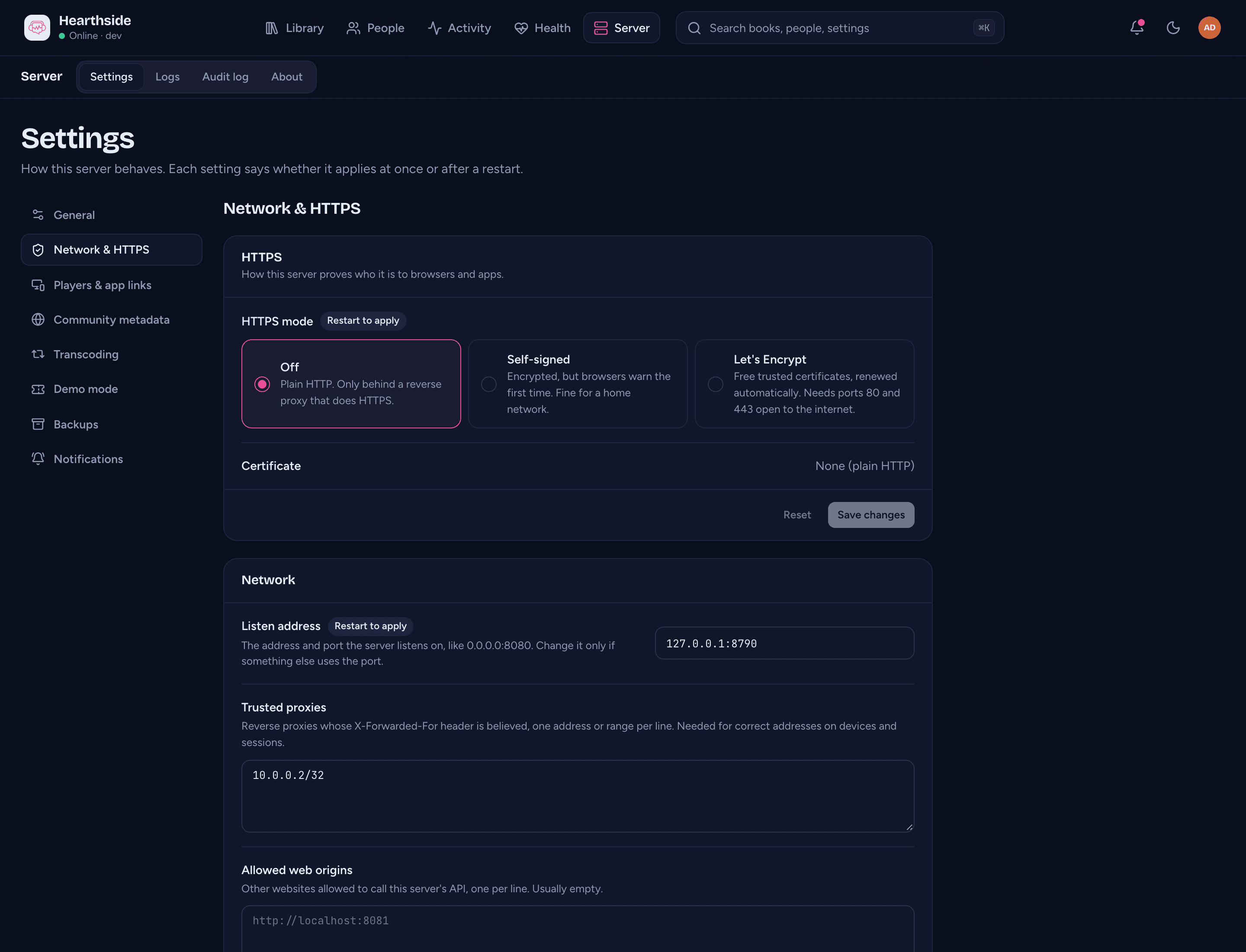
The HTTPS card chooses how the server proves who it is to browsers and apps (the same three choices as Remote access):
- Off - plain HTTP. Only behind a reverse proxy that does HTTPS.
- Self-signed - encrypted, but browsers warn the first time. The default, and fine on a home network.
- Let's Encrypt - free trusted certificates, renewed automatically. Needs
ports 80 and 443 open to the internet, and shows Certificate names: one
name per line, like
books.example.com, each pointing at this server.
The Certificate row says how the certificate the server serves now looks: "Valid" with the days left, "Expires in N days" (under two weeks), "Expired", "Not issued yet" (Let's Encrypt hasn't issued one yet), or "None (plain HTTP)". Once there is a certificate, the line under it names who issued it and the date it runs out.
The Network card:
- Listen address - the address and port the server listens on, like
0.0.0.0:8080. Change it only if something else uses the port. - Trusted proxies - your reverse proxies, one address or range per line.
The server believes their
X-Forwarded-Forheader, so devices, sessions and rate limits see each visitor's real address. A plain address like10.0.0.2is saved as the range10.0.0.2/32. - Allowed web origins - other websites allowed to call this server from a
browser, one per line (like
http://localhost:8081). Usually empty; see Settings you can leave alone.
The HTTPS mode, the certificate names and the listen address wait for a restart; trusted proxies and allowed origins apply at once.
Players & app links
The Web player card says whether people can listen in a browser at /web:
Built in (this build carries the player), Served from a folder (with
the Player folder under it) or Not available. The player folder can
only be changed in config.yaml (web_dir) or with AUDIOSILO_WEB_DIR, and
takes effect at the next start.
The App links card lets invite links and QR codes on your own domain open the installed app directly. It only helps with an app build that claims your domain, so most servers leave it empty:
- iOS app IDs - team ID and bundle ID, like
ABCDE12345.app.audiosilo, one per line. - Android package - like
app.audiosilo. - Android certificate fingerprints - the SHA-256 of the app's signing certificate (32 pairs of hex digits joined by colons), one per line.
Community metadata
The Look up community metadata switch turns the community metadata lookup on or off for the whole server. When it is on, books that can be matched (they carry an ASIN or ISBN) gain an extra "About this book" block in the player - a description, production details, the series they belong to, and (where the community has written them) character cards and story-so-far recaps - drawn from the free, community-run catalogue at meta.audiosilo.app. Only a book's ASIN or ISBN is sent, never file paths or who is listening. See About this book for what listeners see.
- Flipping the switch takes effect immediately for everyone connected, and the choice is remembered across restarts.
- Turning it off is a one-tap privacy switch: your server stops contacting the metadata service at all, and the extra section disappears from every player.
- While it is on, Status says whether the service answers ("Responding · N ms" or "Not responding").
- Service address in the Service card is the metadata service your
server uses (
https://meta.audiosilo.appout of the box). Change it only if you run your own; a new address is used from the next restart. If no address is set, the switch is greyed out and a notice ("No metadata service is configured") asks you to enter one and restart.
Transcoding
Transcoding shows ffmpeg and ffprobe: the version found and where, "downloaded" when the server fetched its own copy into the data folder, or Not available with what that means. ffmpeg converts formats browsers can't play to MP3 while someone listens; ffprobe reads lengths, chapters and codecs.
Nothing here can be changed in the console. The server finds the two tools
when it starts: next to its own program, on the system's PATH, or downloaded
into the data folder. To use other copies, start it with the --ffmpeg and
--ffprobe options (see the
configuration reference).
Demo mode
The Demo mode card runs a public demo from this server (see Demo):
- Enable demo mode - hands out throwaway accounts at
/web/demo, and sends visitors of the site's front page straight to the demo. Waits for a restart. - Guests can listen to - the library every demo account gets. Use a library of public-domain books, never your own collection.
- Most guests at once -
0means no limit; leave it empty for the default (200). - Remove idle guests after - a length of time like
30m,2hor24h; empty means 24 hours. Waits for a restart.
About and updates
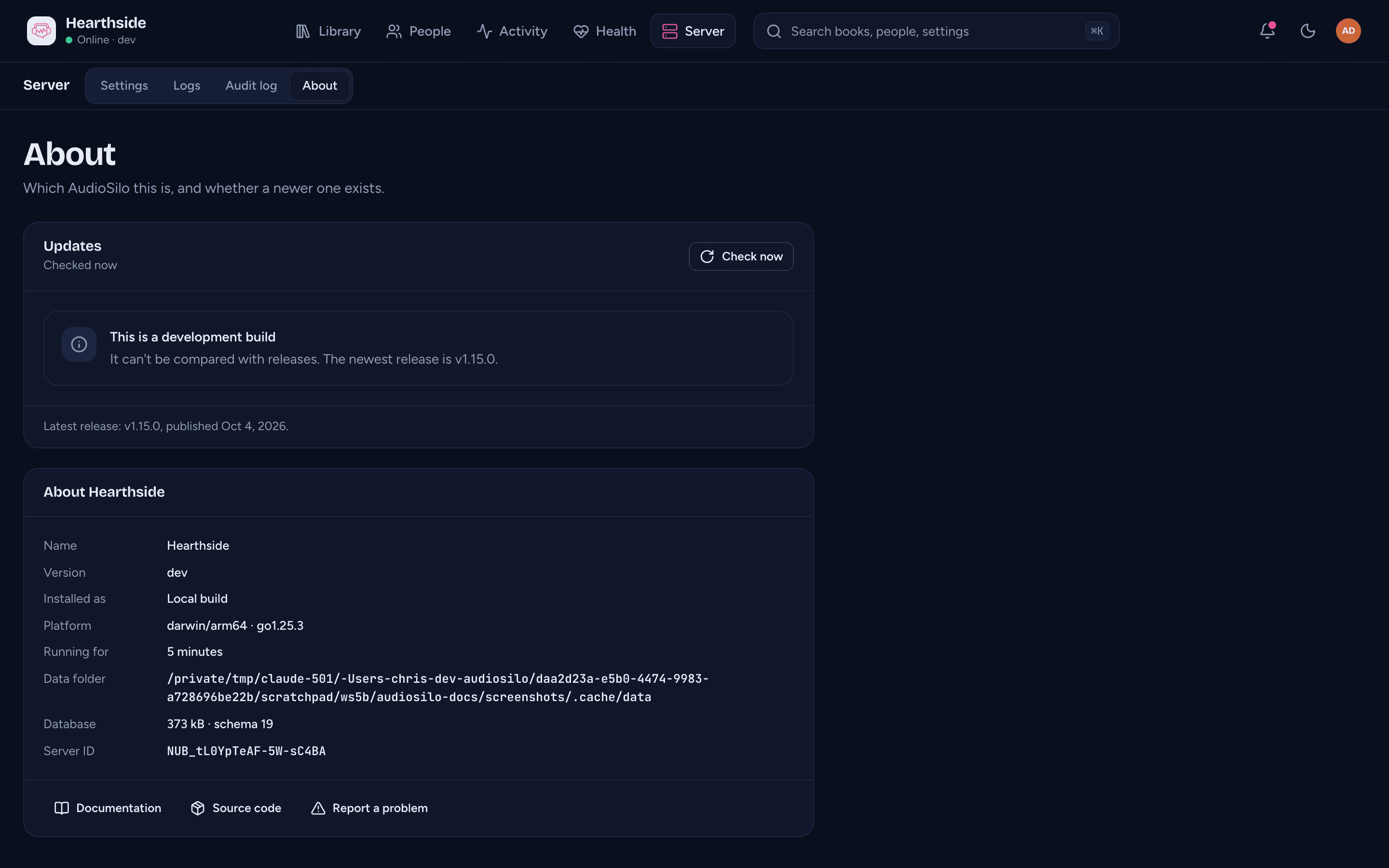
Server > About starts with the Updates card, which says one of:
- You're up to date - this version is the newest release.
- AudioSilo version is available - with a Release notes button and
how to update this server:
- Docker: pull the new image (
ghcr.io/kodestar/audiosilo-server:<version>, or:latest) and recreate the container (docker compose pullthendocker compose up -d). Your data folder stays as it is. - The program on its own: download the new version for your system from the release page, replace the program and start it again with the same data folder (see Install the native binary).
- A local build: pull the new tag and build again.
- Docker: pull the new image (
- This is a development build - a build of your own can't be compared with releases; the card names the newest release.
- Couldn't check for updates - GitHub limited requests from your address for now, couldn't be reached from the server (check its internet connection), or gave an answer that didn't make sense. The server tries again the next day.
- Not checked yet - the server checks a minute after it starts, then once a day.
- The update check is off - with a General settings button to turn it on.
The card's header says when the server last asked, and its foot names the latest release and when it was published. Check now asks GitHub straight away (a second press within a minute shows the same answer rather than asking again).
When an update exists, the version line on the overview's Server card also shows a "version available" link to this page.
The About name card lists the server's name, version, how it is installed (Docker container, Program or Local build), platform, how long it has been running, its data folder, the database's size and schema number, and its server ID. Under it are links to this documentation, the source code and the issue tracker.
What the update check sends
The update check asks one fixed address at GitHub
(api.github.com/repos/KodeStar/audiosilo-server/releases/latest), at most
once a day plus whenever you press Check now. The request carries only your
server's version (as AudioSilo/<version>), and GitHub sees the address it
comes from, as with any request. Nothing about your libraries, books or people
is sent, and there is no identifier for your server. While Check for new
versions is off, the server makes no request at all. Nothing is downloaded or
installed for you: updating is always your step.
Logs
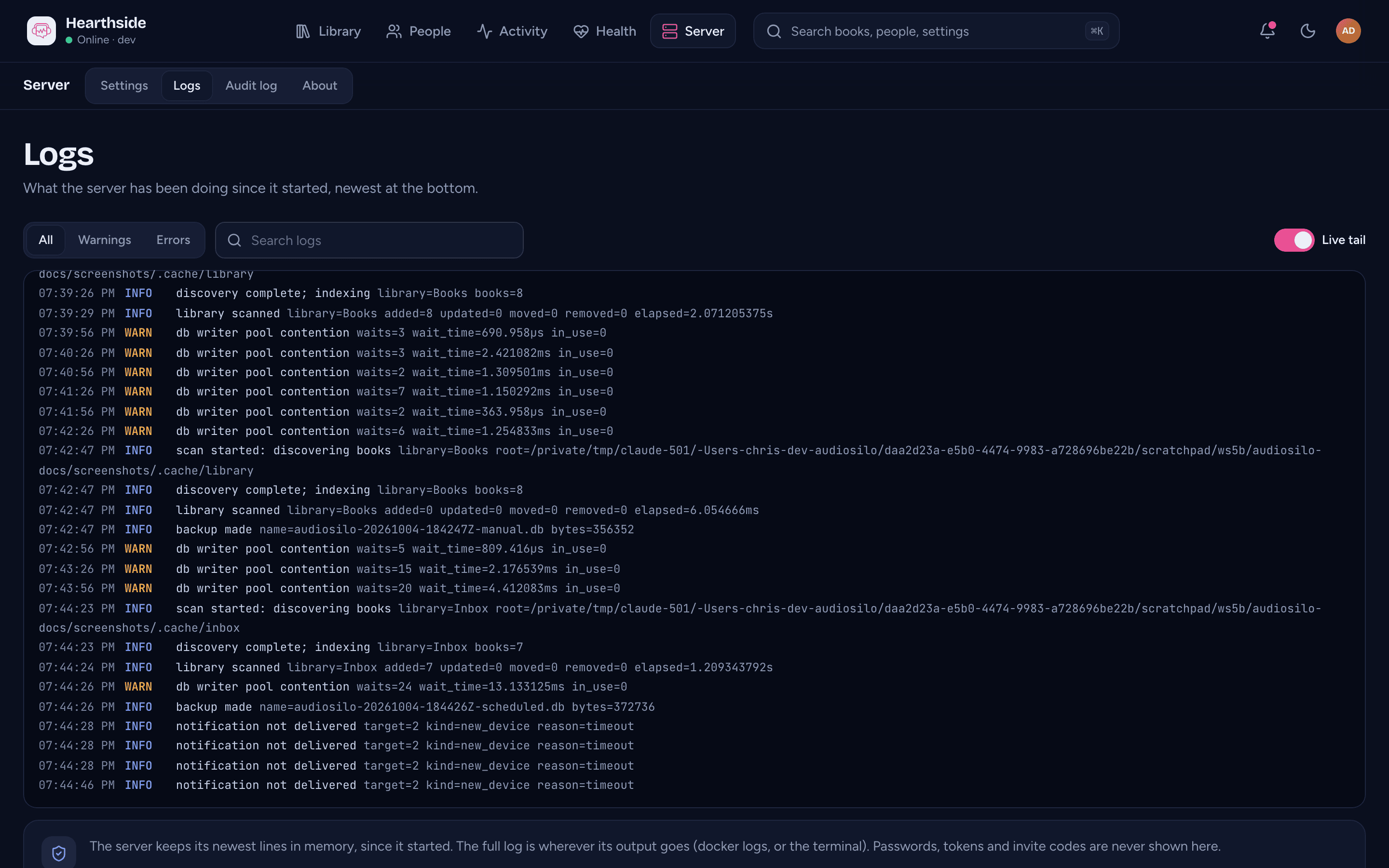
Server > Logs shows what the server has been doing since it started: scans starting and finishing, a library folder that went missing, a failed update check, a warning about the HTTPS setup, and so on. The newest line is at the bottom, and while you stay at the bottom the view follows new lines.
- All, Warnings and Errors filter by how serious a line is (Warnings also shows errors).
- Search logs keeps only the lines that contain what you type, in the message or its details.
- Live tail (on by default) fetches new lines every two seconds. Turn it off to read without the view moving.
A few things to know:
- The server keeps its newest 2,000 lines in memory, from when it started, and nothing is written to disk for this page. A restart empties it. The page opens on the newest 500 lines that match the filters and holds up to 1,000 as new ones arrive; when there were more, "Older lines aren't shown." marks the gap at the top. After a server restart the live tail starts over with the new lines.
- The full log is wherever the server's output goes:
docker compose logsunder Docker, the terminal or service log otherwise. That is also where the first-run admin password was printed; it never appears here. - Passwords, tokens, invite codes and other secrets are never shown: any detail
named after one (a token, password, code, key, cookie or secret) is replaced
with
[redacted]before the line reaches this page.
Audit log
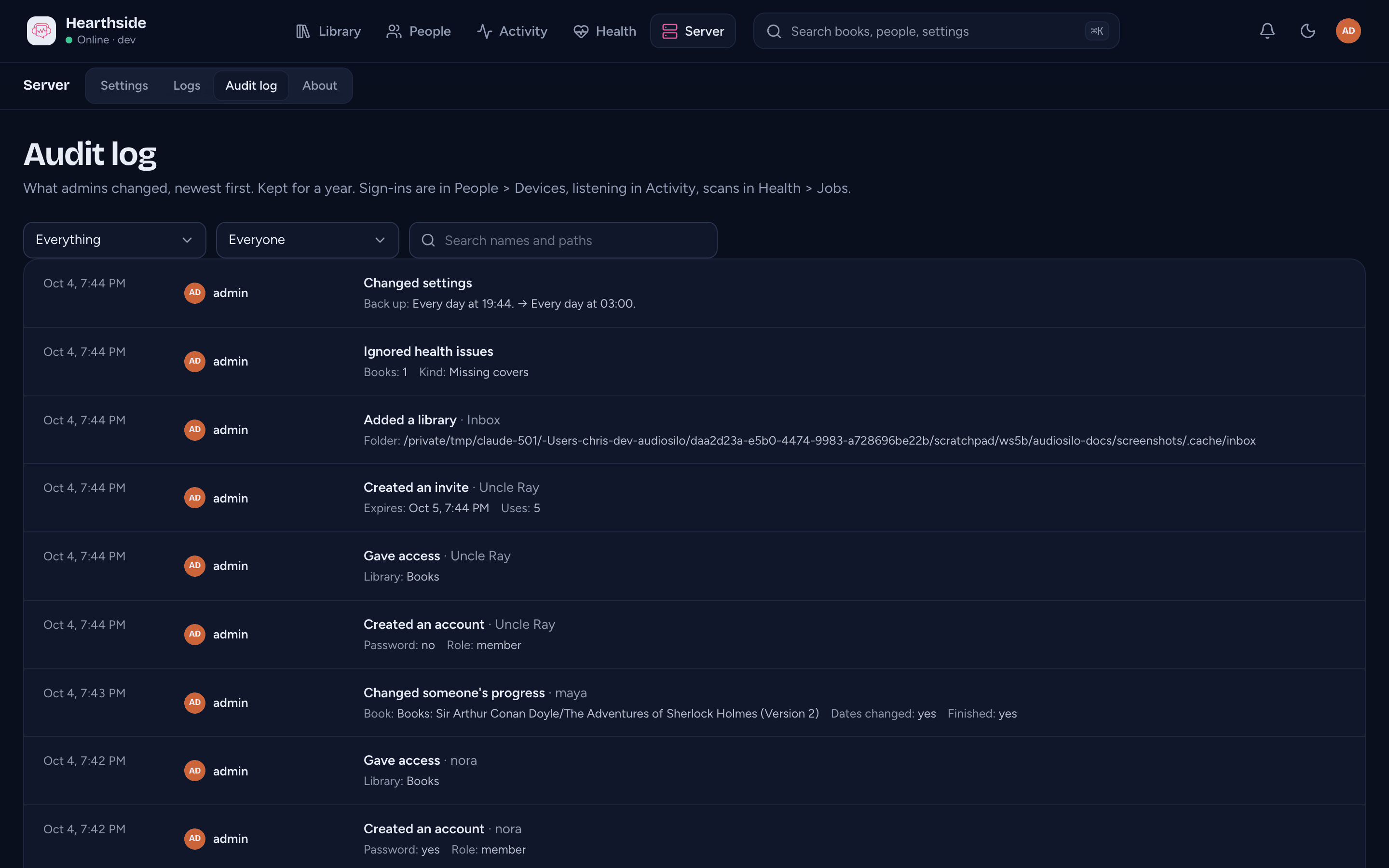
Server > Audit log lists what admins changed, newest first: when, who, what they did and to what, with the details underneath. For example "Changed settings" with each setting's old and new value, "Edited a book" with the fields that changed, "Gave access" with the person and the share, or "Downloaded a backup" with the backup's name. A key symbol next to a name means the change was made with a personal API key rather than in a signed-in app. Things the server did by itself on an admin's behalf, like applying a restore at start, are listed under AudioSilo.
What is recorded: changes to accounts, invites, devices signed out, shares and access, people's progress, libraries, books and covers, ignored health issues, settings, backups (including every download, restore and cancelled restore) and notification destinations.
What isn't:
- Sign-ins and listening. They are in Activity and on People > Devices (and you can be notified of sign-ins).
- Scans (and rescans of one book, and stopped scans): their history is in Health > Jobs.
- Anything a member does in a player.
The log never holds a secret: a password change reads only "set" or "removed", an invite never shows its code, and a notification destination's address or secret only as "New address" or "New secret". It doesn't record IP addresses. Entries are kept for a year.
To narrow the list, choose an Area (Accounts, Invites, Devices, Shares and access, Progress, Libraries, Books, Health, Settings, Backups, Notifications), a person under Who (the current admins), or type in Search names and paths (it matches what a change was made to, or who made it). Show older at the foot loads the next 50.
Where to next
- Backups and restoring and Notifications and the bell - the two topics with pages of their own.
- Library health and jobs - the System page, issues and scans.
- Remote access - HTTPS, ports and proxies in more depth.
- Troubleshooting - when something isn't working.