Sharing
AudioSilo's access control answers one question: which folders can this person see? The mechanism is the share - a named set of folder paths that you grant to users. The Shares section of the admin console is where you build them.
How access works
The rules are short:
- New users see nothing. A regular user has no access at all until you grant them something - there is no default library. (You can grant access right in the Create user dialog, so nobody has to start empty-handed.)
- Admins see everything. Shares never restrict an admin account.
- Access is the union of a user's shares. Grant someone two shares and they see everything either one covers.
- All access over the network is read-only - a share lets someone listen, never change or delete your files.
A share's paths can sit at any level of a library's folder tree:
- the whole library,
- an author's folder,
- a series folder,
- or a single book.
Granting a path grants everything underneath it, including books you add there later - share an author's folder once, and every book you drop into it is automatically included.
Whole-library access
Giving someone an entire library is the most common case, so it has a shortcut:
choose Whole library in the Create user dialog or in a user's Grant
access control, and pick the library. Behind the scenes this creates (and
reuses) a share named after the library - e.g. Library: Fiction - containing
a single whole-library path. It shows up in the Shares list like any other
share, so there is exactly one system, not two.
What the listener sees
A share doesn't just hide play buttons - it filters the user's entire view of the server:
- Browsing shows only their granted subtree. The folders above a granted
path stay visible so they can navigate down to it, but those folders contain
nothing else. Someone granted only
Brandon Sanderson/Mistbornsees aBrandon Sandersonfolder with justMistborninside. - Search, book lists and "recently added" only return granted books.
- A user with grants in only one library sees only that library.
- Every play, cover and download request is checked against their grants on the server - the filtering isn't cosmetic.
Changing a share takes effect immediately: add a path and everyone granted that share sees the new content; remove a path (or revoke the share) and it disappears from their apps.
Creating a share
Click + Create share and give it a name (the dialog suggests e.g. Kids).
As the dialog notes: create the share, then add paths to it and grant it to
users.
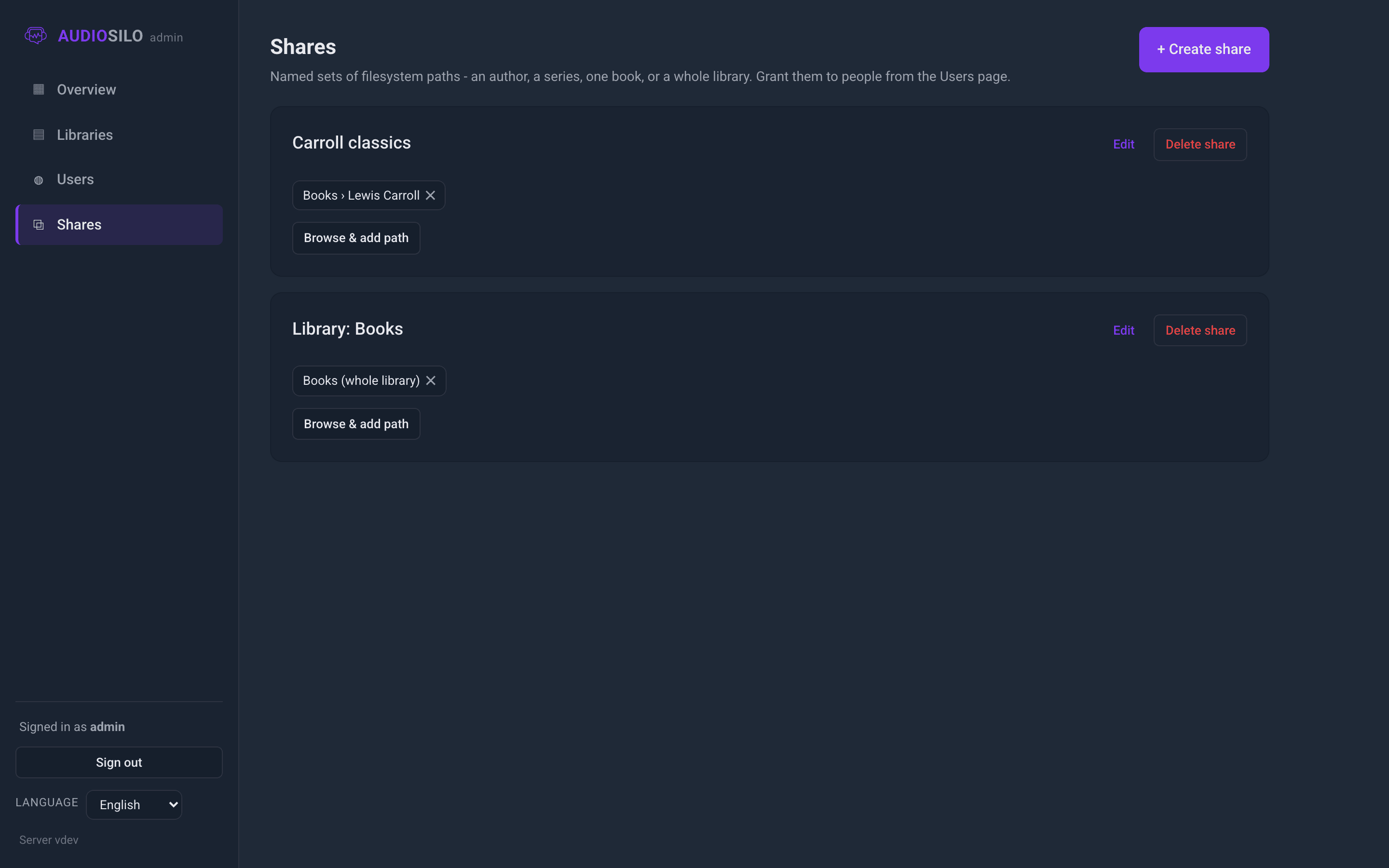
Each share appears as a card listing its paths as chips - shown as
Library › folder/path, or Library (whole library) for a whole-library
path. Remove a path with the chip's ✕. The card's Edit button renames
the share; Delete share removes it (the confirmation warns: "Users lose the
access it granted" - their progress is kept, so re-granting later picks up
where they left off).
The path picker
Click Browse & add path on a share's card to add paths by browsing the actual folders:
- Pick the Library from the dropdown.
- Navigate the folder tree - the current Location is shown as you go.
- Click Share whole library at the root, Share this folder for the folder you're in, or Share this next to any folder or audiobook file in the listing.
You never type paths by hand, so there's nothing to mistype.
Granting shares to users
Shares are granted from the Users section, not here:
- when creating a user, via the Access field (Whole library or Specific shares), or
- later, in the user's drawer: under Access, pick Whole library or Share, choose the target, and click Grant. Each granted share is listed there with a Revoke button.
One share can be granted to any number of users, which is what makes it a good unit: fix the share once and everyone granted it follows.
Practical examples
A kids' share. Create a share named Kids. Browse & add the folders that
are appropriate - say the Roald Dahl and Terry Pratchett author folders in
your Fiction library. Grant Kids to each child's account. Their apps show
only those authors; new books you add under either folder appear for them
automatically, and anything else in the library simply doesn't exist for them.
Sharing one series with a friend. Your friend wants The Expanse and
nothing else. Create a share named Expanse for Sam, browse to the series
folder and click Share this folder. Create a user for them with Specific
shares → Expanse for Sam, then send them an
invite link. They'll see a library containing exactly
one series - and if you later decide to share more, just add paths to their
share.
Name shares after the audience or purpose (Kids, Book club,
Expanse for Sam) rather than the content. The paths inside will change over
time; a purpose-named share stays meaningful.