Sign in with single sign-on
Single sign-on lets people sign in with the account they already have at your identity provider, such as Authentik, Authelia, Keycloak or Pocket ID. It adds a Sign in with button to the admin console and to the web player your server serves. You need to be an admin, and the server needs a public address.
The phone apps don't offer it. They keep signing in by QR code, invite or password (see Connect the app to your server).
What you need
- A public address in Server > Settings > General, like
https://books.example.com. Your provider sends people back to it. - An identity provider that speaks OpenID Connect, with a client registered for AudioSilo. The steps for four common ones: Authentik, Authelia, Keycloak and Pocket ID.
- A way to change the server's
config.yamlor its environment variables, such as yourdocker-compose.yml. The provider can't be set from the console.
Turn it on
To turn on single sign-on, register AudioSilo at your provider, then give the server the provider's details.
- At your provider, create an OpenID Connect client for AudioSilo. Give it
this redirect URI, with your public address at the front:
https://books.example.com/api/v1/auth/oidc/callback - Note the provider's issuer address, the client ID and the client secret. Your provider's page above says where it shows each.
- Add them to the server's environment, or to
config.yaml(below). - Restart the server. With Docker Compose, run
docker compose up -d, which recreates the container with the new variables. A plain restart keeps the old ones. - Open Server > Settings > Sign-in in the console.
Status now reads Connected to the provider. The console's sign-in page and the web player's sign-in screen show Sign in with and the name you chose.
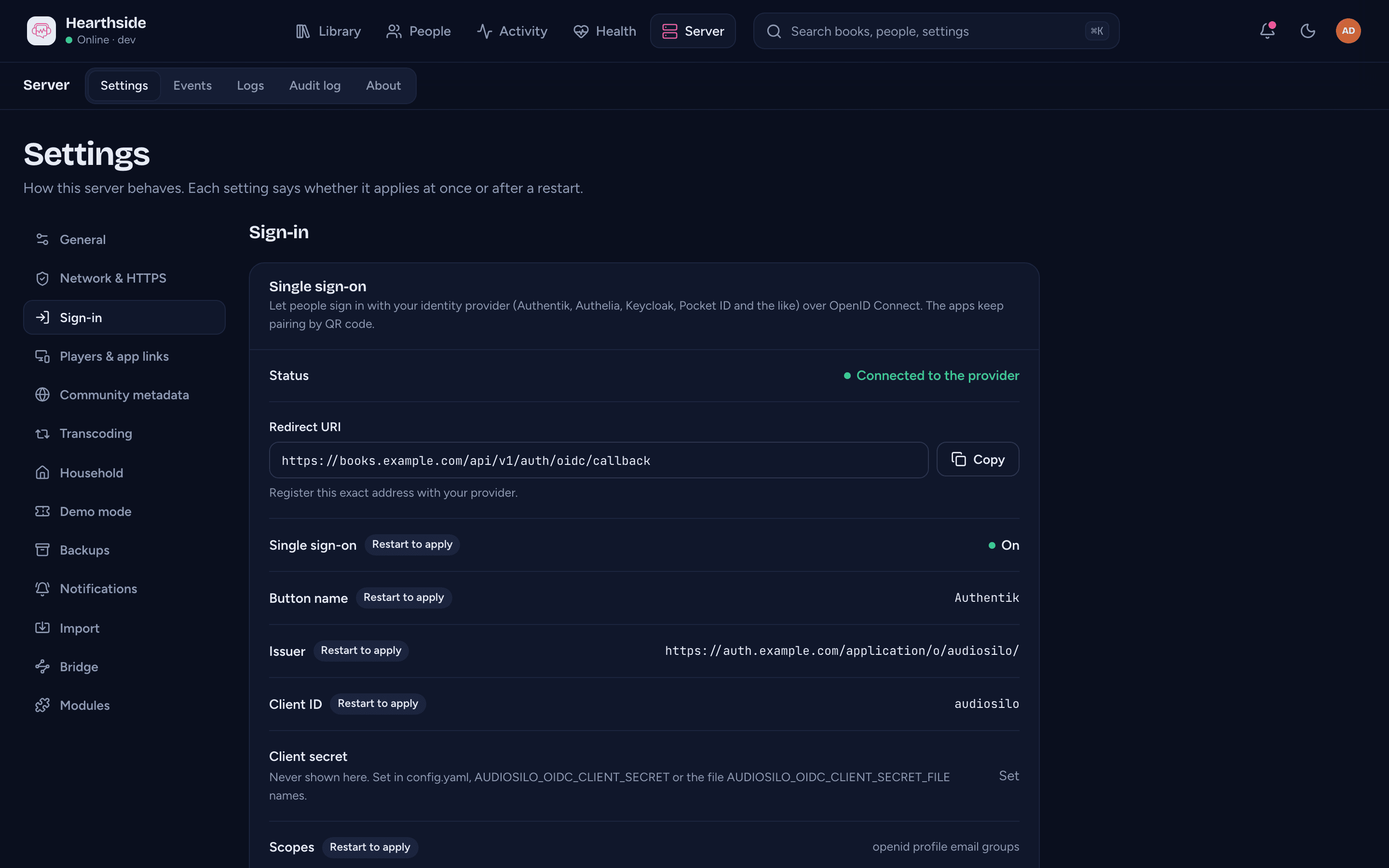
With Docker Compose, add the variables under the server's environment::
    environment:
      AUDIOSILO_OIDC_ENABLED: "true"
      AUDIOSILO_OIDC_NAME: "Authentik"
      AUDIOSILO_OIDC_ISSUER: "https://auth.example.com/application/o/audiosilo/"
      AUDIOSILO_OIDC_CLIENT_ID: "audiosilo"
      AUDIOSILO_OIDC_CLIENT_SECRET: "the client secret"
Or in config.yaml, in the server's data folder:
auth:
  oidc:
    enabled: true
    name: "Authentik"
    issuer: "https://auth.example.com/application/o/audiosilo/"
    client_id: "audiosilo"
    client_secret: "the client secret"
- Name is what the button says: "Sign in with Authentik". Without one it says "Sign in with single sign-on".
- Issuer must be exactly what your provider states, a trailing
/included. - To keep the secret out of both files, put it in a file and set
AUDIOSILO_OIDC_CLIENT_SECRET_FILE(orclient_secret_file) to its path, such as a Docker secret. A provider that issues no secret (a public client) needs neither.
If something is wrong, Status says Not set up correctly with the reason, or Can't reach the provider. The server keeps running either way, and password sign-in still works. Every setting is in the configuration reference.
Sign in
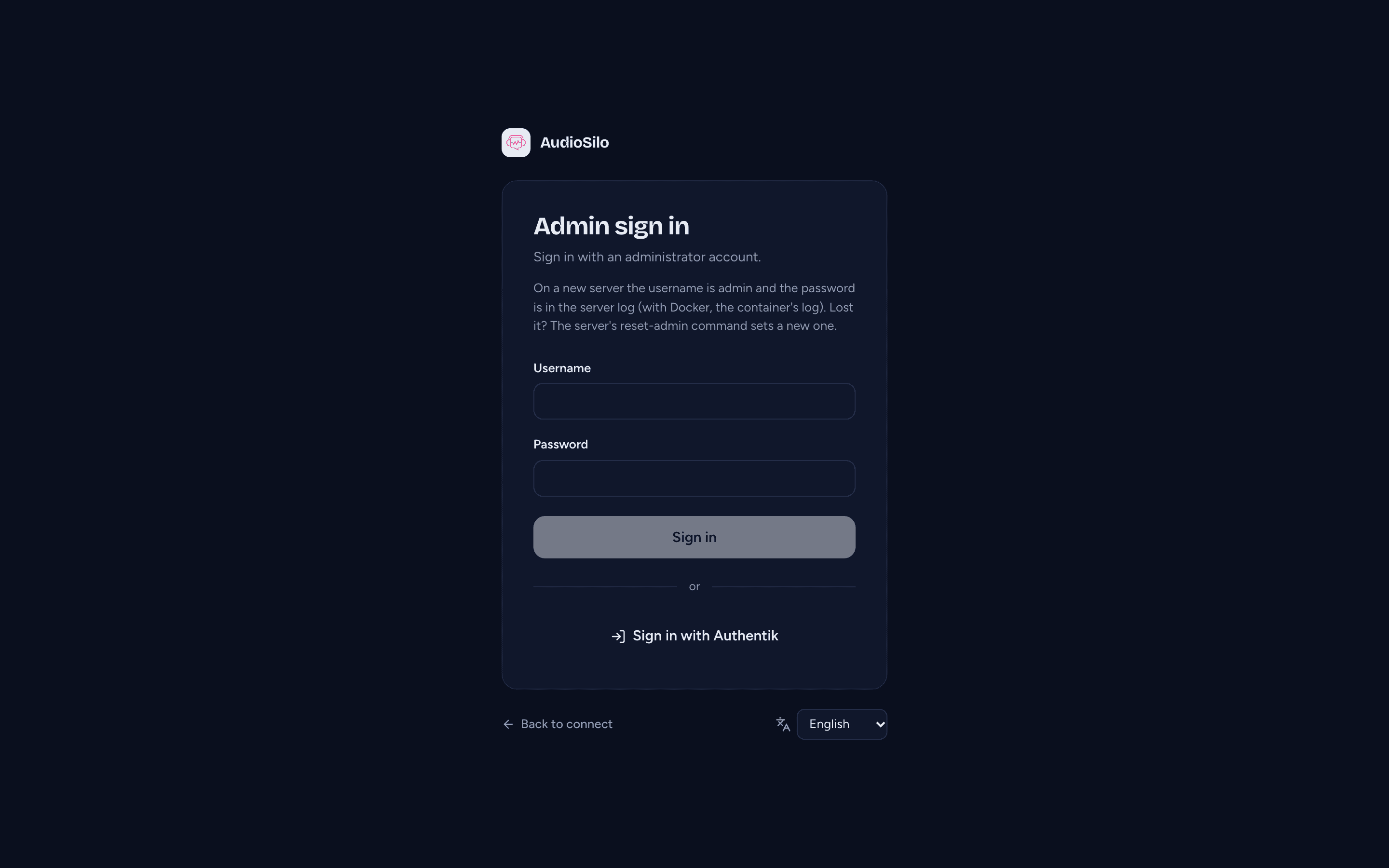
To sign in with single sign-on, open the console or the web player and select Sign in with and your provider's name. Sign in at the provider. You come back signed in.
In the console, you come back to the page you opened. A link to a console page, such as one in a notification, lands on that page once you are signed in.
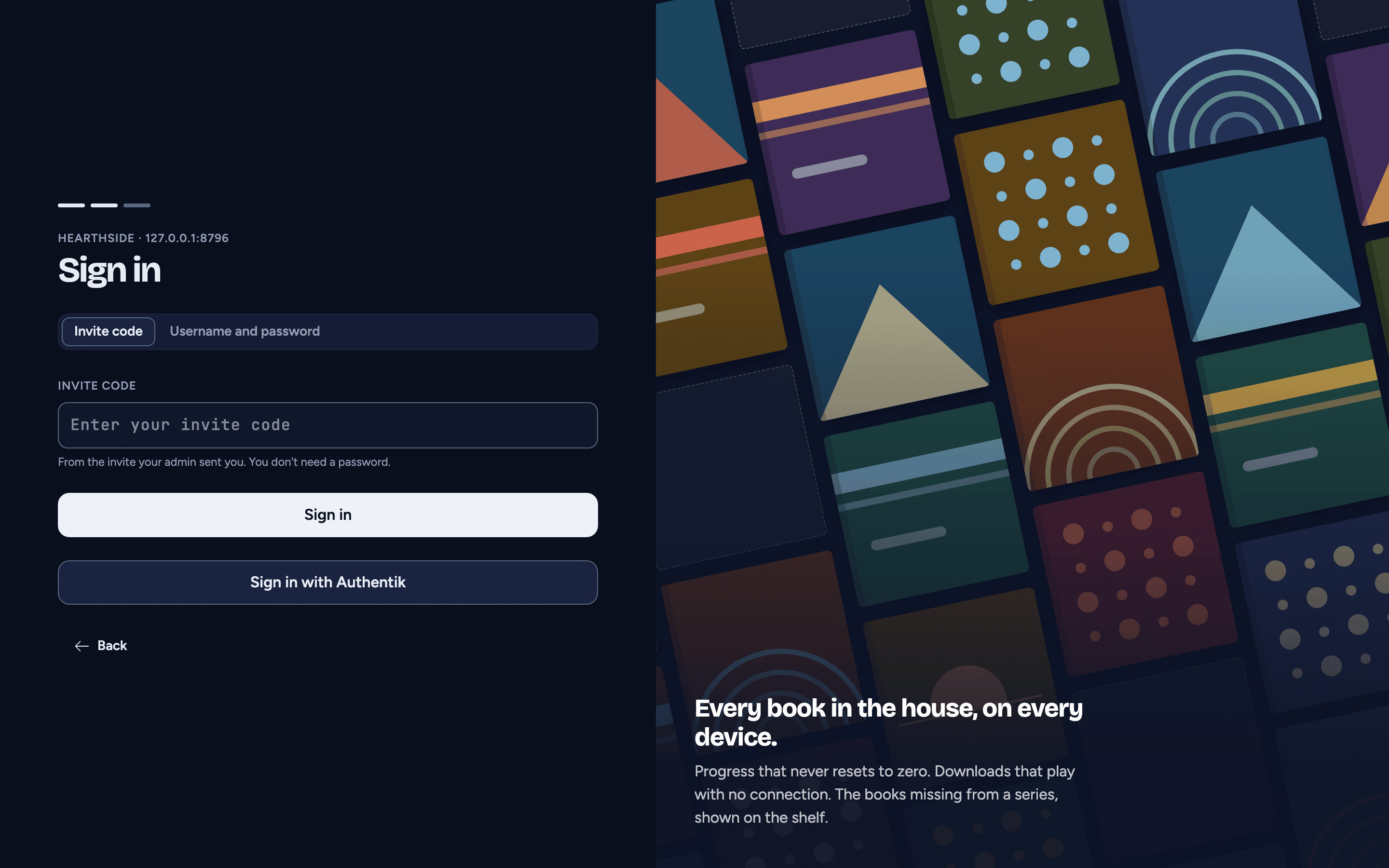
The web player offers the button only when you open it from your server, at
the server's own address followed by /web. It offers it too while a grown-up
signs in from kids mode. After the provider, the
player goes back to what you were doing, such as Add someone or the book
you opened.
From kids mode, the player keeps a single sign-on only when it was started from that sign-in screen on this device, so a child can't sign in as a grown-up who is still signed in at the provider. Any other sign-in is refused, and the player stays in kids mode.
Who gets in
The first time someone signs in, the server looks for their account:
- A matching email. When the provider says the email is verified, and it matches the email of exactly one ordinary account, the server links them to that account. Set someone's email on their page, under Sign-in > Email.
- An admin's email is never linked this way. That sign-in waits for an admin to link it, so nobody becomes an admin by changing an email at the provider.
- Anyone else waits for an admin, under Waiting sign-ins (below). They see that no account on this server is theirs yet.
Once linked, they sign in to the same account every time. Usernames are never used to match.
Household members and demo accounts can't sign in with single sign-on.
Make accounts for new people
Under Server > Settings > Sign-in > Who may sign in:
- Make accounts for new people makes an ordinary account for someone the server doesn't know, instead of making them wait.
- Only for this group limits that to members of one group at your provider. Everyone else waits for you, including someone whose provider sends no groups.
These settings apply to the next sign-in, with no restart.
Deal with a waiting sign-in
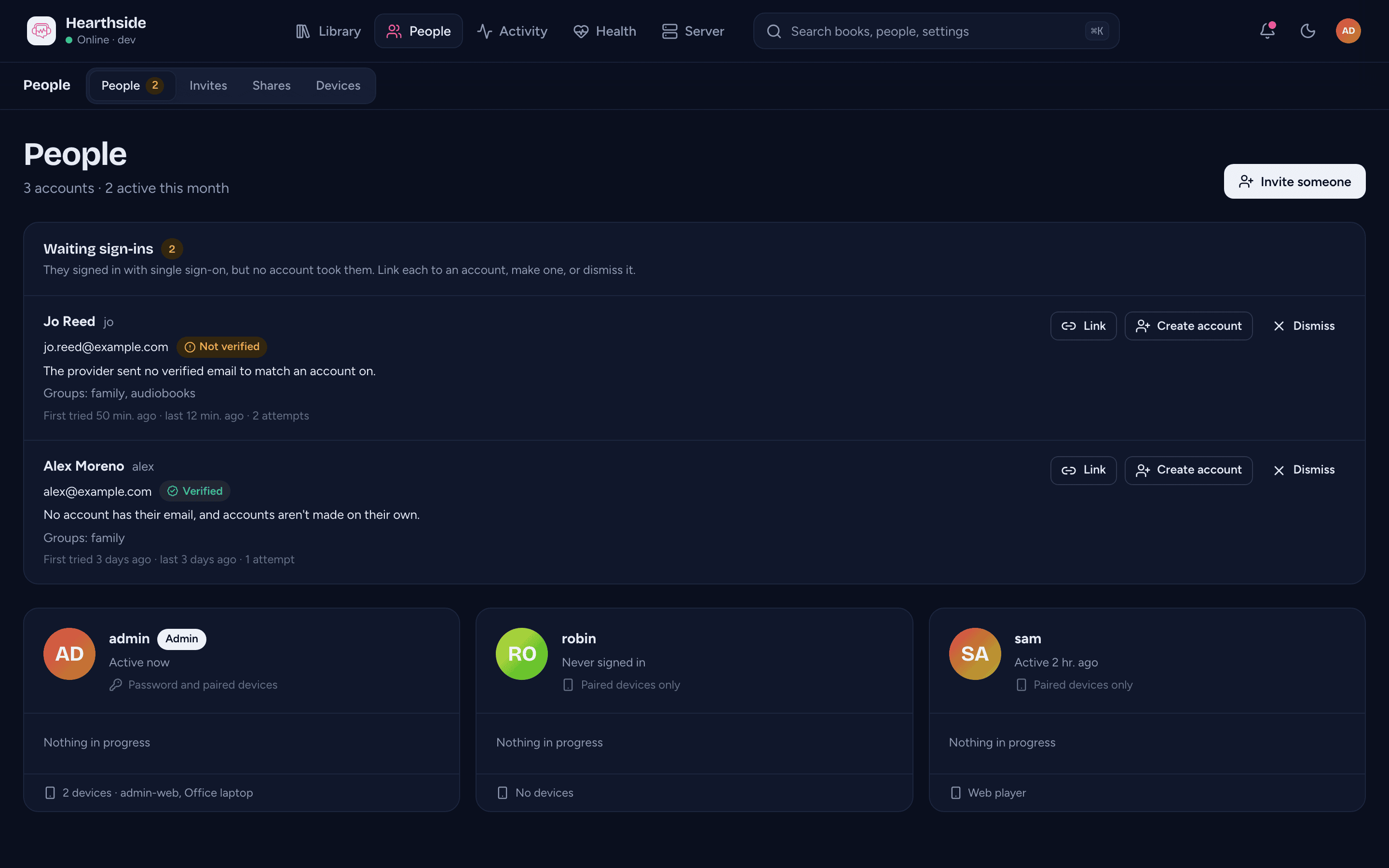
When someone is waiting, the People page shows a Waiting sign-ins card, and its People tab shows how many. Each row shows their name, email, whether the provider verified it, their groups and why they wait. You also get the Someone is waiting to sign in notification.
- Select Link to give them an existing account. Pick the account and confirm. They sign in to it from then on. When the provider verified their email and one account has it, that account is already picked.
- Or select Create account to make a new ordinary account for them. You can type a username, or leave it empty to use one from their sign-in.
- Or select Dismiss to remove the row. It comes back if they try again.
After a Link or Create account, they sign in again and get straight in.
A row nobody deals with goes after 30 days without a new try. If the person tries again after that, they get a new row, and you get a new notification.
Make admins from a group
To manage admins at your provider, set Admin group under Who may sign
in to a group name, such as audiosilo-admins.
At each single sign-on, a member of that group becomes an admin, and anyone else becomes a Listener. Group names must match exactly, capital letters included. Leave it empty to set roles on People yourself.
- The change happens when the person next signs in with single sign-on. Devices they already signed in stay signed in.
- The last admin is never made a listener.
- Only a list of groups the provider sends changes a role. A sign-in without one never does. Keycloak, for one, leaves groups out for a person in none, so someone removed from every group keeps their role until you change it on People.
See or remove someone's single sign-on
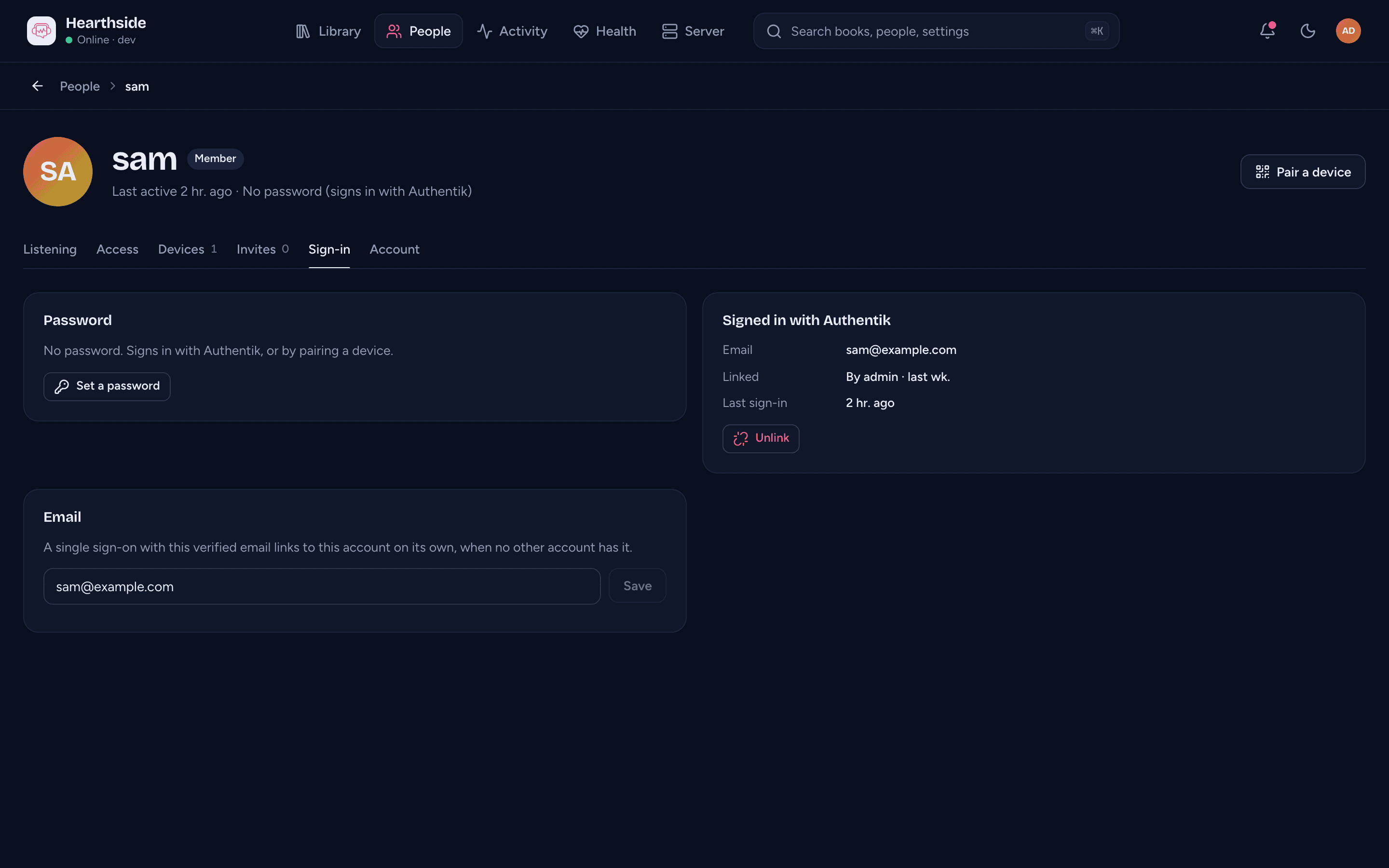
A person's page shows Signed in with and the provider's name on their Sign-in tab. The card shows their email at the provider, how and when they were linked, and their last sign-in.
To remove it, select Unlink and confirm. They can't sign in with single sign-on until they are linked again. Their devices stay signed in.
For someone with no password who signs in this way, their page says No password (signs in with Authentik), with your provider's name. You can make them an admin without setting a password, as single sign-on gets them into the console. A household member never counts as signing in this way.
An admin with no password can't be unlinked, as it is their only way into the console. Set a password for them first.
Good to know
- Signing out is separate. Signing out of AudioSilo doesn't sign you out of the provider. Turning someone off at the provider doesn't sign them out of AudioSilo either. To stop someone at once, disable their account or use Sign out everywhere on their page.
- Keep a password. If the provider is down, single sign-on can't work. An
admin with a password can still sign in, and
reset-adminstill works. - Its own host name. Serve AudioSilo on a host name of its own, like
books.example.com. The sign-in passes through short-lived cookies, and other apps on the same host name could receive them. - Your home address. A sign-in started at the server's home address goes through the public address, because that is where the provider returns.
- Served under a path. If your reverse proxy serves AudioSilo under a path,
such as
https://example.com/audiosilo/, a sign-in comes back to the root of that host name:https://example.com/admin/for the console andhttps://example.com/web/for the web player, orhttps://example.com/connectwhen it fails. Those pages finish the sign-in through the server's API at the root too, so the proxy must also serve AudioSilo at the root of that host name:/admin/,/web/,/connect,/assets/and/api/. - Changing the provider (issuer, client ID, secret, scopes) needs a restart. Who may sign in applies at once.