Users and invites
The Users section of the admin console is where you create accounts, get people connected with invite codes, and manage each account's role, password and access.
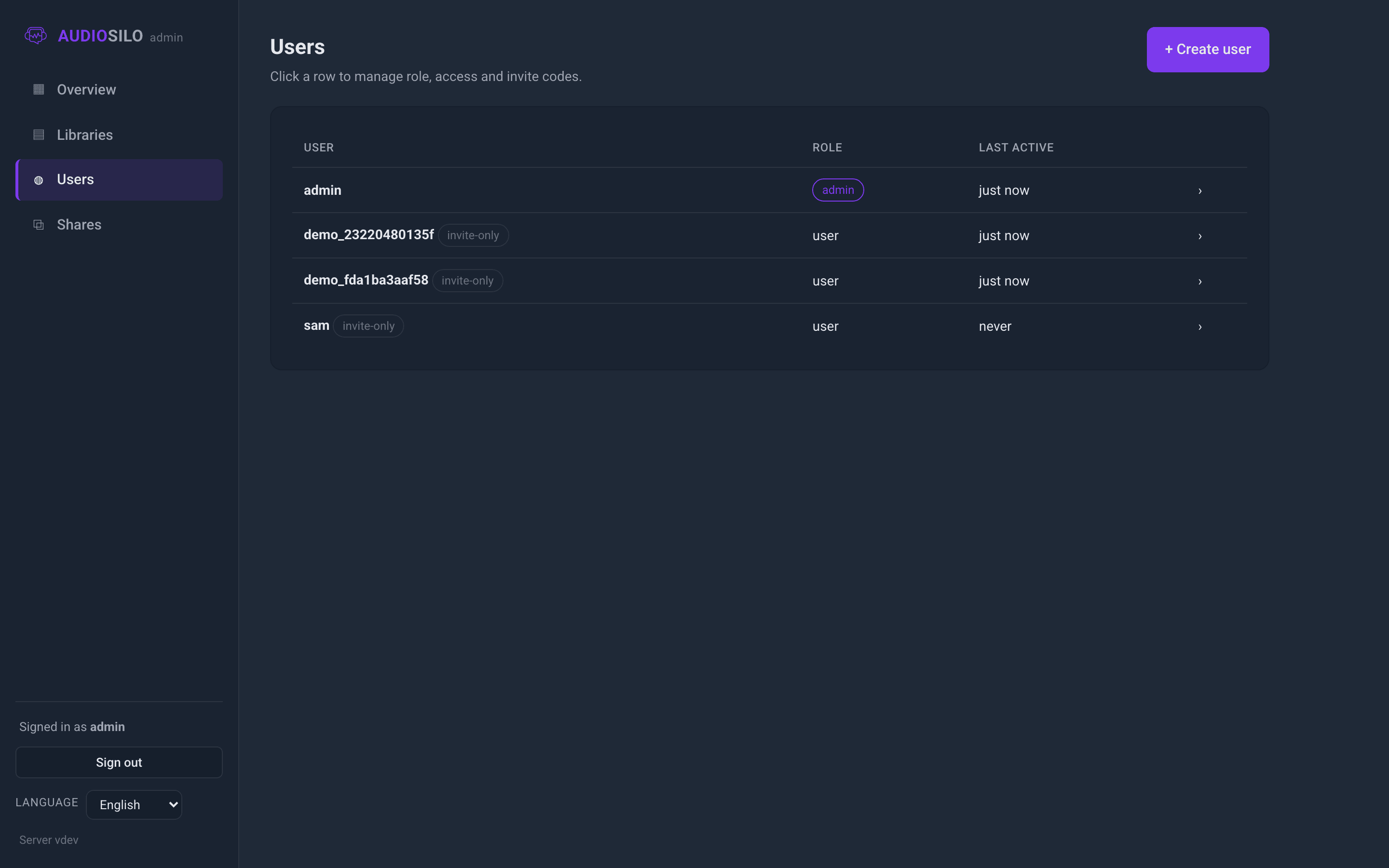
The list shows each account's name, role and Last active time. Click any row to open its detail drawer.
Creating a user
Click + Create user. The dialog asks for:
- Username - how they appear in the console and the listening feed.
- Role -
user(a listener) oradmin(full access, can use this console). - Password - optional for listeners: "Optional - leave blank for a player-only account that pairs via an invite code." Required for admins: "Required - admins sign in to this console." Passwords must be at least 8 characters.
- Access - what they can see: No access, Whole library (pick one or more libraries), or Specific shares (pick from your existing shares). You can always grant or change access later from the drawer.
:::note Listeners don't need passwords Most listener accounts never have a password at all. They join by redeeming an invite code (below), which signs their device in directly. A password only becomes useful if they want to sign in to the web player by username on a new device - and they can set one themselves later from the player's settings. Accounts without a password show an "invite-only" tag in the list. :::
Roles
- admin - full access to every library (shares don't restrict admins), and the ability to sign in to this console. Admin accounts must keep a password.
- user - a listener. They see only what you grant them via shares, and they cannot open the admin console.
You can change a user's role at any time from the drawer's Role dropdown. Promoting an account to admin requires it to have a password first.
Inviting someone (the invite flow)
Open a user's drawer and click Create invite (or New invite). Choose:
- Uses - how many devices the invite can sign in: 1 use, 5 uses (the default), Unlimited, or a custom number. A use is spent only when a device actually finishes signing in - opening the link or showing the QR costs nothing - so the default lets the same person connect a phone, a tablet, a browser and still have spares, all from one link or one QR.
- Expires - 1 day (the default), 7 days, 30 days, Never, or a custom number of days.
Click Create invite and you get two things, each with its own copy button:
- Invite link (Copy link) - a URL to the server's connect page with the code already embedded.
- Auth code (Copy code) - the raw code, for typing in by hand (in the app's connect screen, or the connect page's code box).
Send either one to the person, by whatever channel you like. When they open the link, the connect page redeems the code automatically and shows them a QR code plus Open in app and Open web player buttons. The QR stays good for as long as the invite has uses left, so each of their devices can scan the same one - see Connecting for what that looks like on their end.
:::note The code never reaches the server's logs
The invite link carries the code after a # in the URL. That part of a URL is
never sent over the network as part of the request, so the code can't end up in
server or proxy access logs - and the connect page removes it from the address
bar immediately after redeeming it. The code itself is shown to you once
when you create it; the server keeps only a fingerprint, so it can verify codes
but never display them again.
:::
One active invite per user
Each user has at most one active invite. Creating a new one automatically retires any older invite that could still be redeemed. Spent and expired invites aren't deleted - they collapse into the drawer's History list, so you keep a record of what was issued and accepted.
Resending an invite
If an invite went astray or the person lost it, click Resend on the active invite. This regenerates the secret in place: the old link and code stop working immediately - including any QR code still on someone's screen from the old link - and you get a fresh link and code to share. The invite keeps its uses limit, and its expiry clock restarts for the same window it was originally given (a 7-day invite gets another 7 days - resending never quietly downgrades it to the defaults).
To kill an invite outright, click Revoke.
The user detail drawer
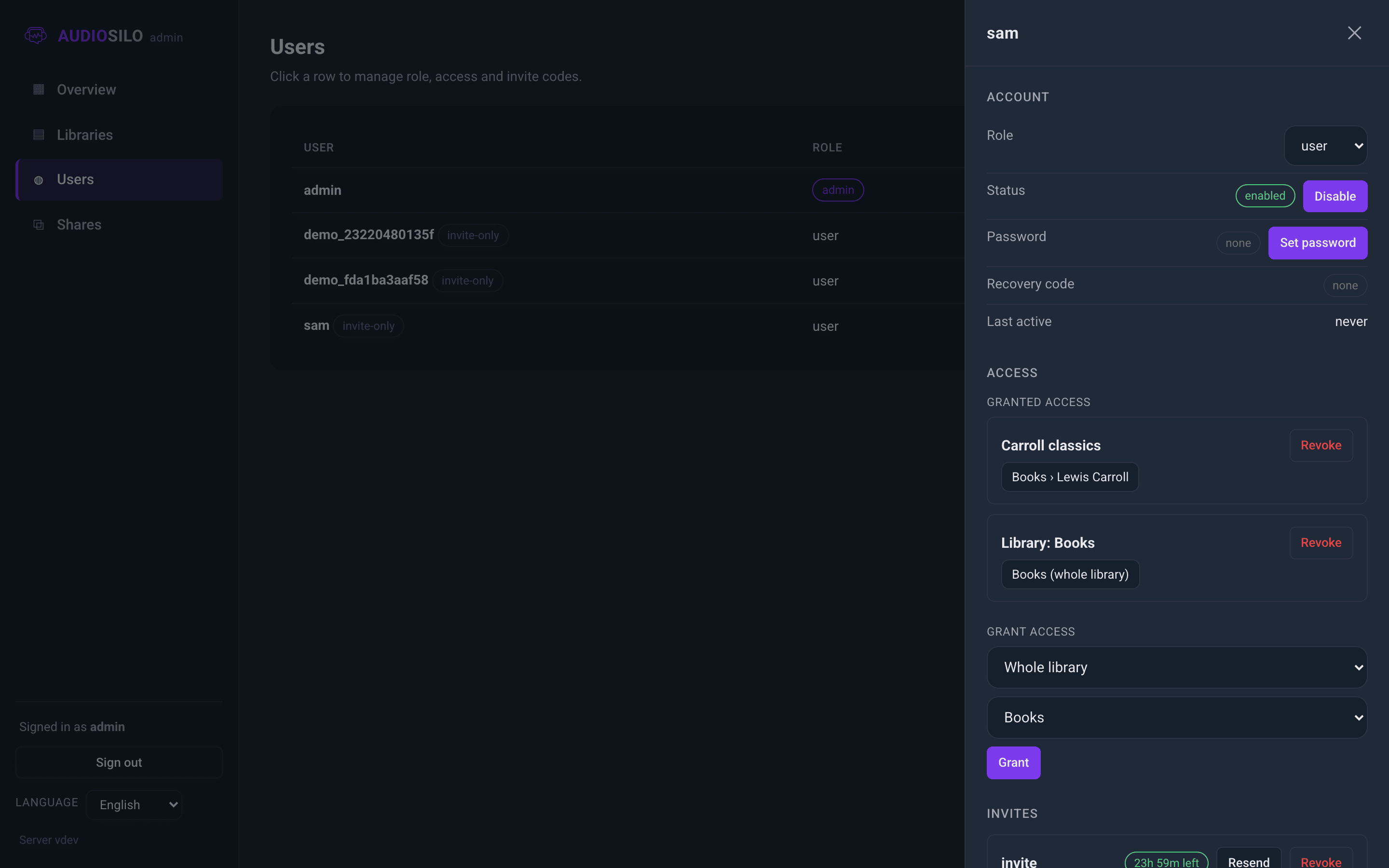
Clicking a user opens a drawer with four blocks:
- Account - the Role dropdown; Status with an Enable/Disable button; Password with a Set password/Change control (for a listener, saving an empty password clears it, returning the account to invite-only pairing); and Last active.
- Access - the shares granted to this user, each with a Revoke button, plus a Grant access control: pick Whole library or Share, choose the target, and click Grant. (For an admin this block just notes they have full access to all libraries.)
- Invites - the active invite (with its status, Resend and Revoke), the Create invite button, and the History of past invites.
- Danger zone - Delete user.
"Last active"
Last active is the last time any of the user's signed-in devices talked to the server - browsing, playing, or syncing progress all count. It reads "never" for an account that has been created but has not connected yet. There is no separate "last login" - a player stays signed in for months, so the last request is the honest measure of activity.
Disabling vs deleting
These are very different levers:
- Disable (Account block) is the reversible one. A disabled account can't sign in, and its invite codes stop redeeming (without burning a use). All of its progress, bookmarks and settings are kept. Enable restores everything exactly as it was.
- Delete user (Danger zone) is permanent. As the confirmation warns, it removes the account and all of its listening state - progress, bookmarks, notes, history and access grants - and cannot be undone. Your audio files are untouched; only the person's account and records go.
When in doubt, disable. Delete is for accounts you are certain you'll never want back.
Safety rails
The server enforces a few guards so you can't lock yourself out:
- The last enabled admin can't be demoted, disabled or deleted - there is always at least one working admin account.
- Admins must keep a password. You can't clear an admin's password, and you can't promote a password-less account to admin until it has one.
- You can't delete your own account. The drawer offers to disable it instead - deletion of your own account, from your own session, is refused.