Trying the demo
The public demo
Want to see AudioSilo before self-hosting it? Visit demo.audiosilo.app.
There is nothing to sign up for: the moment the page loads, a throwaway demo account is created for you and your browser is signed in. You land in the full web player with a library of public-domain audiobooks ready to browse and play.
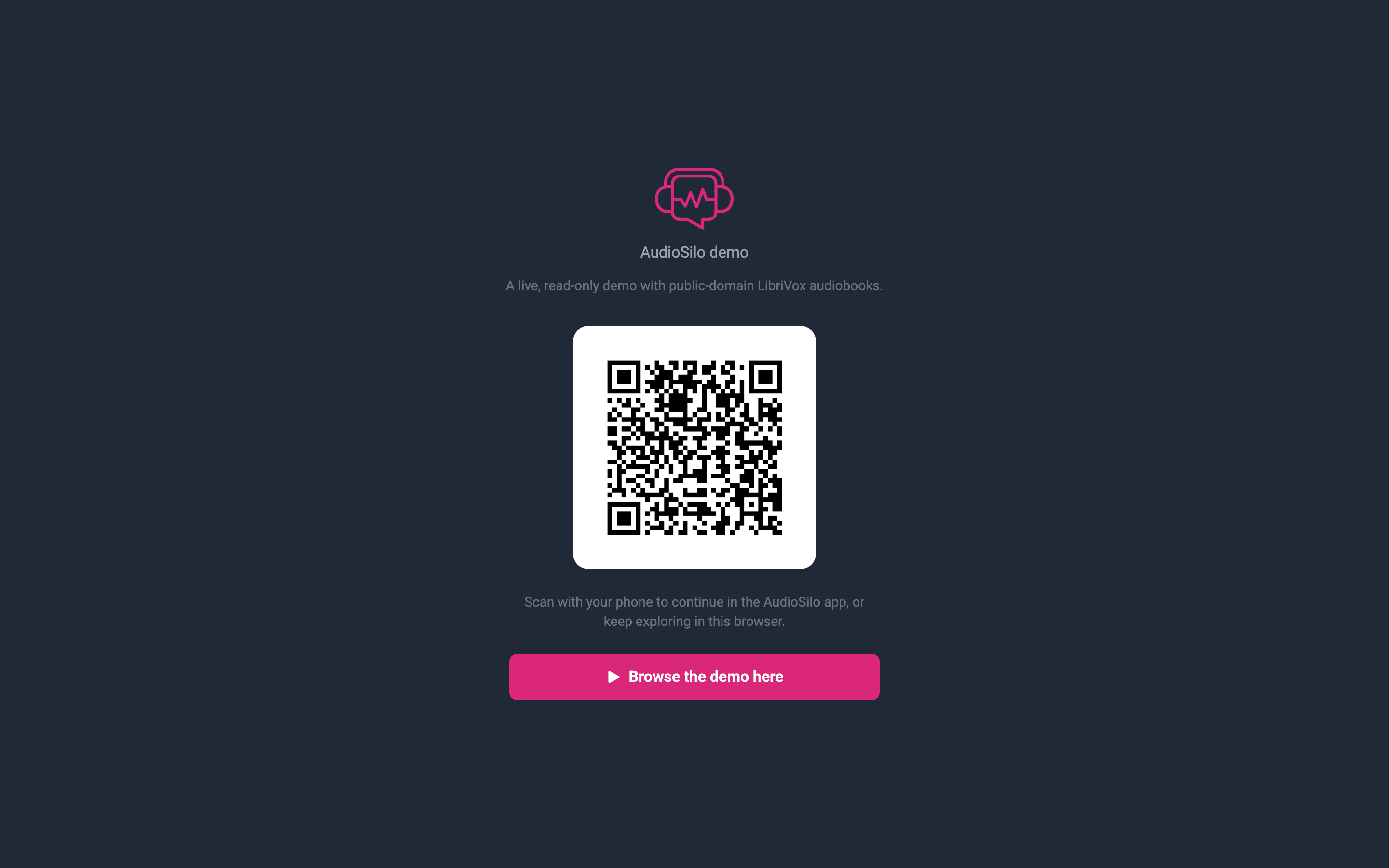
The landing page also shows a QR code - scan it with the AudioSilo mobile app and your phone joins as the same demo user, so you can see progress sync between the browser and the app. Or just hit the browse button and explore in the browser.
What a demo account is
Demo accounts are deliberately disposable:
- They're created automatically - no email, no password.
- They're reaped after being idle (by default, 24 hours without activity), and everything they saved - progress, bookmarks - goes with them.
- The demo caps how many live demo accounts can exist at once (200 by default) and rate-limits how fast one visitor can create them, so you may occasionally see "demo is at capacity, try again later".
What demo accounts can't do
To keep throwaway accounts throwaway, setting a password is switched off for them. That's how a normal account makes itself durable (Your account), so a demo session can never turn itself into a permanent login. Sign out (or go idle long enough) and it's gone.
Everything else is the real player: browsing and search, full playback with chapters and speed control, bookmarks, favourites, and progress that follows you between the browser and the app - for as long as the account lives. See Playback for what you're looking at.
Running your own demo instance
Demo mode is a standard server feature - you can run your own public demo (or a "kick the tyres" instance for friends) with any AudioSilo server.
In the server's config.yaml, enable the demo block and name the library demo
visitors should get:
demo:
  enabled: true
  library: "Demo Library"   # the name of one of your configured libraries
  # max_users: 200          # cap on live demo accounts (default 200; 0 = unlimited)
  idle_ttl: "24h"           # reap demo accounts idle longer than this
(The same settings exist as environment variables - AUDIOSILO_DEMO_ENABLED,
AUDIOSILO_DEMO_LIBRARY, AUDIOSILO_DEMO_MAX_USERS, AUDIOSILO_DEMO_IDLE_TTL -
which is handy in Docker; see the
Docker quickstart.)
With demo mode on, visiting the server's front page takes visitors straight to the demo landing screen, and each visit provisions a throwaway account granted that one library. Idle accounts are cleaned up automatically in the background.
:::warning Use a dedicated library Demo visitors get full listening access to the library you name. Point demo mode at a library of public-domain audiobooks, not your personal collection. :::
Seeding public-domain audiobooks
The server ships a helper script, scripts/seed-librivox.sh, that fills a folder
with free, public-domain LibriVox recordings (Austen,
Conan Doyle, Dickens, and more) downloaded from the Internet Archive - already
arranged in the Author/Title/ folder layout the server recognizes, cover images
included:
scripts/seed-librivox.sh /path/to/demo-library
It needs bash, curl, and python3. Re-running it skips files that are already
there, DRY_RUN=1 previews what it would download, and you can pass your own
archive.org item identifiers to curate the list. Point a library at the folder
(Libraries) and set demo.library to its name.