First run
First run
The first time the server starts with an empty data directory, it bootstraps itself. There are two first-run experiences, depending on how you start it.
The default: generated credentials, printed once
Started normally (including under Docker), the server creates the admin account itself - with a strong random password, never a default one - and prints everything you need to the log, exactly once:
========================================================
 AudioSilo first-run setup - store these now, shown once
========================================================
  Admin username : admin
  Admin password : <generated password>
  Auth code      : <generated code>
  Config file    : <data dir>/config.yaml
========================================================
Save these now:
- The admin password logs you into the admin console at
/admin(and the player, if you want to listen as the admin account). - The auth code is for pairing a listening device - enter it on the connect page and you get a QR code and links that sign a phone or browser in without typing a password. See Connecting to a server.
The banner is shown once by design: the server stores only scrambled (hashed) versions of secrets, so it cannot show them again later. Under Docker, docker compose logs shows it until the container is recreated.
:::warning Missed the banner? If you lost the credentials before setting anything up, the simplest fix is to start over: stop the server, delete the data directory, and start it again - a fresh first run prints a fresh banner. Only do this before you've added users or listening progress you care about, because the data directory is where those live. :::
The alternative: the browser setup wizard (--setup)
Start the binary with --setup and the server skips creating an admin. Instead it prints a one-time link:
========================================================
 AudioSilo first-run setup
========================================================
 Open this URL in your browser to finish setting up:
   https://localhost:8080/setup#token=...
--------------------------------------------------------
 You'll choose an admin password and your books folder.
========================================================
Open the link and a short wizard walks you through everything the banner would have generated for you:
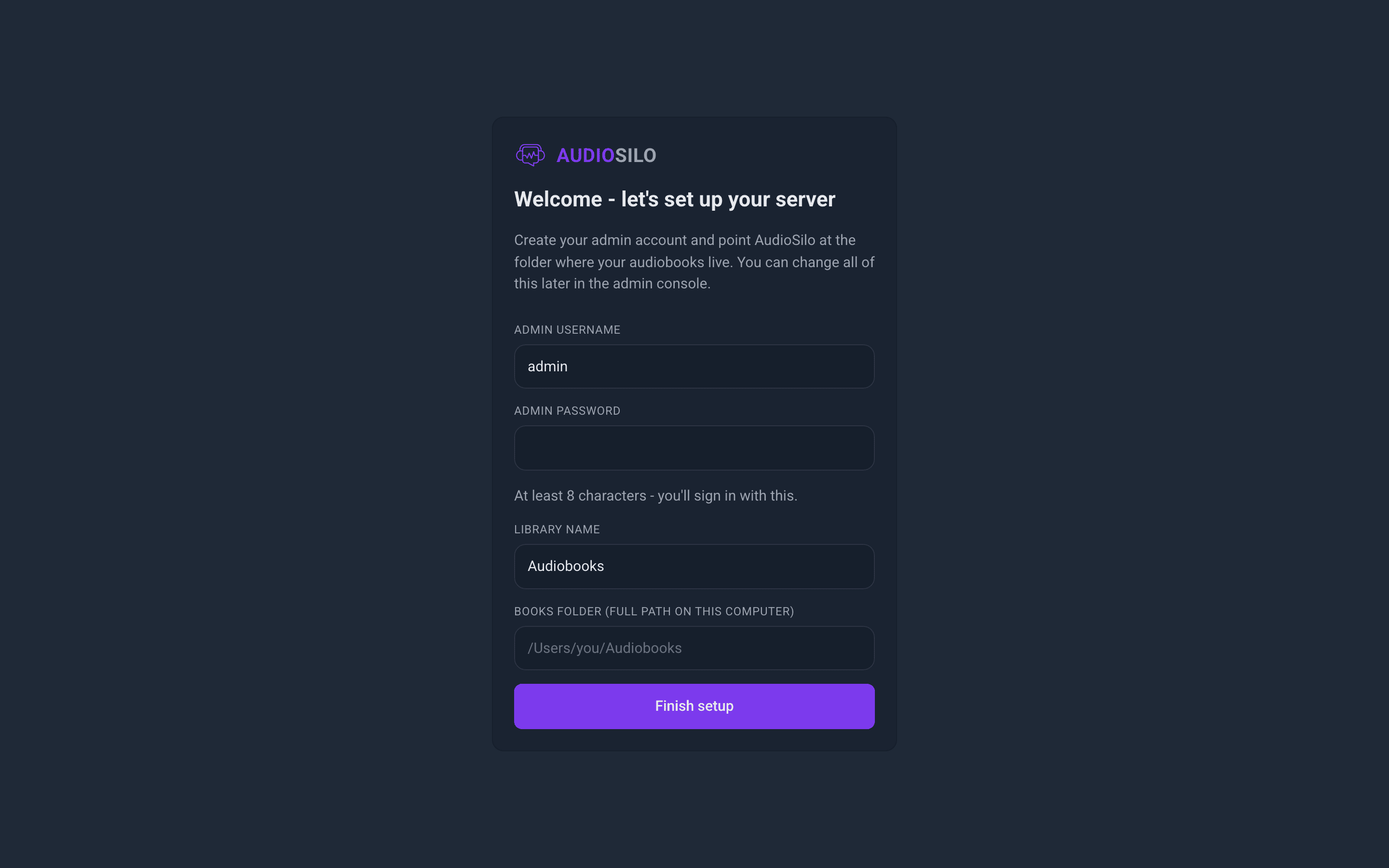
- Choose the admin username (defaults to
admin) and an admin password you'll actually remember. - Name your first library and enter the full path to your books folder on the server's disk.
When you finish, the wizard offers buttons straight into the admin console and the web player.
A few things worth knowing about how the wizard is secured:
- The secret token rides in the part of the URL after the
#, which browsers never send to servers - so it can't leak into logs. The link only works with the token. - The wizard shuts itself off the moment an admin account exists. After setup - or on a server that was set up the normal way -
/setupsimply doesn't exist.
The desktop manager uses this same wizard when it sets up a server for you.
What lives in the data directory
The --data directory (mounted at /data under Docker) is the server's home. After the first run it contains:
config.yaml- all server settings. Edit it and restart to change things like TLS mode; see Remote access.audiosilo.db- the database: user accounts, listening progress, bookmarks, and a searchable index of your books. The index part is rebuildable from your files at any time; the accounts and progress are the part you'd back up.certs/- the Let's Encrypt (autocert) certificate cache. In self-signed TLS mode the certificate and key are written at the data directory root instead, asselfsigned-cert.pem/selfsigned-key.pem.tools/- ffmpeg/ffprobe, if the native binary had to download them (see Install the native binary).
Your audiobooks are never copied in here. The books folder you point a library at stays untouched, and stays the source of truth - see Organizing your library.
Your first look around
Open the server's address in a browser (with the defaults, https://your-server:8080 - expect a certificate warning until you've read Remote access).
The front page is the connect page. It's public and deliberately minimal: anyone you invite lands here, enters an auth code, and gets a QR code plus "Open in app" / "Open web player" buttons to pair their device.
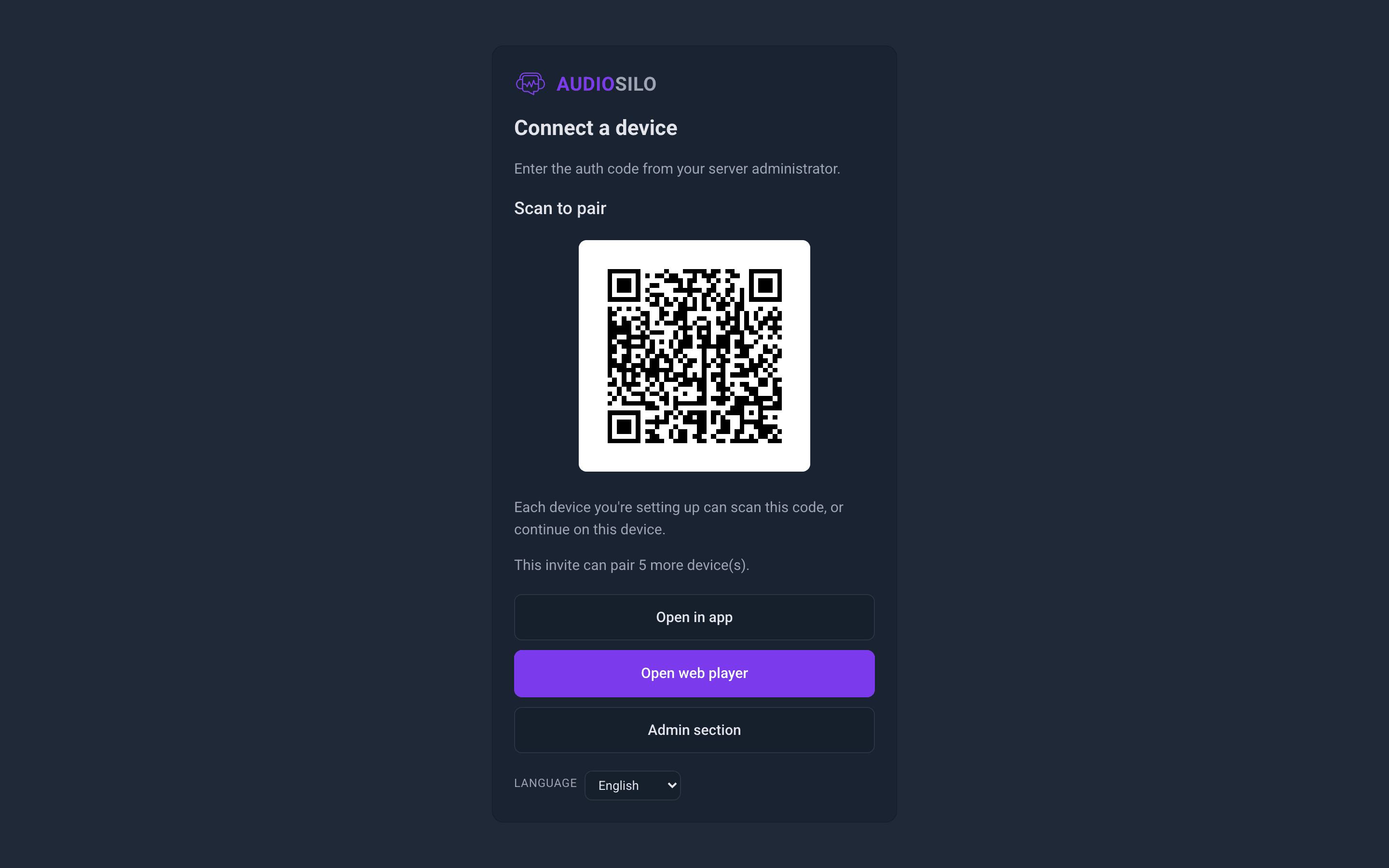
The admin console lives at /admin. Log in with the admin username and password from the banner or the wizard.
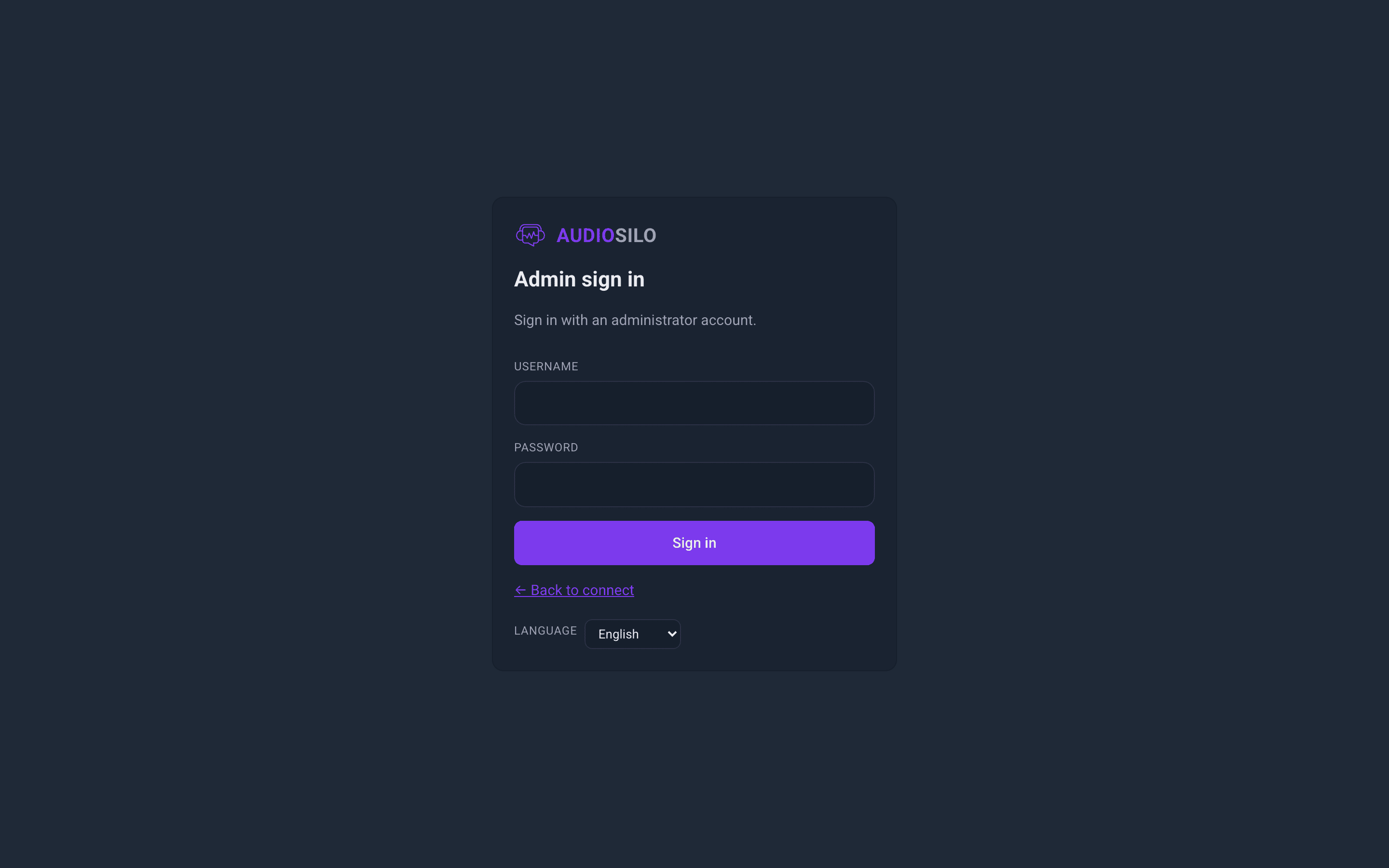
From here you manage libraries, users, invites and sharing - take the console tour next, then add a library if the wizard didn't already create one.