Your account and settings
The Settings tab is where you tune the player and look after your account:
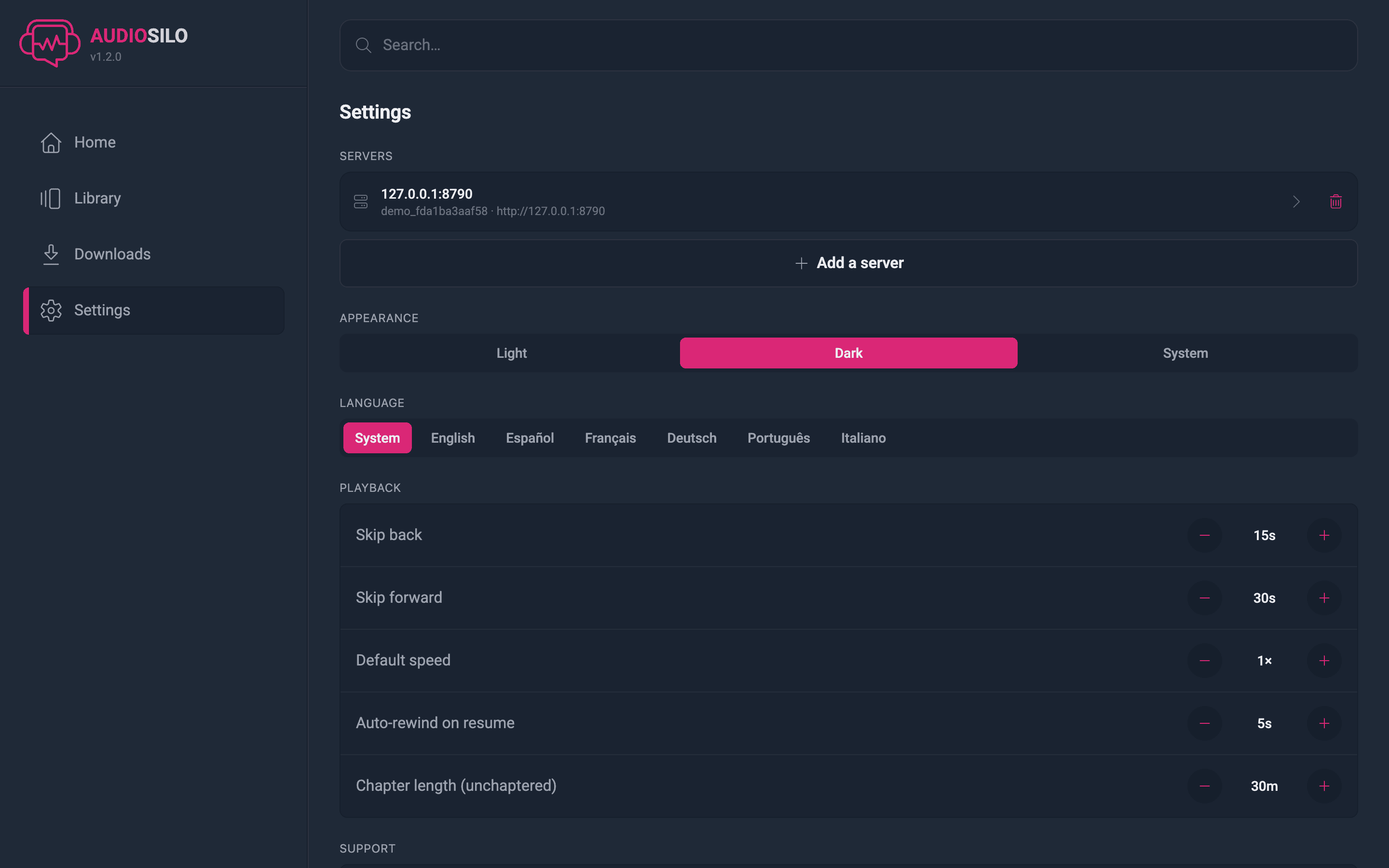
Servers
The servers this app is connected to. You can Add a server to connect a second (or third) one - your home screen, search, and favourites then combine everything - and remove one you no longer use. See Connecting and signing in.
Removing a server also deletes that server's downloaded books from this device, plus any listening progress that hasn't synced back yet. The app warns you first if the server has downloads on the device. Your other servers are unaffected, and nothing on the server itself is touched. See Offline downloads.
Appearance
Light, Dark, or System (follow your device's setting). AudioSilo is designed dark-first, but the light theme is fully supported.
Language
The app speaks English, Español, Français, Deutsch, Português, and Italiano. Pick one, or leave it on System to follow your device's language.
Playback
Your playback preferences (kept per device, so your phone and your desktop can differ):
| Setting | What it does | Range |
|---|---|---|
| Skip back | The jump of the player's back button | 5–120 s (default 15 s) |
| Skip forward | The jump of the forward button | 5–120 s (default 30 s) |
| Default speed | Starting speed for books you haven't played yet (each book then remembers its own) | 0.5×–2× |
| Auto-rewind on resume | How far playback backs up after a pause, so you regain the thread | Off–30 s (default 5 s) |
| Chapter length (unchaptered) | Size of the virtual chapters created for long books with no chapter markers | 5–60 min (default 30 min) |
Sleep timer
Whether AudioSilo should set a sleep timer for you at night, so you don't have to remember. Off out of the box; the three settings below only appear once it's on. Like Playback, these are kept per device.
| Setting | What it does | Options (default) |
|---|---|---|
| Auto sleep timer | Start a sleep timer automatically for playback that begins between the hours below | On / Off (default Off) |
| From / Until | The nightly window it applies to, adjustable in 30-minute steps and shown in your device's own clock format | Any times (default 10:00 PM to 6:00 AM) |
| Timer type | What the automatic timer does | End of chapter, or 15 / 30 / 45 / 60 minutes (default End of chapter) |
The window may cross midnight, which is the whole point of the default. Setting From and Until to the same time switches it off rather than covering the whole day.
The automatic timer stays out of your way: only ever one at a time, and it never replaces a timer you set yourself. If one runs out and you press play again inside the window, you get a fresh one - waking at 3:00 AM shouldn't leave you unprotected. Cancel one, though, and nothing will arm another for that book for the rest of the session.
Up next
Controls for what happens as one book ends and the next begins (see When a book finishes). Like Playback, these are kept per device.
| Setting | What it does | Options (default) |
|---|---|---|
| Automatically play next book | Start the next book in the folder when one finishes, after a short countdown on the end credits screen | On / Off (default Off) |
| Automatically download books | Download the book you start listening to, so it's ready to hear offline. Streaming begins straight away, and playback switches to the downloaded copy quietly once it's on the device | Never / Wi-Fi only / Always (default Wi-Fi only) |
| Automatically delete finished books | Remove a book's downloaded files from the device when it's marked finished, to free up space | On / Off (default On) |
Wi-Fi only skips the automatic download on a known mobile-data connection, so it won't eat your data allowance. In the web player, and when the connection type can't be determined, it goes ahead. You can always download a book by hand on the book's page - see Offline downloads.
Account
Shows who you're signed in as, your role, and the server address - plus the two credentials worth setting up:
Set a password
Accounts created by invite often start without a password - you signed in with a code, and that's fine day to day. Setting a password is your reliable way back in on any device:
- Tap Set a password (or Change password), enter a new password of at least 8 characters, and save.
- Changing an existing password asks for your current password first.
Why it's worth doing, especially if you were invited by pairing and never set one: if you ever sign out or get a new phone, a username and password sign you straight back in with no help from anyone. Without one, getting back in means asking your admin for a fresh invite - so setting a password once is the safety net that keeps your account in your own hands.
API keys
If your server supports them, an API keys section here lets you create keys for dashboards, scripts, and other tools that reach your server on your behalf. See API keys for integrations.
Signing out
Sign out disconnects this device. If you're about to sign out without a password set, the app stops you with a warning - "Without one you'll need a new invite from your admin to sign back in on this server" - and offers to Set a password right there. Take the offer; it's the whole reason the button exists.
Signing out also removes this server from the app, so it deletes that server's downloaded books from the device and any progress that hasn't synced yet. The app warns you when there are downloads to lose. (Books, progress, and bookmarks stored on the server are safe - sign back in and they're all there.)
Signing out isn't a big deal. Next time you open the connect screen, any server you've connected to before shows a one-tap "Reconnect to <your server>" shortcut with the address already filled in - so you only re-enter your code or password, never the server address. See Connecting and signing in.
Devices
Pair another phone, tablet, or browser to your account without a new invite: tap Add a device and a QR code appears. Scan it with the other device (or share the link to it) and it signs straight in. The details are in Connecting and signing in.
Support
On the web and Android, a Support AudioSilo section links to GitHub Sponsors - AudioSilo is free and self-hosted, and contributions fund its development. (The section doesn't appear in the iOS app.)
Version
The footer shows the version you're running, e.g. AudioSilo v1.1.1 - when connected, this reflects the server's version. Handy to mention if you ever report a problem (see Troubleshooting).
Things an admin manages - creating accounts, invites, what libraries you can see - aren't in your Settings; they live in the server's admin console. See Users and invites.