Apple Watch
Leave the phone at home, take a book with you. The AudioSilo watch app plays books downloaded to your Apple Watch and sends what you listened to back to your server the next time the watch has a connection, so your place and your stats stay right on every other device.
The watch is a device of its own. It has its own sign-in and its own copy of each book, and it talks to your server directly. Your iPhone only signs it in and sends it books.
What you need
- An iPhone with the AudioSilo app, version 2.6.0 or later, and an Apple Watch paired to it, on watchOS 11 or later.
- A server on version 2.6 or later with ffmpeg available, because the server makes the small copies of each book that a watch plays. See Server > Transcoding.
- Headphones, if you don't want everyone nearby to hear your book.
What it doesn't do
The watch app is deliberately small. Before you set it up, know that:
- There's no library browsing. The watch lists only your Continue listening books and the books you send from your iPhone.
- There are no podcasts, only books.
- It holds one account. One watch signs in to one account on one server. To use another, switch.
- A kid's account or a demo can't use it. The iPhone doesn't offer it there.
- Bookmarks, notes, the ebook, read-along and casting stay on your other devices. The watch plays the book.
- Finished books stay until you remove them. See Storage.
- It's in English for now, whatever language your iPhone uses.
There's no Wear OS app yet.
Setting it up
- On your iPhone, open the Watch app and install AudioSilo on your watch.
- In the AudioSilo app, open your account page for the server. An Apple Watch card shows there when your iPhone has a paired watch. If AudioSilo isn't on the watch yet, the card says "Install AudioSilo on your watch from the Watch app on this iPhone, then come back here."
- Tap Set up Apple Watch. The card says "Sent. Open AudioSilo on your watch to finish signing in."
- Open AudioSilo on your watch. There's nothing to type: it says Signing in, then shows its home screen.

The sign-in is good for 10 minutes, and only once. If the watch doesn't take it in time, the card says "The sign-in ran out before your watch took it. Nothing changed on the watch. Keep it close and send again." and the watch says "That sign-in has expired. Send again from your iPhone." Tap Send again on the card.
If the watch says "Can't reach your server. Send again from your iPhone when the watch is online.", see At home and away, which matters most on a server with the default self-signed certificate.
The card is for setting up and signing in. Once the watch is signed in, it says who as and how its sync is going. Books on your watch takes you to the books themselves, in Downloads on your iPhone:
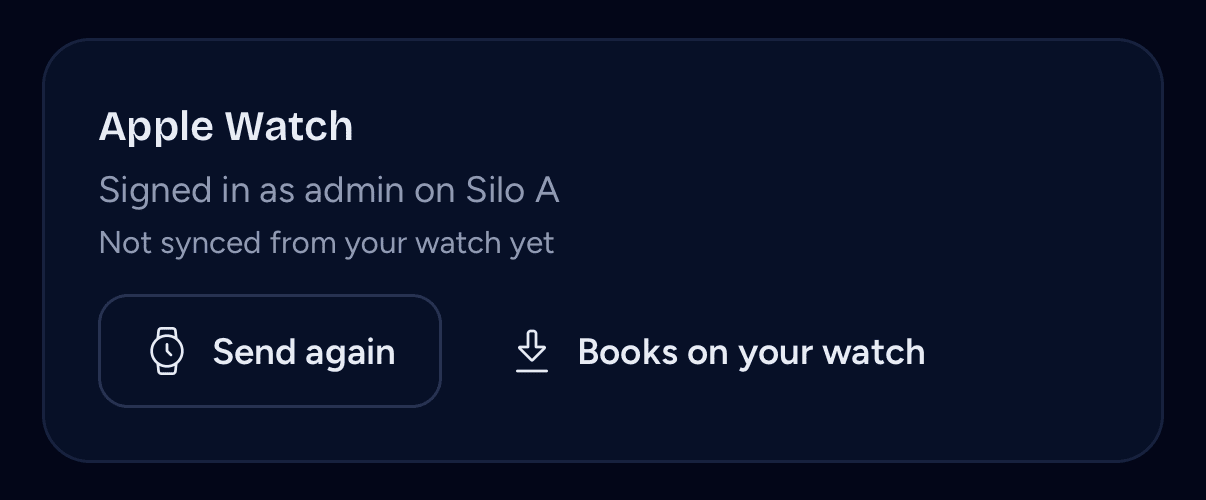
The card also says when the server can't serve a watch ("Home can't prepare books for a watch. It needs version 2.6 or later, with ffmpeg."), and when the watch is signed in to another account ("Your watch is signed in to another account. Setting it up for Home replaces that account once its listening has synced.").
The watch shows up under Signed-in devices as Apple Watch with a watch icon, and a line such as "AudioSilo 2.6.0 · Apple Watch · active now". The row says Apple Watch whatever you've called your watch.
Choosing books
On the watch: Continue listening
Continue listening, on the watch's home screen, lists the books you've started and not finished, the most recent first, up to 10. Each has a Download button, and Refresh at the end of the list reads them again.

From your iPhone: Send to watch
On your iPhone, Send to watch is in a book's menu and under More on its page. It shows when your watch has the app and the server can serve a watch. It's not offered for a podcast episode.
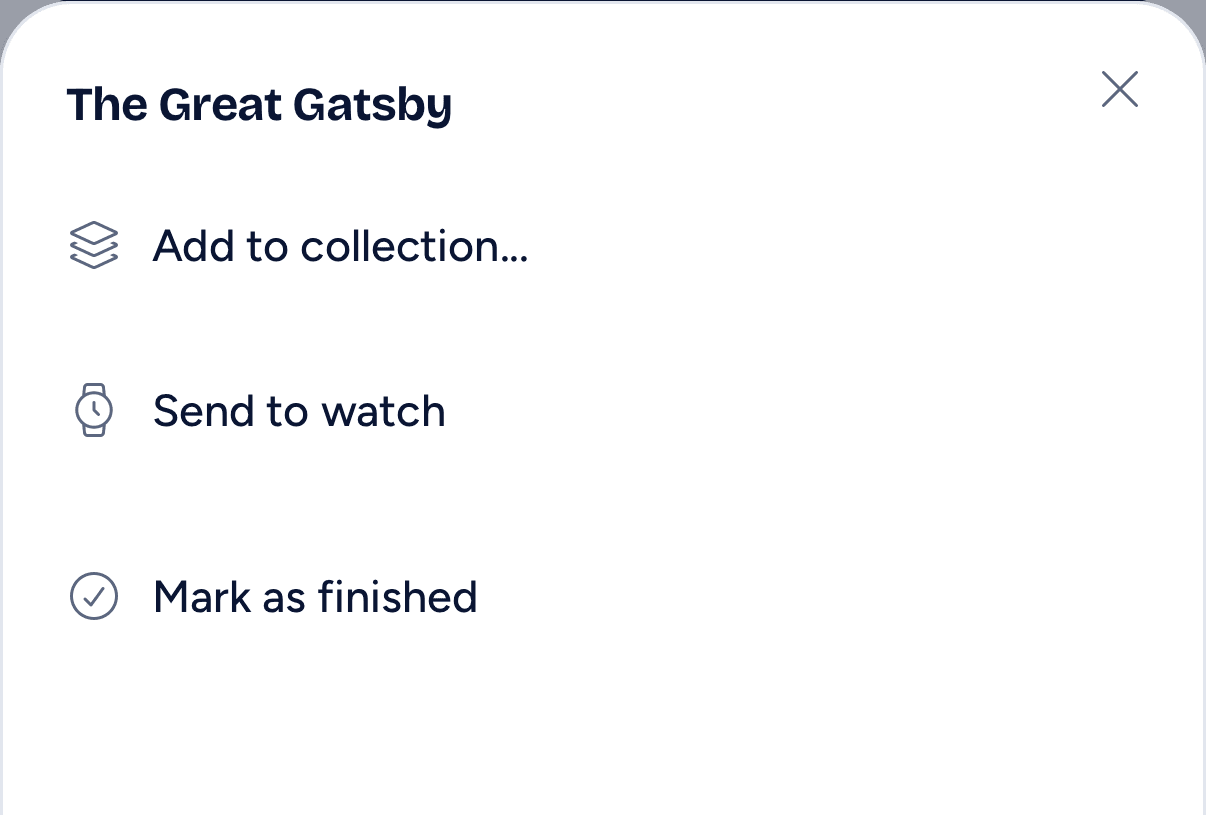
You get a short "Sent to your watch" message, and Show on it opens the book's row in Downloads. If the watch isn't signed in to this account yet, Send to watch signs it in first, and the message adds "If AudioSilo isn't open on your watch, open it to finish signing in."
A book sent with the watch app closed still arrives, but reaching the watch can take a few minutes. Nothing else happens until you open AudioSilo on the watch: that's when preparing and downloading start.
How a download goes
On the way, above Continue listening on the watch's home screen, shows each book that's coming and how far it has got: Waiting to download, Preparing on the server, then "Downloading 2 of 5 files". A book on the way isn't listed under Continue listening as well. Once it's there, it moves to On this watch, just below, with its size.
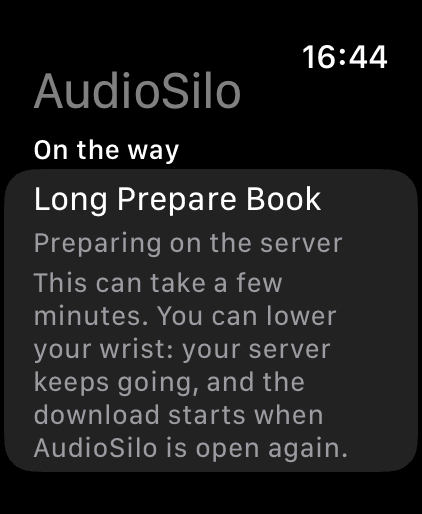
- A watch gets its own smaller copy of a book, about 430 MB for a 20-hour book. The server makes it the first time a watch asks for that book, which can take a while for a long one.
- The watch asks for a book while AudioSilo is open on it. If a book stays on Waiting to download, or your iPhone says "Delivered. Open AudioSilo on your watch.", open AudioSilo on the watch. A book may also say "Waiting for a connection" or "Waiting for the server".
- The server keeps preparing with your wrist down. You don't have to hold the watch up for it. The watch only checks on it while the app is open, so the download starts when AudioSilo is open again.
- Once the server has the copy and the app is open, the watch fetches the files with a system download designed to carry on with the app closed.
- Couldn't download comes with the reason. Try again on Continue listening starts it again, and so does sending the book again from your iPhone.
A book sent before the watch is ready
A book you send isn't lost if the watch can't take it yet: while it's still signing in, after a sign-in failed, on a server that is too old, or when the book is for an account the watch isn't signed in to.
It waits on the watch under From your iPhone at the bottom of On this watch, saying "Waiting until this watch can take it", and under On the way on the home screen. Before the watch is signed in, the same line sits under the message on the setup screen. As soon as the watch can take the book, it joins the downloads by itself, with no need to send it again. Like any download, it only gets going while the app is open.

A book waits for 7 days, and up to 20 can wait at once. Past that, or if you refused the account it's for, it says "Not delivered. Send it again from your iPhone." for another 7 days, then goes. Sending it again makes it wait afresh. Signing out, or switching to another account, removes that account's waiting books too.
In Downloads on your iPhone
The Downloads page on your iPhone has an On your Apple Watch section, between In progress and Ready offline. It lists every book you've sent to the watch and every book the watch says it holds, including ones you downloaded on the watch itself. A row appears as soon as you tap Send to watch.
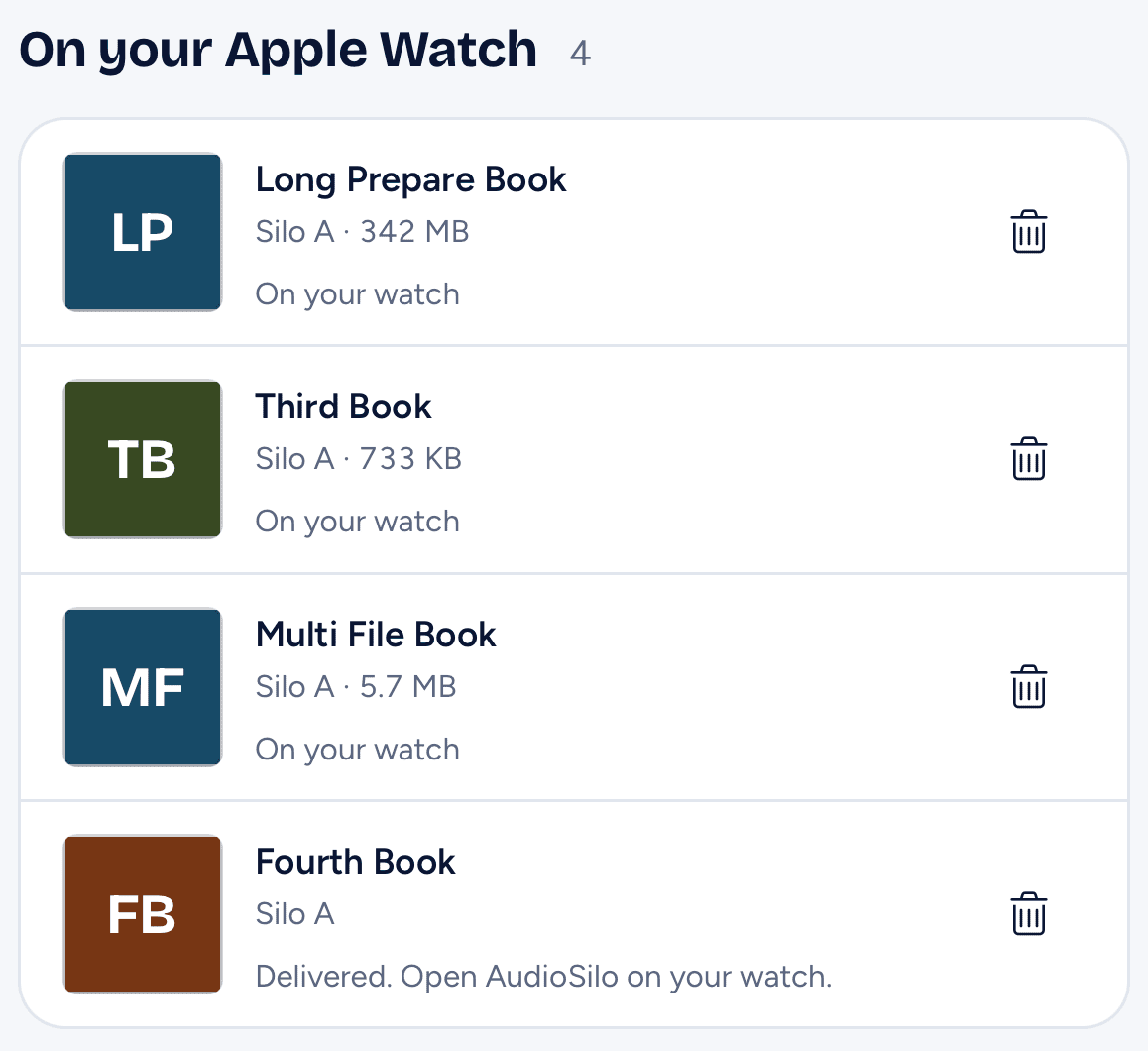
You'll see the section when your iPhone has a paired watch with AudioSilo on it. Kids' accounts and demos don't have it. It shows one account at a time: the one Show or Books on your watch came from, otherwise your default.
Each row says where its book has got to:
| The row says | What it means |
|---|---|
| "Sent, not delivered yet" | Your iPhone is still getting it to the watch. This can take a few minutes, and it changes by itself. |
| "Delivered. Open AudioSilo on your watch." | It's on the watch, and starts when you open the app. |
| "Delivered. It starts once your watch is signed in here." | The watch is on another account or signed out, and holds the book. |
| "Waiting on your watch" | The watch has it queued. |
| "Preparing on the server. This can take a few minutes." | The server is making the watch's copy. |
| "Downloading to your watch" | The files are on their way. |
| "On your watch" | It's there, with its size beside the server's name. |
| "Couldn't download. Send it again to retry." | See Couldn't download on the watch for the reason. |
| "Couldn't reach your watch. Send it again." | iOS couldn't deliver it. |
| "Your watch hasn't taken this in 7 days. Send it again if you still want it." | The watch never listed it, so the row stops claiming progress. |
Send again is on the last three. What the watch is doing reaches your iPhone when the watch can tell it, so a row can lag behind the watch's own screen.
Removing a book from your iPhone
The Remove button on a row takes the book off the watch, without you touching the watch. It asks first: "Remove from your watch?". The book stops if it's playing there, and your place in it is kept. Send it again to get it back. The row then says what's happening until the book has gone:
| The row says | What it means |
|---|---|
| "Removing once your watch is in reach" | The request hasn't reached the watch yet. |
| "Removing. Open AudioSilo on your watch to finish." | It has reached the watch, and finishes when you open the app. Remove is there again if the row stays like this. |
| "Couldn't reach your watch to remove this. Try again." | iOS couldn't deliver the request. |
| "Not removed: your watch isn't signed in to this account." | Nothing changed on the watch. Stop showing clears the row. |
When the watch is on another account
If the watch isn't signed in to the account shown, the section says "Your watch isn't on this account", with Go to your account to set it up. Another account's books aren't listed. Books you sent for this account can still show below that, waiting for the watch to sign in.
Storage
Before a download starts, the watch checks there's room for the book and 200 MB more. If there isn't, the book doesn't start, and says so: "Not enough space on this watch: it needs 430 MB and keeps 200 MB free; 310 MB is free."
Books don't remove themselves, even once you've finished them. To free the space, open On this watch, swipe a book, tap Remove, then Remove from watch, or remove it from your iPhone. Removing the book that's playing stops it first, and what you heard still syncs. Your iPhone's own downloads and the book on the server don't change.

Playing a book
Tap Play on a downloaded book in Continue listening, or tap the book in On this watch. While a book is loaded, Now playing at the top of the home screen comes back to it.

The screen has the chapter, a bar with two figures beside it, back 15 seconds, play and pause, forward 30 seconds, and previous and next chapter. Below those: Chapters, Speed (0.8x to 2x; each book keeps its own) and the Sleep timer (15, 30, 45 or 60 minutes, or End of chapter). A book without chapters has no chapter buttons and no Chapters.
The two figures are the time heard in the chapter and the time left in it. Both are in audio time, as on your phone, so they add up to the chapter's length at any speed. At any speed other than 1x, a small line under them says how long that will really take: "59m left at 2×".

The book plays on after you press the crown and leave the app.
Before it plays, the watch asks your server for the book's place if it can, and goes on from there. With no connection, it uses the place it last knew, so a book you were halfway through on your phone doesn't open at the start. If another device is somewhere else in the book, the watch offers it, as the other apps do: "Living room is at 1:12:40." with Jump there and Stay here. See Listening on more than one device.
The speaker
The watch is meant for headphones: when you press play with none connected, watchOS shows its own picker for where to listen. If you choose the watch's speaker, AudioSilo asks once:
Play on the watch speaker? Others nearby will hear it. Connect headphones to listen privately.
Play on speaker plays it, and the watch doesn't ask again. Not now leaves it paused. If you don't choose anywhere to listen, the screen says "Choose where to listen (headphones or the watch speaker), then play again."
Removing your headphones pauses the book.
A run without your phone
- Before you go, while the watch can reach your server, download the book and check On this watch shows it with its size.
- Leave the phone. Open AudioSilo, connect your headphones and play. Playing is built to need no connection at all, since the book is on the watch. The app is set up to keep playing when you lower your wrist.
- Come back. What you listened to is kept on the watch until it reaches your server, with the time you heard it, so it lands on the right day in your history and stats and never moves your place back by itself. A rewind you made on the watch still counts.
The listening goes in two ways:
- With the app open, it's sent when you open the app, each time you stop, and about once a minute while anything is waiting.
- With the app closed, the watch hands what's waiting to watchOS as you leave the app, to send when a network appears. How soon that happens is up to watchOS, and it only uses your away address (below). Opening the app is the sure way to send it, and Sync now is there if you want it to go this minute.
The watch reaches your server by whatever connection watchOS gives it, through your iPhone when that's near.
Sync status
Sync, on the home screen, says how things stand:
- Last sync and Waiting, the number of listening updates still to send. Sync now sends them.
- "Can't reach your server. Listening is kept here and sent when it can be." when the last try got no answer.
- Couldn't sync lists anything the server turned down, and why: "Too old to sync (over 89 days)", "Too large to send", "The book is no longer yours to sync", "The book is no longer on the server", "The book has changed on the server", or "The server refused it" with its code. Swipe one to Dismiss it. Your place on the server isn't affected.
- Server: its Name, the Address in use right now, and its Version.

Your iPhone's card repeats the short version as the watch last told it: "1 listen waiting on your watch", "1 listen couldn't sync. See Sync on the watch." and "Last synced 2 minutes ago" ("Not synced from your watch yet" before its first sync). "Everything from your watch has synced" shows only after a sync, with nothing waiting and nothing that couldn't sync.
If the server is too old
The watch needs a server that can take its listening and make its copies of a book. If yours can't, the watch shows one of these instead of its home screen, with your server's version beneath:
- "This server is too old for the watch app (needs 2.6 or later)." Update the server.
- "This server can't make books for the watch. It needs ffmpeg." See Server > Transcoding.

After fixing it, tap Try again. Sign out is there too, and any books your iPhone sent wait below them. Books already on the watch can't be played while this screen shows.
At home and away
The watch follows the same rule as the phone apps (At home and away). Address on Sync shows which address is in use. If the home address is the only one the watch knows for your server, your listening syncs when you open the app at home.
A self-signed server
The watch can't accept a self-signed certificate, and there's no way to click through a warning on it. So, as on your phone:
- At home, it connects over the server's plain HTTP at home. Setting the watch up on the same network as the server is the surest way for it to reach that address. If it can't reach the server at all, sign-in ends with "Can't reach your server."
- Away from home, it needs an address with a certificate it can trust, set up as for the phone apps.
Without a trusted away address, the watch still plays its books anywhere, but can only reach your server at home.
If watchOS asks whether AudioSilo may use your local network, allow it, or the watch may not find the server at home. Over plain HTTP, a home address written as an IP address, a .local name or a single word like audiosilo works. A name like nas.lan doesn't.
Signing out and switching accounts
Sign out on the home screen removes the account and the books on this watch. If any listening hasn't synced, it holds back: "2 listening updates have not synced yet. Sync first, or discard to sign out." with Sync now and Discard and sign out, which asks once more before throwing them away.

To switch accounts, tap Set up Apple Watch on the other account's card. With nothing waiting to sync, the watch switches as soon as it takes the sign-in, and says Switching accounts. With listening still unsent, it asks on its home screen first: "Another account wants this watch, but 2 listening updates have not synced yet." with Sync now, Discard and switch and Keep this account. Once nothing waits, that becomes "Another account wants this watch." with Switch and Keep this account. Switching removes the old account's books from the watch.
Signing out on your iPhone leaves the watch signed in, since it's a device of its own. To cut off a lost or sold watch, use Sign out on its row under Signed-in devices. Changing your password also signs it out on a recent server. Either way, Continue listening then says "Signed out. Set up the watch again from your iPhone."