A book's page
Tap a book anywhere in AudioSilo to open its page. It tells you where you are in the book, starts it, and keeps everything else about it one tab away.
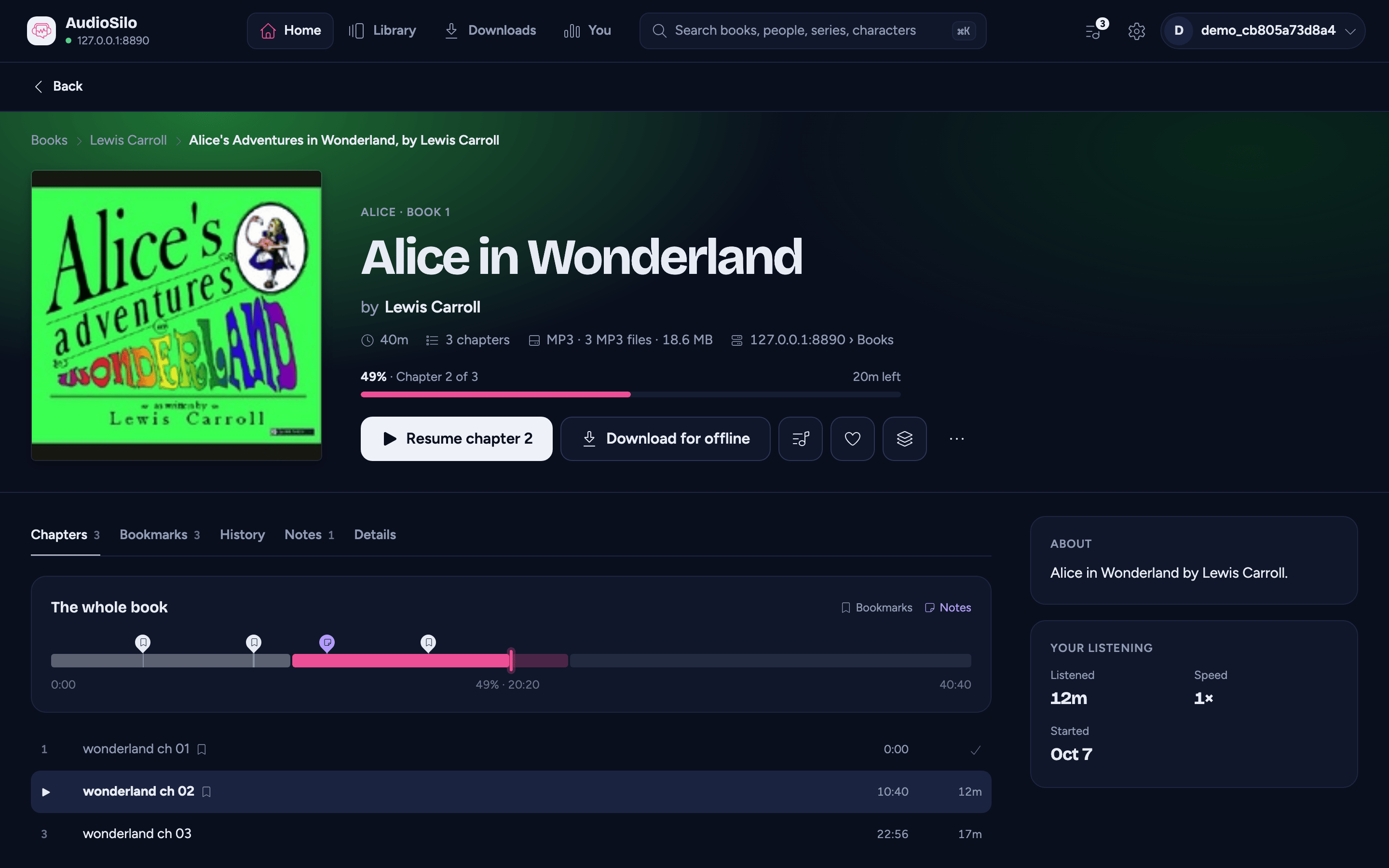
At the top
The top of the page takes on the colours of the book's cover. Above it, a slim line shows where the book sits on your server: the library, each folder above the book, and the book's own folder or file name. Tap a folder to open it.
- The series and the book's number ("The Stormlight Archive · Book 2") open the series page. A book in no series shows its library and server instead.
- The title, then by the author and read by the narrator. Each name opens that person's page (the narrator's page needs a recent server).
- The facts: the length, how many chapters (or "12 parts of 30 min" for a book without chapter marks), the audio ("MP3 · 3 MP3 files · 210 MB"), the year it was published (and by whom, when the community database knows), and where it lives ("Home › Books"). Anything the book doesn't say is simply left out.
For a book you're partway through, a line and a bar show where you are: "38% · Chapter 23 of 81", with the time left at the speed you listen to that book.
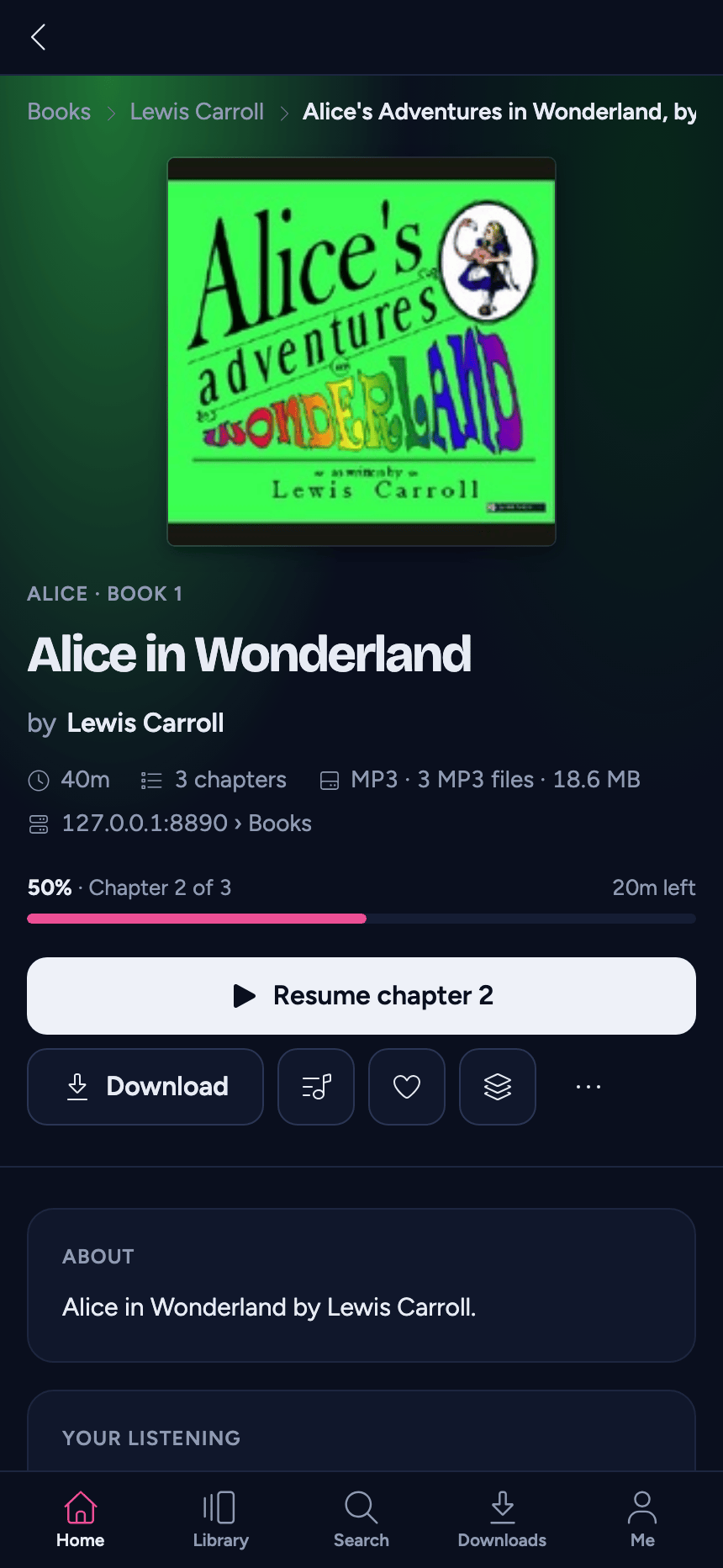
On a phone the cover sits above the title. On a tablet or computer it sits beside it, and on a wide enough page (a tablet held upright already is) the About card and Your listening move to a column beside the tabs (on a narrower one, for instance with the Up next drawer open, they come between the top and the tabs).
Listening and the buttons
The big button does the one thing you most likely want:
- Start listening for a book you haven't started.
- Resume chapter 6 (or just Resume) for a book you're partway through. It never starts the book over.
- Listen again for a book you've finished.
- Pause while this book is playing.
On a phone it opens the full player. On a tablet or computer the book plays where you are, under the player bar.
Beside it:
- Download for offline keeps the book on this device: see Downloading a book.
- Up next: Play next puts the book at the top of your Up next queue, and Add to the end of Up next queues it last (or Remove from Up next, if it's already there). A note confirms it, with Undo.
- The heart, to make it a favourite.
- Add to collection, which opens the same dialog as the book menu.
- More (...): Mark as finished, or Mark as not finished for a book you've finished, and More in this series. On a phone it opens as a sheet from the bottom.
In the web player, a book the browser can't play as it is says so under the buttons: "AC-3 audio is converted to MP3 for this browser" (see Books a browser can't play directly).
Up next and collections need a recent server; on an older one those buttons simply don't appear.
A book you've finished
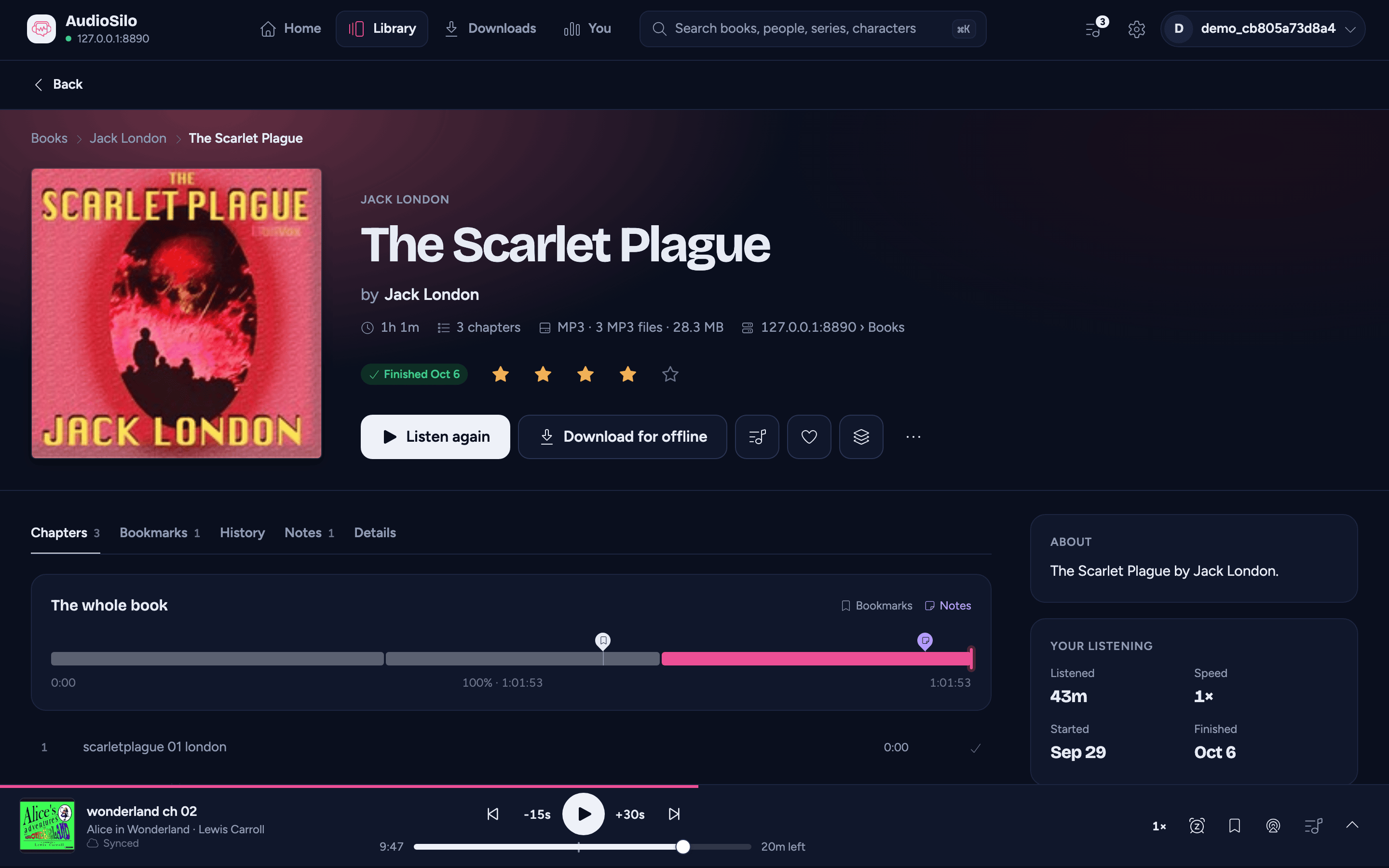
A finished book shows Finished with the date ("Finished 3 Oct") in place of the progress bar. Where your server keeps ratings, stars sit beside it: tap one to rate the book (a note says "Rating saved"), or tap another to change it. It's the same rating as on the end credits, and changing the stars keeps any note saved with the rating.
About this book
The About card describes the book. Its words come from the first of these that has some:
- The community's description from AudioSilo Meta, when your server has community metadata switched on and the book is matched there. A line under it credits the people who wrote it and links the open licence they share it under, and Improve this opens the book's entry, so you can make it better.
- The description your server holds for the book (one your admin edited, or the one in its tags).
- Failing both, a sentence naming the author and the narrator.
A long description folds after a few lines, with Show more. Under it, what's known of the recording: the Publisher, when it was Released, when the story was First published, and whether it's Abridged. A matched book with no community description has a quiet View on AudioSilo Meta link instead of the credit.
Other versions appears when the same book is on more than one of your servers or libraries (say, an M4B copy and an MP3 copy). Each line says where that copy lives and what it is ("M4B · single file · 480 MB"); tap one to open its page.
Your listening appears once you've started the book: how long you've Listened to it, your Speed for it, and when you Started and Finished it, as far as your server's records go.
The tabs
Everything else sits in a row of tabs, so a long chapter list never buries the rest. Swipe the row sideways if it doesn't all fit. Some tabs show a count beside their name: the chapters, your bookmarks and notes, and the characters you've met.
- Chapters (or Parts, or Files) - the default (below).
- Recaps and Characters - the community's catch-ups and character cards, which never show more than you've heard (Recaps and characters).
- Bookmarks and Notes - your own, for this book (see Bookmarks and notes).
- History - your listening sessions for this book (below).
- Series - the other books in the series, in the reading order you pick (Recaps and characters).
- Details - how the book plays here and what its files are (below).
Chapters, Bookmarks, History, Notes and Details are always there. Recaps, Characters and Series appear only when the community database has that material for the book, so most pages show a shorter row.
Chapters
At the top, The whole book: a timeline with a segment for each chapter, the part you've heard filled in, and pins for your bookmarks and notes (the notes in their own colour). Under it, the start, where you are ("38% · 1:02:03") and the end. While this book is playing, the timeline follows it and a tap or drag jumps there; for a book that isn't playing, a tap starts it at that point. Like the player's, it never takes you all the way to the end: a tap there lands 30 seconds short.
Below it, every chapter in order: its number, its title (with a small bookmark when you've marked something in it), when it starts (on a tablet or computer), and its length, or a tick once you've heard it. The chapter you're in is highlighted. Tap any chapter to listen from there: on a phone the full player opens on it, elsewhere it plays where you are.
Some books get their chapters from the community database rather than from their files, when the files have none of their own or your admin chose the community's more detailed ones. They work exactly like any other chapters, and the list ends with a quiet line saying so: "Chapters from the AudioSilo community database".
A book with no chapter marks lists its files instead. If it's one long file, it gets Parts instead, with a note explaining why: "This book has no chapter marks". They're the same 30-minute parts the player uses, and you can change their length in Settings under Chapter length.
History
Your listening sessions for the book, newest first: the day and the time you started, where you went ("17:00:00 to 17:25:42 · Bridge Four"), and how many minutes you listened. Jump takes you back to where a session ended (on a phone, in the full player). Sessions are split as in the Journal's Diary, which has every book's, day by day.
Details
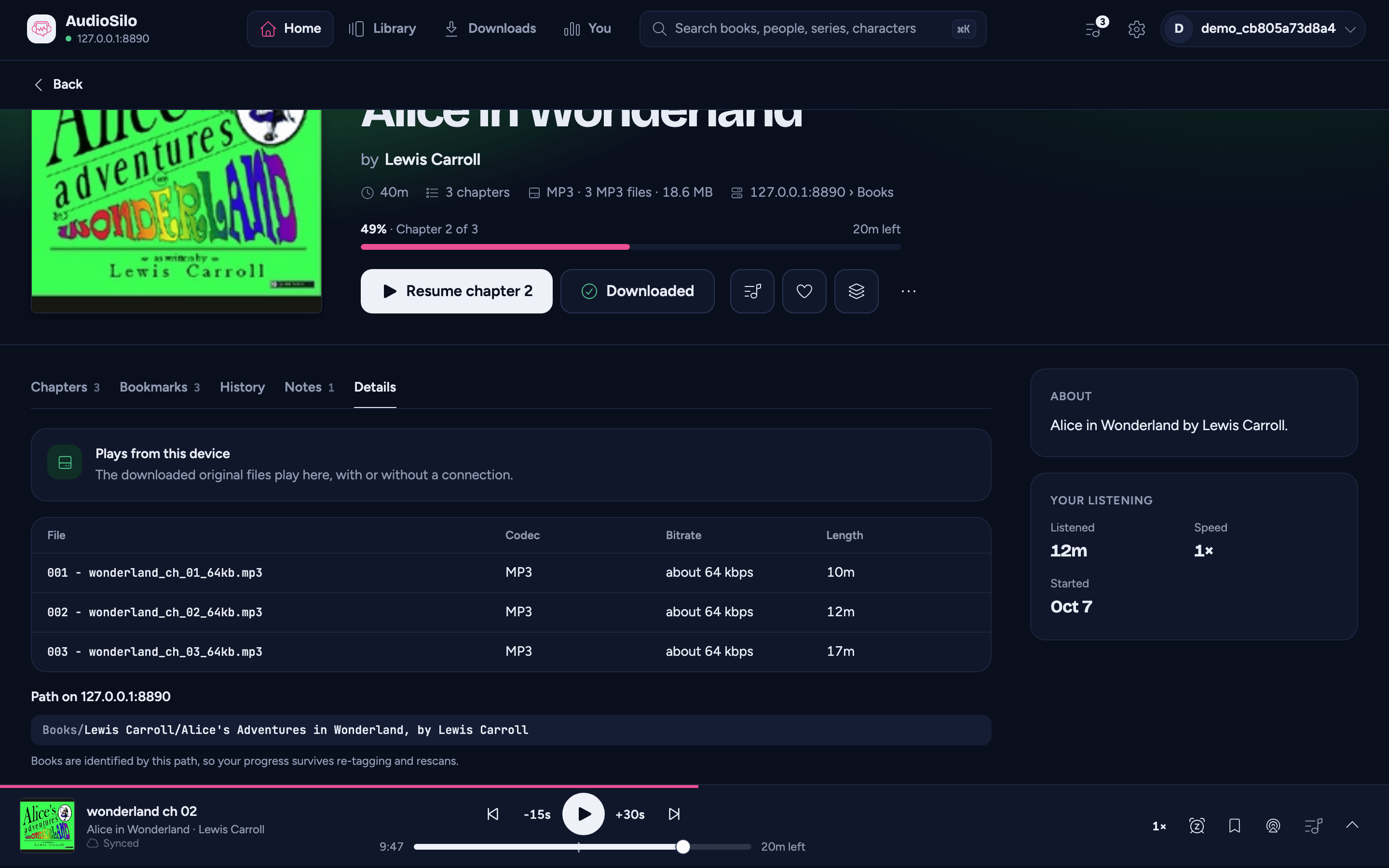
How the book plays on this device:
- Direct play - the original file streams as it is, and seeking is instant.
- Plays from this device - the book is downloaded here, so the original files play with or without a connection.
- Converted for this browser - in the web player, for audio the browser can't play: your server converts it as you listen, and the iOS and Android apps play the original. See Books a browser can't play directly.
Then the book's files, each with its codec, its approximate bitrate ("about 64 kbps", worked out from its size and length) and its length. A book of many files shows the first six, with and 12 more files for the rest.
Last, the book's path on your server. That's how AudioSilo knows the book, so your progress, bookmarks and notes survive re-tagging and rescans.