Browsing your library
Once you're connected, AudioSilo gives you a few ways to find something to listen to: the home screen's shelves, browsing a library folder by folder, searching, and your own favourites.
The home screen
The home screen is built around what you are doing, not just what's on the server:
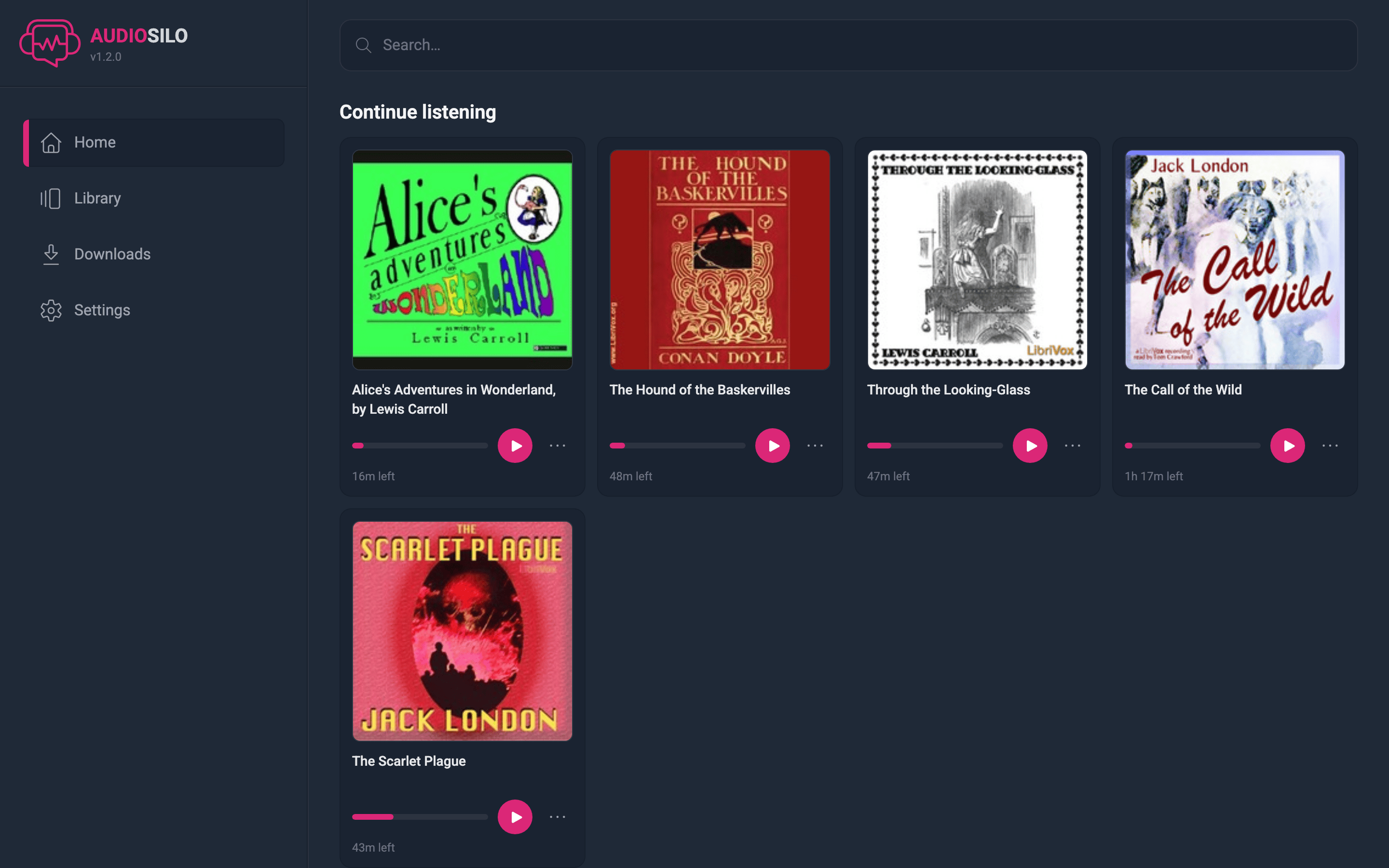
- Continue listening - every book you've started, most recent first, each showing how much is left. Tap one to pick up exactly where you stopped. The card's menu also lets you Mark as Finished or jump to More in series (the book's folder).
- Favourites - the books you've marked with a heart. Only appears once you have some.
- Recently added - the newest books on your server, with a View more link to a fuller list.
- Recently finished - books you've completed, also with a View more link.
View more opens a browse page where you can flip between Recently added and Recently finished and see far more than the home shelves show.
If you're connected to more than one server, the home screen, search, and favourites combine all of them - a book can even note that it's "Also on…" another server or "Also in…" another library.
Libraries and folder browsing
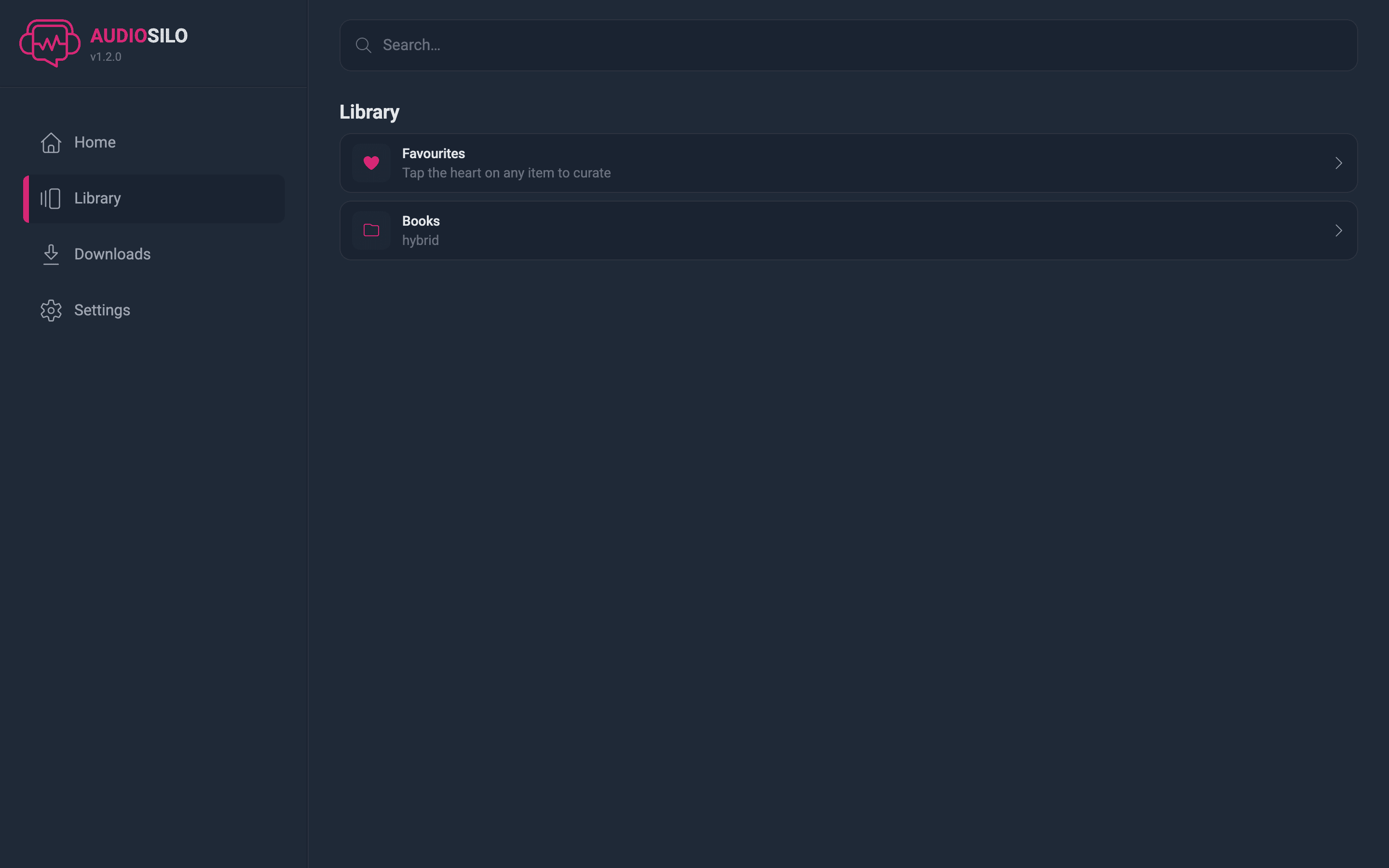
The Library tab lists your libraries - the collections your admin has shared with you - plus a Favourites row at the top. If you're connected to several servers, libraries are grouped under each server's name.
Opening a library shows its contents as folders and books, mirroring exactly how the audiobooks are organized on the server (typically author folders containing book folders):
- Pink folder rows open a folder; blue book rows open a book. Book rows show the duration and bitrate.
- Breadcrumbs at the top show where you are and jump back up any level.
- Big folders (more than a couple dozen entries) get a filter box ("Filter this folder…") and an A–Z rail on the right edge for jumping straight to a letter - a library with thousands of authors stays quick to navigate.
- Your scroll position is remembered, so backing out of a book returns you to where you were.
What you see here is what your account has been granted - see Sharing if some of the server's content isn't visible to you.
Book details
Tap a book to open its detail page:
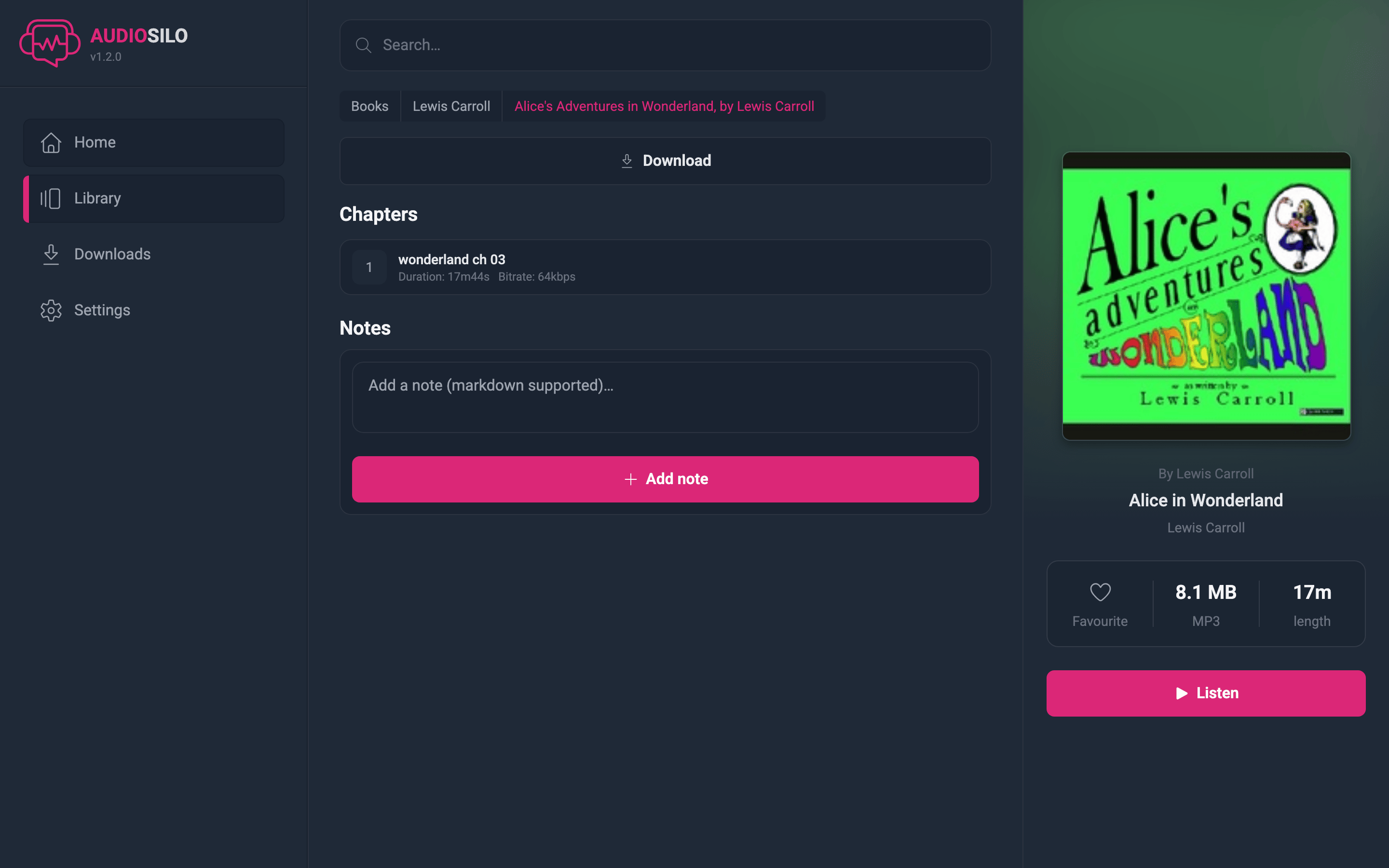
The top of the page is the same for every book:
- Cover, title, and author, plus the series and number (e.g. "Stormlight Archive #2") and the narrator when known.
- A stats strip: a heart to favourite the book, its download size and audio format, and its total length.
- A Listen button to start (or resume) playing, and a download button for offline listening.
- An About this book block, when the book is matched in the community database (see below).
If the same book exists in more than one place (say, an M4B copy and an MP3 copy), the detail page offers Choose a version so you can pick which copy to play.
The book's tabs
Everything else sits in a row of tabs below that, so a long chapter list no longer buries the rest of the page. Swipe the tab row sideways if it doesn't all fit:
- Chapters (or Files, for books without chapter info) - each part with its duration; tap any chapter to start playing from there. Green dots on the rows show the book is downloaded to this device.
- Recaps - "what's happened up to here" catch-ups (see below).
- Characters - community-written cards for the people in the book (see below).
- Bookmarks, History (past listening sessions), and Notes for this book. Notes support markdown formatting.
- Series - the other books in the same series, each opening its page on the metadata site so you can see what to read next.
Chapters, Bookmarks, History and Notes are always there. Recaps, Characters and Series appear only when the community database has that material for the book, so most pages show a shorter row than the full list above.
About this book
Some books show an extra About this book block above the tabs, plus the community tabs:
- An About description of the story, and production details such as the publisher, release date and when the work was first published, with a View on AudioSilo Meta link to the book's full entry.
- The Characters tab - a card for each person in the book. Each card shows the name, role and any aliases, plus which chapter the character first appears in; tap a card to reveal its short description. Cards stay closed until you tap them, so you decide when to read on.
- The Recaps tab - short "what's happened up to here" recaps, each labelled with the chapter it's safe to read after. They stay closed by default, so you only open the one for as far as you've listened. Some books also open with an In short summary of the whole book, and a separate How it ends recap that only appears once you've finished. A recap marked for the very start reads "Previously, in earlier books" - a catch-up from earlier in the series.
Nothing gets spoiled before you reach it
The Characters and Recaps tabs follow where you are in the book, using your current playback position (or your saved progress if you aren't playing it right now):
- A character you haven't met yet is hidden, and so is any recap that covers chapters you haven't finished.
- A line at the bottom of the tab says how many entries are hidden - "3 hidden to avoid spoilers" - with a Show anyway toggle if you want to see them regardless. Anything you reveal that way is marked with a small Spoiler chip so you know you're reading ahead. Revealing applies to both tabs at once, so switching between Characters and Recaps doesn't hide it all again.
- Once you've finished a book, everything is shown - including "How it ends", which is a full spoiler by design.
Chapter numbers here are the book's chapters as the community catalogued them, which can differ slightly from your particular edition's file or chapter numbering. So treat the gating as a close guide rather than an exact line - and if it hides something you've already heard, Show anyway (or marking the book finished) is the escape hatch.
Catching up on earlier books in a series
At the bottom of both the Recaps and Characters tabs, a series book adds a Previous books block - one closed row per earlier book in the series, most recent first. Open a row and the app fetches that book from the community database on the spot:
- Under Recaps you get that book's In short summary, plus a separate How it ends row you have to tap for yourself (it carries a Spoiler chip, since you've presumably finished that book already). If a book has no summary written yet, its furthest recap is used instead.
- Under Characters you get that book's character cards.
It's the "wait, who is this again?" fix before starting book four of a series. If a book can't be loaded (your server is older than this feature, or the metadata service is unreachable) the row shows a quiet "couldn't load" note and a link to open that book on the metadata site instead.
This information comes from the AudioSilo community metadata database at meta.audiosilo.app, a free, community-run catalogue of audiobook details that you can also browse and contribute to yourself (see The community metadata site). It appears only when the book can be matched (it carries an ASIN or ISBN) and your server has the metadata lookup switched on. The Characters and Recaps material is contributed by the community, so a matched book gets those tabs only once someone has written them - many books will have the About block and the Series tab but not these yet. If a book shows none of this, it simply isn't matched or your admin has turned the feature off - the Chapters, Bookmarks, History and Notes tabs are unaffected. A server admin can switch the lookup on or off at any time from the admin console's Overview section (see the console tour); when it is off, no book shows this section.
Search
The Search tab (or the search box in the desktop header) searches titles, authors, and series across every library you have access to - and across every server you've added:
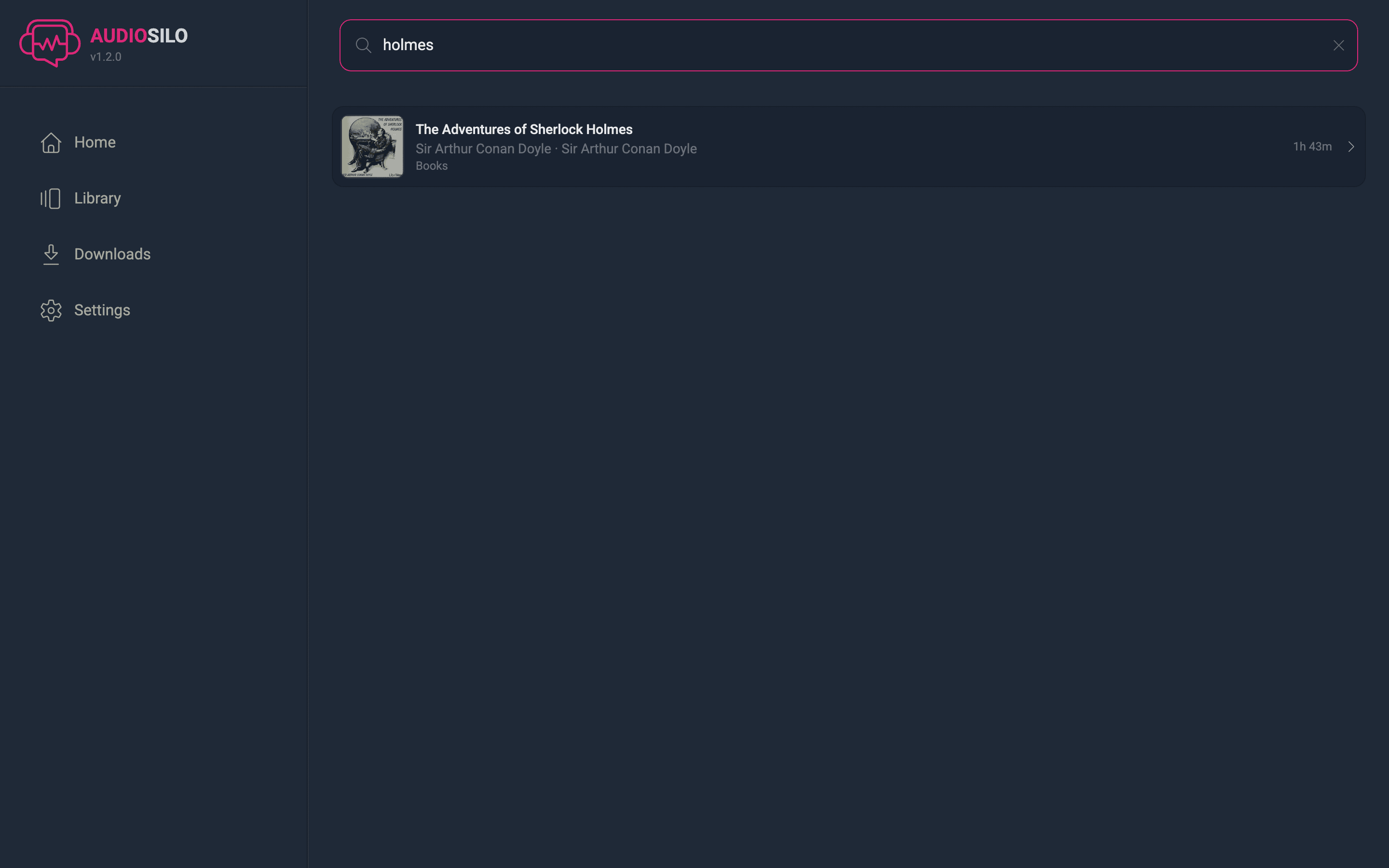
Results appear as you type. Tap a result to open the book's detail page.
Search looks at book metadata (title, author, series). To hunt by folder name inside one folder, use the browse view's filter box instead.
Favourites
Favourites are your personal shelf - mark anything you want to find again quickly:
- Tap the heart on a book's detail page, or the heart on any row while browsing. You can favourite whole folders as well as books (handy for a series or an author).
- Find them again on the Favourites shelf on Home, or via the Favourites row at the top of the Library tab, which opens the full list.
- Tap the heart again to remove a favourite.
Favourites are tied to your account, so they follow you across all your devices.