Chromecast
AudioSilo can play a book on a Chromecast or any other Google Cast device: a TV with Chromecast built in, a Google TV, or a Nest speaker. The book plays on the Cast device, and your phone or computer becomes its remote: play and pause, skip, chapters and speed all work from the player, and your place keeps saving to your server as usual.
The Cast button
The Cast button is in the full player, in its row of buttons with speed, the sleep timer and bookmark. On a tablet or computer it's also on the player bar along the bottom, when the window is wide enough to show all the bar's buttons.
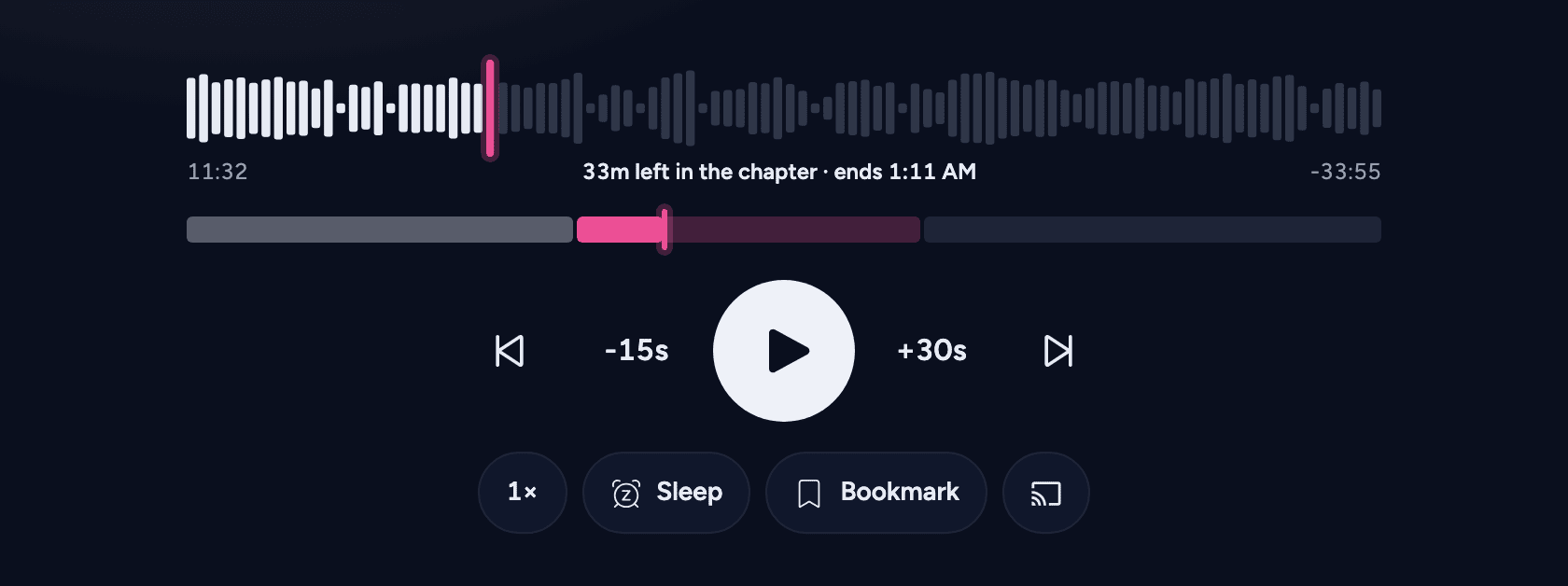
Tap it, pick your Cast device, and the book carries on there from where you were. If it was playing, it keeps playing on the Cast device; if it was paused, it waits there paused.
The button appears:
- in the iPhone and Android apps (on Android, with Google Play services);
- in the web player in Chrome, Edge and other Chromium-based browsers, when you open the web player over HTTPS. Safari and Firefox can't cast, and neither can any browser on an iPhone or iPad.
It only appears while a book is loaded, and only when that book's server runs an AudioSilo version that supports casting (and, in the iPhone and Android apps, a version of the app that has it). On an older server there is no Cast button: updating AudioSilo on the server adds it, and in the apps, updating the app too.
On an iPhone, if AudioSilo hasn't asked before, the first tap brings up a request to use your local network: that's how it finds Cast devices. Allow it, or the app can't see any.
What you need
- A Cast device on the same network as your phone or computer.
- A server address the Cast device can reach. The Cast device fetches the book from your server itself. It uses the address your app is connected through at that moment: in the iPhone and Android apps, your home address when you're at home; in the web player, the address you opened it at. That address must work for the Cast device too:
- Plain HTTP on your home network works from the iPhone and Android apps, for example
http://192.168.1.20:8080(the web player casts only from an HTTPS page, so it needs a trusted certificate). A server behind a reverse proxy serves plain HTTP on its own port, and its home address can point straight at it. - HTTPS with a trusted certificate works: a Let's Encrypt certificate, or a reverse proxy with a real certificate.
- A self-signed certificate does not work. A Cast device can't click through a certificate warning the way you can in a browser, so it won't play from a server on the default self-signed certificate.
localhostdoesn't work. If the app reaches your server atlocalhost(the server runs on the same computer), the Cast device can't. The Cast button explains this instead of casting. Connect to the server by its network address instead.
- Plain HTTP on your home network works from the iPhone and Android apps, for example
A downloaded book casts from your server too, since the Cast device can't read the files on your phone. So casting needs the server to be reachable even for a book you've downloaded.
Books in other formats
Cast devices play MP3, M4B/M4A (AAC), Ogg, Opus, FLAC and WAV directly. A book in a format they can't play (Apple Lossless, WMA, AC-3 and a few others) is converted by your server on the way, if your server has ffmpeg (see Do I need ffmpeg?). Without it, the Cast button says the book can't be cast. A converted book takes a moment longer to start and to jump to a new place.
While casting
- Your place keeps saving to your server, just as when the book plays on your device, and chapters, skipping and speed all work.
- Smart speed, Voice boost and auto-rewind don't apply: the Cast device plays the plain audio. They come back when the book returns to your device.
- The sleep timer still works: it pauses the Cast device when it runs out. It doesn't fade the volume down first, since the volume is your TV's or speaker's own.
- You can also pause and play with the TV's remote or the Google Home app; AudioSilo notices and saves your place.
On an iPhone or iPad
The Cast device keeps playing when you leave the app, but iOS stops AudioSilo soon after, so your place is saved up to when you left. Keep the app open while casting for your place to keep saving as you listen. When you come back to the app, it catches up with where the Cast device got to and saves that. The iPhone's lock screen doesn't show controls for a book that's casting.
On Android
While a book is casting, a Cast notification (and the lock screen) has the controls: play and pause, stop casting, and either previous and next, which move between the book's files (a book in several files), or skip back and skip forward (a book in one file). It also keeps AudioSilo running, so your place keeps saving while the app is in the background.
Stopping
Tap the Cast button again and choose to stop casting (in the web player, Chrome's Cast window has the stop button). You can also stop casting from Google Home or the Android notification. The book comes back to your device paused at the place the Cast device reached; press play to carry on there. Stopping the book with the TV's own remote only pauses it: the Cast device stays connected, and the next play carries on there.
If casting doesn't start
The player says what went wrong, and the book stays on your device:
- "This book can't be cast" explains why: the server doesn't support casting yet, the app reaches the server at
localhost, or the book's format can't be played and the server can't convert it. - "Couldn't play on Living Room TV" (or "Couldn't start casting") usually means the Cast device couldn't reach your server: check the address and certificate above.
- "Couldn't connect to the Cast device" means the Cast device itself didn't answer: check it's on and on the same network.