Connecting and signing in
To listen to anything, the AudioSilo player first needs to be connected to a server - the computer where your audiobooks live. There are several ways to get connected, and they all end in the same place: signed in, with your libraries ready to browse.
You only have to do this once per device. After that the app stays signed in until you sign out.
The easy way: an invite link
The person who runs your server (your admin) can send you an invite link. It looks something like https://books.example.com/connect#code=….
Opening it takes you to the server's connect page, which signs the invite in automatically and then offers you a choice of where to listen:
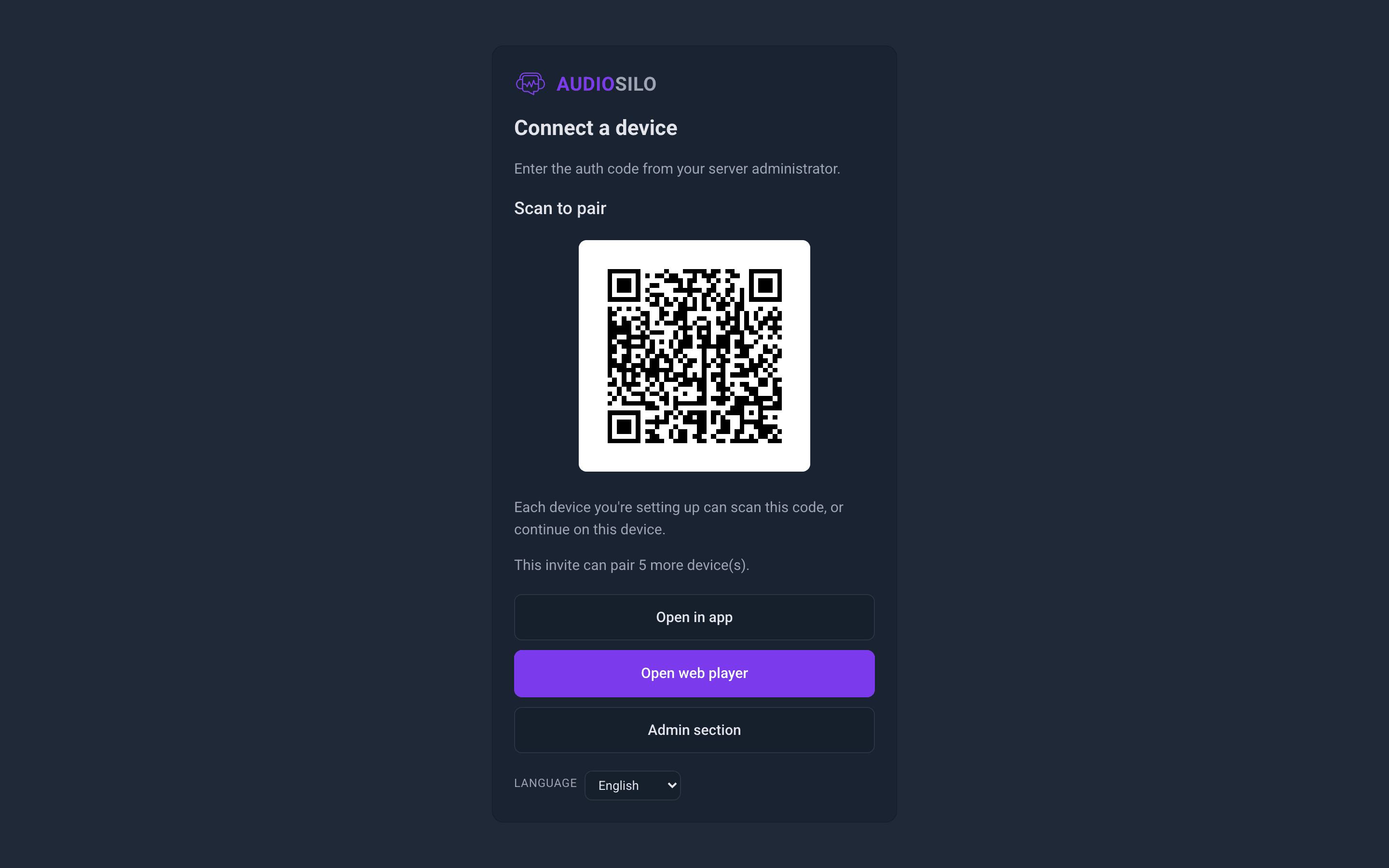
- Open web player - start listening right there in your browser. Nothing to install.
- Open in app - if you have the AudioSilo app installed on this device, this signs the app in and opens it.
- Scan to pair - a QR code for signing in your other devices, typically your phone (see below).
The secret code in an invite link is never sent anywhere by your browser - it stays in the link itself. Still, treat an invite link like a key: anyone who opens it can sign in as you, so don't post it publicly.
If your invite has expired or been used up, the page will tell you - just ask your admin for a fresh one. See Users and invites for the admin's side of this.
Scanning the QR code with your phone
The connect page's QR code is the quickest way to get your phone signed in:
- Open the invite link on any computer (or ask your admin to show you their screen).
- Point your phone's camera app at the QR code and tap the link it finds.
- Your phone opens signed in and ready to listen - in the server's web player, or straight into the AudioSilo app on servers set up for it.
The QR is as reusable as the invite behind it: each device you're setting up can scan the same code, and every device that signs in uses up one of the invite's uses (the page tells you how many are left). So a 5-use invite really does mean a phone, a tablet and a laptop from one QR - no fresh invite per device.
If you have the AudioSilo app installed, the surest way to sign it in with a QR is to scan from inside the app: on the app's connect screen, tap Scan QR code and point the camera at the pairing QR. (This button appears in the iOS/Android app only - a web browser can't scan.) The connect page's Open in app button does the same job without a camera.
Typing a code into the app
If you have an invite code from your admin rather than a link, you can type it in:
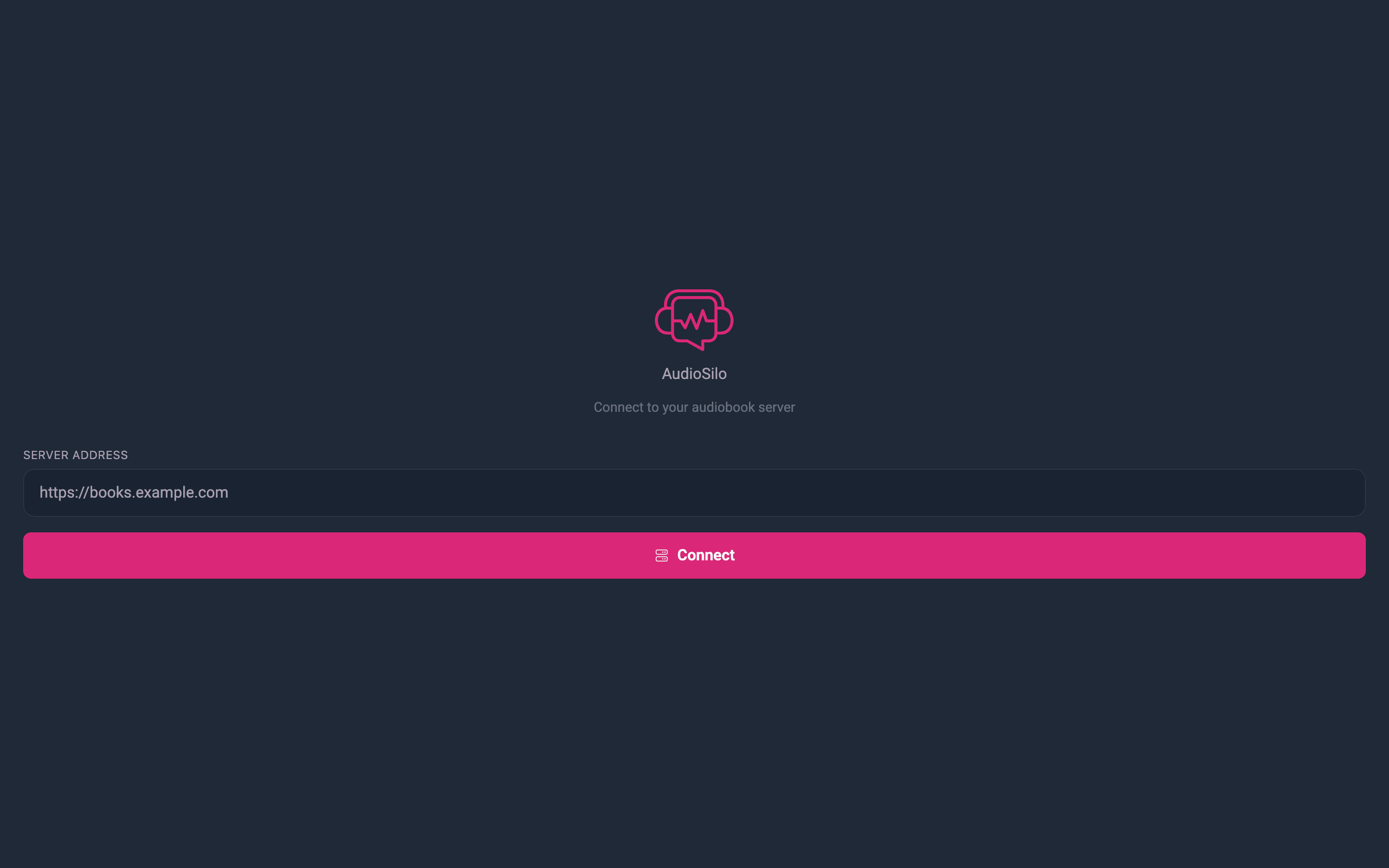
- Open the app (or the web player) and you'll see the connect screen: "Connect to your audiobook server".
- Enter the server address (e.g.
https://books.example.com) and tap Connect. If you don't know the address, ask your admin. - On the Sign in screen, choose the Code tab, enter your code, and tap Connect.
Invite codes are given to you by your admin. They can expire or be limited to a few uses, so if one doesn't work, ask for a new invite.
Username and password
If you've set a password for your account (see Your account and settings), you can also sign in the classic way: on the Sign in screen, switch to the Password tab and enter your username and password.
Many AudioSilo accounts don't have a password at all - that's normal. Accounts are usually created by invite, and codes and QR pairing cover everyday sign-in. A password is optional and yours to set whenever you like - and it's the most dependable way to sign back in later (see below).
Getting back in after signing out
Signing out is not a big deal - the app remembers every server you've connected to before. The next time you open the connect screen, each remembered server shows a one-tap Reconnect to <server name> shortcut with its address already filled in, so you only re-enter your code or password - never the server address again. (A Forget option removes a server from that list if you no longer use it.)
If your session is ever rejected while you're using the app - for example your admin revoked this device, or the server was rebuilt - a Reconnect to <server name> bar appears at the top of the screen instead of failing silently. Tapping it takes you to the sign-in screen with the address pre-filled, ready for a fresh code or password.
The most dependable key of all is a password you set in Settings: with one, reconnecting is just your username and password on any device, with no code or invite needed.
What the audiosilo:// link does
Links that start with audiosilo:// are special app links. They don't open a web page - they launch the AudioSilo app installed on your device and hand it the sign-in details, so the app connects itself with no typing. The Open in app button on the connect page uses one of these.
If nothing happens when you tap one, the app simply isn't installed on that device - use Open web player instead, or install the app first (see The mobile apps).
Adding more devices later
Already signed in on one device and want another? You don't need a new invite:
- In the app, go to Settings → Devices → Add a device. It shows a QR code (and a shareable link) that signs your other phone, tablet, or browser into the same account.
- Or, if you've set a password, just sign in with your username and password on the new device.
You can even connect the app to more than one server - go to Settings → Servers → Add a server. Your home screen and search then span all of them.
Trying AudioSilo without a server
Some servers offer a guest demo - if the one you connect to does, the connect screen shows a Try the demo button. There's also a public demo you can explore any time: see The demo.
Connecting from outside your home network (e.g. on mobile data) requires the server to be reachable from the internet - that's a server-setup topic, covered in Remote access. If the app says it can't reach the server, that's the usual reason.