The full player
What's on it
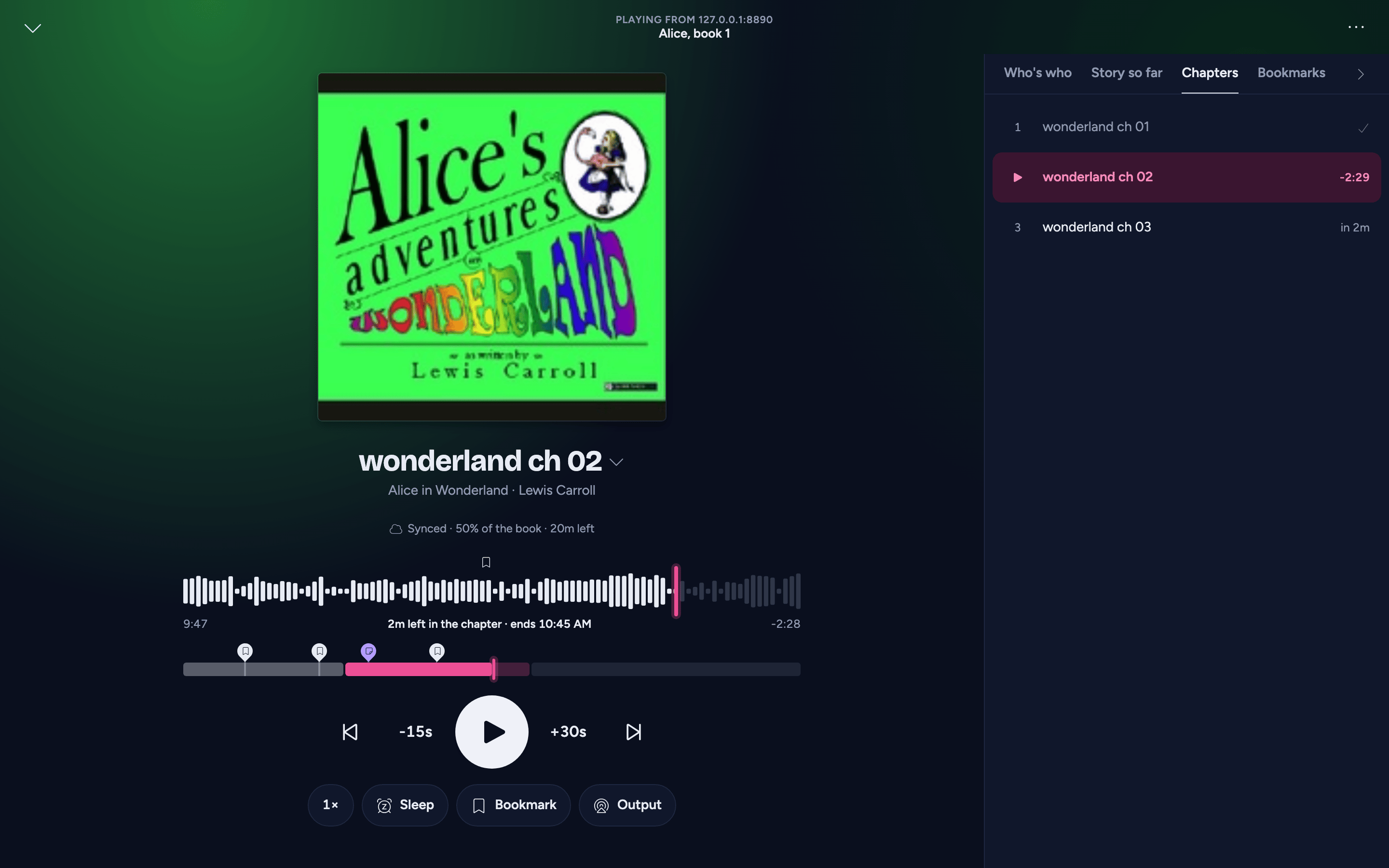
The full player is about the book you're listening to. Its background takes on the colours of the book's cover, and the cover settles back a little while the book is paused. From top to bottom:
- The top row - a down arrow to minimise the player (playback carries on), Playing from and your server's name, the book's place in its series ("The Stormlight Archive, book 2", or its library), and the three-dot menu.
- The cover, then the chapter title with the book and author under it. Tap the chapter title to open the chapters.
- The status line: whether your place is saved, how much of the book you've heard, and the time left: "Synced just now · 38% of the book · 22h 27m left at 1.25×". After a big jump it turns into the undo button, and in a sleep timer's last seconds the sleep timer's card takes its place.
- The seek bar for the current chapter, and a slim timeline of the whole book below it.
- The transport: previous chapter, skip back, play/pause, skip forward, next chapter. The skip buttons show how far they jump (15 seconds back and 30 forward out of the box; change them in Settings). If playback fails, the play button becomes Retry.
- The actions: speed, the sleep timer, bookmark (one tap adds one where you are; see Bookmarks and notes), output for AirPlay or Cast where your device has one, and Up next with how many books are queued.
Beside or below it sits the companion: Who's who, Story so far, the chapters, and your bookmarks, notes and history for the book.
If a book's chapters are just named after their audio files, AudioSilo tidies those names for display - dropping the file extension and turning underscores into spaces. Real chapter titles are left exactly as they are.
On a phone, a tablet and a computer
-
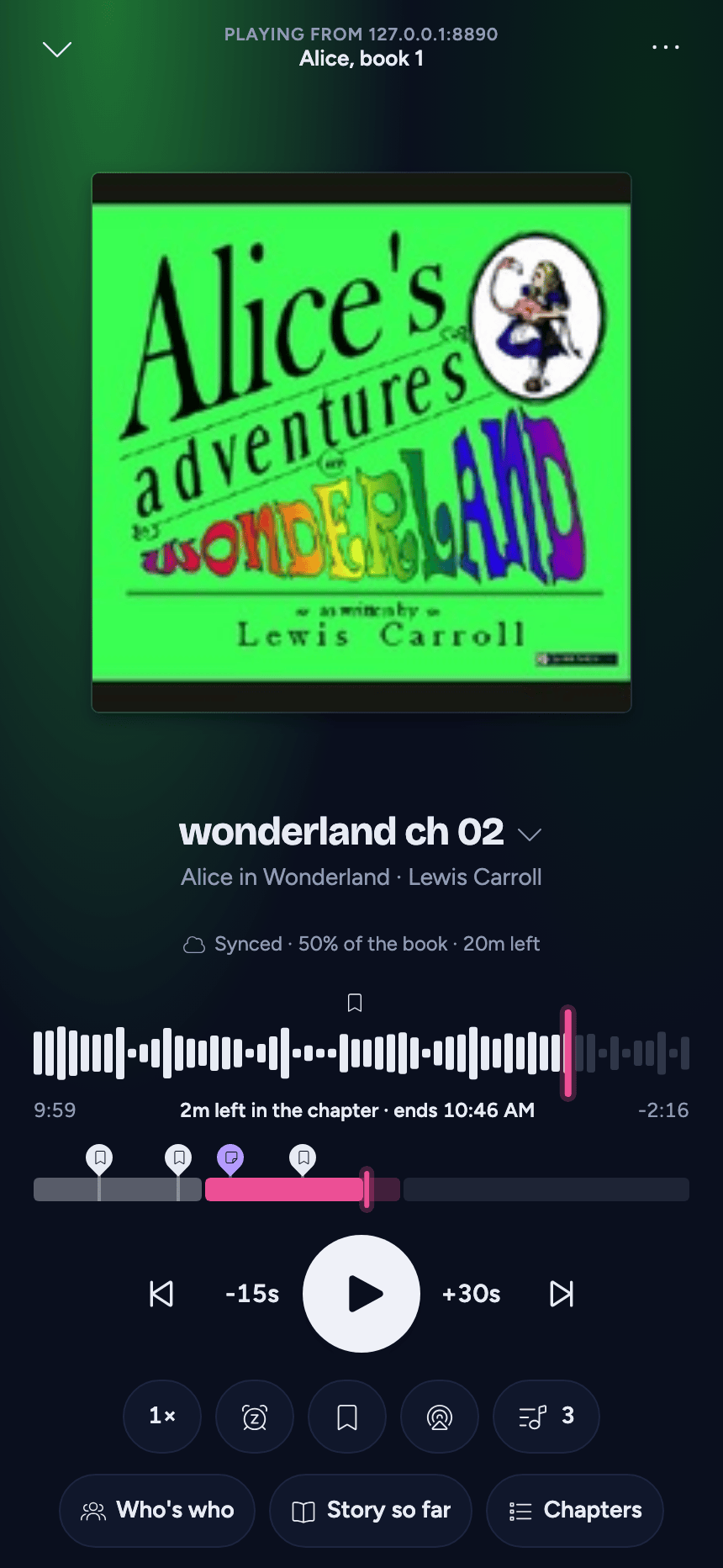
On a phone the player fills the screen. Under the actions, chips for Who's who and Story so far (when your server has community metadata switched on) and Chapters open the companion as a sheet; the chapter title opens it on Chapters.
-
On a tablet the actions get words beside their icons, and the companion sits under the controls (scroll down to reach it). The chapter title opens the chapter list as a sheet.
-
On a computer the actions get words too, and the companion is a column down the right-hand side; the chapter title switches it to Chapters. Up next isn't among the actions, because the Up next drawer is beside the page. On a phone or tablet, Up next opens as a sheet over the player.
The seek bar and the timeline
The seek bar spans the current chapter, so even in a 30-hour book a small movement is a small jump. The part you've heard is solid, the rest faint, a pink line marks where you are, and a small icon sits above each bookmark in the chapter. The bars are a pattern, not a waveform: their height says nothing about loudness.
- Tap anywhere on the bar to jump there.
- Drag to scrub; a label shows where you'd land ("41:12 · 17:26:50 in the book"). Let go to jump.
- In the web player, pointing at the bar shows the time there.
Under the bar: the time into the chapter, how long the rest of it takes and when it ends by the clock ("21m left in the chapter · ends 22:01", at your speed), and its remaining time. A short book that's a single file without chapter marks is one stretch, so there the bar spans the whole book ("32m left in the book · ends 22:41"); a longer single file is split into virtual chapters, and a book of several files without chapter marks treats each file as a chapter. A book whose file lengths aren't known yet gets the current file instead.
Below it, the whole-book timeline shows each chapter as a segment sized by its length, the chapters you've finished shaded and the one you're in in pink. Pins above it mark your bookmarks and notes: tap a pin to jump to it, or tap or drag anywhere else to jump anywhere in the book.
Neither scrubber takes you all the way to the end: a tap or drag there lands 30 seconds short, so a slip can't finish the book by accident. To finish one on purpose, use Mark as Finished. (Until a book's file lengths are known, its seek bar covers just the current file and has no such stop.)
Time left
Wherever AudioSilo says how much of a book is left - the player, the mini player and player bar, Home, the Library's book list, Up next - it's real time at the speed you listen to that book: "5h 12m left at 1.25×", or just "5h 12m left" at normal speed.
Each book uses its own speed: the playing book its current speed, any other book the speed you last listened to it at, or your default speed from Settings if you haven't started it.
Undo a jump

After any jump of more than a minute - a tap on the seek bar or timeline, a chapter skip, a bookmark, even a scrub on the lock screen, headphones or a car screen - a Back to 17:26:50 button appears for a few seconds: in the full player in place of the status line, and on the player bar at the start of the buttons on the right. Tap it to go back; a note confirms "Back where you were".
The three-dot menu
- View book details - the book's page. Playback carries on.
- Chapters - the chapter list (on a computer, the companion's Chapters tab).
- View end credits - the end credits early, handy for skipping a long spoken credits section. Playback carries on, and Play now there starts the next book while this one keeps your place (see The end credits).
- Mark as Finished - marks the book finished now, stops it and opens its end credits.
- Keyboard shortcuts - in the web player, the list of keyboard shortcuts.
Playback speed
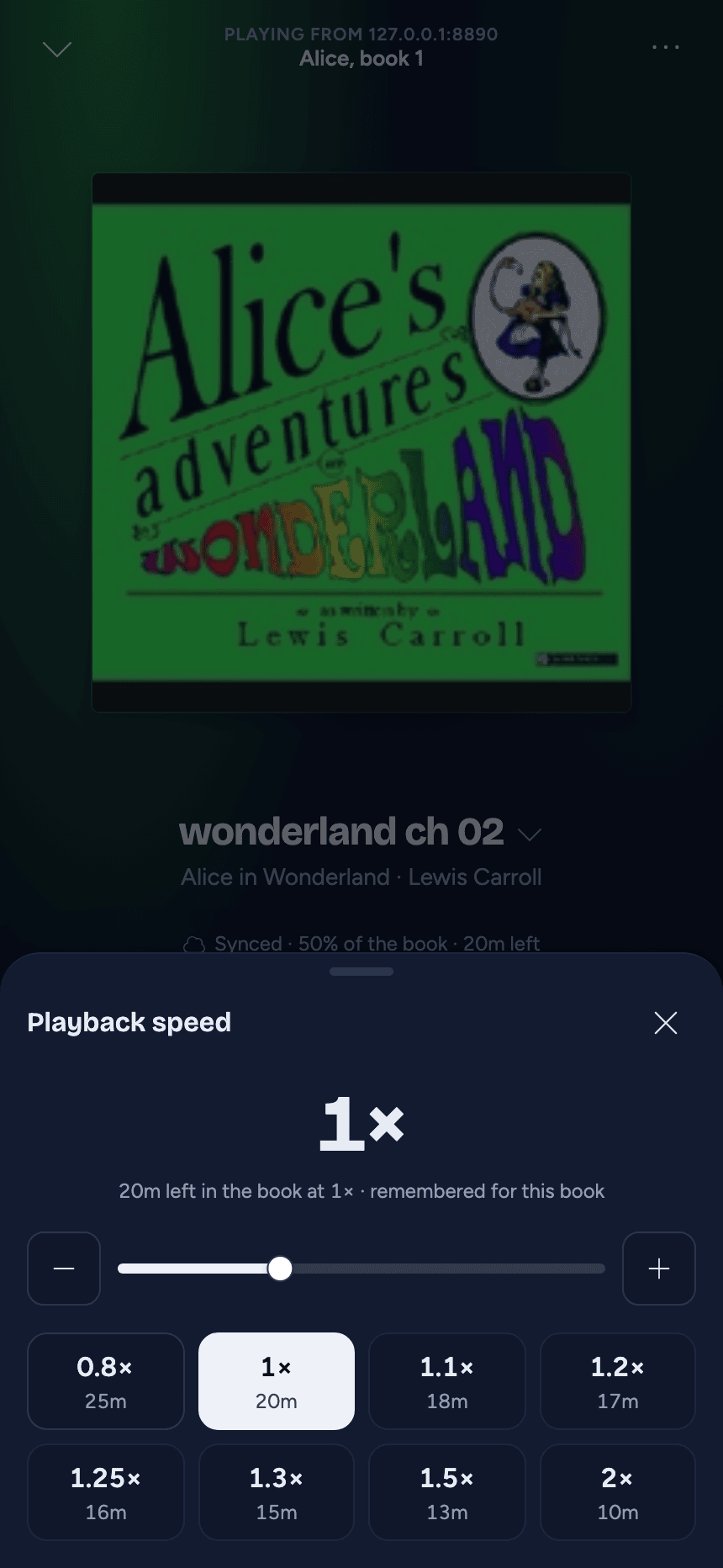
Tap the speed (e.g. 1×) to change it: from 0.5× to 2× in 0.05 steps, with the slider, the minus and plus buttons, or a preset that shows how much of the book would be left at that speed. Voices keep their pitch.
The speed is remembered per book; new books start at your default speed from Settings.