Your household
The Household page is where you look after the people you listen with: who uses this device, the kids and grown-ups you've added to your household on your server, and whether you share what you're listening to with the house.
Finding it
- On a phone: the Me tab's Household section, between Settings and Account.
- On a tablet or computer: Household in your profile menu (top right).
- From anywhere: Manage household on Who's listening?, Household at the end of the App group in Settings, and Sharing settings beside Listening in the house on your Home page. In the web player's quick search, Go to lists it too.
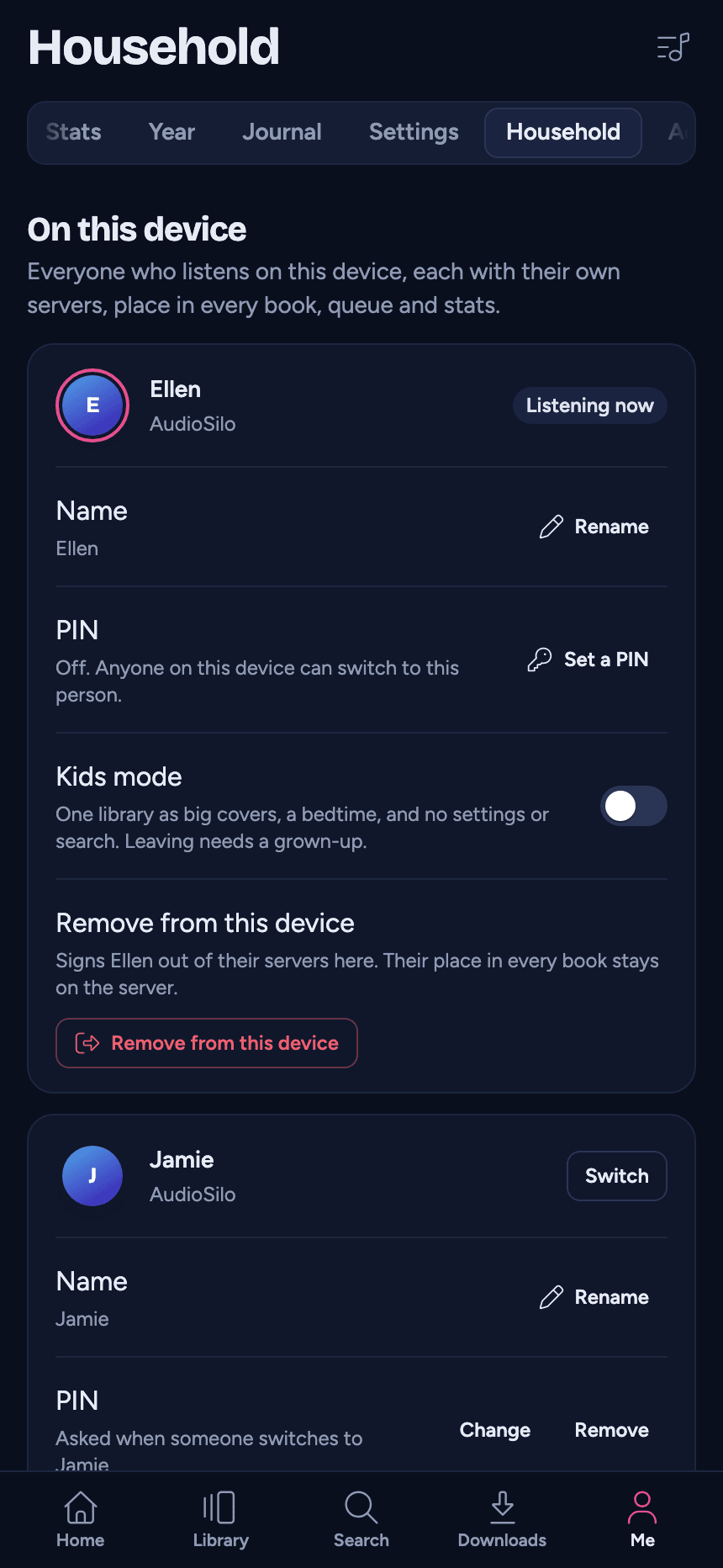
The page has three parts:
- On this device: everyone who listens on this phone, tablet or computer, a card each with their name, PIN and kids mode, then Who's listening?, Sign in someone who already has an account and Ask who's listening when the app opens (see Sharing a device (profiles)).
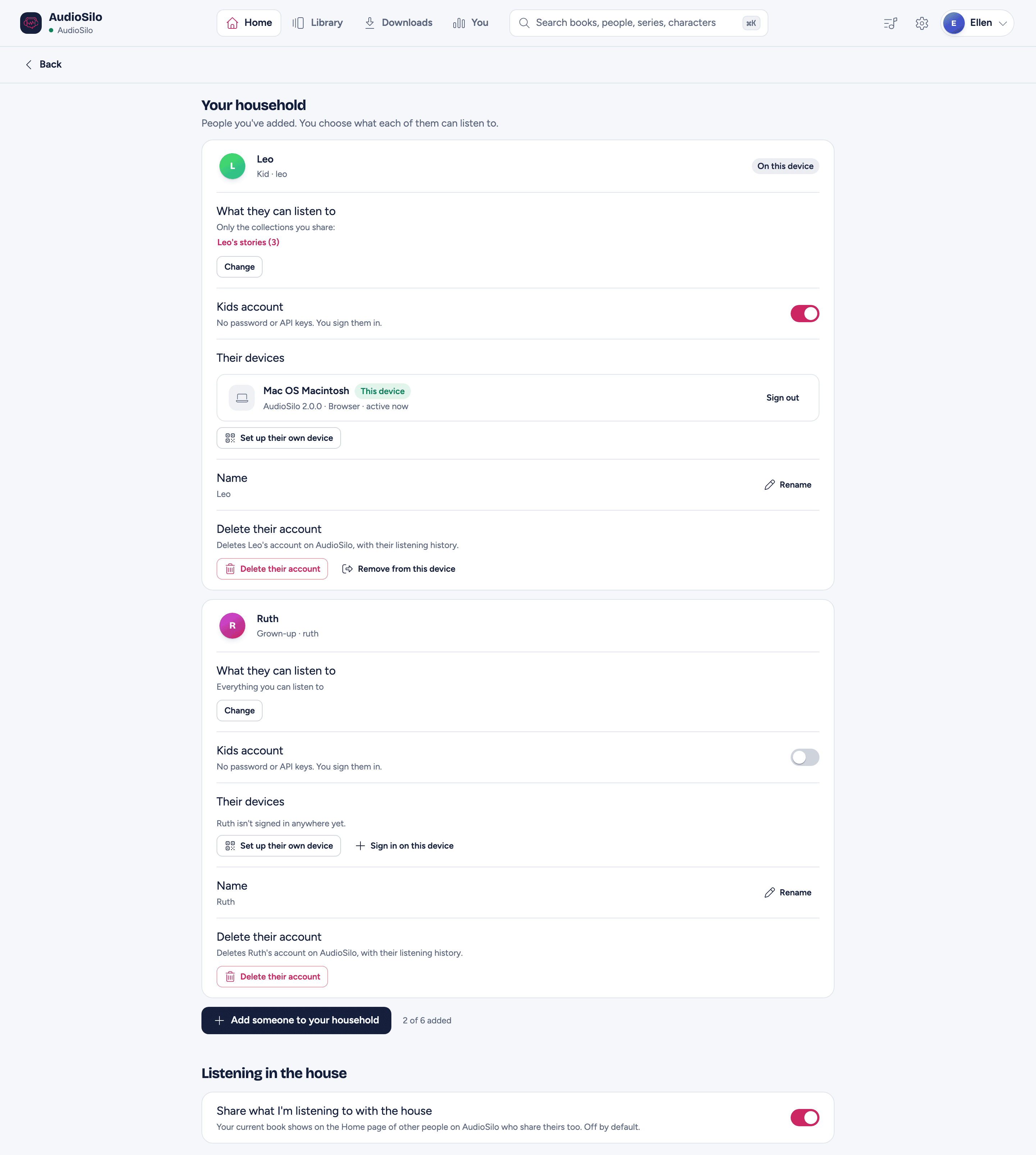
- Your household: "People you've added. You choose what each of them can listen to." One card for each person you've added to your household on your server, then Add someone to your household. When more than one of your servers offers it, each has its own section, Your household on Hearthside.
- Listening in the house: the Share what I'm listening to with the house switch, one per server (see Listening in the house).
Household members
A household member is someone you add yourself, from the player: a kid, or another grown-up you live with. You don't need the server's admin, an invite or an email address. Each member gets their own account on your server, so they have their own place in every book, their own Up next, bookmarks and listening stats, and nothing they do moves yours.
You manage the people you add: you choose what they can listen to, rename them, sign their devices out and delete their account. They can't add people of their own, and a member is never an admin.
Beside Add someone to your household, the section shows how many you've added, "2 of 6 added", against the most the server allows. Before you've added anyone it says "Add a kid or a grown-up. They get their own account and their own place in every book, with no email or invite." If you can't add anyone, it says why instead of offering the button:
- "Your server's admin has turned off adding people.": the admin turned off adding household members for the whole server.
- "Your server's admin hasn't let this account add people.": the admin turned it off for your account.
- "Demo accounts can't add people."
- "You've added the most people this server allows (6)."
If you are someone's household member yourself, the section says who manages your account ("Adam manages your account.") and "Only Adam can add people or change what you can listen to.", using their name on Who's listening? when they're signed in here too, else their name on the server.
Even when adding is turned off, you can still rename, sign out and delete the people you added before. On a server running an older AudioSilo, the section isn't there at all.
Adding a kid
- On the Household page, tap Add someone to your household.
- Type their Name (up to 40 characters). Their username on the server is made from it (evie, or evie-adam if that's taken), and you can rename them later.
- Leave Kids account on: "No password. Signed in on this device straight away, in kids mode."
- Under What can they listen to?, a kid starts on Only collections I share (see What they can listen to). Tick the collections of yours to share with them, or tap Create Evie's books for a new one: Evie's books joins the list, ticked, as a "New collection, created when you save". Untick it to take it back. If you already have a collection called Evie's books, the button says Share Evie's books and ticks that one instead.
- Tap Add and sign in here.
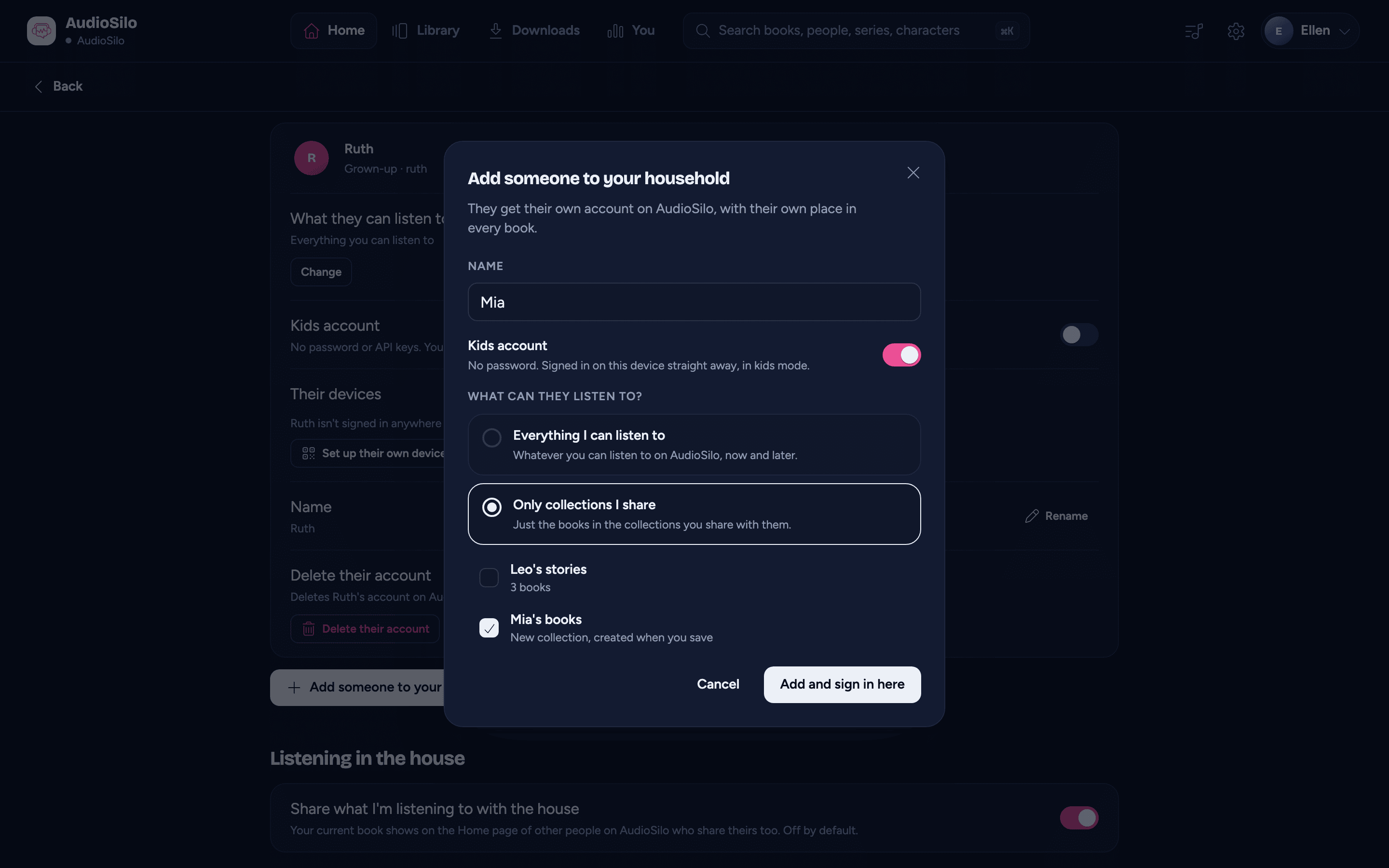
The new collection is only made when you tap Add and sign in here, so Cancel leaves nothing behind.
The dialog then says "Evie is added" and "Evie is signed in on this device, in kids mode. Choose them in Who's listening? when it's their turn." Evie is now a person on this device, in kids mode, with the default bedtime. You stay the person listening, and whatever was playing carries on.
If your own profile on this device has no PIN, the dialog offers to set one ("Set a PIN for Adam, so Evie can't switch to you without it."), with Set a PIN and Not now. Take it: without a PIN, a child who leaves kids mode can choose you on Who's listening?.
A kids account has no password. It can't set one, create API keys, pair another device, share collections, or show up in (or see) Listening in the house. It signs in only on devices you set up for it: this one, or its own device with Set up their own device. The server's admin can't pair one for it.
Adding a grown-up
- Tap Add someone to your household and type their name.
- Turn Kids account off. What can they listen to? then starts on Everything I can listen to.
- Tap Add and show their code.
The app shows Show Ruth this code: a QR code to scan with the AudioSilo app on their own phone, or a link to open. It works once, for 10 minutes. If they'll listen on your device too, tap They'll also use this phone (or They'll also use this device) to sign them in here as well, as a person of their own.
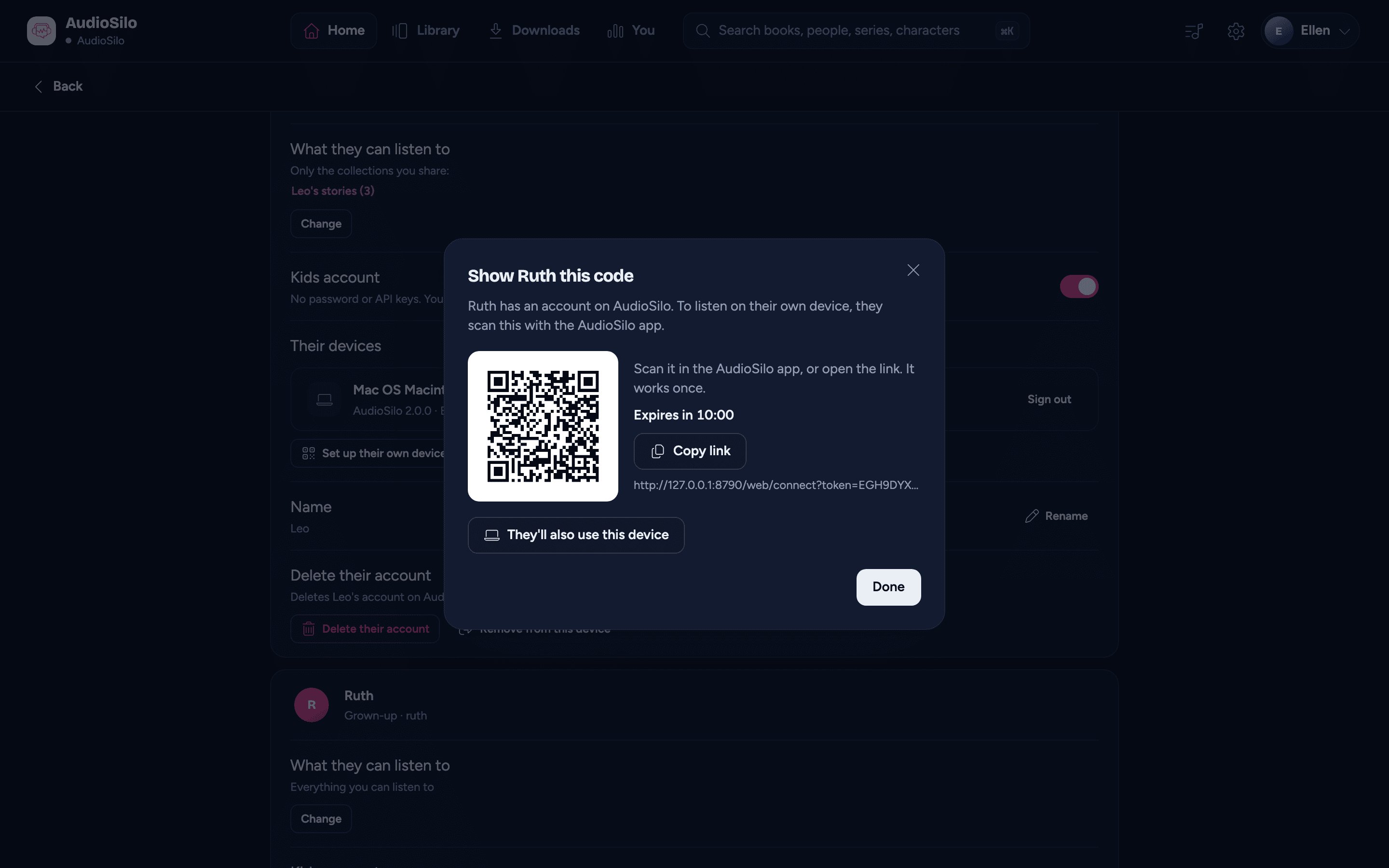
A grown-up member is an ordinary account in every other way.
What they can listen to
- Everything I can listen to: whatever you can listen to on that server, now and later. A library the admin gives you later is theirs too, and if you lose a library, so do they. If you're an admin, that's every library.
- Only collections I share: just the books in the collections you share with them. Add a book to one of those collections and they can play it straight away; take it out, or stop sharing the collection, and it's gone for them just as quickly. They only ever get books you can still listen to yourself.
On top of either, a member keeps anything the server's admin gave their account directly. Either choice works for either kind of person.
To change it, tap Change beside What they can listen to on their card: the same choice as when you added them, with Create Evie's books (or Share Evie's books) too, made when you tap Save. Moving someone from Only collections I share to Everything I can listen to stops sharing your collections with them, and the dialog says so first ("Switching to everything stops sharing your collections with Evie."). For a kid, kids mode shows the collections you share with them, or, while you share none, one library.
When you share a collection with a member who is on Only collections I share, the share sheet says so: "Evie can listen to everything in this collection."
A member's card
Each person you've added has a card on the Household page: their name, Kid or Grown-up with their username ("Kid · evie"), and On this device when they're signed in here. On it:
- What they can listen to: Everything you can listen to, or Only the collections you share: with each one and how many books it holds (tap one to open it), and Change.
- Kids account ("No password or API keys. You sign them in."): switch it on to make a grown-up a kid, once you confirm ("Make Ruth a kids account?"). Everything a kid can't have goes: their password, API keys, unused pairing codes and invites, recovery code, sharing with the house, and any collection sharing with anyone but you. The devices they're signed in on stay signed in. Switch it off to make a kid a grown-up, who can then set a password and turn sharing with the house back on. When they're signed in on this device too, their account here follows straight away.
- Their devices (below).
- Name, with Rename: the name you gave them, shown on your Household page and to the server's admin, and, when they're signed in here, their name on this device too. Their username stays the same, and it's the name other people on the server see, such as in Listening in the house.
- Delete their account (below), and Remove from this device when they're signed in here.
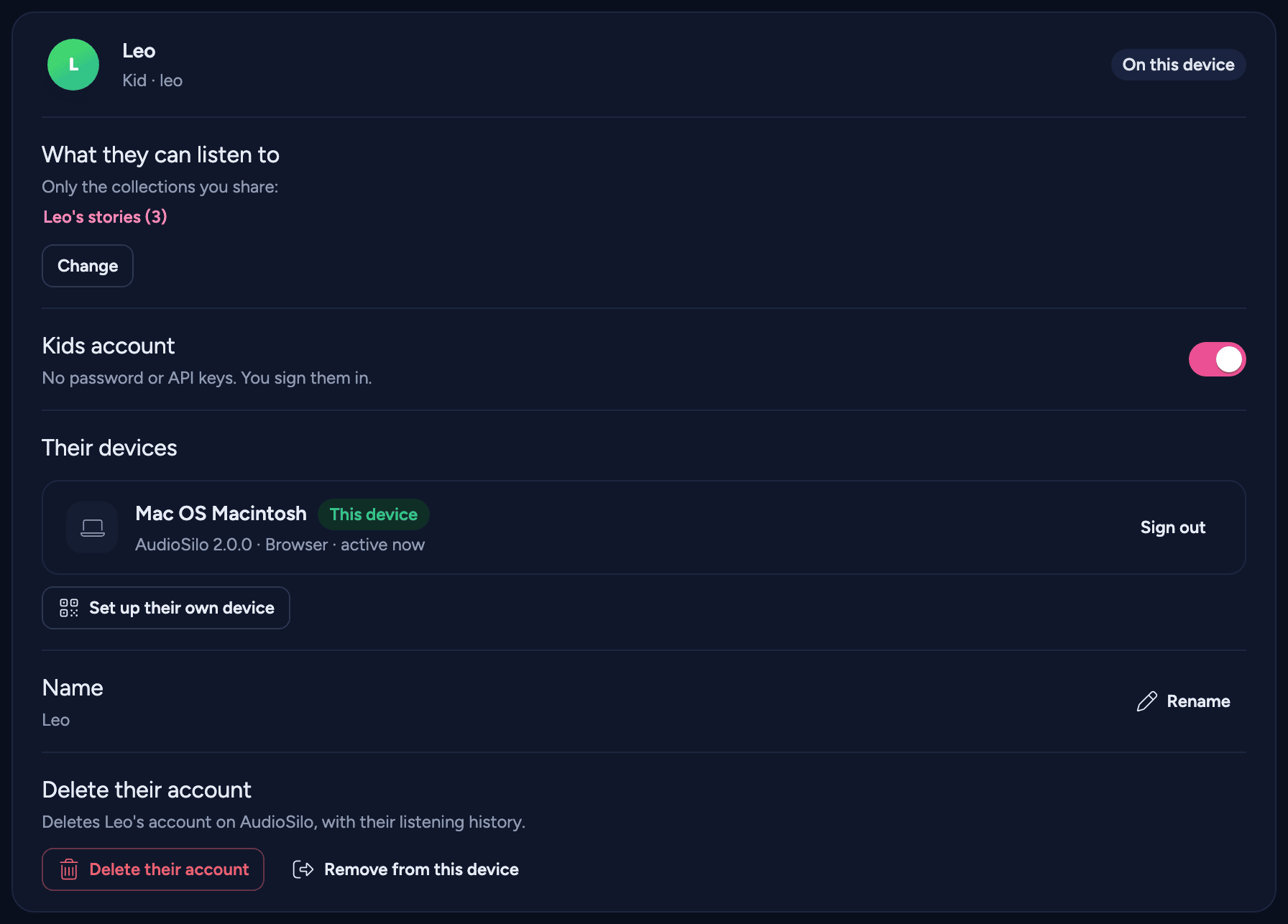
If a change can't be made, the app says why, and nothing changes.
Their devices
The card lists every device the member is signed in on, each with Sign out ("Evie isn't signed in anywhere yet." when there are none). When they're signed in here, this device's row is marked This device. Signing a device out means they can't listen there until you set it up again (for this device, see When a member is signed out).
- Set up their own device shows a code for their own phone or tablet: they scan it with the AudioSilo app, and it signs straight in. On a kid's own device the app starts in kids mode, even though no grown-up is signed in there.
- Sign in on this device signs them in here too, as a person of their own, when they aren't already. You stay the person listening; a kid starts in kids mode.
If the server's admin has turned the member's account off, neither works. Sign in on this device says "Evie's account is turned off on this server. Only its admin can turn it back on.", and Set up their own device says "This account is turned off on Hearthside. Only the server's admin can turn it back on." The devices they're already signed in on stop working until the admin turns it back on. You can still rename them, sign them out and delete them.
When a member is signed out on this device
If someone's sign-in on this device ends (you signed this device out on their card, say), their card under On this device shows Signed out ("Evie's sign-in to Hearthside has ended.") with Sign in again. While you're the person listening, that signs a member of your household straight back in, with no password to type, and they keep their place on this device, their PIN and kids mode. For anyone else, and after the server was reset, it opens the usual sign-in for that server, which keeps them the same person on this device.
A kid can't do this from kids mode: their screen says "Ask a grown-up to sign Evie in again." Hold Grown-ups, choose yourself, and tap Sign in again on their card (see Kids mode).
Deleting a member, or removing them from this device
These are different:
- Remove from this device signs them out of your server on this device and deletes their downloads here. Their account, and their place in every book, stay on the server, and the confirmation says so: "Evie's account on Hearthside stays. Adam can sign Evie in here again from the Household page, or set up a device just for Evie." Sign in on this device on their card brings them back. It's the same as removing anyone else from the device (see Sharing a device (profiles)).
- Delete their account deletes the account itself, on the server, with their listening history, bookmarks and notes. It can't be undone, so the app asks twice: first "Delete Evie's account?" with Continue, then "Type Evie to delete their account": type their name and tap Delete account. When they're signed in here, it reminds you that they stay on this device as a person until you remove them from it too.
If a phone is lost
Kids and grown-ups you signed in on your own phone go with it: signing the phone out from your account page signs them out there too, unless you untick them. Untick them for a family tablet that stays at home, so only you are signed out. The devices they set up themselves with their own code aren't touched; sign those out from their card.
What the admin sees
Members are real accounts, so they appear in the admin console with the person who manages them. The admin can turn off adding household members for everyone or for one person (the people already added keep working), change how many each person may add (6 unless changed), and move or free a member: see Household members in the admin guide.