Offline downloads
Streaming needs your server; downloads don't. Download a book before a flight, a commute through tunnels, or a weekend off-grid, and it plays entirely from your device - no connection to the server required.
Downloading a book
The download button lives on the book's detail page:
- On a phone, it's the square button next to Listen.
- On a desktop-sized window, it's the Download button above the chapter list.
While a download runs you'll see the progress ("Downloading 42% · 210 MB / 500 MB") with a cancel button. When it's done, the button shows Downloaded with the size, the cover is saved too, and the chapter/file list shows green dots to say the book is on the device.
If a download fails (connection dropped, phone slept at the wrong moment), the button becomes Retry download.
Audiobooks are big - often hundreds of megabytes each. Download on Wi‑Fi when you can, and keep an eye on the storage total on the Downloads screen.
The Downloads screen
The Downloads tab lists everything stored on the current device:
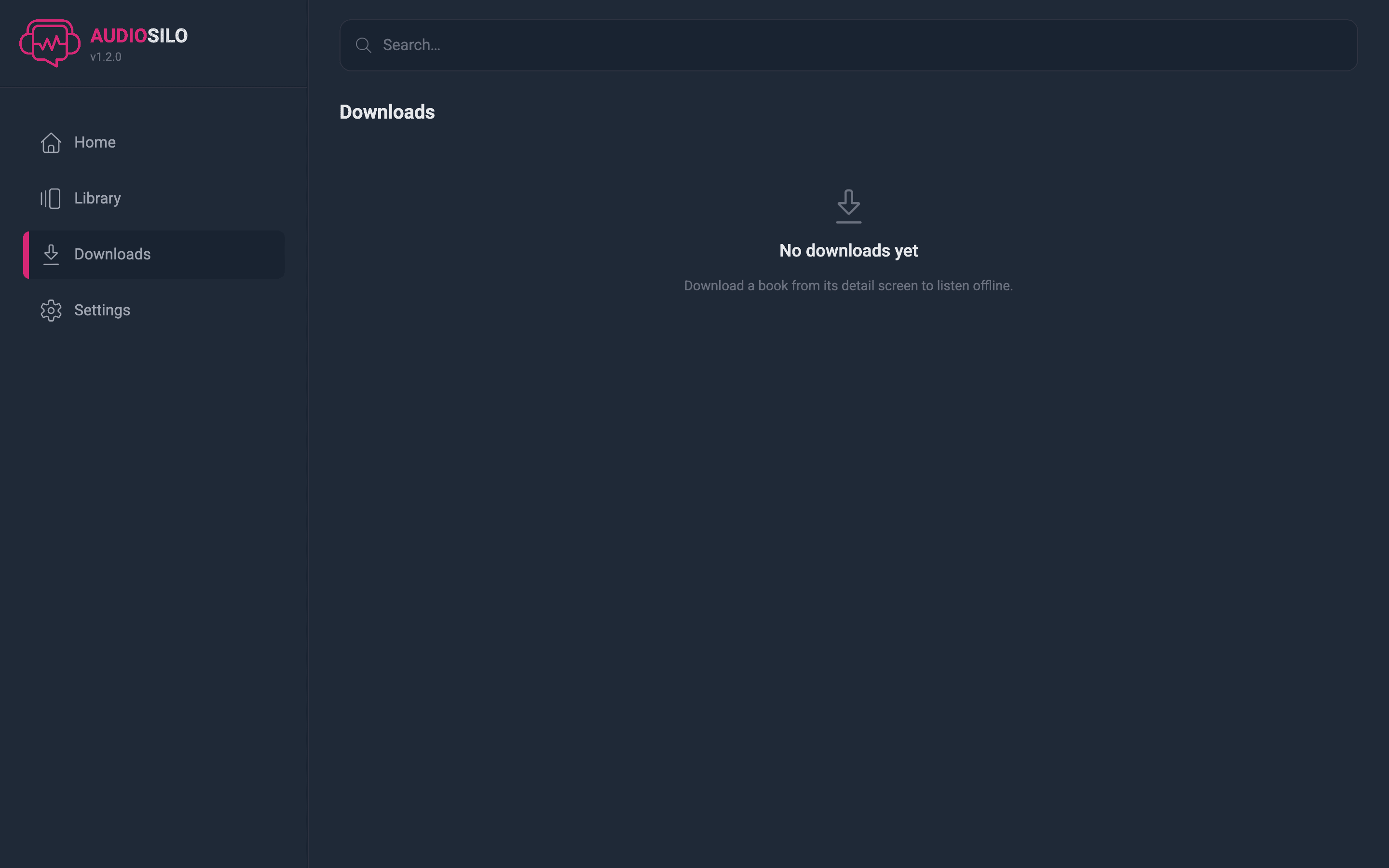
- Each row shows the cover, title, and size (or a progress bar / failure notice for in-flight ones). Tap a row to start playing.
- The trash button removes that book's audio from the device. The book itself, and all your progress and bookmarks, are untouched on the server - you can stream it again or re-download any time.
- The header shows the total storage used by downloads.
Downloads are per-device: what you downloaded on your phone isn't automatically on your tablet.
Downloads belong to their server
Each downloaded book belongs to the server you downloaded it from. If you've connected the app to more than one server, the Downloads screen shows all of them together, but each book stays tied to its own server.
That matters when you disconnect a server:
- Removing a server (Settings → Servers) or signing out of it deletes that server's downloaded books from this device, along with any listening progress that hadn't synced back to the server yet.
- The app warns you first when the server you're removing has books downloaded on the device, so you're never caught out.
- Your other servers' downloads are untouched, and nothing on the server itself is affected - reconnect and you can re-download any time.
If you just want to free up space, use the trash button on a single book instead - that removes one book and leaves the server connected.
How downloaded playback differs
Honestly? Barely at all - that's the point:
- A downloaded book plays from local files, so it starts instantly and never buffers, whether or not the server is reachable.
- Chapters, the sleep timer, speed, bookmarks, and notes all work the same.
- Your listening progress is saved on the device while you're offline and synced to the server automatically the next time the app can reach it - so even offline listening ends up on your other devices' Continue listening shelf.
- The book's detail page still opens offline for downloaded books.
Downloads in a web browser
Yes, the web player can download books too - no app required. Downloads are kept in the browser's own storage and played back through it, so a laptop can go offline with a book on board.
A few browser realities to know:
- It needs a secure connection (an
https://address, which your server normally has). On a plainhttp://connection the Downloads tab disappears from the navigation, and a book's download button shows as a disabled Downloads unavailable instead. - Storage belongs to that browser on that machine. Clearing the browser's site data deletes your downloads (never your books or progress - those live on the server).
- Browsers can evict stored data if the disk runs very low. AudioSilo asks the browser to keep its storage persistent, and installing the web player as an app (below) makes the browser much more protective of it - but a native mobile app download is still the most bomb-proof option for long trips.
- Very old browsers may not support offline storage at all; the Downloads screen will say so rather than fail silently.
Installing the web player (PWA)
The web player is an installable app - a Progressive Web App. Installing it gets you an AudioSilo icon on your home screen or desktop, a clean full-screen window without browser bars, and the app shell itself stored offline so it opens even with no connection (your downloads waiting inside).
- Desktop (Chrome/Edge): open the web player, then use the install icon in the address bar (or the browser menu's "Install AudioSilo…").
- Android: open the web player in Chrome and choose Add to Home screen / Install app from the menu.
- iPhone/iPad: open the web player in Safari, tap Share → Add to Home Screen.
Once installed, it behaves like any other app - and because installation marks the site as important to you, the browser guards your downloaded books' storage far more strongly.
Installing the web player and installing the native mobile app are different things. The PWA is the web player in an app suit; the native apps add richer lock-screen controls (chapter-aware on Android), tighter background playback, and the like - see The mobile apps.