Playing a book
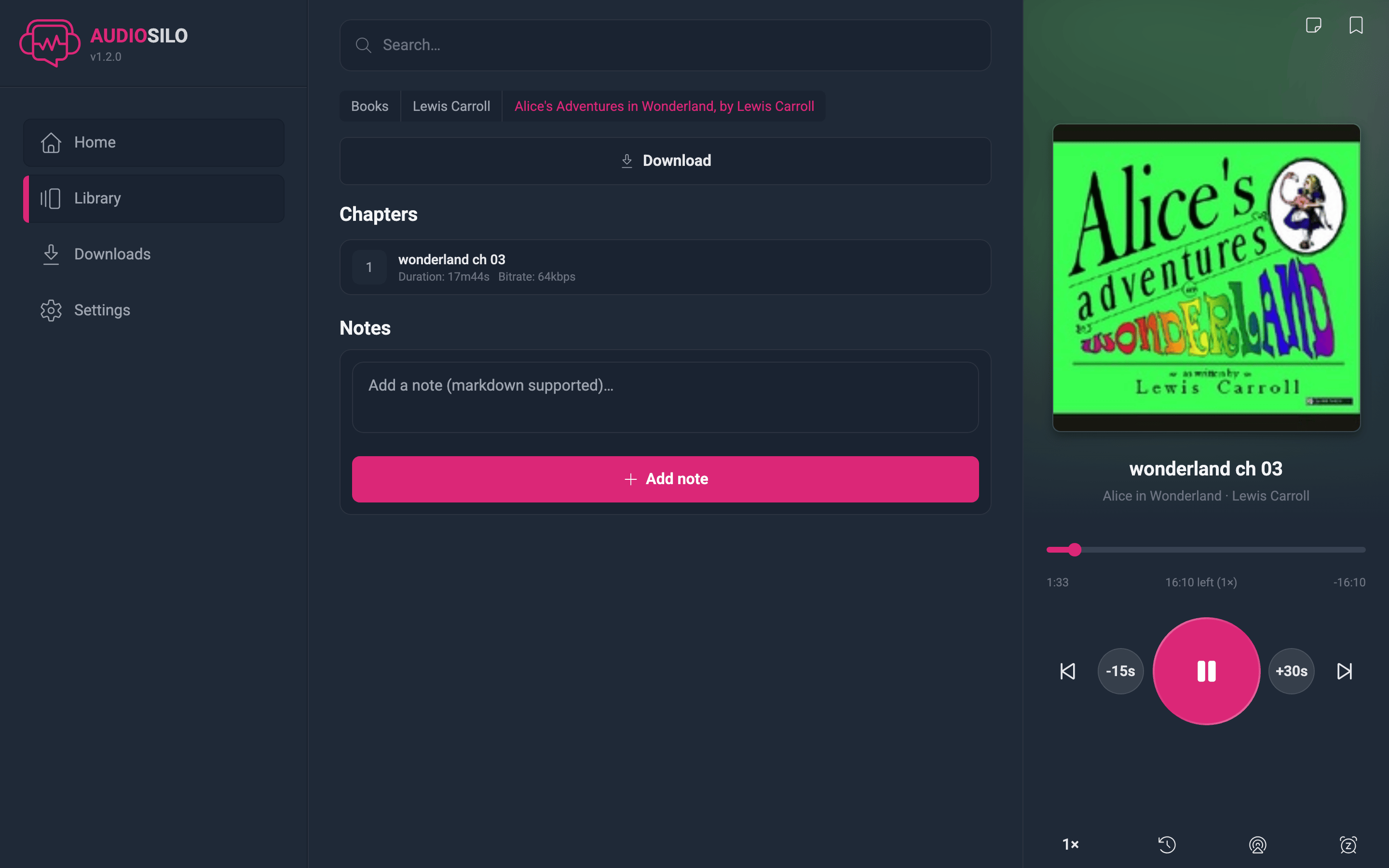
Tap Listen on any book and the player opens. On a phone it's a full-screen view; on a desktop-sized window it lives in a panel beside the book's details. A mini-player also docks along the bottom of every screen while something is playing: the cover, the title and current chapter, the time left in the book at your current speed, and a skip-back and play/pause button, with a thin progress line underneath. Tap it to bring the full player back.
The controls
- Play / pause - the big pink button.
- Skip back / skip forward - the two round buttons beside it, labelled with the number of seconds they jump (15s back and 30s forward out of the box). You can change both, from 5 to 120 seconds, in Settings.
- Previous / next chapter - the small arrows either side of the chapter title.
- Chapter list - tap the chapter title itself to open the full list of chapters (or files) and jump anywhere. On the book's detail page, tapping a chapter row does the same.
- Seek bar - the scrubber is chapter-relative: it spans the current chapter, with the chapter's elapsed and remaining time at each end. The centre readout shows time left in the whole book at your current speed, e.g. "5h 12m left (1.25×)".
If a book's chapters are just named after their audio files, AudioSilo tidies those names for display - dropping the file extension and turning underscores into spaces - so the title line stays readable. Real chapter titles are left exactly as they are.
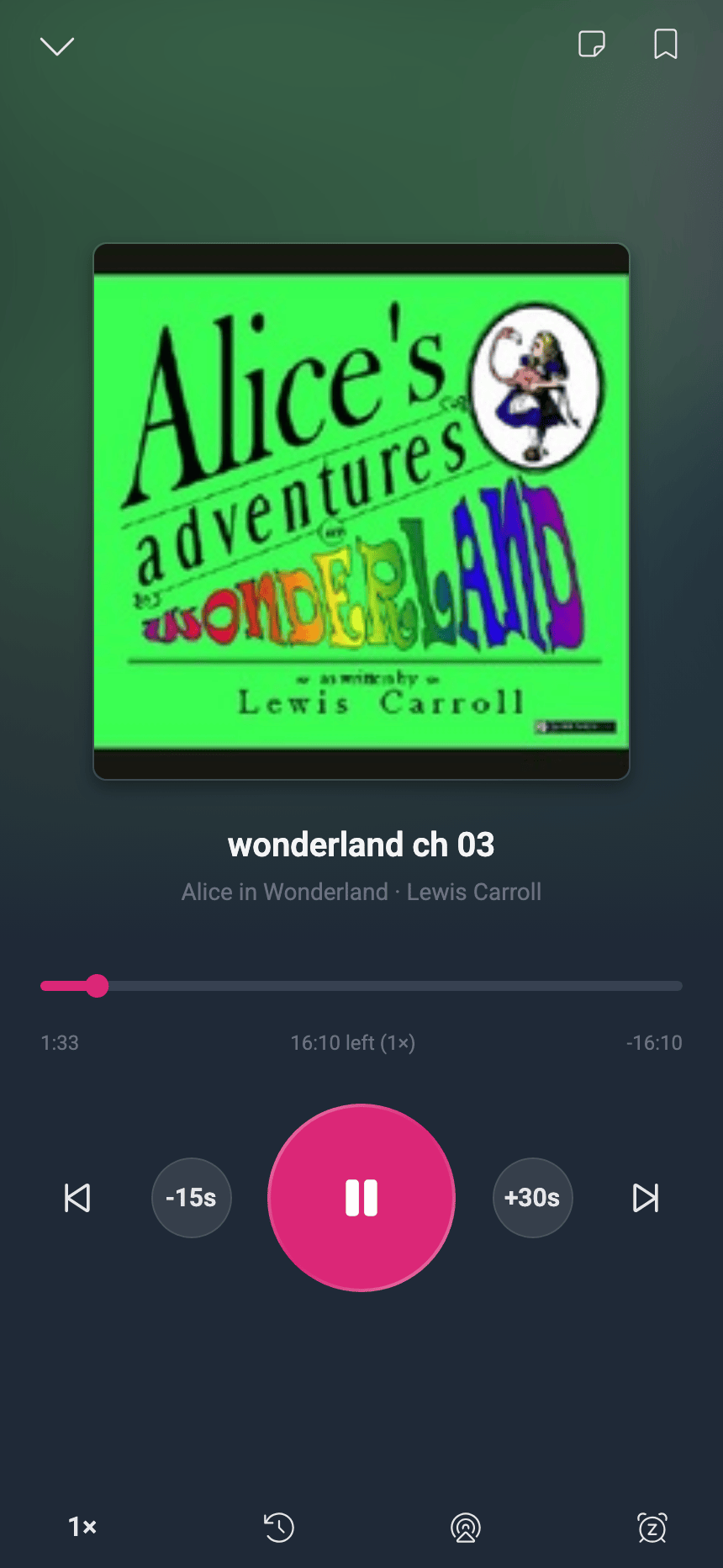
Along the bottom of the player: playback speed, history, an AirPlay / cast button, and the sleep timer. The notes and bookmark buttons, and a three-dot menu, sit at the top right.
The three-dot menu
The three-dot (More) menu at the top right of the player has three actions:
- View book details - jumps to the book's detail page. Playback carries on.
- View end credits - opens the end credits screen early. Handy for a book with a long spoken credits or acknowledgements section you'd rather skip past to see what's next - playback carries on while the screen is open.
- Mark as Finished - marks the book finished right now, stops it, and takes you to its end credits screen. Use it when you've heard enough and want the book off your Continue listening shelf.
Playback speed
Tap the speed readout (e.g. 1×) to open the speed control. Speed goes from 0.5× to 2× in 0.05 steps, with pitch correction so voices don't go squeaky.
The speed you choose for a book is remembered per book - switch back to a slow narrator and your speed comes back with them. New books start at your default speed from Settings.
Sleep timer
Tap the moon icon to set a sleep timer. You can stop:
- after a set time - 5, 10, 15, 20, 30, 45, or 60 minutes;
- at the end of a chapter - the current one or any of the next few;
- at the end of the book, for books without chapters.
While a timer runs, a countdown shows on the moon icon and on the cover, and the sheet offers Cancel timer. When it fires, playback simply pauses - nothing is lost.
A timer belongs to the book you set it on. Start a different book, or finish the one you're on, and the timer goes with it instead of following you to the next book. And if a timer reaches its point when you'd already paused by hand, it just ends quietly: there was nothing left to stop.
The countdown is real ("wall clock") time: listening at 2× speed, an end-of-chapter timer shows how long the chapter actually takes to reach at that speed.
Pausing with a timer running
A set-time timer pauses with the book. Pause, and the countdown stops where it is; press play and it carries on from there. Thirty minutes means thirty minutes of listening, not thirty minutes on the clock - so answering the door, taking a call, or pausing with a headphone button without ever looking at the screen can't quietly use up a timer you were relying on. It works the same way if you arm a timer before you press play: the countdown starts when the audio does.
Come back after more than 20 minutes and the timer starts again at its full length. A break that long is a new sitting rather than an interruption, and the alternative is worse: a timer frozen with three minutes left, forgotten about, stopping you three minutes into the next evening's listening. Under 20 minutes it simply picks up where it left off. There's nothing to configure.
An end-of-chapter timer needs none of this: it stops at a place in the book, not after an amount of time, so it waits exactly where you left it however long you're away, and still stops at the chapter you chose.
If you pause during a set-time timer's fade-out (the last 30 seconds, below), the volume comes straight back up so the book is never left sounding quiet, and the fade picks up where it stopped when you press play again.
The last 30 seconds, and how to keep listening
Every timer has a final 30 seconds that are your cue it's about to stop - and your chance to carry on if you're still awake. The badge on the cover turns solid pink for them, and the sheet shows the seconds left.
What you hear in that window depends on the kind of timer:
- A set-time timer stops at an arbitrary point mid-chapter, so it doesn't cut the book off mid-word: the audio fades out gently over those 30 seconds. The sheet shows Fading out.
- An end-of-chapter timer (and an end-of-book one) plays those 30 seconds at full volume and stops at the boundary. Those closing words are the ones you stayed awake for, and the chapter ending is its own signal that the book is about to stop. The sheet shows Ending soon.
During that final window, and for 30 seconds after playback has paused, one gesture keeps you going:
- Shake your phone - in the iOS and Android apps.
- Tap "Keep listening" - open the sleep timer from the moon icon and tap the pink Keep listening button. This works everywhere, and it's the only way in the web player, because browsers can't feel the phone move.
Either one brings the volume straight back up (if it had started to fade) and starts the timer again at the setting you chose: a 30-minute timer becomes a fresh 30 minutes, and an end-of-chapter timer moves its target to the end of the next chapter. If playback had already stopped, it starts playing again too - so you never have to unlock the phone to rescue a book you were still listening to.
Once those 30 seconds are up, the timer is finished and the book stays paused where it was. Shaking the phone at any other time does nothing, so a bump in your pocket can't disturb a running timer.
Safari on iPhone and iPad doesn't let a web page change its own volume, so in the web player on those devices a set-time timer's last 30 seconds don't audibly fade. Everything else works as described: the badge, the countdown, and the Keep listening button. (An end-of-chapter timer never fades anywhere, so it behaves identically on every platform.)
Starting a timer automatically at night
If you listen yourself to sleep most nights, you can have AudioSilo arm the timer for you instead of remembering to. Turn on Auto sleep timer in Settings, choose the hours it applies to (10:00 PM to 6:00 AM out of the box) and what kind of timer it should set. Any book you start inside that window gets one automatically.
It's deliberately unobtrusive: never more than one timer at a time, and never on top of a timer you set yourself.
If a timer runs out and you press play again inside the window, you get a fresh one. Starting the book again at 3:00 AM is you saying you're still listening, so the night's remaining hours are covered too rather than leaving you unprotected after the first timer.
Cancel a timer and that's final. Nothing will arm another one for that book for the rest of the session (until you next start the app), because a timer you've just dismissed coming quietly back is the last thing you want. That holds for the timers you set by hand as well: cancelling your own keeps the automatic one away too, while letting your own run out doesn't.
Bookmarks, notes, and history
- Bookmarks - tap the bookmark icon, then Add bookmark at 1:23:45 to pin the current moment. Bookmarks are listed there and on the book's detail page; tap one to jump back.
- Notes - free-form notes on the book (markdown supported), for quotes or thoughts.
- History - your past listening sessions on this book, labelled by chapter.
All three are saved to your account, not the device.
When a book finishes
When a book reaches its end, AudioSilo marks it finished (so it drops off your Continue listening shelf), hides the mini-player, and shows an end credits screen:
- The finished book's cover, title, and author, plus its folder name. The folder name is shown on purpose - audiobook file metadata is often wrong or missing, and the folder is usually the most reliable label.
- An Up next card suggesting the next book in the same folder - the sibling that comes next in natural order (so Book 2 comes before Book 10). It shows the next book's folder name, with its title and author underneath if they're known. Tap Play next to mark the current book finished and start it.
- If there's nothing after the current book, you'll see "You have reached the end of this folder." instead.
You can also reach this screen at any time from the player's three-dot menu, via View end credits or Mark as Finished.
Playing the next book automatically
Turn on Automatically play next book in Settings and the end credits screen starts the next book for you:
- After a book finishes naturally, a short 15-second countdown runs ("Starting in 15s") before the next one begins.
- If you opened the credits screen early (from the menu) while the book is still playing, the countdown instead shows the time left in the current book - the next one starts when this one actually ends.
- A Cancel button next to the countdown stops the auto-start, leaving you on the screen with the Play next button.
On iPhone and iPad, if the screen is locked when a book ends, the next book starts straight away with no countdown. Once audio stops the system can suspend the app, so there's no reliable way to show a countdown in the background.
Two related settings keep the flow smooth and your device tidy - Automatically download books (it downloads whatever you start listening to, so the next book downloads the moment Play next starts it) and Automatically delete finished books. Both are covered under Up next in Settings.
Play to another speaker (AirPlay / Cast)
The AirPlay / cast button along the bottom of the player hands audio off to another output:
- iPhone / iPad - opens the AirPlay picker, so you can send playback to a HomePod, an Apple TV, or AirPlay speakers.
- Android - opens the system output switcher, for a Bluetooth speaker (an Echo paired as a speaker, for example) or a Cast device.
- Web - uses AirPlay in Safari, or the browser's Cast picker in Chrome. The button only appears in browsers that support one of these; elsewhere it's hidden.
Your position keeps syncing as normal while playing to another device.
Your position follows you
AudioSilo saves your position to the server every 15 seconds while playing, and immediately whenever you pause, seek, change speed, or stop. Start a book on your phone in the car, open the web player at your desk, and it's sitting on the home screen's Continue listening shelf at the right spot.
A few protections work behind the scenes so you never lose your place:
- Your position is stored on the server and on the device, and the most recent one wins - so a flaky connection can't quietly rewind you.
- A book never silently restarts from the beginning. If a streamed book can't confirm your resume position (say, the server is briefly unreachable), the player shows an error with a Retry button rather than starting at zero.
- Even if playback did slip back somehow, the app refuses to overwrite your real progress with a much earlier position - only a deliberate seek backwards counts.
- Auto-rewind on resume: after a pause, playback backs up a few seconds (5 by default, adjustable up to 30 or off) so you regain the thread of the sentence.
Listening while offline
If the connection drops mid-listen:
- A downloaded book keeps playing as if nothing happened - see Offline downloads.
- A streamed book will pause with an error and a Retry button once its buffer runs out.
- Either way, an "Offline - changes sync when reconnected" banner appears, and any progress, bookmarks, or finished-marks you make are queued on the device and synced automatically when the server is reachable again.
Lock-screen and headphone controls
In the mobile apps, playback continues in the background and shows up everywhere your system shows media:
- Android - the lock screen and notification give you the full audiobook row: previous chapter, a chapter-relative scrubber you can drag, next chapter, and 30-second skip back/forward buttons.
- iOS - the lock screen and Control Centre show play/pause, a scrubber, and skip back/forward buttons that use the same skip lengths you chose in Settings.
- Headphones and earbuds - play/pause and skip buttons work as you'd expect, and playback pauses politely for interruptions (a phone call, a navigation prompt) and resumes afterwards only if it was playing before.
See The mobile apps for more on the native apps.
Books without chapters
A long audiobook that's a single file with no chapter markers still gets chapter-style navigation: the player divides it into virtual chapters (every 30 minutes by default - adjustable from 5 to 60 minutes in Settings), so the chapter skips, the chapter list, and end-of-chapter sleep timers all work.