Podcasts
When your server has a podcast library, the player shows its podcasts beside your books: the shows in the Library, each show's episodes, a New episodes shelf on Home for the shows you follow, and episodes that play like any book. Podcasts need the AudioSilo app 2.4.0 or later (the web player comes with your server and is updated with it). An older app doesn't show podcasts at all; update it from the App Store, Google Play or, on Android, the APK on GitHub.
Your admin sets podcasts up on the server: see Podcasts in the admin guide. You can add shows yourself: search a podcast directory, paste a feed's address, or import the list of shows you follow in another podcast app. You can also export the shows you follow to take them elsewhere.
Shows in the Library
Pick a podcast library in the Library's Library picker (a podcast library has a microphone beside its name). A podcast library has two sections, Shows and Folders; the book sections (Books, Authors, Series, Narrators, Collections) belong to book libraries.
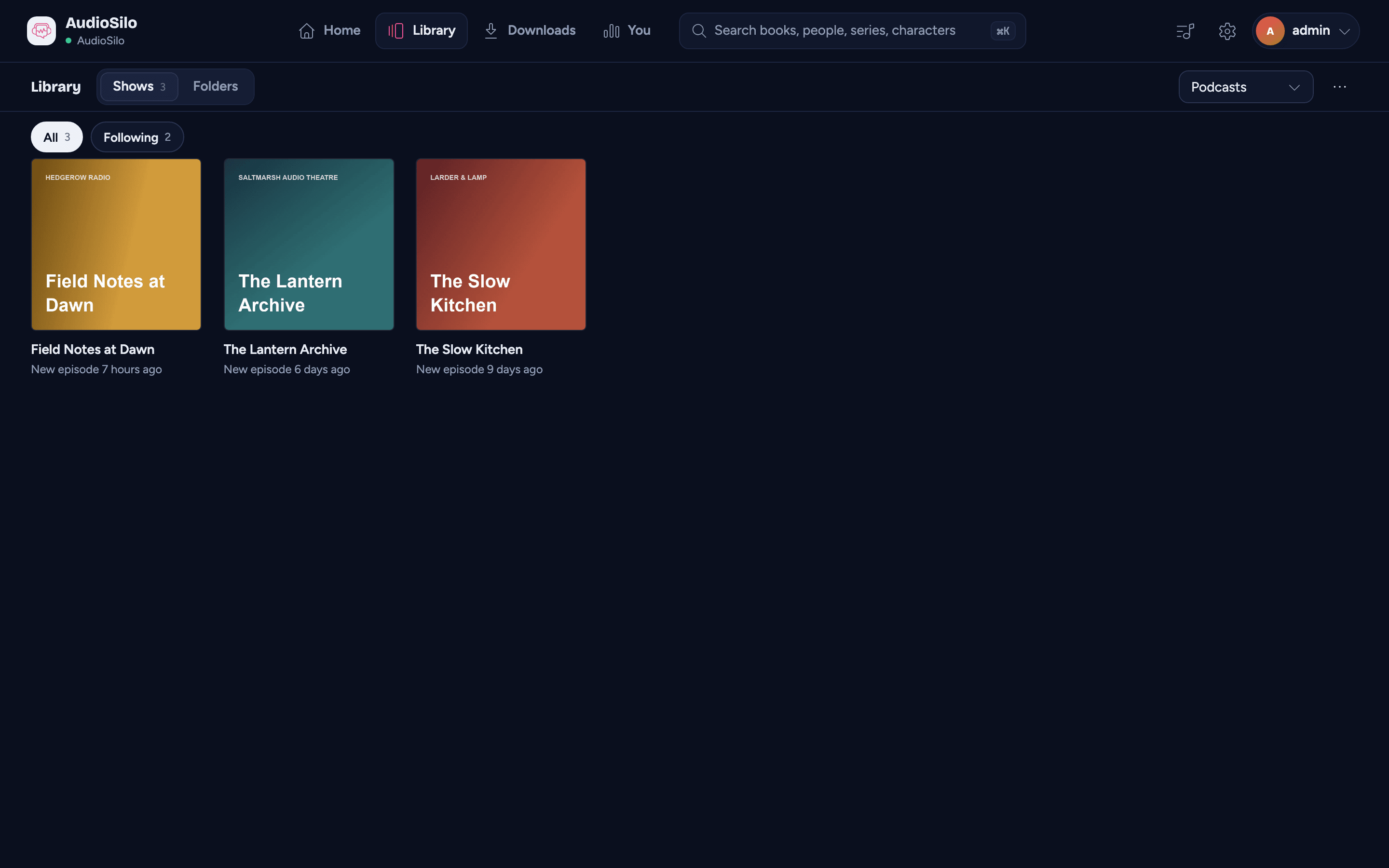
Shows is a grid of every show you can see in that library, in title order. Under each cover is the show's title, then New episode with how long ago it came out when the show has had one in the last 14 days, else who makes the show. A Private feed badge marks a private show. The chips at the top switch between All shows and the ones you're Following, with a count on each.
Above the grid are Add shows (see Adding shows) and a ... menu with Export my shows; on a computer or tablet they sit at the end of the row with Shows and Folders. While shows you asked for are still being added, a line such as Adding 2 shows sits above the grid; tap it to see how they're getting on.
A library with no shows says No shows yet, with an Add shows button when you can add them (otherwise shows appear once someone follows them on your server). Tap a show to open its page.
A show's page
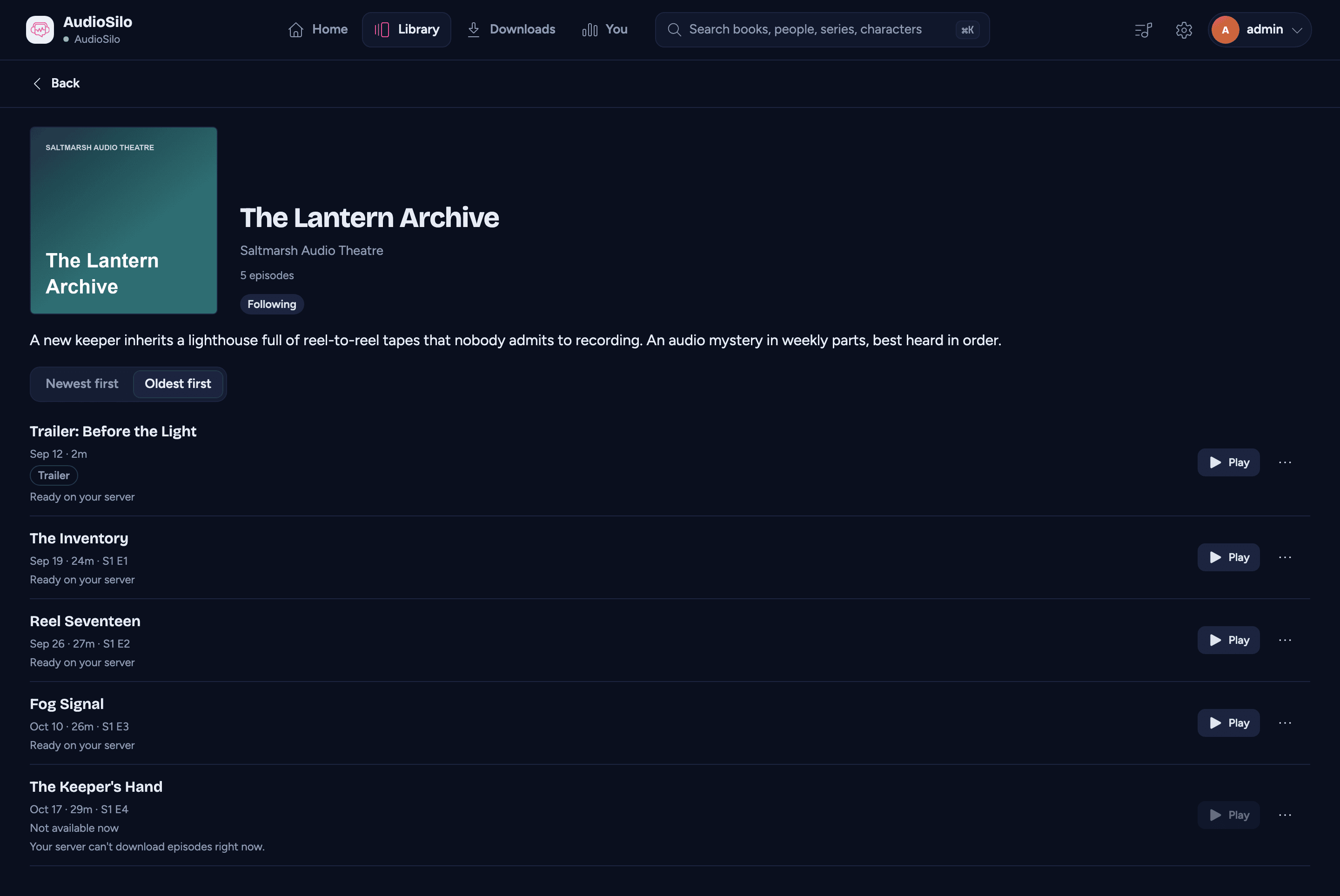
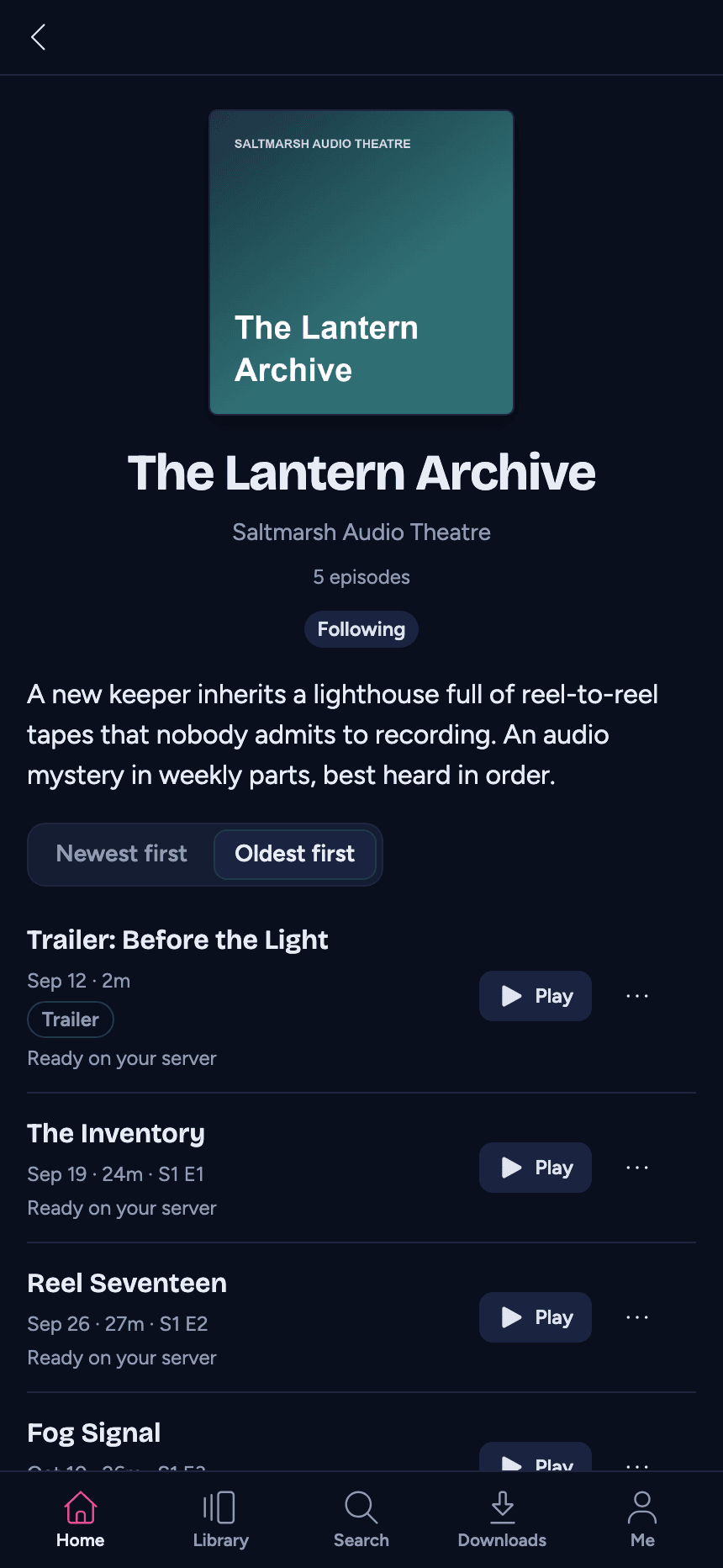
The top of the page has the show's cover, title and maker, its description (Show more opens the rest), how many episodes it has, the Private feed badge when it is one, and the Follow button and, for a show you follow, Check for new episodes. Last check failed means the server couldn't read the show's feed the last time it looked; the episodes it already has still play.
A link to a show that leads nowhere (its library is gone, isn't shared with you, or isn't a podcast library) says "This link doesn't point to anything here."
Episode order. A show that is told in order (a serial) lists its oldest episode first, so you start at the beginning; every other show lists its newest first. Switch with Newest first / Oldest first at the top of the list. The list keeps loading as you scroll.
Episodes go by the date they came out. Episodes from the same day, and shows whose feed gives no dates at all (a LibriVox reading, say), go by their season and episode numbers, so E1 to E10 of an undated serial list in order.
Each episode row has:
- the title, then the date it came out, its length, and its season and episode number (S2 E5, or just E5);
- a Trailer, Bonus or Explicit badge when the show marks it so;
- a progress bar once you've started it, or Finished;
- where its audio is: Ready on your server, Plays on demand (the server downloads it when you play it, see below), Getting it with how far it has got, Couldn't get it, or Not available now. The last two add a line saying why, such as "Your server can't download episodes right now." (the same reasons as the table below);
- one button: Play (or Resume once you've started), or Try again after the server couldn't get it. While an episode isn't available, Play is greyed out with the reason beside it, on a finished episode too. When the player has no words for the reason, the button is Try again instead, because asking again may work;
- a ... menu with Add to Up next and Mark as finished.
Tap the row itself to open the episode's own page: its cover, title, the show (tap it to go back to the show), date, length and badges, the play button, its description and its chapters under The whole episode: the ones in the episode file (Chapters from the episode file), or, for a long episode with no chapter marks, parts of the length set in Settings ("This episode has no chapter marks"). When the episode can't be played right now, the reason sits beside the greyed-out button. An episode page has no Who's who or Story so far: those are for books.
An episode that has left the show's feed stays listed while its file is still on the server, marked No longer in the feed. Once the file is gone, the episode isn't listed any more.
Following a show
Follow on a show's page adds it to the shows you follow; press it again (it reads Following) to unfollow. Following a show is what puts its new episodes on your Home and tells the server to keep its episodes coming. Everyone who follows a show shares the same downloaded episodes.
The button is there only when your server can fetch podcasts right now: the admin has turned podcasts on and the server can download episodes. Otherwise a show you follow just shows a Following badge, and you can still play everything that's there. Kids' accounts and the demo can't follow shows.
Unfollowing a private feed asks first: the show disappears from your Library, and you'd need the feed's address to follow it again.
Adding shows
Add shows, in a podcast library's Shows, opens a page for adding shows to that library. The page belongs to the Library: Back returns there, and a link to the page opens it in the Library tab. It has up to three sections at the top: Search, Feed address and Import a list. Your server decides which ones you get: Feed address is always there, while Search and Import a list need a server new enough to offer them, and your admin can turn search off.
Adding a show needs the same as the Follow button: your admin has turned podcasts on and the server can download episodes right now. Otherwise Add shows isn't there, and the page says "Adding shows isn't available right now" and to ask the person who runs your server. Kids' accounts and the demo can't add shows. To add a show, you need full access to the library (one shared with you only in part says "You can add shows only to a library shared with you in full.").
Following a show the library already has is instant. A show that's new to the library has to be fetched by your server first, which takes a moment: you see it in Shows being added until it's ready.
Searching a podcast directory
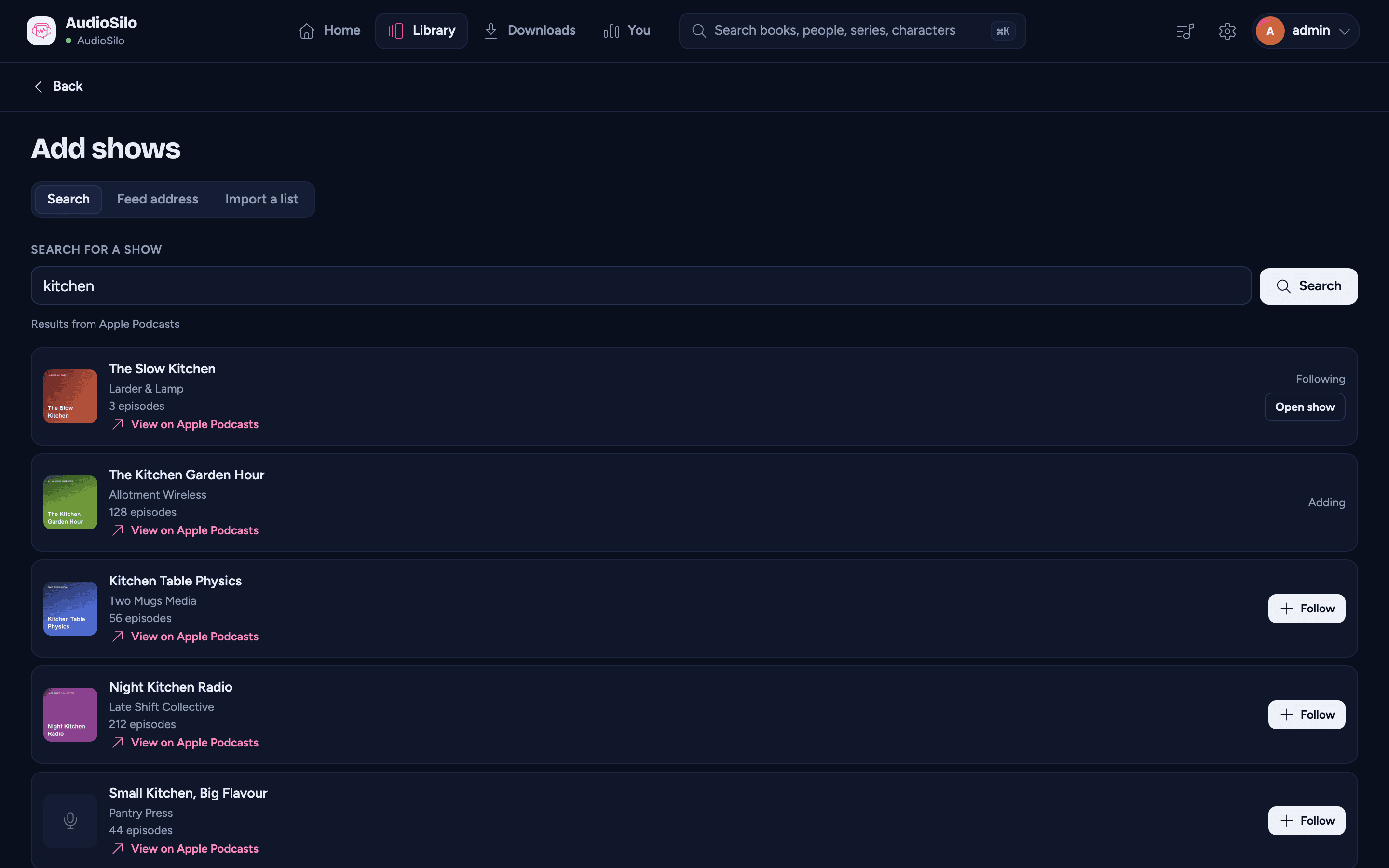
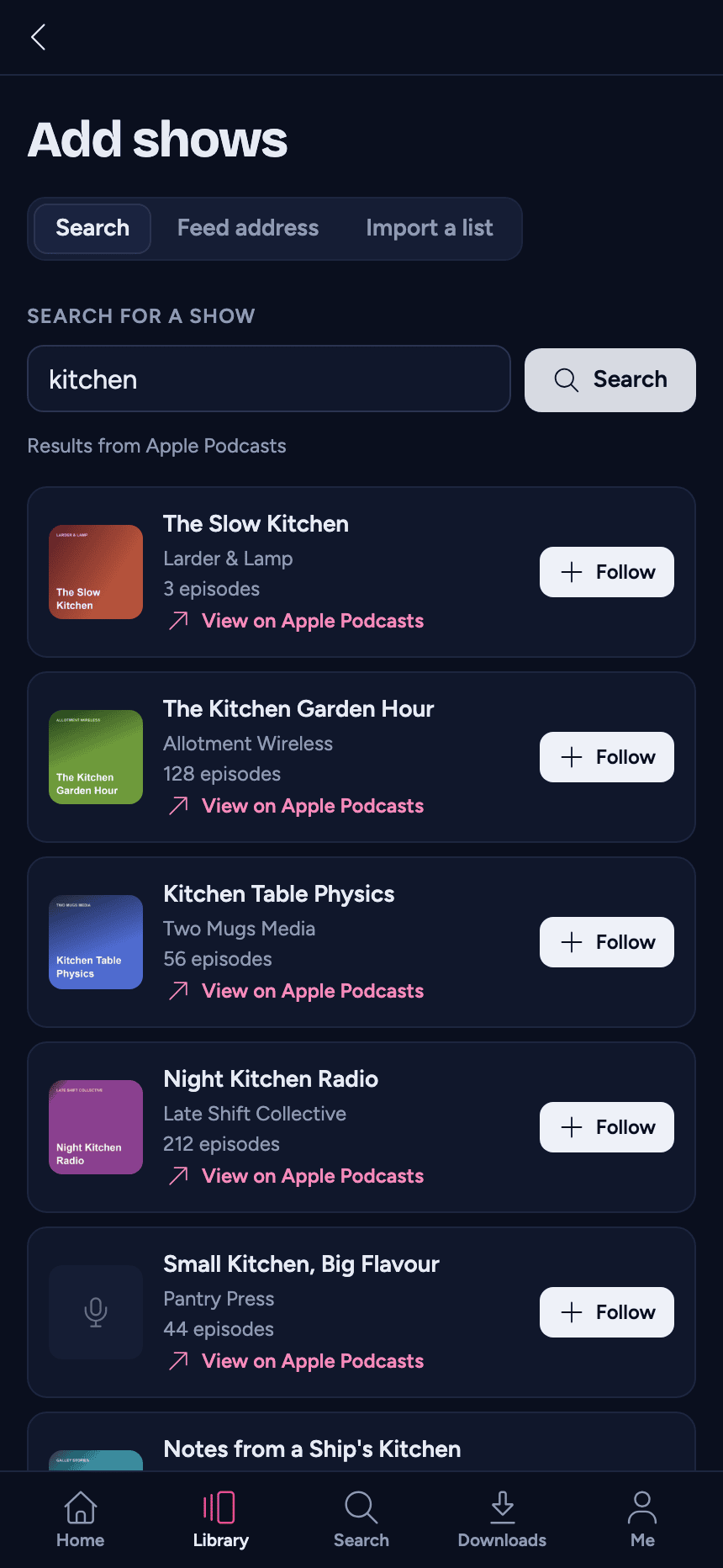
Type a show's name (at least two characters) and press Search. The player searches only when you press Search, not while you type. Results come from Apple Podcasts; when your admin has set up Podcast Index too, a switch above the field lets you pick which directory to search. The list says where its results came from, and each result has:
- the show's artwork, name, maker and number of episodes. The artwork fills in as your server fetches it, for every result on the page (a show whose artwork can't be fetched keeps a plain placeholder);
- View on Apple Podcasts (or View on Podcast Index), which opens the show's page on the directory;
- Follow. It turns into Following with Open show when the library already has the show, or Adding when the server is fetching it. Once the server is done, Adding turns into Following with Open show, or into Couldn't add (or Cancelled) with Follow back to try again (Shows being added says why).
Searching the same words again shows the same results without asking the directory again. Each person can search about ten times a minute: after that the page says "You've searched a lot just now. Try again in 20 s." (with the real wait). No shows found means the directory has nothing under those words; try others, or follow the show by its address. "This app can't use podcasts on this server. Update the app, then try again." means the app is too old for your server's podcasts.
What the directory sees. The directory receives the words you searched for (and, for Apple, your device's country), and sees your server's address, not yours: the search and the artwork go through your server. Nothing about you, your libraries or your devices is sent. See Searching podcast directories in the admin guide.
Following a feed by its address
Every podcast has a feed address (an RSS address, usually ending in .xml or /rss), shown on
the show's website or in your podcast app's share or details menu. Paste it into Feed
address and press Follow. The address must start with http:// or https://; a
mistyped one is caught before anything is sent.
Turn on Private feed for a feed made just for you, such as a paid or members-only feed: only you see the show, and it's never exported. Many private addresses are recognised as private by themselves; the switch is for the ones that aren't.
If the library already has the show, the page says "You follow The Slow Kitchen." with Open show. Otherwise it says "Adding the show. It appears in Shows once it's ready." When you turned on Private feed but the library already has that feed as a public show, you follow it as it is: "You follow The Slow Kitchen. It was already in this library as a public feed, so it isn't private."
When it can't follow the address, the page says why:
| Message | What it means |
|---|---|
| That feed address can't be used. Check it and try again. | The server can't use the address as it is. |
| Five shows are already being added. Try again once one is done. | Each person can have five shows being added at once. |
| This feed is already being added with the other privacy setting. Wait for it to finish, then try again. | You asked for the same feed with Private feed the other way a moment ago, and that one is still on its way. |
| Your server can't add new shows right now. Try again later. | The part of your server that fetches podcasts is offline. Shows the library already has can still be followed. |
| Your server can't save shows to this library. | Ask your admin. |
Shows being added
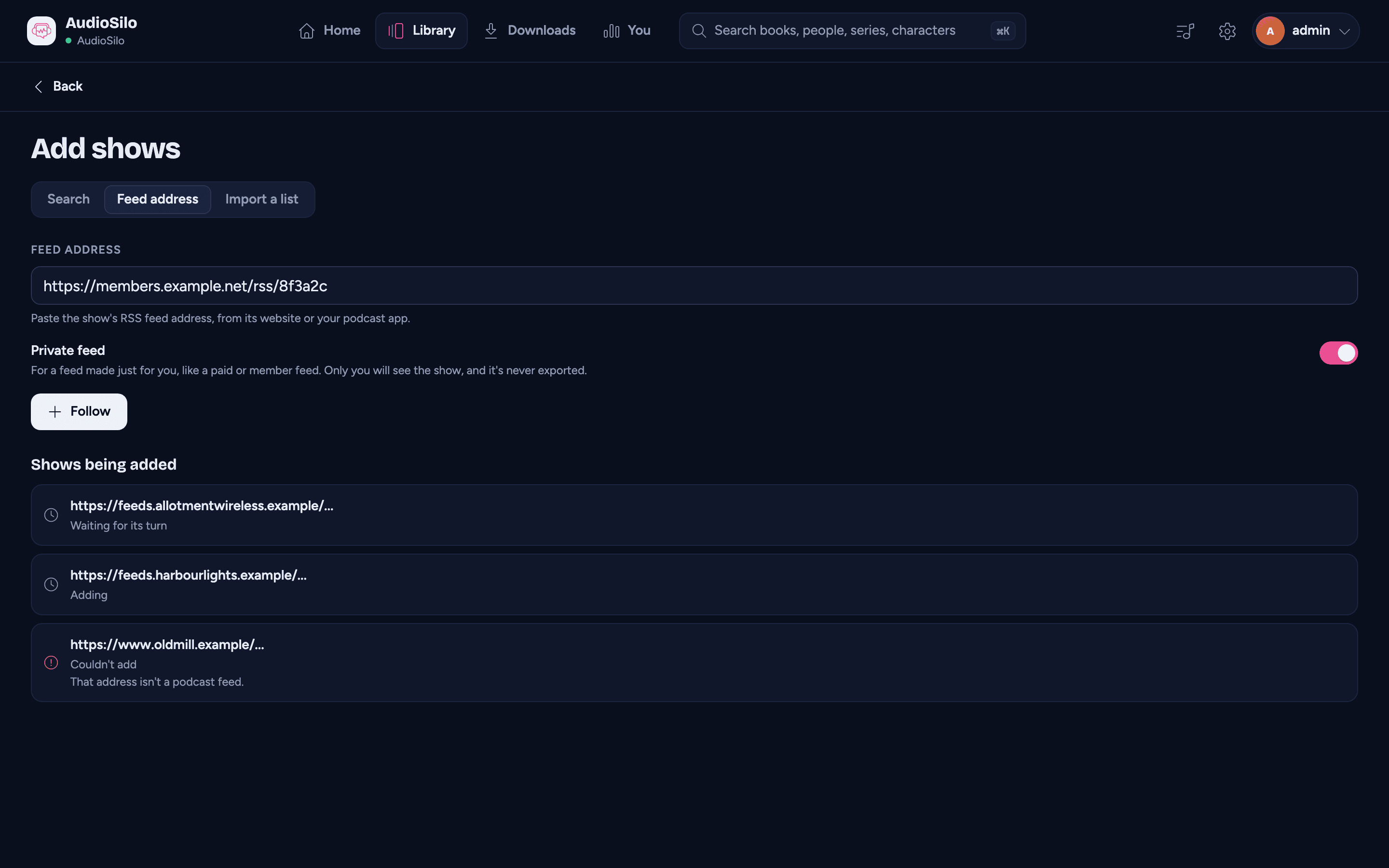
Under Search and Feed address, Shows being added lists what you asked for in this library: the ones still on their way first, then the last few that finished. Each shows the feed's address (shortened, so a private address isn't on screen in full) and how it's doing: Waiting for its turn, Adding, Added (with Open show), Couldn't add or Cancelled. A show that couldn't be added says why:
| Reason | What to do |
|---|---|
| Couldn't reach the feed. | The show's host didn't answer. Check the address, or try again later. |
| That address isn't a podcast feed. | It's a web page or another kind of file; find the show's RSS feed address. |
| Nothing was found at that address. | Check the address for a typo. If it's right, the show may have moved. |
| The feed isn't there any more. | The show moved or ended. Look for its new address. |
| The feed refused the request. It may need a login. | A members-only feed needs the private address made for you; find it on the show's site. |
| That address is on a local network. The person who runs your server can allow it. | The feed is on a home or office network, which your server doesn't fetch from unless your admin allows that network. |
| That feed is too large. | The feed file is bigger than your server accepts. |
| The feed's server answered with an error. Try again later. | The show's host had a problem. |
| Follow the feed again to finish adding it. | The server restarted before it got to it. Follow the address (or import the list) again. |
| Something went wrong adding it. | Try again later, or ask your admin. |
The list keeps itself up to date while the page is open, and a show appears in Shows as soon as it's added. Back in Shows, Adding 2 shows (say) is there while any are on their way.
Importing a list from another app
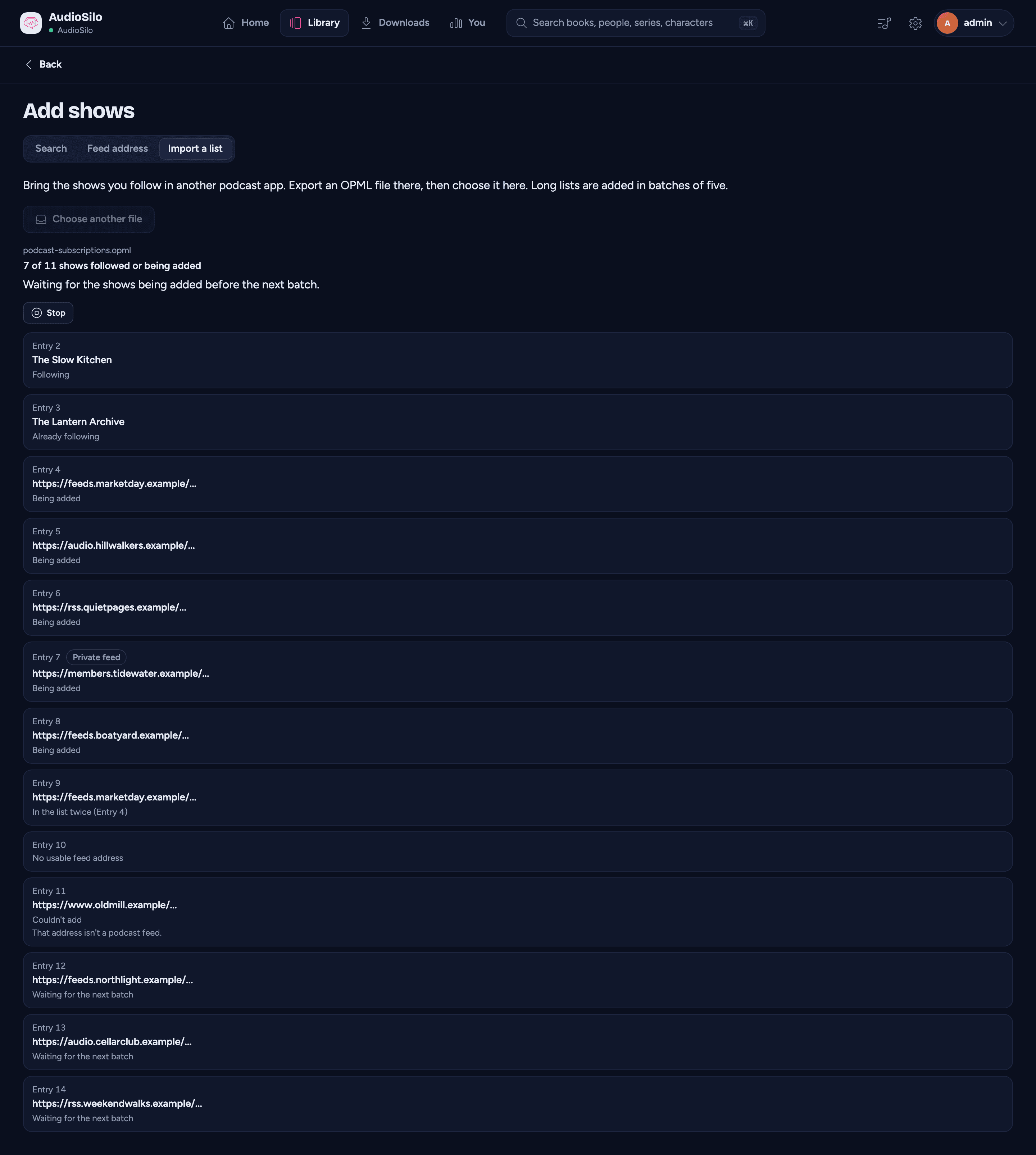
To bring the shows you follow in another podcast app, export them there as an OPML file (look for Export subscriptions or Export OPML in its settings), then choose Import a list > Choose a file and pick that file. The file can be up to 1 MB.
The page then shows how far it has got ("7 of 10 shows followed or being added") and one line per show in the list, by its place in the file (Entry 4, say):
| Entry says | What it means |
|---|---|
| Following | The library had the show, so you follow it now. |
| Already following | You followed it already. |
| Being added | The server is fetching it (see Shows being added). It turns into Following once added, or Couldn't add or Cancelled. |
| Waiting for the next batch | Still to come (see below). |
| In the list twice | The same feed appears earlier in the file (its entry number is in brackets). |
| No usable feed address | The entry has no address the server can use. |
| Can't be added right now | The server can't fetch new shows at the moment; ask your admin. |
| Couldn't add | The server couldn't add this one. A line under it says why, as in Shows being added. "It couldn't be added a short while ago." means the same feed failed to add in the last hour. |
| Cancelled | Adding it was stopped before it finished. |
Long lists go in batches of five. Your server adds at most five new shows for you at a time, so the rest of a long list waits. The player sends the next batch by itself once the shows being added are done and at least half a minute has passed: the page says "Waiting for the shows being added before the next batch." or "Next batch in 12 s." Once the last batch is sent it says "The last shows are still being added." until they're in, then All done. Shows the library already has don't wait for a batch. When your server limits how often imports run, the page says "Imports can run about once every 30 seconds. Trying again in 12 s." and goes on by itself.
A feed that failed recently isn't tried again by the import. If you tried to add a feed in the list to this library in the last hour and it couldn't be added, the import marks it Couldn't add straight away and doesn't send it to your server again, so a few dead feeds can't hold up the rest of the list. Once no entry is waiting for a batch, the import sends nothing more. When it finishes with entries that couldn't be added, it says "Done. 2 shows couldn't be added. You can try each one again below." in place of All done.
Try again on an entry. An entry that says Couldn't add or Cancelled has its own Try again, which follows that one feed by its address, the same as Feed address. That always asks your server again, even for a feed that failed a moment ago. The entry then reads Following or Being added; if the follow is refused, a note says why.
When some entries Can't be added right now (the part of your server that fetches podcasts is offline, say), the import doesn't keep retrying them by itself: the page says "2 shows can't be added right now. Try again later, or ask the person who runs your server." with Try again, which sends the list once more.
- Keep the page open while it works (you can switch between its sections). Leaving the page, or the app going to the background, pauses or ends the import; shows already added stay. To carry on, choose the same file again: entries already done say so, and the rest go ahead.
- Stop ends it ("Stopped. Shows already added stay."). Try again starts it again after it stopped, for instance after "The next batch couldn't start. Try again in a while." or "Your server stayed busy. Try again later."
- Private feeds in the file are recognised as when you follow an address (such an entry has a Private feed badge), but an import can't mark any other feed private: follow that one by its address with Private feed on.
- "That file isn't an OPML list." means the file isn't one; "That file is over 1 MB." means it's too big to send.
Exporting your shows
In a podcast library's Shows, the ... menu has Export my shows. It saves the shows you follow on this server, across all its podcast libraries, as audiosilo-subscriptions.opml, a file any podcast app can import: in the web player it downloads, and on a phone or tablet the share sheet opens so you can save or send it.
A message then says how many shows it exported and what it left out. Private feeds are never exported, for anyone, admins included: their addresses work like passwords, and the server keeps no copy it could write out. Shows without a public address are left out too. The file holds only the shows, not your listening progress or anything else. Exporting works even while your admin has podcasts turned off; the demo can't export.
Checking for new episodes
Your server checks the shows people follow by itself, more often for shows that publish often. To look now, press Check for new episodes on the page of a show you follow. The button says Asked the server to check until the server has checked the show (it stops waiting after two minutes), then the page shows anything new. A show can be checked once a minute: sooner, it says "Checked less than a minute ago. Try again shortly." The button is there only when adding shows is, so not for kids' accounts or the demo.
New episodes on Home
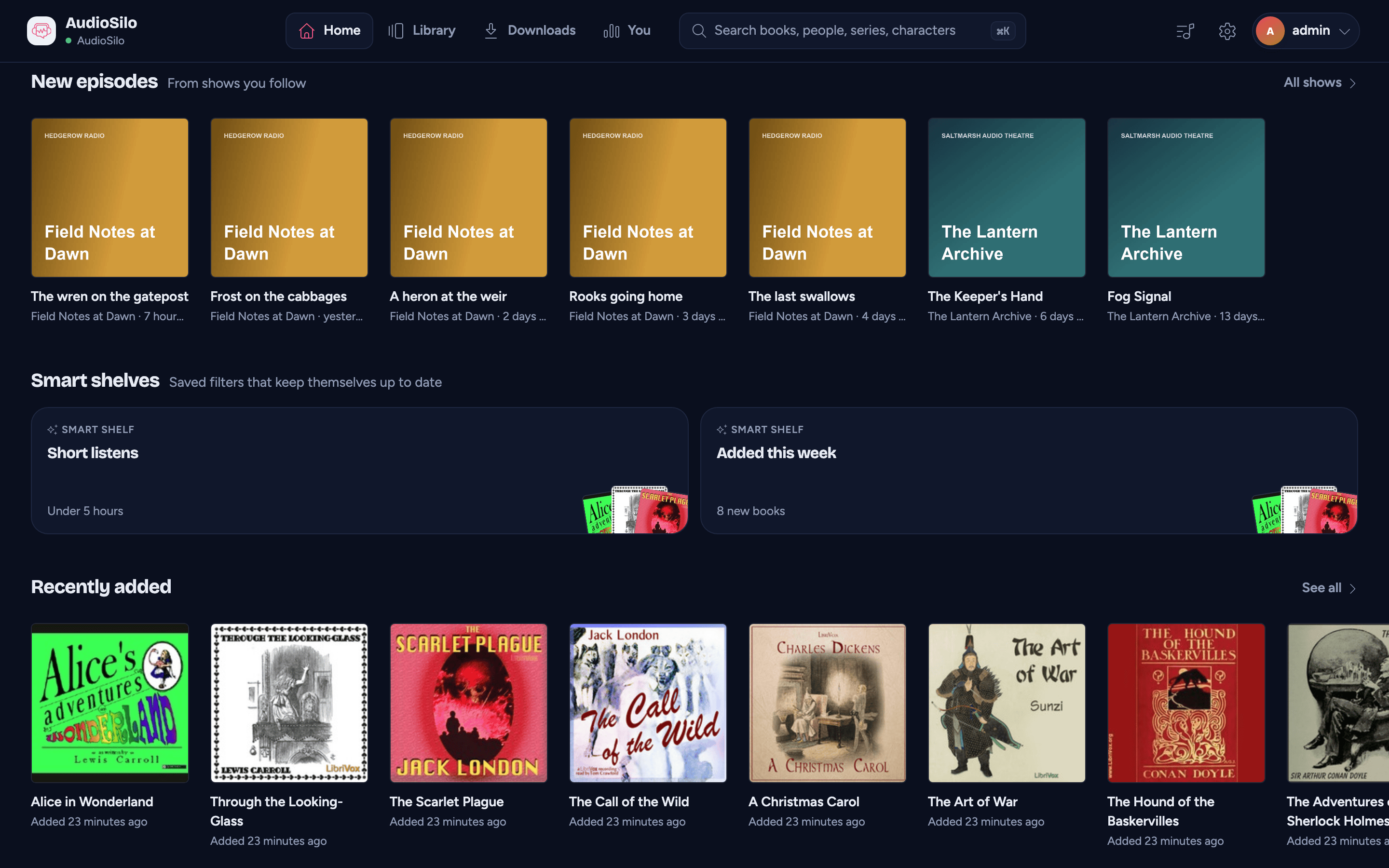
New episodes, under Next in your series on Home, gathers recent episodes from the shows you follow: ones that came out in the last 14 days, newest first, with the show's name and how long ago under each. It leaves out trailers, episodes gone from the feed, and any episode you've already started (those are in Continue listening) or finished. All shows opens the Library's Shows. If you follow nothing, or nothing new came out, the shelf isn't shown.
Podcasts stay off your book shelves: episodes never appear in Next in your series, Recently finished, the smart shelves, Recently added, book search or the author and series pages. An episode you're listening to does lead Home like a book: in the card for what you're on ("40% through the episode"), in Continue listening, and in Favourites if you add it there.
Playing an episode
An episode marked Ready on your server plays at once, like a book, and the player keeps your place in it the same way.
An episode marked Plays on demand isn't on your server yet. Press Play and the server downloads it first: the player shows Getting this episode with the episode's cover and "Your server is downloading it. It starts as soon as it's ready."; once the download is under way that line shows how much has arrived ("12 MB of 40 MB", or "12 MB so far" while the full size isn't known). Waiting for its turn in its place means it is queued behind other downloads. When the episode is ready it starts by itself. In the player, how far you are reads "40% of the episode".
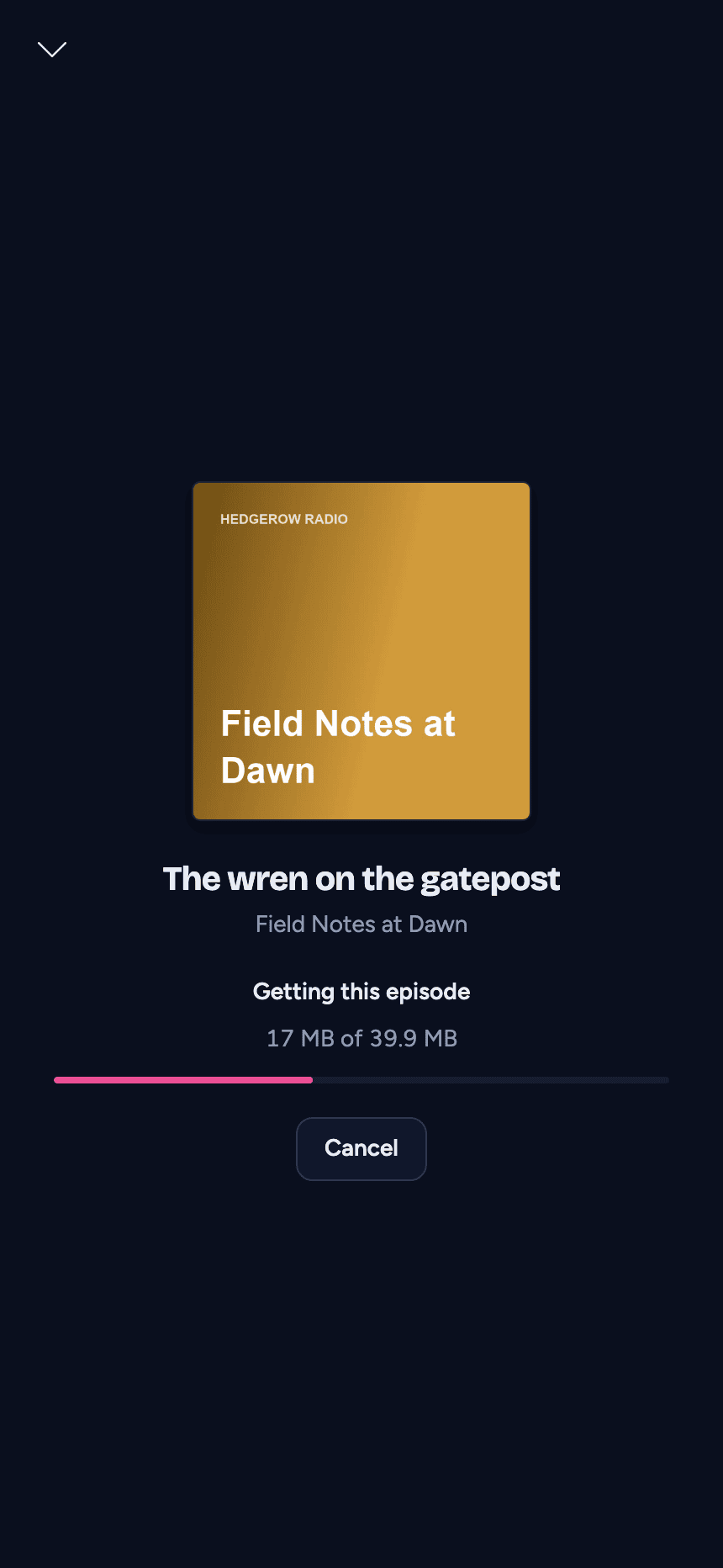
- With the full player closed, a compact strip shows the same progress: above the player bar on a computer (or a wide tablet), and in the mini player on a phone. Whatever you were listening to keeps playing until the episode is ready; then the episode takes over.
- If the server can't get it, the strip shows the reason in place of the progress.
- On an iPhone with iOS 26, the player above the tab bar shows the episode on its way, with Try again and Cancel, even when nothing else is playing. With a book playing, its second line says how the episode is getting on.
- If your server stops answering for a moment while it gets the episode, the player checks back less and less often (at most once a minute) until it answers again.
- Cancel stops waiting in the player. The server keeps downloading, so the episode will be Ready on your server next time.
- Playing something else while you wait also stops waiting for it.
- An episode that plays next from Up next, when the one before it ends, stays at the top of Up next while the server gets it, and leaves once it plays. If the server can't get it, or you cancel, it is still there to try again.
- Leave the app and come back: it checks again straight away.
If the server can't get the episode, the player says why, with Try again:
| Message | What it means |
|---|---|
| Couldn't get this episode | The download failed (the show's host didn't answer, for instance). Try again asks the server to download it again. |
| This episode can't be fetched now | The server can't download episodes right now, and the line under it says which: "Podcasts are turned off on this server.", "Your server can't download episodes right now." (the part of your server that downloads them is offline, or the server is too old to fetch episodes on demand), or "Your server can't save episodes to this library." Ask your admin. |
| Five episodes are already on their way. Try again once one is ready. | Each person can have at most five episodes downloading at once. Wait for one to finish. |
| This episode is too large for your server to keep. | The file is over the server's size limit. |
| This episode changed in its feed. Open the show to find it again. | The show replaced the episode; open the show's page for the new one. |
| The demo can only play episodes already on the server. | The demo account plays only episodes marked Ready. |
The player never asks the server again on its own after a failure: only Try again does.
When the audio changes
Some shows replace an episode's audio after it comes out (to change the ads, say). When that happens to an episode you've started, its page says The audio changed: "This episode's audio changed since you started (ads can differ). Your place is kept as it was." Your place, bookmarks and finished mark stay exactly where they were, so you may land a little early or late.
When an episode ends
An episode never opens the end credits. It leaves your Up next, and with auto-play on (and the sleep timer not running) the next item in Up next starts; otherwise playback stops. An episode never plays on into a series or folder, or into the show's next episode by itself.
To hear the show's episodes one after another, put them in Up next. While an episode plays, the suggestions under Up next offer the episode that comes after it in the show (Next episode, in the show's order from oldest to newest, whichever way you list the show), and + adds it. While an episode is loaded, Up next's switch reads Play Up next automatically: "When this episode ends, the first item in Up next plays."
Private feeds
Some shows are members-only: their feed address works like a password. A Private feed badge marks them. Only the people who follow a private show can see it, admins included, so a library can look empty to you while other people have shows in it.
Kids
Kids mode doesn't show podcasts at all: no podcast libraries, and no episodes, even ones in a collection you share with a child. A kid's account can't follow shows. See Kids mode.
Not for episodes yet
- Offline downloads. Episodes can't be downloaded to your device, and automatic downloads and keeping the next books ready skip them. They stream from your server.
- Casting. Episodes play on this device, never on a Cast device: the Cast button doesn't appear while an episode plays. Start an episode while a book is casting and the episode plays here and casting ends, with "This episode can't be cast". See Chromecast.