Reading the ebook
When a book's folder on your server also holds its ebook, AudioSilo can open it, in the web player and in the iOS and Android apps alike. Read the ebook on the book's page shows the text a page at a time and remembers where you got to, on every device you read it on. A book you download takes its ebook with it, so you can read it with no connection too.
The reader is new in AudioSilo 2.5.0: it needs a server on version 2.5.0 or later and, on a phone or tablet, version 2.5.0 or later of the app. If your app doesn't show Read the ebook on a book that has one, update it from the App Store, Google Play or, on Android, the APK on GitHub.
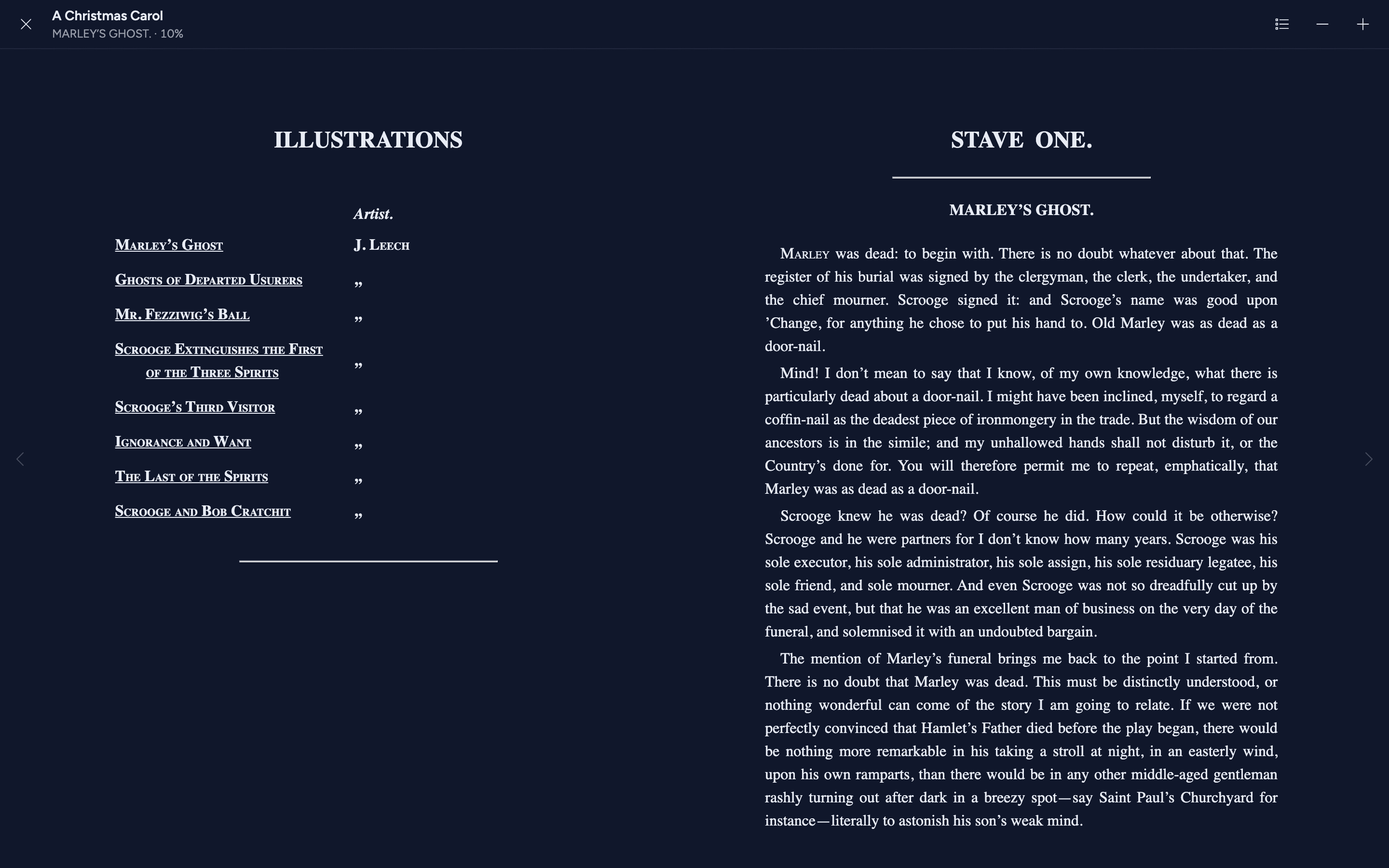
Which books have it
Read the ebook appears on a book's page when your server has the reader and the book has exactly one ebook beside its audio:
- A book that is a folder: one
.epubfile directly in the book's folder, with the audio. If the folder holds two or more.epubfiles, AudioSilo can't tell which one is the book, so it uses none of them and there's no Read the ebook. Keep one, or move the others out of the folder. - A book that is a single audio file: an
.epubwith the same name beside it, such asProject Hail Mary.m4bandProject Hail Mary.epub.
Terry Pratchett/
└── Discworld/
    └── 01 - The Colour of Magic/
        ├── The Colour of Magic.m4b
        └── The Colour of Magic.epub     ← Read the ebook
The ebook must be an EPUB without DRM. A locked (DRM) EPUB still shows the button, but the reader can't open it and says so. Hidden files (names starting with a dot) don't count, and a folder that holds only an ebook and no audio isn't a book in AudioSilo.
Your server notices an ebook at its next library scan, and notices one you remove or rename too. There's nothing to switch on and nothing to re-index: after upgrading the server, its first scan finds the ebooks already in your libraries without re-reading your audiobooks. An admin can press Rescan on the library in the admin console rather than wait. It's the same ebook your Bridge reads when it writes characters and recaps for the book.
Opening the reader
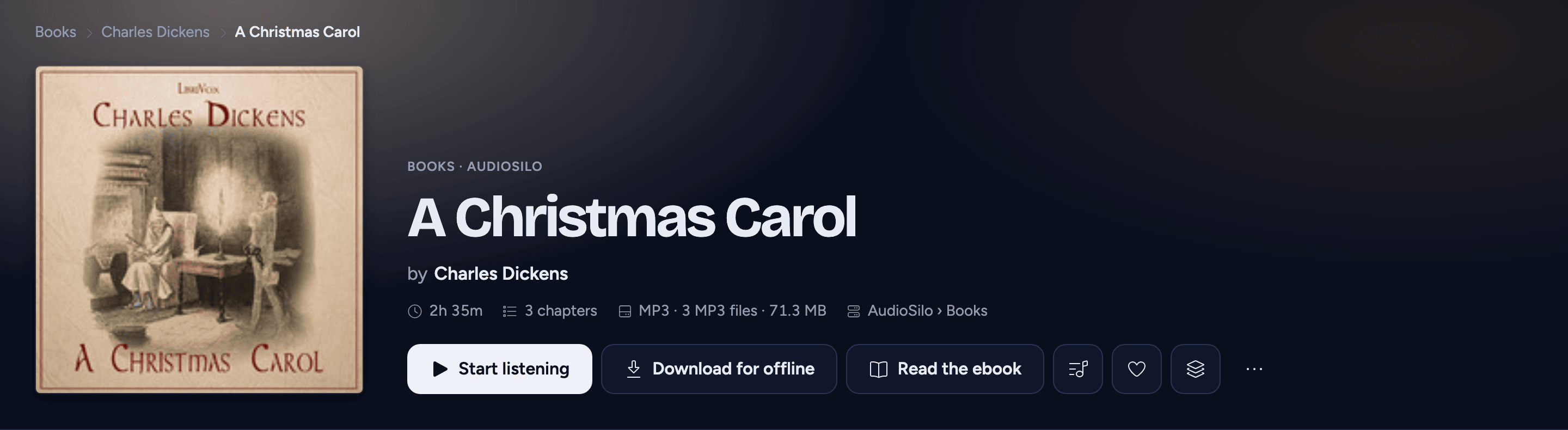
Press Read the ebook on the book's page, next to the download button (on a phone, on a row of its own). The reader fills the window: the book's title at the top, with the chapter you're in and how far through the book you are under it ("Chapter 3 · 12%"), and the text below.
It opens where you left off, on this device or any other. The first time, it opens at the start. A large ebook, or one full of pictures, can take a few seconds to open, and a long chapter a moment to lay out; a spinner shows meanwhile. In the apps, the first time you open a book that isn't downloaded, the app fetches its ebook from your server; after that it keeps a copy on the device, so opening it again is quicker (until the device clears space, or you sign out of that server).
The reader follows the app's light or dark appearance.
Turning pages
- Click or tap the edges of the page: the right edge for the next page, the left edge for the previous one. Each edge shows a faint arrow.
- The arrow keys: → for the next page, ← for the previous one. Once you've clicked into the text, Page Down and Page Up work too.
- Swipe on a touch screen.
On a narrow phone screen the edges shrink to the page's margin, so a tap on the text itself doesn't turn the page.
A book written right to left (in Arabic or Hebrew, for instance) turns the other way: the next page is the left edge and the ← key.
Contents and text size
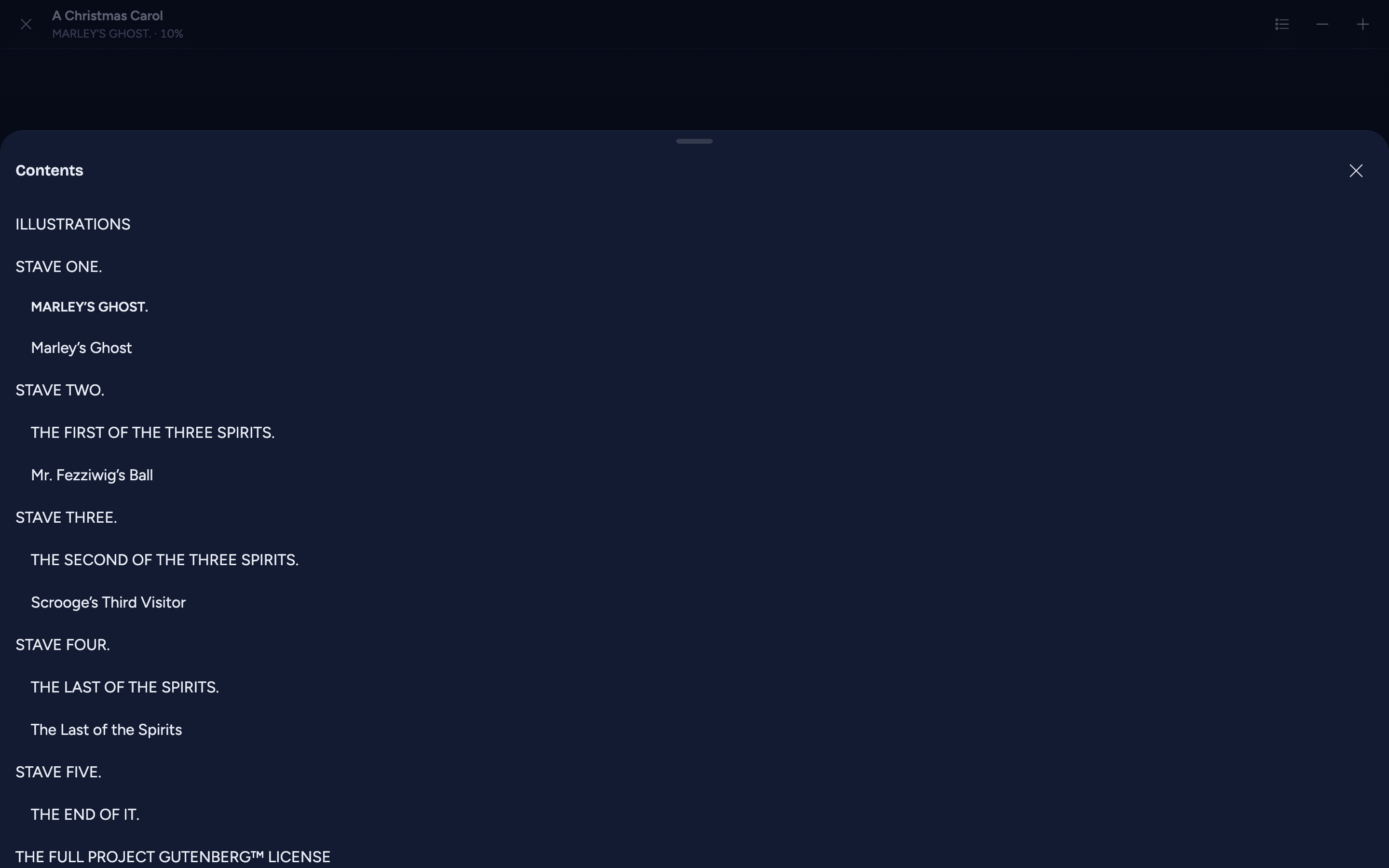
- Contents (the list button at the top right) lists the book's chapters. It opens on the one you're in, shown in bold, so in a long list you don't have to scroll to find your place. Pick one to go there.
- Smaller text and Larger text (the − and + buttons) change the size of the text a step at a time. The size is remembered on this device (in the web player, in this browser), for every book.
Closing the reader
The × at the top left closes the reader and takes you back to where you were, or press Esc in the web player. With the Contents open, Esc closes them first.
Follow the narration
A book can also have a read-along: your server's Bridge lines its ebook up with the narration, sentence by sentence. While such a book is playing, the reader can follow along with the audio.
Following the narration needs a server on version 2.6.0 or later and, on a phone or tablet, version 2.6.0 or later of the app. An admin makes a book's read-along once, with a Bridge; there's nothing for you to switch on.
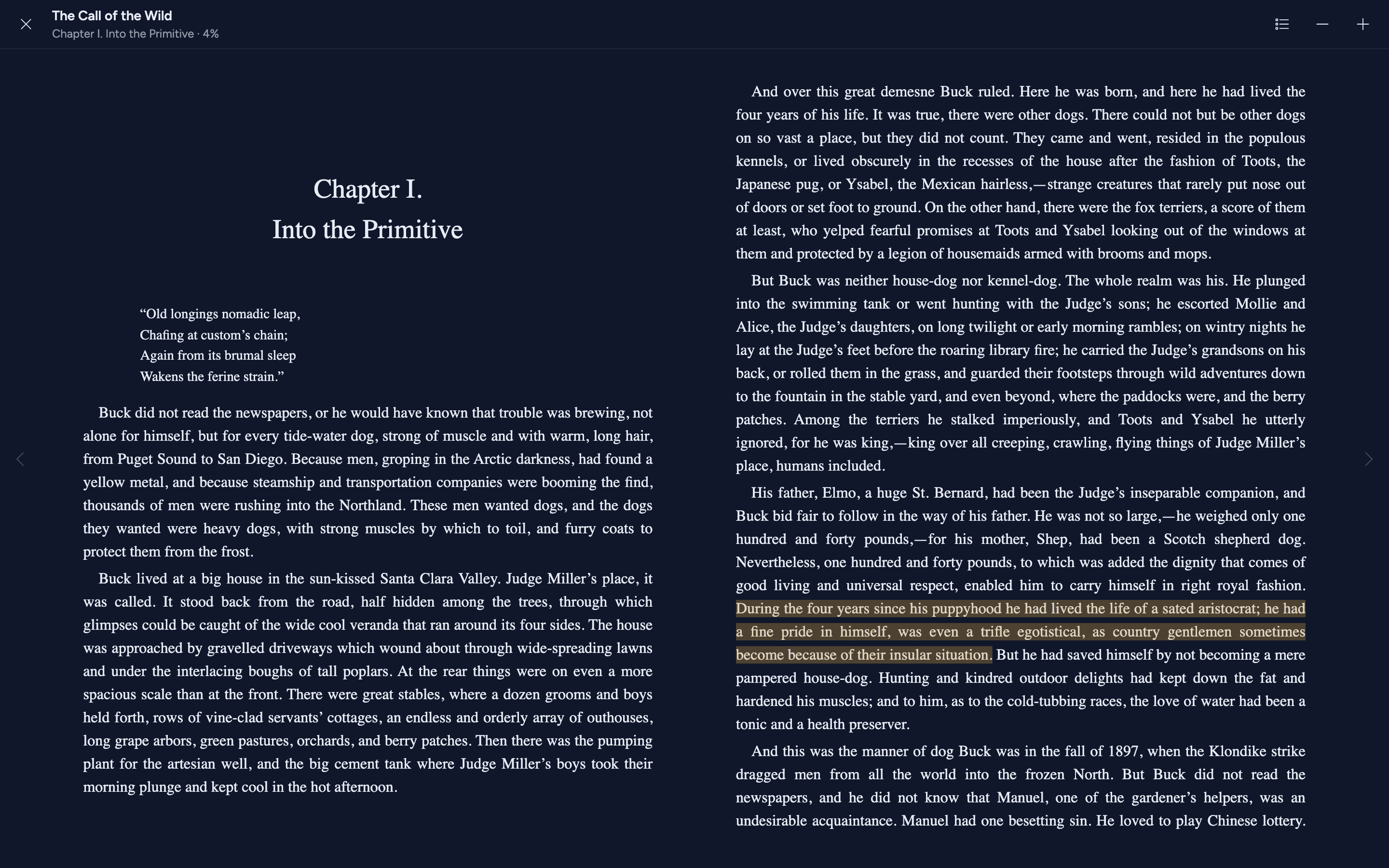
- Start the book playing (or load it in the player and pause), then press Read the ebook. Once the reader has opened the book, a Follow narration button appears at the foot of the page.
- Press Follow narration: the reader turns to the sentence being read and highlights it, and turns the pages by itself as the narration goes on, through the chapters too. Pausing, skipping or changing the speed in the player moves the highlight with it.
- Tap a sentence to move the audiobook to the start of that sentence (it plays on from there if it's playing).
- Turn the page yourself and the reader stops following, so you can look back or ahead in peace; the button then says Back to narration (it sits below the page, never over the last line). A jump in the player (a skip, a chapter, the seek bar) brings it back too.
While the reader follows the narration, it doesn't save your reading place: the narration is turning the pages, not you. As soon as you turn away, the page you're on is saved as usual.
Follow narration shows only while the book is the one in the player, and only when its read-along fits the book: if the ebook or the audio files changed since it was made, the read-along is out of date and you won't see it until an admin makes it again. The same text also follows the narration in the player itself, in the companion's Text tab.
Your place, on every device
The reader saves your place a couple of seconds after you stop on a page, and straight away when you close it or switch to another app or tab. Your server keeps it for your account, so opening the book in another browser, on another computer or in the app on your phone, opens it at the page you reached.
Opening the book doesn't move your place by itself. A phone and a laptop lay the same book out in different pages, so the page the reader opens on can start a little before the place you saved; it's saved only once you turn a page, so opening the book on a smaller screen never moves your place back.
If your server refuses a save, a note at the foot of the page says "Your place wasn't saved to the server. It's kept on this device." When it's because your sign-in to the server ended, the note has Reconnect, and the place is sent once you're signed in again.
Your reading place is separate from your listening place: reading doesn't move where you are in the audiobook, and listening doesn't move where you are in the ebook.
When another device read further
Say you read to 60% on your phone, while your laptop still had the book open at 10%. When the laptop next saves its place, AudioSilo doesn't move your place back to 10%, and it doesn't jump the laptop forward without asking either. Instead a note at the foot of the laptop's page offers the further place:
On Pixel 8 you were at 60%. Jump there?
- Jump goes to that place.
- Stay keeps you where you are. Your next page turn then saves this place, so going back on purpose works.
The note names the other device as your server knows it ("On another device" when it doesn't know the name). It only appears when the other place is somewhere else: if you're already there, nothing is offered.
Reading offline
Download the book to read it with no connection. In the apps and the web player, downloading a book saves its ebook beside the audio, and the reader then opens it from the device, connection or not. A downloaded book shows Read the ebook even while your server can't be reached.
- A download can lack the ebook: it couldn't be saved (the server couldn't send it, say), or an older version of the app or web player made the download. The audio still plays offline, but reading needs a connection, as for a book you haven't downloaded. To read it offline, remove the download and download the book again.
- In the web player, the reader itself is kept for offline use when the player is installed in the browser, so a downloaded book opens offline even if you never opened the reader there while online.
- Once a book is open, you can keep reading if the connection drops, downloaded or not: the whole ebook is already on the device.
Your place is saved on the device while you're offline and sent to your server once the connection is back: as soon as the app notices your server again, or the next time you open the reader. If another device read further in the meantime, you get the Jump there? note above rather than losing either place.
The first time you open a downloaded book offline on a device that has no place saved for it yet, the reader can't ask your server where you got to, so it opens at the start. Reading there doesn't move your place on other devices back: once your server can be reached again (or the next time you open the book online), if your server has a place further along (from another device, or from this one before you signed out), the reader offers Jump there? with Jump and Stay, as above. That's only when your server can't be reached at all: if it's up but too slow to answer, the reader doesn't guess the start (your server may have a place further on), it says Couldn't load the ebook, and Try again asks again.
When an ebook won't open
The reader says what went wrong in plain words, with Close the reader and, where trying again can help, Try again. Your place in the book is kept either way.
In the apps, if your phone stops the reader to free memory (while you're in another app, say), the reader opens the book again by itself at the page you were on.
| What it says | What it means |
|---|---|
| Couldn't load the ebook | The server didn't answer, or the connection dropped while the ebook was loading. It also shows when one part of an open book didn't load ("A part of the book didn't load"). Check the connection and press Try again. To read with no connection, download the book. |
| Sign in again to <your server> | Your sign-in to this server ended (the device was removed in the admin console, say). Press Reconnect to sign in again; your place is kept on this device and sent once you're back. |
| The reader didn't start | In the web player: the reader didn't start in this browser within 30 seconds. A proxy in front of your server that changes its security headers, or an old browser, can stop it. Press Try again, or use another browser (see Troubleshooting). In the apps: the reader didn't start within 30 seconds or kept stopping, usually for lack of memory; press Try again (see Troubleshooting). |
| This ebook is locked | The EPUB is protected with DRM, which AudioSilo can't open. Put a DRM-free EPUB in the book's folder instead. |
| This ebook can't be opened | The file isn't an EPUB AudioSilo can read, or it's damaged. In the apps, an ebook larger than 512 MB can't be opened either. |
| This ebook isn't in the library | The book or its EPUB isn't on the server: it was moved, removed or renamed since the last scan, or the link is wrong. After the next scan the button goes, or comes back if the file did. |
| No ebook for this book | A link opened the reader for a book that has no ebook (or a server without the reader). See Which books have it. |
What the reader doesn't do yet
The reader is deliberately simple for now. It opens EPUB files only (not MOBI, AZW3 or PDF), and it can't search the text or keep highlights and notes in it. It follows the narration only for a book with a read-along. Your bookmarks and notes stay with the audiobook.