Settings
Settings holds every preference the player has, each in exactly one place. On a tablet or computer, open it with the gear at the right-hand end of the top bar (or Settings in your profile menu, or in the web player's quick search). On a phone, it's the Settings section of the Me tab (see Finding You).
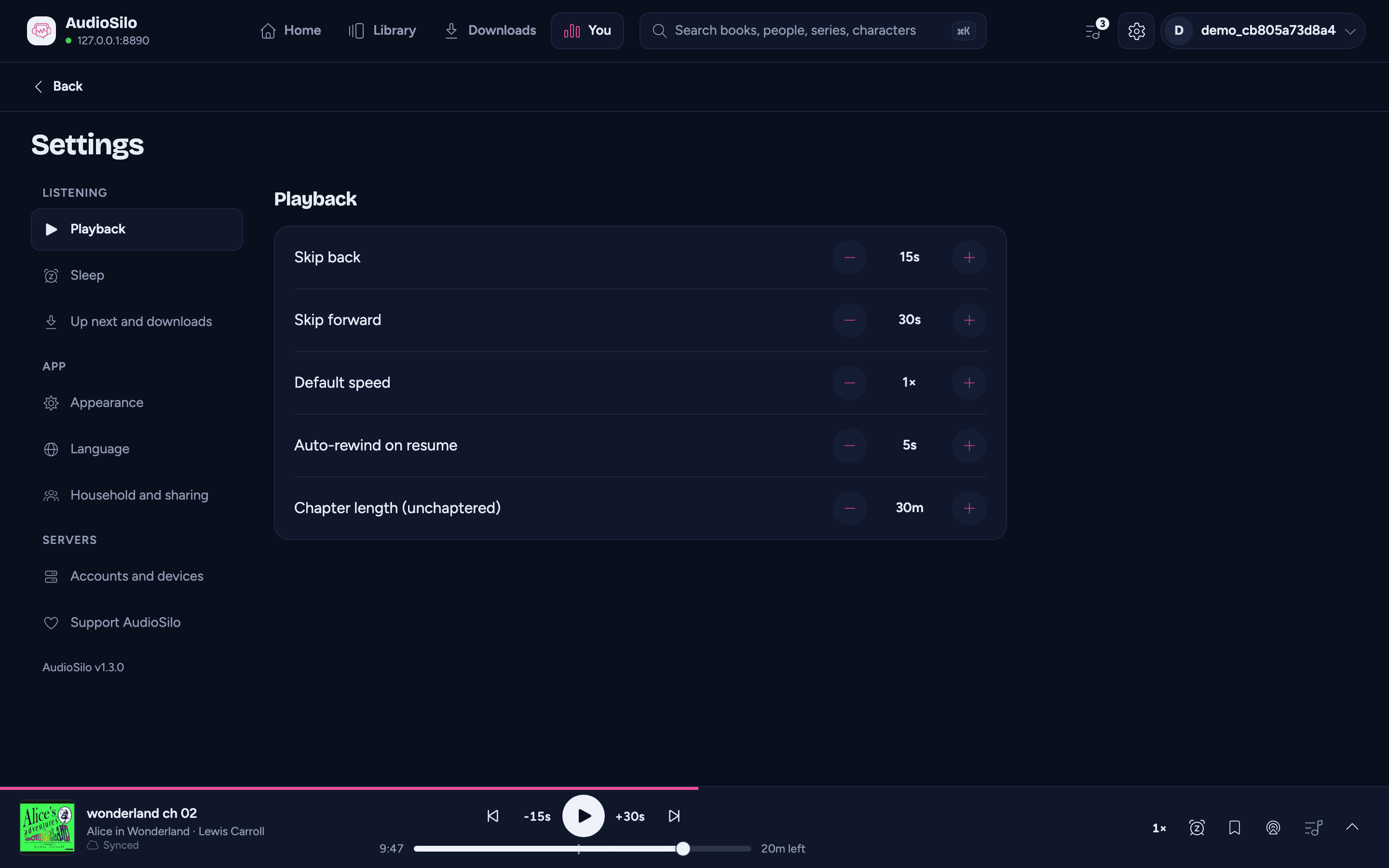
The settings come in three groups:
- Listening: Playback, Sleep and Up next and downloads.
- App: Appearance, Language and Household and sharing.
- Servers: Accounts and devices and, on the web and Android, Support AudioSilo.
On a wide screen the groups and their sections run down the left and one section shows beside them; pick another to switch. On a phone, or a narrow window, every section is on one page, one under the other under its group's name.
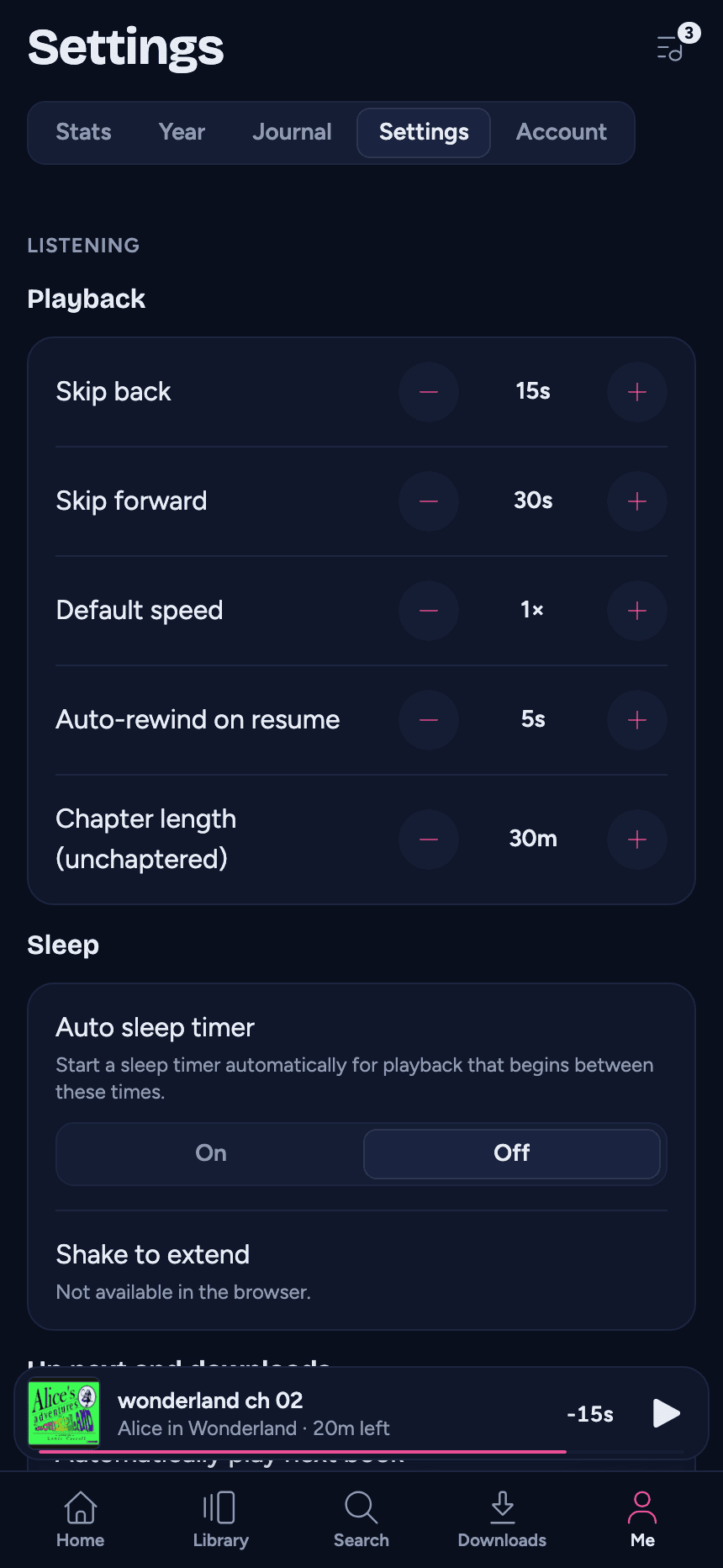
Everything here except your servers is kept per device, so your phone and your computer can differ.
Playback
| Setting | What it does | Range |
|---|---|---|
| Skip back | The jump of the player's back button | 5-120 s (default 15 s) |
| Skip forward | The jump of the forward button | 5-120 s (default 30 s) |
| Default speed | Starting speed for books you haven't played yet (each book then remembers its own) | 0.5×-2× |
| Auto-rewind on resume | How far playback backs up after a pause, so you regain the thread | Off-30 s (default 5 s) |
| Chapter length (unchaptered) | Size of the virtual chapters created for long books with no chapter markers | 5-60 min (default 30 min) |
Each has - and + buttons on either side of its value.
Sleep
Whether AudioSilo should set a sleep timer for you at night, so you don't have to remember, and how a shake of the phone keeps a timer going.
| Setting | What it does | Options (default) |
|---|---|---|
| Auto sleep timer | Start a sleep timer automatically for playback that begins between the hours below | On / Off (default Off) |
| From / Until | The nightly window it applies to, adjustable in 30-minute steps and shown in your device's own clock format | Any times (default 10:00 PM to 6:00 AM) |
| Timer type | What the automatic timer does | End of chapter, or 15 / 30 / 45 / 60 minutes (default End of chapter) |
| Shake to extend | A shake keeps a sleep timer going at its end (Shake to extend); mobile apps only, and the web player says it isn't available in the browser | On / Off (default On) |
| Shake sensitivity | How hard that shake has to be (shown while Shake to extend is on) | Low / Medium / High (default Medium) |
From, Until and Timer type only appear once Auto sleep timer is on. The window may cross midnight, which is the whole point of the default. Setting From and Until to the same time switches it off rather than covering the whole day, and the section says so.
How the automatic timer behaves is under Starting a timer automatically at night.
Up next and downloads
What happens as one book ends and the next begins (see The end of a book), and what AudioSilo downloads for you. (This section is about settings; the queue of books you line up yourself is Up next.) The three download settings also appear on the Downloads page, as its Automatic downloads card - changing one place changes the other.
| Setting | What it does | Options (default) |
|---|---|---|
| Automatically play next book | When a book finishes, start what plays next after a short countdown on the end credits | On / Off (default Off) |
| Download automatically | Download the book you start listening to, so it's ready to hear offline. Streaming begins straight away, and playback switches to the downloaded copy quietly once it's on the device. It leaves the same free space as Keep the next books ready, and skips a book you cancelled or removed earlier in the session | Never / On Wi-Fi / Always (default On Wi-Fi) |
| Keep the next books ready | While you listen, download this many of the next books - from your Up next queue first, then the series - so they're ready offline. Follows the automatic download setting above, and always leaves at least 1 GB free (or a tenth of your storage, if that's more). A line under it says what it's doing. See Keep the next books ready | Off / 1 / 2 / 3 (default Off) |
| Remove a download when you finish the book | Remove a book's downloaded files from the device when it's marked finished, to free up space. Your place in it is kept | On / Off (default On) |
On Wi-Fi skips the automatic download on a known mobile-data connection, so it won't eat your data allowance. In the web player, and when the connection type can't be determined, it goes ahead. You can always download a book by hand on the book's page - see Offline downloads.
Appearance
Light, Dark, or System (follow your device's setting, switching when it does).
- Light is a cool, porcelain-white look with dark ink-blue text.
- Dark is a deep ink-blue look that lets book covers stand out.
Both keep AudioSilo's pink for the few things that matter most on a screen - your progress, what's selected - rather than splashing it everywhere.
Which one you start on:
- A new install starts on System, so AudioSilo matches your phone or computer until you choose otherwise.
- If you were already using AudioSilo before System became the starting point and had never picked a theme, you stay on Dark, so nothing changes under you after an update.
- Once you pick one yourself, that choice is kept.
On a tablet or computer, the profile menu also has a quick switch between light and dark.
Language
The app speaks English, Español, Français, Deutsch, Português, and Italiano. Pick one, or leave it on System to follow your device's language.
Household and sharing
Profiles - everyone in the house with their own place in every book, a kids mode, and sharing - come in a later update. Until then this section says so, and there's nothing to set.
Accounts and devices
The servers this device is signed in to, each with your username and its address. Tap one to open your account on that server: your password, pairing another device, your signed-in devices, API keys and signing out. Add a server connects another one - your home screen, search, and favourites then combine everything (see Connecting and signing in). The bin button beside a server removes it from this device.
Removing a server also deletes that server's downloaded books from this device, plus any listening progress that hasn't synced back yet. The app asks first if the server has downloads on the device. Your other servers are unaffected, and nothing on the server itself is touched. See Offline downloads.
Support AudioSilo
On the web and Android, Support AudioSilo links to GitHub Sponsors - AudioSilo is free and self-hosted, and contributions fund its development. (It doesn't appear in the iOS app.)
The app's version
Settings shows the version of the app you're running, e.g. AudioSilo v1.1.1: under the sections on a wide screen, at the foot of the page on a phone. Handy to mention if you ever report a problem (see Troubleshooting). The version of a server is at the foot of your account page for it.
Things an admin manages - creating accounts, invites, what libraries you can see - aren't in Settings; they live in the server's admin console. See People and invites.