Up next
Up next is your queue: the books you'd like to hear after the one you're on, in the order you want them. It's kept on your server, so the same list follows you to every device you listen on.
Up next needs a recent AudioSilo server. On an older server the Up next buttons don't appear at all, and everything else works as before.
Opening Up next
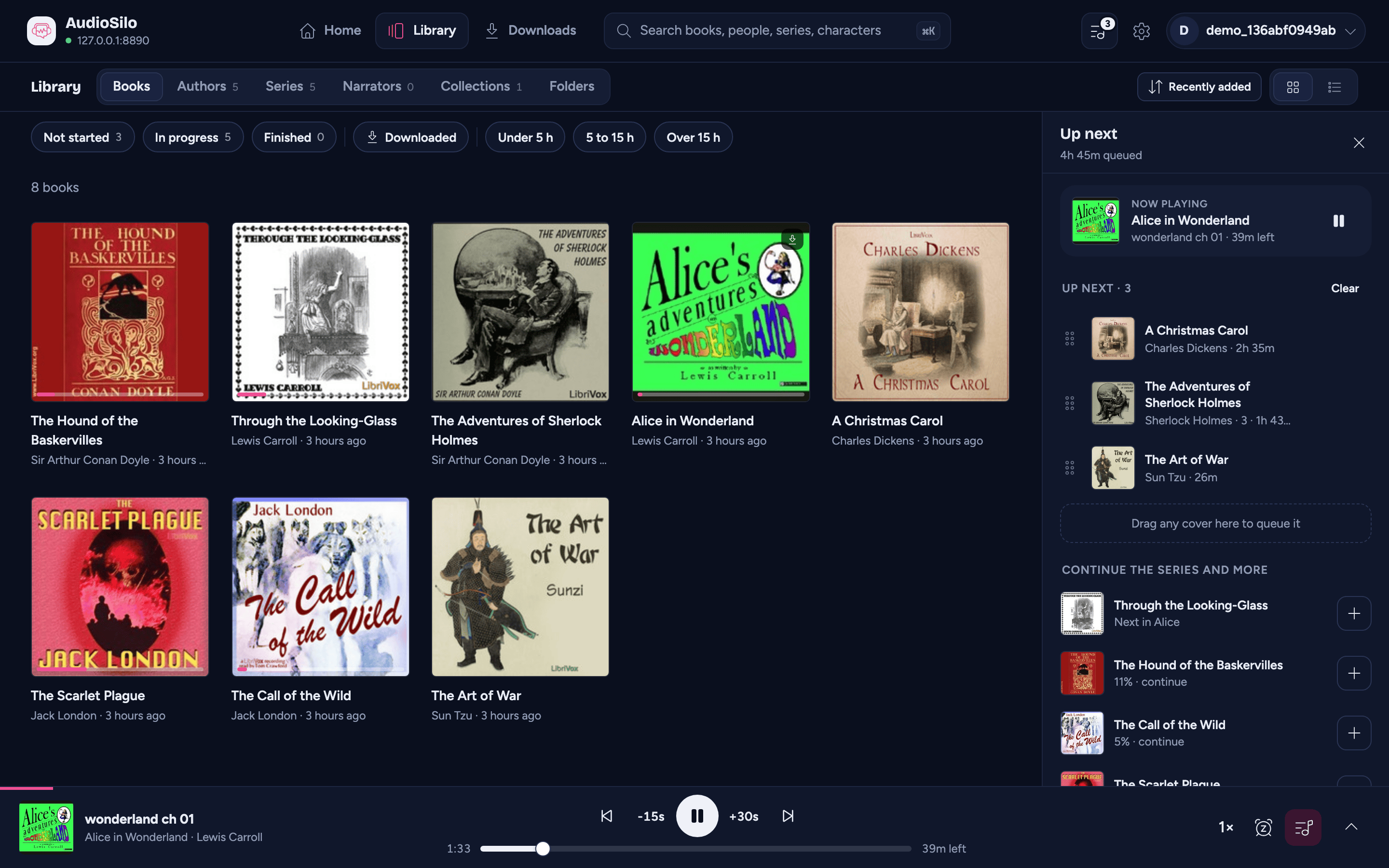
On a computer (or any window 1024 points wide or more, such as a large tablet held sideways), Up next is a drawer down the right-hand side of the window, next to the page you're browsing. It's open to start with. Drag its left edge to make it wider or narrower, or use Hide Up next to tuck it away; AudioSilo remembers both on that device. In the web player, the Q key shows or hides it (as long as you aren't typing in a box).
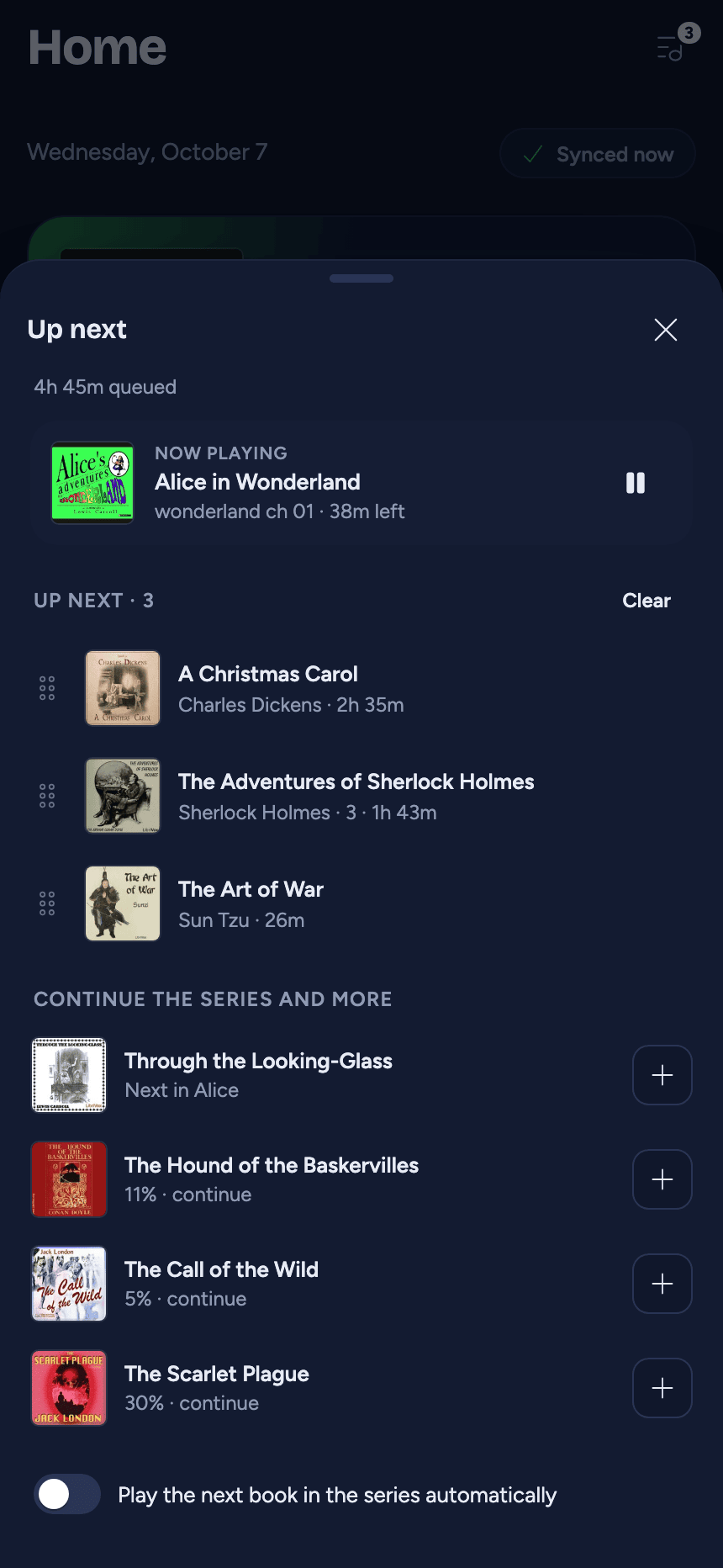
On a tablet or phone, Up next rises from the bottom of the screen as a sheet, over whatever you're looking at.
You can open it from:
- the Up next button in the top bar (tablet and computer), with the number of books queued;
- the Up next button on the player bar along the bottom of the window;
- on a phone, the round Up next button beside the big title at the top of each tab;
- in the web player's quick search, the Open Up next action.
Up next shows one server's queue: the server of the book you're playing, or your main server when nothing is playing. If you're connected to more than one server, the line under the title names it, along with how much listening is queued ("7h 2m queued").
What's in it
- Now playing at the top: the cover, the chapter you're in, and the time left at your speed.
- Your queue, in order. Each book shows how far you are with it (a percentage, or Finished). Tap a book to open its page; its play button plays it now, and its X removes it from the queue. (In the web player those two buttons appear when you point at a book or move to it with the keyboard.)
- Continue the series and more underneath: the next book in the series you're playing, books you're partway through on this server, and, when the community database knows the next book in a series but your server doesn't have it, a pale "ghost" for it with See the series. Tap + to add a suggestion to the queue.
- Play the next book in the series automatically at the bottom. This is the same switch as Automatically play next book in Settings - see When a book finishes.
Adding books
- Open any book's menu (its ... button in a list, or press and hold its cover) and choose Add to Up next (or Remove from Up next if it's already there).
- On a series page, the action under the shelf (and beside each book in the list) reads Queue it for a book you haven't started, and Queued once it's in.
- In Up next itself, tap + beside a suggestion.
- In the web player on a computer, drag any book cover from the page and drop it on the drawer. A dashed area at the end of the queue lights up as you drag. Only books from the queue's own server can go in; for any other, the drawer says which server it's showing.
A short note confirms each change with Undo, in case you tapped the wrong book. If the queue is full, the note says so; remove a book to make room.
Changing the order
- Drag a book by its grip (the handle at its left) to a new place.
- With a keyboard, move to a book's grip and use the up and down arrow keys, or hold Alt (Option on a Mac) and press up or down anywhere on the book's row.
- With a screen reader, each book offers Move up and Move down actions.
Clearing it
Clear empties the queue in one go. A note at the bottom of the screen offers Undo, which puts every book back in its old order.
What Up next doesn't do yet
For now, Up next is a list you keep: it doesn't yet decide what plays when a book ends. When a book finishes, the end credits screen still suggests the next book in the same folder, and Automatically play next book still starts that one. Playing straight on into your queue is coming in a later version.
If you've turned on Keep the next books ready, your queue does matter already: AudioSilo downloads the books at the top of it ahead of time, so they're ready to play with no connection. See Offline downloads.