Upcoming releases
AudioSilo keeps an eye on the series in your library and tells you what's coming in them: books you can preorder, books that came out recently, and the volumes your library is missing. You see them on the home screen, on an Upcoming page of their own, and on each series page, and you can add the release days to your calendar.
The list comes from the community metadata database. Your server checks it once a day for the series your libraries hold (an admin turns the check on or off in Server settings), so the list only covers series you have at least one book of, and never a book you already have.
Coming up in your series on Home
The home screen has a Coming up in your series shelf, right after Next in your series: preorders first, then recent releases, then the books you're missing.
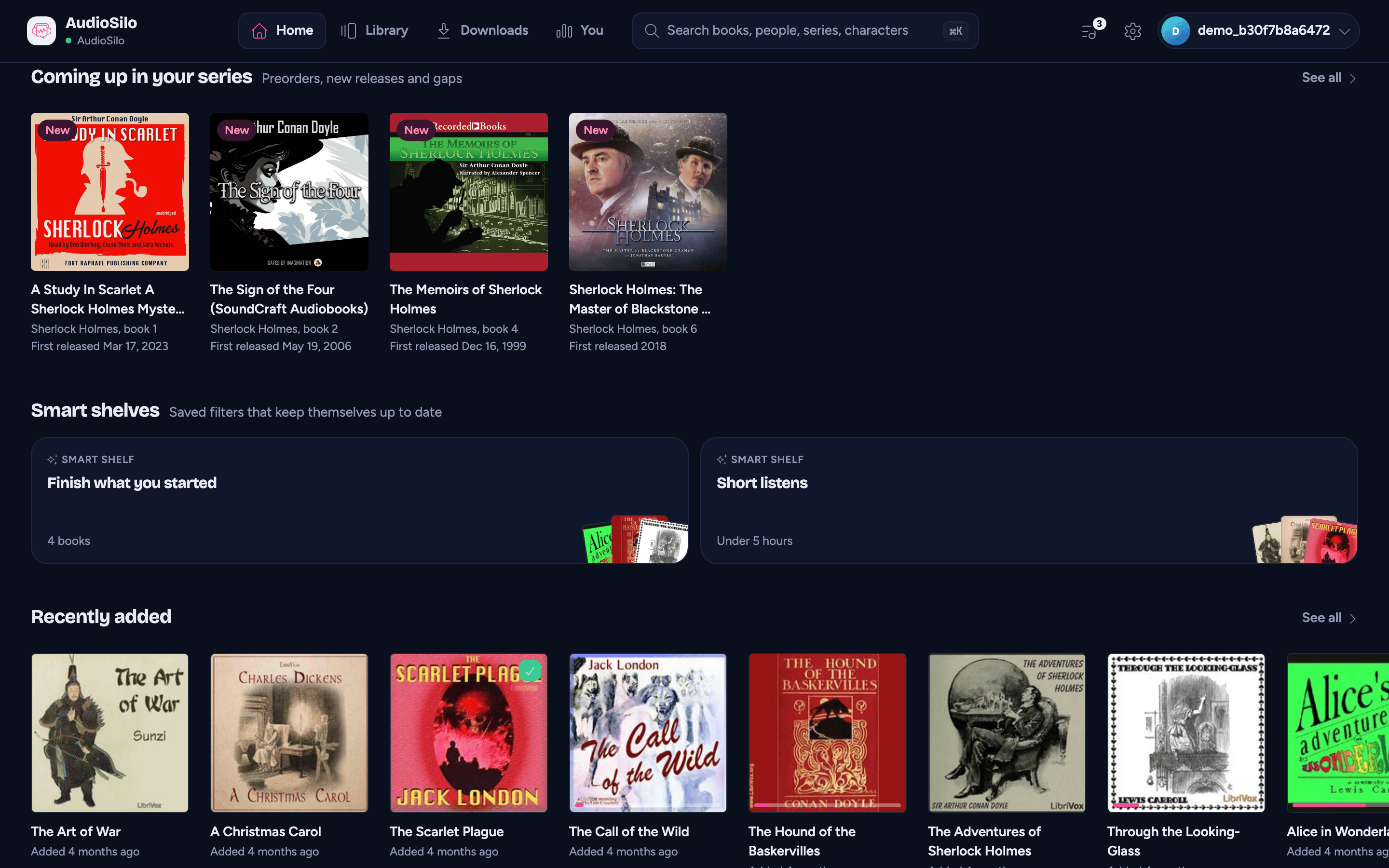
Each book shows its cover from the community database, with its title, the series and its number in it ("Sherlock Holmes, book 4"), and a date line. A book the database has no cover for is a pale "ghost" cover, and so is every book while its cover loads or when it can't be loaded. Tap one to open that series page. See all opens the Upcoming page.
Your server fetches the covers and passes them on, so your device never contacts the sites they come from.
The shelf only appears once there's something in it. While your server hasn't checked yet, or when there's nothing coming up, Home simply doesn't show it.
The Upcoming page
The Upcoming page lists everything, in up to three groups:
- Coming soon - books you can preorder, the soonest first.
- Just released - books that came out recently (in the last 90 days, unless your admin changed it), the newest first.
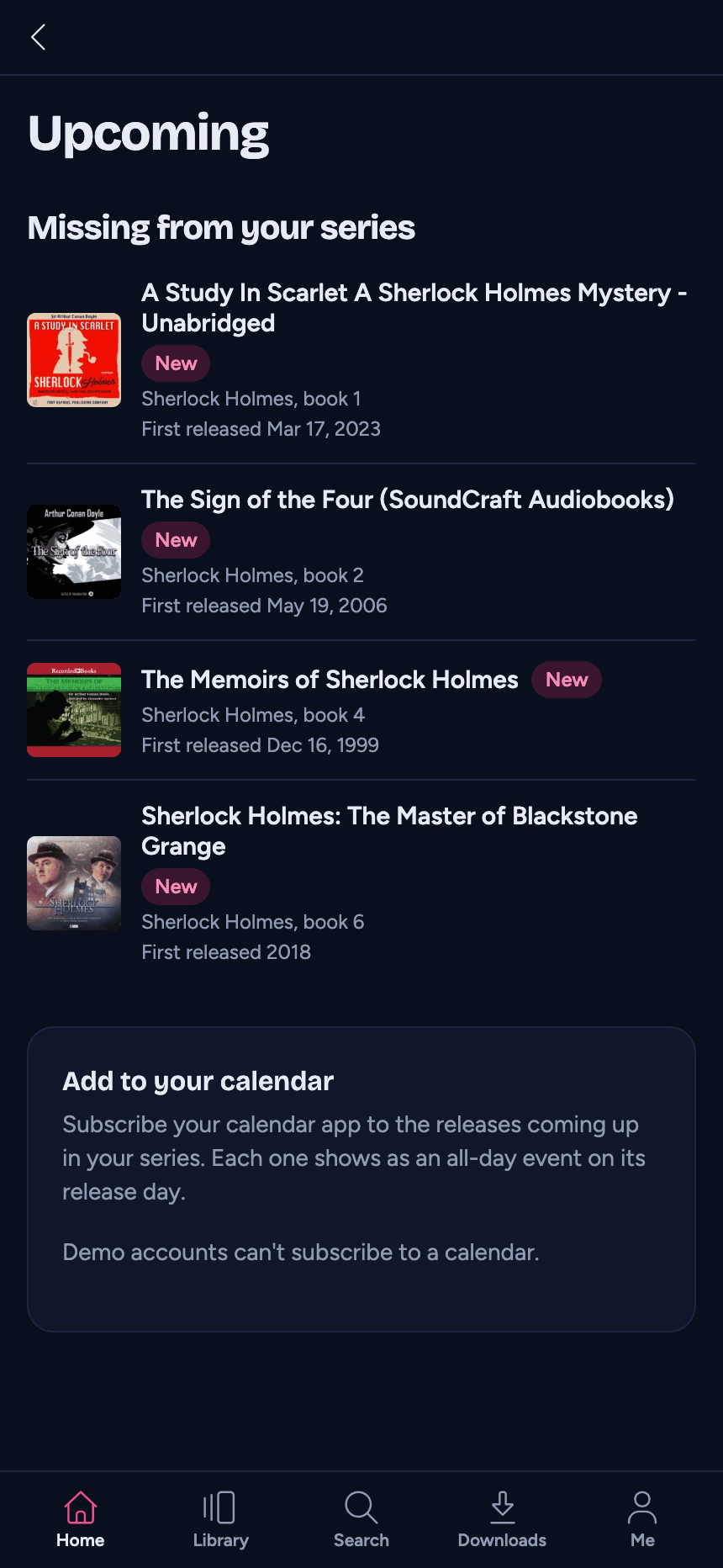
- Missing from your series - books that aren't on your server and aren't preorders: a gap below the latest book you have (you have books 3 and 5, so 4 is missing), or the next book after it.
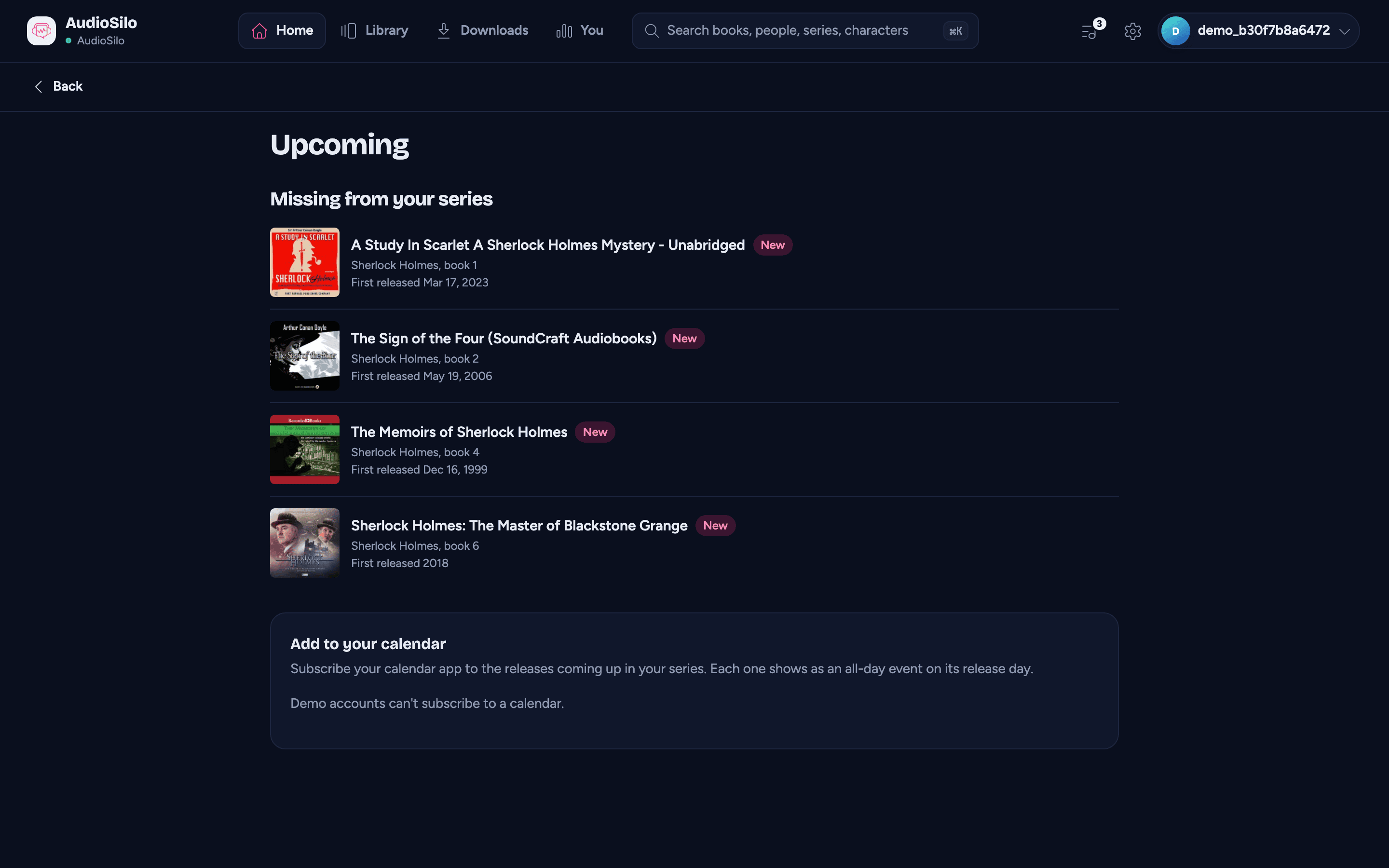
A group with nothing in it doesn't show. Tap a book to open its series page.
To get there:
- See all on Home's Coming up in your series.
- On a phone, the Upcoming section in the Me tab, after Account.
- On a tablet or computer, Upcoming under You in the top bar.
The You section is there whenever your server offers upcoming releases, so you can find the page even while Home has nothing to show.
What the dates mean
Each book shows one date, at the detail the community database knows (a day, a month or just a year):
| You see | It means |
|---|---|
| Out Nov 12, 2026 | A preorder: the book comes out on that day. |
| Released Oct 2026 | It came out recently: in October 2026. |
| First released 2014 | A missing book: when it first came out. |
Dates are written the way the app's language writes them: in English "Nov 12, 2026", in German "12. Nov. 2026".
The date is the book's first release anywhere: the earliest of every recording and store the community database lists for it. That's when the earliest audiobook it knows of came out, so a classic whose only listed recordings are recent shows a recent date, and your local store may get a new book a little later than the date says. A book with no known date has no date line.
New
A small New badge marks a book your server first listed in the last seven days, so you can see at a glance what turned up since you last looked.
Several servers
If you're connected to more than one server, the shelf and the page combine all of them. A book shows once, even when two of your servers both lack it. One listed by a server other than your main one says which ("From Maya's Shelf"), and tapping a book opens the series page on the server that listed it.
When the page is empty
- Checking for releases - your server hasn't finished its first check yet. The list fills once it has (the first check runs soon after an admin turns it on, or about an hour after the server starts).
- Nothing coming up - your server has checked, and there's nothing new or missing in the series you have.
- No upcoming releases here - none of your servers lists upcoming releases (see below).
- Couldn't load upcoming releases - your server didn't answer. Nothing is lost: Retry asks again. If one of several servers didn't answer, a note above the list says so and the rest still shows.
A note above the list also says when a server is still running its first check while others have answered, or when one hasn't checked in over two days (the list may be out of date).
Add to your calendar
Under the list, the Add to your calendar card gives you a private link that your calendar app subscribes to. Each book coming out shows in your calendar as an all-day event on its release day, and the calendar keeps itself up to date: a book whose date moves moves with it, and one you add to your library drops out.
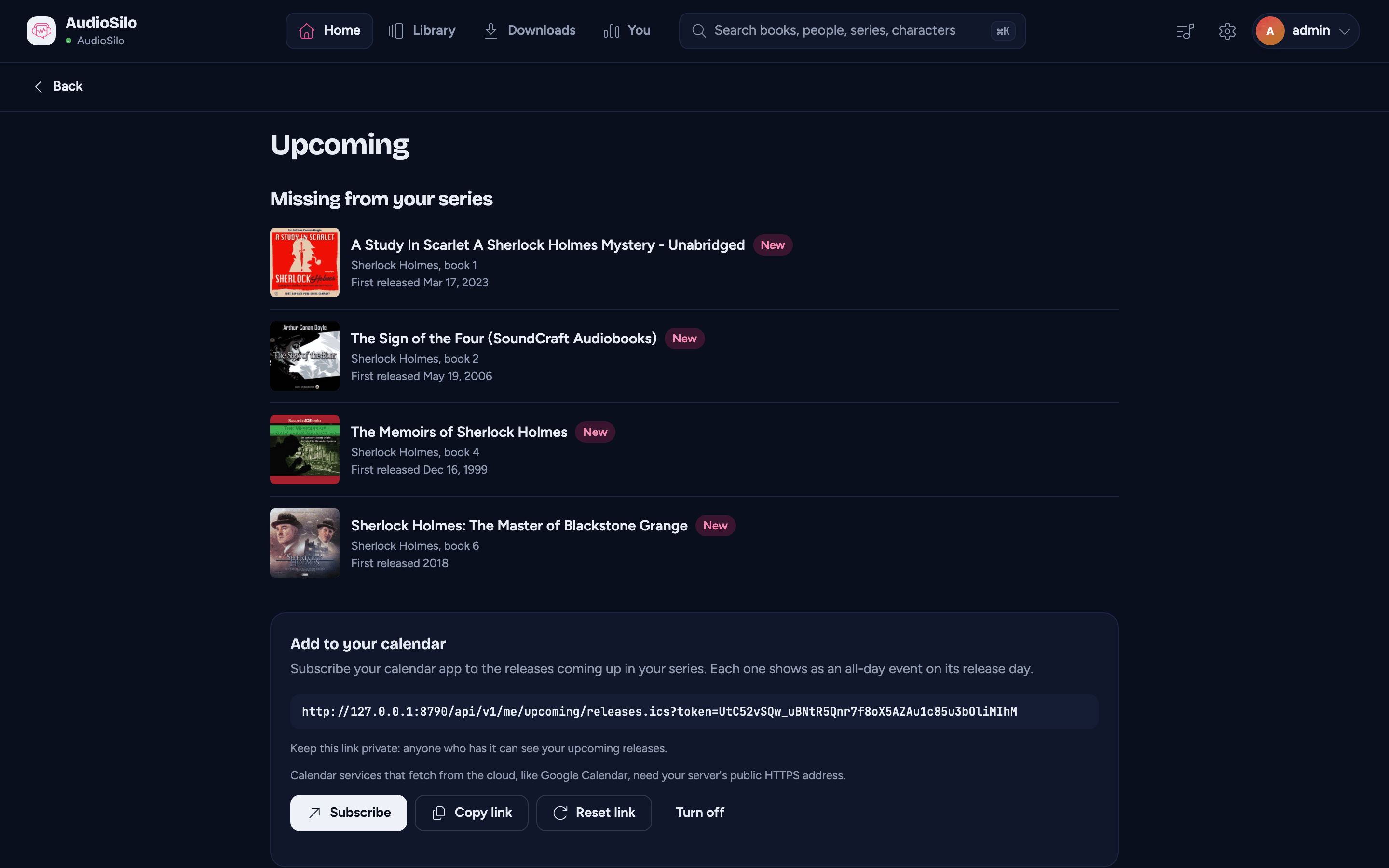
Press Get calendar link. The card shows the link, and the buttons to use it:
- Subscribe (on an iPhone, iPad or Mac) hands the link to the Calendar app, which asks you to confirm the subscription.
- Copy link puts it on the clipboard, to paste into any calendar app.
With several servers, the card has a row for each server that offers it, each with its own link.
The calendar has a book only when it has a release day: books you can preorder and books that came out recently, with the exact day known. Missing volumes (most came out years ago) and books with only a month or a year to go on are left out. Each event is named like "Leviathan Falls (The Expanse #9)", its notes say who wrote it, when it first came out and where its page is on the community database, and it shows as free time, so it never blocks your day.
Subscribing in your calendar app
- Apple Calendar (iPhone, iPad, Mac): press Subscribe. Or copy the link and add it yourself: on a Mac, File > New Calendar Subscription in Calendar; on an iPhone or iPad, Settings > Apps > Calendar > Calendar Accounts > Add Account > Other > Add Subscribed Calendar.
- Google Calendar: copy the link, then on a computer open calendar.google.com, press + beside Other calendars, choose From URL, paste the link and press Add calendar. It then shows on your phone's Google Calendar too (the Android app can't add a calendar by its link itself).
- Outlook and others: copy the link and look for Subscribe from web, Add calendar from URL or Add by URL.
Calendar apps check the link again by themselves. AudioSilo asks for every 12 hours, but each app decides how often it really does (Google Calendar can take a day or more), so a new release can take a while to appear.
Some calendars fetch the link from their own servers on the internet, not from your device: Google Calendar, Outlook on the web, and an Apple Calendar subscription kept in iCloud. They can only reach a server with a public HTTPS address and a trusted certificate (like https://books.example.com, see Remote access). A home-only address, or one with the server's own self-signed certificate, works only in a calendar app that fetches the link itself, on a device that can reach your server and trusts its certificate (on a Mac, choose On My Mac rather than iCloud as the subscription's location).
The link uses your server's public address when your admin has set one (Tell the server its public address), so it works from anywhere even when you made it at home. Without one it uses the address you're connected at.
Keep the link private
Anyone who has the link can see your upcoming releases (only those, nothing else on your server), so don't share it. The server shows it only when it's made: your device keeps its own copy, as it keeps your sign-in, and forgets it when you sign out of that server. If you made the link on another device (or signed out since), the card says A link is active. Reset it to see it here.
- Reset link makes a new link and stops the old one. Every calendar subscribed to the old link stops updating until you subscribe again with the new one, so reset when you think the link got out, or to see it on this device.
- Turn off stops the link. A calendar subscribed to it stops updating (most calendar apps keep the events they already have until you remove the subscription).
Both ask you to confirm first. Changing your password doesn't change the link.
Who can subscribe
The card shows on the Upcoming page and in the You section's Upcoming, wherever your server offers a calendar. A kid's account never sees it, and a link made before an account became a kid's stops working. The demo shows the card but can't make a link: "Demo accounts can't subscribe to a calendar."
If your admin switches off Check for upcoming releases or the community metadata lookup, a subscribed calendar stops updating until it's back on.
On series pages
A series page shows the books you don't have as pale "ghost" spines. A ghost that isn't out yet says when it will be: Out Nov 12, 2026 in the list (instead of Not in your library), and "Out Nov 12, 2026. Not on your servers yet." under the shelf when you pick it. A ghost that's already out shows the year it first came out.
The dates come from the community database, so they show whenever your server's lookup is on, even if the daily check for upcoming releases is off.
When you don't see it
The shelf, the Upcoming page and the You section don't appear when none of your servers lists upcoming releases:
- the server runs an older version of AudioSilo (upcoming releases arrived in 2.6.0),
- the server's community metadata lookup is off, or
- an admin switched off Check for upcoming releases in Server settings.
A kid's account never sees upcoming releases (see Kids mode). The demo shows them like any other account.
Your server asks the community database only about series and books, never about who's listening.