Listen on your Wear OS watch
The AudioSilo watch app plays books downloaded to your Wear OS watch, with no phone needed. It sends what you heard back to your server when it next has a connection, so your other devices pick up the same place.
The watch is a device of its own, with its own sign-in and its own copy of each book. Your Android phone only signs it in and sends it books.
The Wear OS app has been tested on the Wear OS emulator, not yet on a real watch. Battery saving, Bluetooth headphones and download speeds may behave differently on your watch.
What you need
- An Android phone with the AudioSilo app 2.7.0 or later, paired to a watch on Wear OS 3 or later.
- A server on 2.6 or later with ffmpeg, which makes the watch's smaller copy of each book. See Server > Transcoding.
- Headphones, or the watch speaker (see Playing a book).
What it doesn't do
- No library browsing. The watch lists only your Continue listening books and the books you send it.
- No podcasts, only books.
- One account. A watch signs in to one account on one server.
- One watch per phone. With two watches paired, the phone works with the one that last reported to it.
- No kids accounts or demo.
- Bookmarks, notes, the ebook and casting stay on your other devices.
- English only for now.
Setting it up
-
On your phone, open your account page for the server.
-
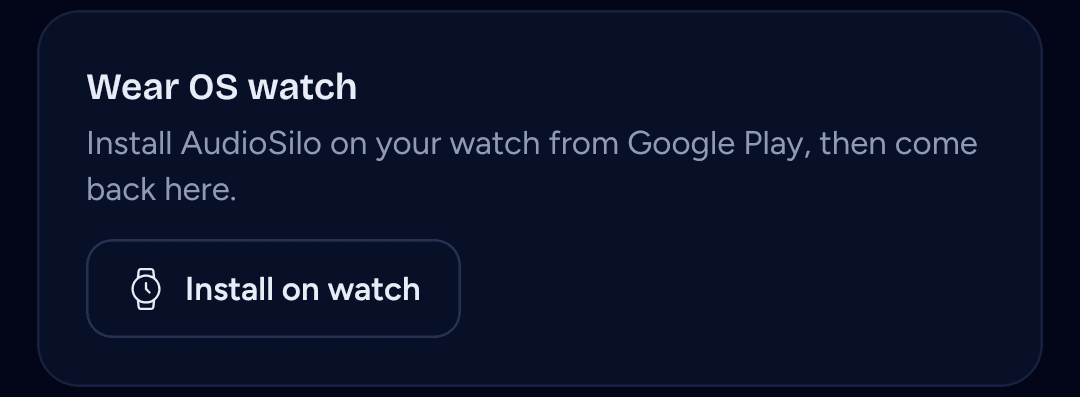
On the Wear OS watch card, tap Install on watch. Google Play opens on your watch at AudioSilo. Install it there.
-
Back on the card, tap Set up your watch.
-
Keep the watch close. It signs in by itself, with nothing to type and no need to open the app.
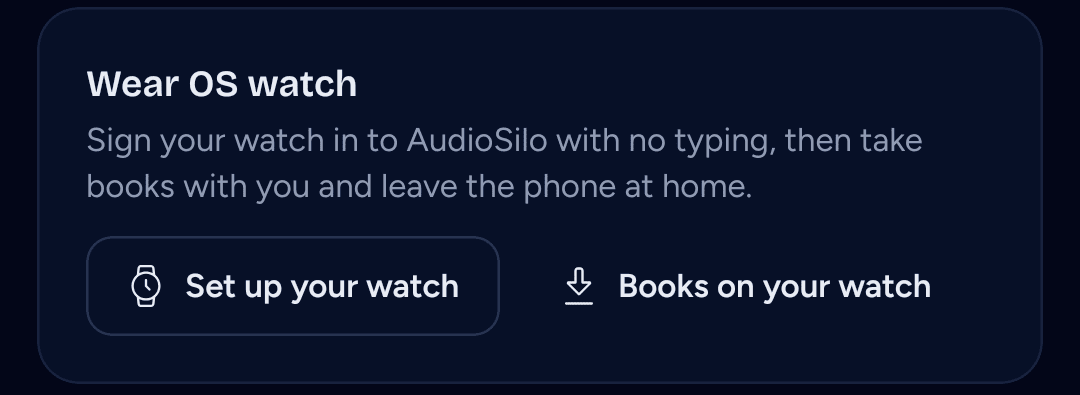
You can also install AudioSilo from Google Play on the watch itself. The card then offers Set up your watch straight away.
The sign-in works once, for 10 minutes. If it runs out, tap Send again on the card.
Until it is signed in, the watch asks you to set it up from your phone. If your phone doesn't have AudioSilo, tap Get AudioSilo on your phone on the watch.

After the first sign-in, a watch on Wear OS 4 or later asks whether AudioSilo may show notifications. Allow it to see how a download is going.
Once signed in, the card shows the account and how syncing is going. Books on your watch opens them in Downloads on your phone. The watch also shows under Signed-in devices as a Wear OS device.
Choosing books
On the watch: Continue listening
Continue listening, on the watch's home screen, lists up to 10 books you've started. Tap one to download it. On this watch lists the books already downloaded.

From your phone: Send to watch
On your phone, open a book's book menu, or More on its book page, and tap Send to watch. If the watch isn't signed in to this account yet, the phone signs it in first.
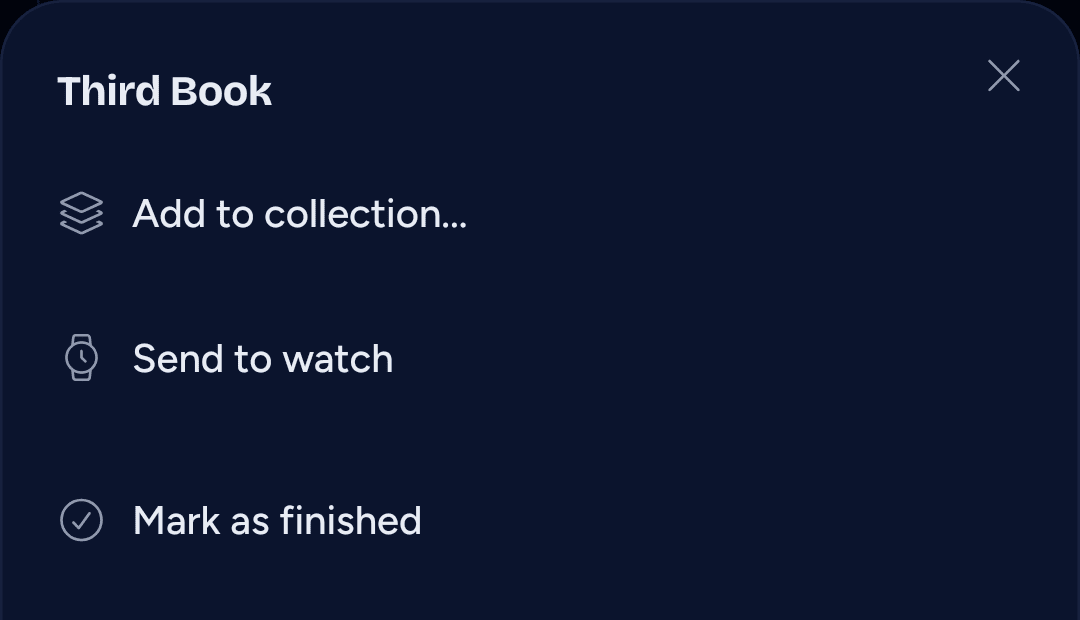
You don't need to open AudioSilo on the watch. The watch takes the book and starts the download in the background.
If the watch isn't ready for the book yet (still signing in, or on another account), it holds the book for up to 7 days and starts it once it can.
How a download goes
On the way, on the watch's home screen, shows each book coming and how far it has got. The server first prepares the watch's copy, about 430 MB for a 20-hour book. That can take a while for a long book the first time. You can put the watch down while it works. When it's done, the book moves to On this watch.

While a book downloads, a notification on the watch says Getting (the book) ready.
The watch downloads over Wi-Fi. If it finds no Wi-Fi within 30 seconds, the row says Waiting for Wi-Fi and offers Use the phone's connection (slow) for that book. That goes through your phone over Bluetooth, which can be much slower for a large book.

Wear OS can hold background work back to save battery. If a book stays waiting, open AudioSilo on the watch. If it says Couldn't download, tap Try again on its Continue listening row, or send it again from your phone.
In Downloads on your phone
The Downloads page on your phone has an On your watch section. It lists every book you sent and every book the watch holds.
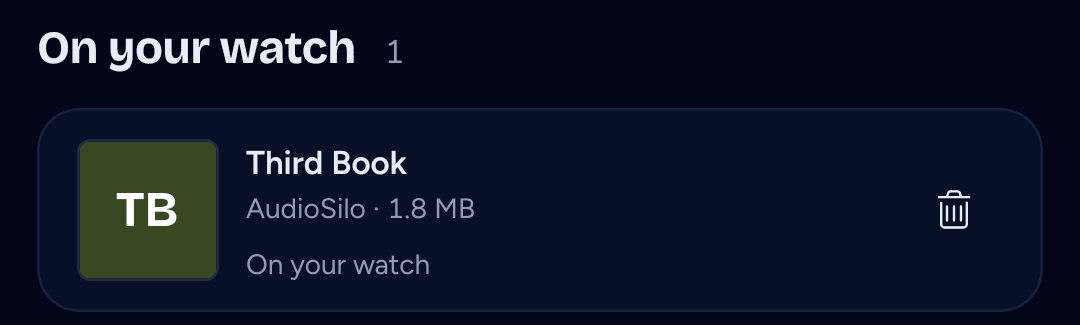
Each row says how far the book has got: sent, delivered to your watch, waiting on your watch, preparing on the server, downloading, then on your watch. A row can lag behind the watch's own screen. If your watch hasn't taken a book in 7 days, tap Send again.
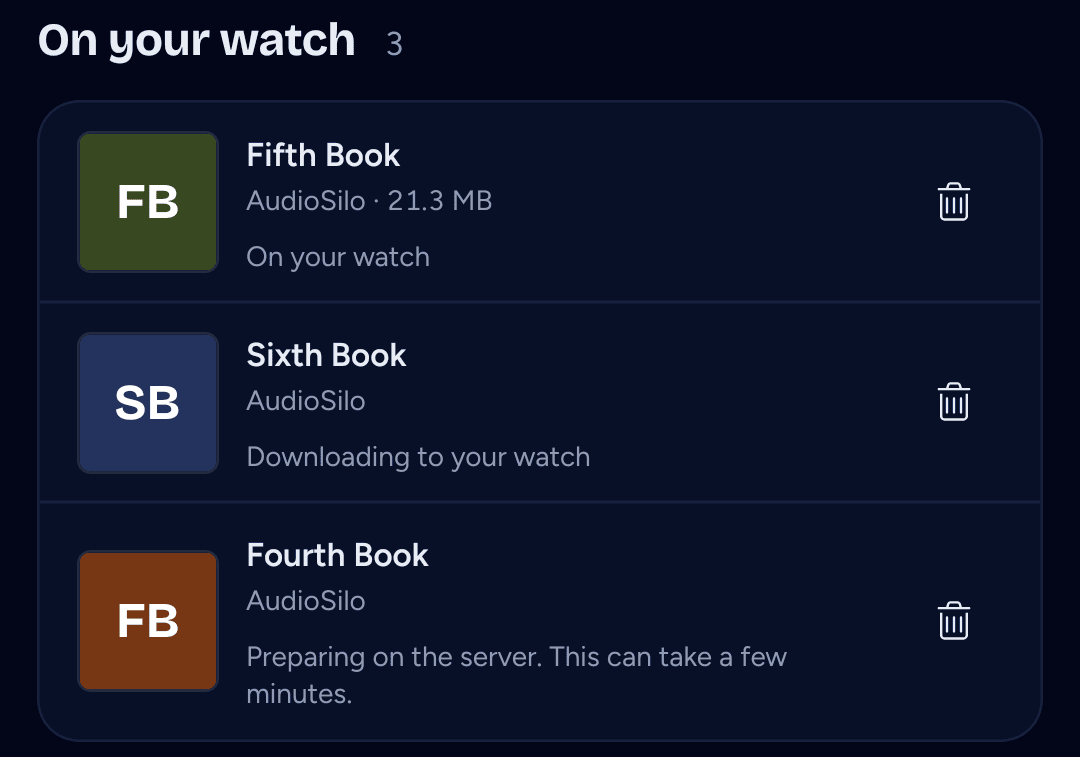
To take a book off the watch from your phone, tap Remove on its row. If the book is playing on the watch, it stops. Your place in the book is kept.
Storage
The watch needs room for the book plus 200 MB spare. If there isn't room, the download stops, and the book's row in On this watch says how much space it needs.
Books stay on the watch until you remove them, even finished ones. To remove one:
- On the watch, open On this watch.
- Tap Remove under the book.
- Tap the tick to confirm.
The book leaves On this watch. Or remove it from your phone. What you heard still syncs.

Playing a book
Tap a downloaded book in Continue listening or On this watch. The book's name at the top of the home screen comes back to it.

You get back 15 seconds, forward 30 seconds, chapters, Speed (0.8x to 2x) and a Sleep timer. The book keeps playing after you leave the app, and the watch shows it as an ongoing activity so you can get back to it.
At any speed other than 1x, a small line under the progress says how long the chapter will really take, such as "27s left at 1.5x".

Before it plays, the watch asks your server for your place if it can. If another device is somewhere else in the book, it offers Jump there or Stay here. See Listening on more than one device.
The watch speaker
With no headphones connected, AudioSilo asks once whether to play on the watch speaker. Play on speaker plays there from then on. Choose headphones opens the watch's audio output settings so you can connect a pair.

AudioSilo pauses the book when your headphones disconnect.
A run without your phone
- Before you go, with the watch online, download the book and check it's in On this watch.
- Leave the phone. Connect your headphones and play. No connection is needed.
- Come back. The watch sends what you heard to your server, with the times you heard it.
Listening is sent when you open the app, and about once a minute while it's open. With the app closed, the watch sends it in the background when Wear OS allows, which may take a while. Opening the app is the sure way.
Sync status
Sync, on the watch's home screen, shows the last sync and how many updates are waiting. Sync now sends them. Below that, it lists anything the server turned down, then the server's name, address and version.

Your phone's card shows a short version of the same.
If the server is too old
If the server is older than 2.6 or has no ffmpeg, the watch says so instead of showing its home screen. Fix the server, then tap Try again.

At home and away
The watch uses home and away addresses, like the iOS and Android apps (see At home and away). The address in use is under Server on Sync.
A self-signed server
The watch can't accept a self-signed certificate. So, as on your phone:
- At home, it uses the server's plain HTTP at home. Set the watch up on the same network as the server.
- Away from home, it needs an address with a trusted certificate. See Reach your server from outside your home.
Without a trusted away address, the watch still plays its books anywhere, but syncs only at home.
Signing out and switching accounts
Sign out on the watch's home screen removes the account and its books from the watch. If listening hasn't synced yet, it asks you to sync first, or to discard it.

To switch accounts, tap Set up your watch on the other account's card on your phone. If the watch has no listening waiting to sync, it switches at once. If it has, it asks first: sync, then Switch, or Discard and switch, or Keep this account. Switching removes the old account's books from the watch.

Signing out on your phone leaves the watch signed in. To cut off a lost watch, tap Sign out on its row under Signed-in devices.
Install both apps from the same place
A watch and a phone only talk to each other when both apps come from Google Play, or both from GitHub. Each app release on GitHub has a watch APK, like AudioSilo-wear-2.7.0.apk, beside the phone's.
Installing it on a watch needs a computer with adb.